Checkboxes in Excel: forms, to-do lists and automatic counts
In Microsoft 365, select the cells and go to Insert › Controls › Checkbox. Each cell shows a checkbox whose value is TRUE (checked) or FALSE (unchecked); toggle it with a click or the Spacebar. Count checked items with =COUNTIF(A2:A9,TRUE) and strike through finished rows with conditional formatting and the formula =$A2=TRUE.
You keep your month-end checklist in Excel and mark things done by typing “yes”, “ok”, an X or coloring the cell green. That works until you want to know how many are left: everyone marks things their own way and no formula understands “ok done”.
Checkboxes fix that. They're like the boxes on a paper form, but each one stores a value Excel understands: TRUE when checked and FALSE when not. With that value you can count, calculate percentages and change how a row looks without touching anything by hand.
In this guide you'll build a to-do list with checkboxes, count what's done, calculate the percent complete, strike through finished tasks automatically and set up an inspection checklist that tells you on its own whether it passed.
What you'll learn
- Insert checkboxes in cells with Insert › Controls › Checkbox
- Check and uncheck with the mouse or the Spacebar
- Count checked items with COUNTIF and calculate the percent complete
- Strike through or gray out finished rows with conditional formatting
- Remove checkboxes, and what to do if your Excel has no Checkbox button
Step by step
Set up the list and leave an empty column for the checkboxes
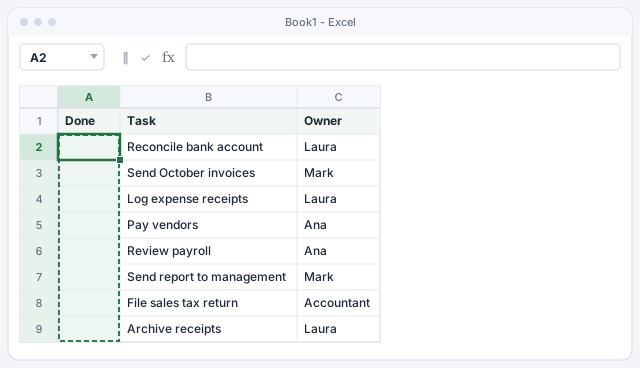
Type your tasks in column B and the owner in column C. Leave column A, headed Done, completely empty: the checkboxes go there. Putting them on the left makes them the first thing you see, like on a paper checklist.
In the example, eight month-end tasks in B2:B9.
Insert the checkboxes with Insert › Controls › Checkbox
Select A2:A9 and go to Insert › Controls › Checkbox. An unchecked box appears in every selected cell. It isn't a floating drawing: the checkbox is the cell itself, so it copies, sorts, filters and fills down like any other data.
Select the cell and the formula bar shows its value: FALSE while it's unchecked.
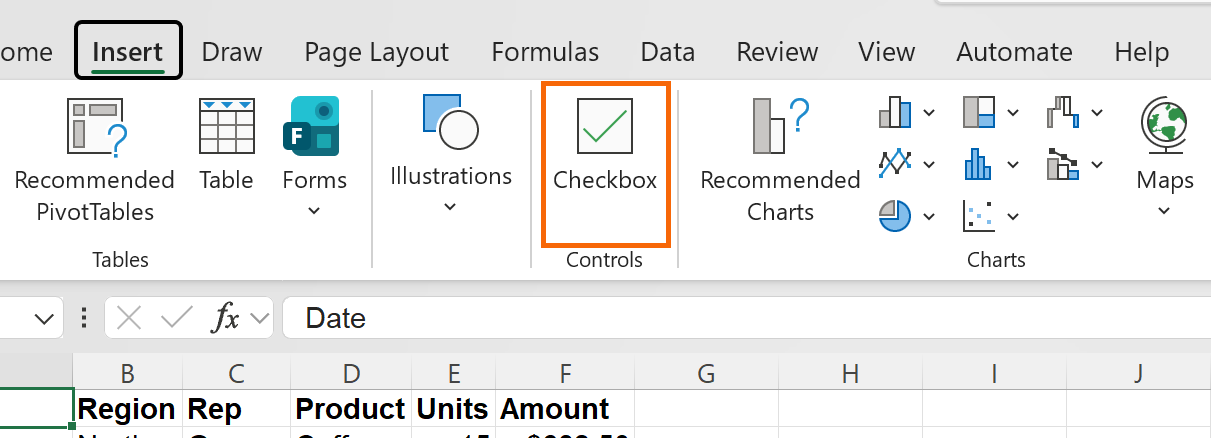
The Checkbox button is only in Microsoft 365. If you don't see it on the Insert tab, jump to the last step of this guide.
Check with a click or the Spacebar
Click a checkbox to check it and click again to uncheck it. From the keyboard, select the cell and press the Spacebar. If you select several checkboxes and press the Spacebar, they all toggle at once.
Once checked, the cell's value becomes TRUE. That value is what the formulas in the next steps use.
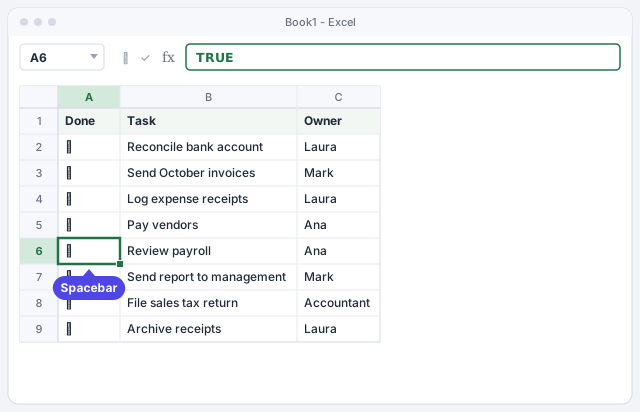
You can also type TRUE or FALSE in a checkbox cell: the box checks or unchecks to match.
Count what's done and calculate the percent complete
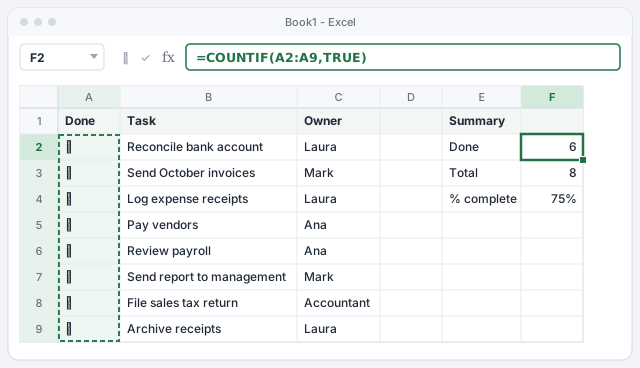
Add a small summary in columns E and F. In F2, =COUNTIF(A2:A9,TRUE) counts the checked boxes: 6. In F3, =COUNTA(B2:B9) counts the tasks: 8. In F4, =F2/F3 gives the percent complete. Format it with Home › Number › Percent Style and you'll see 75%.
For pending tasks, change the criterion: =COUNTIF(A2:A9,FALSE) returns 2. Note that TRUE has no quotes: it's a logical value, not text.
Counts the checked boxes.
Counts the tasks in the list.
Percent complete; format it as a percentage.
Strike through and gray out finished rows
Select A2:C9 and go to Home › Conditional Formatting › New Rule.... Choose Use a formula to determine which cells to format and type =$A2=TRUE. Click Format... and, on the Font tab, check Strikethrough and pick a gray color. Click OK twice.
The $ before the A locks the column: every cell in the row looks at its own checkbox in column A. Now, each time you check a task, the whole row strikes itself through. To really understand the $, see conditional formatting with formulas.
Rule for A2:C9: true when that row's checkbox is checked.
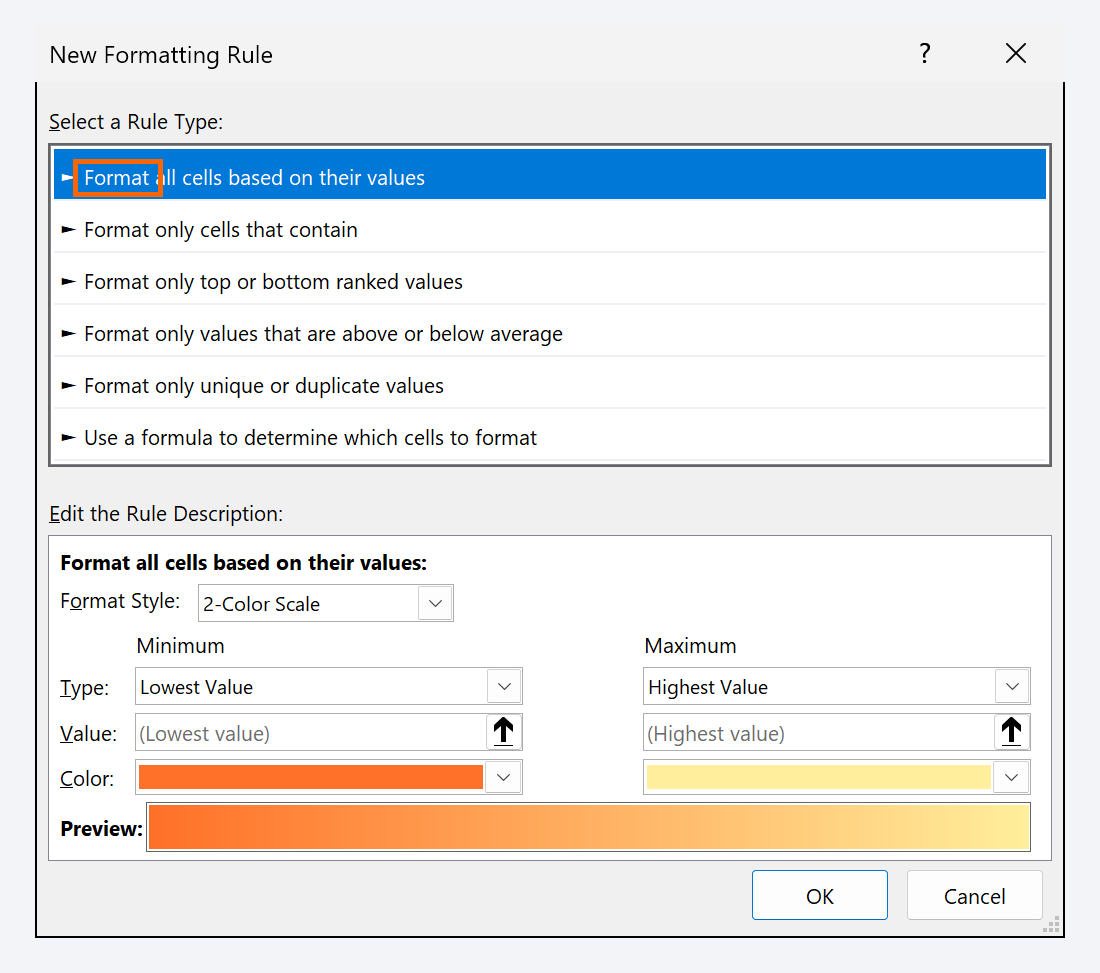
Since the checkbox is already TRUE or FALSE, the rule also works with just =$A2.
Build a form: an inspection checklist that grades itself
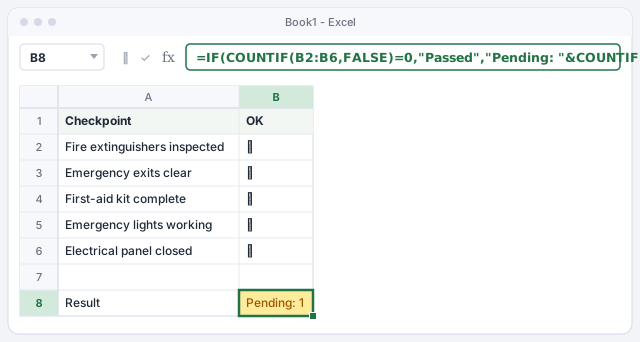
Checkboxes work just as well for forms. For a safety walkthrough, type the checkpoints in A2:A6 and insert checkboxes in B2:B6. In B8, this formula says whether the inspection passed or how many items are missing: =IF(COUNTIF(B2:B6,FALSE)=0,"Passed","Pending: "&COUNTIF(B2:B6,FALSE)). With the first-aid kit unchecked, it shows Pending: 1.
On a registration form, an “I accept the terms” checkbox in B10 can drive a message: =IF(B10,"Registration complete","Please accept the terms"). No need to write =TRUE: the checkbox already is the condition.
Passed if no box is left unchecked; otherwise, how many are missing.
Remove checkboxes when you no longer need them
Select the cells and press Delete. If any box was checked, that first press only unchecks them (the value becomes FALSE); press Delete again and the checkboxes disappear. If they were all unchecked, they go at the first press. It's the quick way to reset the list for next month.
To remove the checkbox itself, select the cells and use Home › Editing › Clear › Clear Formats: the box disappears and the cell is left showing TRUE or FALSE, which you can delete afterward. Clear All removes the box and the value in one go.
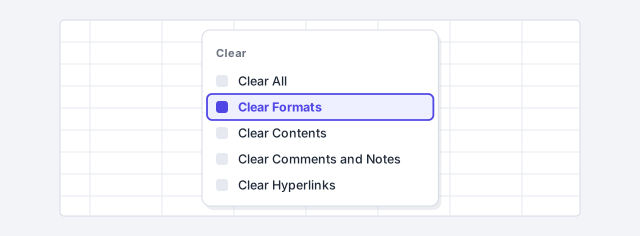
Clear Formats also removes colors, borders and number formats from the selected cells. Select only the checkbox column.
If your Excel has no “Checkbox”, use the Developer tab
Excel 2021 and earlier don't have Insert › Controls › Checkbox. The classic alternative is the form control check box: turn on the Developer tab in File › Options › Customize Ribbon, then go to Developer › Controls › Insert › check box under Form Controls. Draw it over the cell.
That check box floats on top of the sheet and stores nothing by itself: right-click it › Format Control... and, in Cell link, enter a cell (for example A2), which will show TRUE or FALSE. From there, the formulas in this guide work the same, pointing to the linked cells.

Expert tips
- A progress bar in one cell. Select the percentage cell (
F4) and apply Home › Conditional Formatting › Data Bars. So the bar fills completely at 100%, edit the rule and set the maximum to 1. - Filter what's pending. Turn on filters with Ctrl+Shift+L and, in the Done column, keep only FALSE: you'll see just what's left. More in sort and filter.
- Count by person.
=COUNTIFS(C2:C9,"Laura",A2:A9,TRUE)tells you how many tasks Laura has finished (3 in the example). - Use them in a table. If you turn the list into a table with Ctrl+T, every new row inherits the checkbox and the conditional formatting.
- A foolproof form. Unlock only the checkbox cells and protect the sheet: whoever fills in the inspection can check boxes but can't touch the formulas.
Common mistakes and how to fix them
=COUNTIF(A2:A9,"TRUE") returns 0 even though some boxes are checked.
The quotes turn TRUE into text. Type the logical value without quotes: =COUNTIF(A2:A9,TRUE).
Only column A gets struck through, not the whole row.
The rule formula is missing the $ or the rule applies only to column A. Use =$A2=TRUE and apply it to A2:C9.
You insert checkboxes into cells that already had text and the list acts strangely.
Checkboxes work with empty cells or TRUE/FALSE values. Insert them into a new, empty column.
You press Delete to remove the checkboxes and they're still there.
If any boxes were checked, the first press of Delete only unchecks them: press Delete a second time. To remove the box, use Home › Clear › Clear Formats or Clear All.
In Excel for Mac with an up-to-date Microsoft 365, you also insert the checkbox from the Insert tab. The COUNTIF formulas and the conditional formatting are identical; use ⌘ instead of Ctrl in shortcuts.
Frequently asked questions
What value does a checked box have?
TRUE; unchecked, FALSE. That's why they work with COUNTIF, with IF and in conditional formatting rules without any tricks.
Can I add up amounts only for checked rows?
Yes. If the amounts are in D2:D9, use =SUMIF(A2:A9,TRUE,D2:D9). It's handy for checking off paid invoices and seeing instantly how much is still outstanding.
Can I change the size or color of the checkboxes?
The checkbox follows the cell's formatting: if you change the font size or color in Home › Font, the checkbox changes with it.
Can I check every box in a column at once?
Yes. Select the checkbox cells and press the Spacebar: they all toggle together. To uncheck them all for a fresh start, select them and press Delete.
Saved only in this browser.