Advanced Find and Replace: formatting, line breaks and wildcards
In Word, press Ctrl+H (Home › Editing › Replace) and click More >>. From there you can search for invisible characters with Special (^p paragraph mark, ^l manual line break, ^t tab), find and replace formatting with the Format button, and turn on Use wildcards for patterns such as ? * [a-z] {n} and groups (...) with \1. If something goes wrong, Ctrl+Z undoes the whole Replace All in one go.
It happens every time you paste text from a PDF, an email or an AI chat: every line ends in a stray break, and there are double spaces and empty paragraphs everywhere. Or you have a contract where “Mr. Pérez” appears 140 times and the name changes tomorrow. Fixing it by hand is an afternoon gone.
Find and Replace looks like a beginner's tool, but behind the More >> button it hides three superpowers: searching for invisible characters (paragraph marks, line breaks, tabs), finding and replacing formatting, and wildcards, a simple way to describe patterns (“a number of one to three digits”). Think of it as an assistant that reads the whole document in a second and makes exactly the change you describe. This guide teaches you how to describe it well.
What you'll learn
- How to open Replace and what hides behind the More >> button
- How to type the invisible: ^p, ^l, ^t, ^?, ^# and ^w
- How to find and replace formatting and use wildcards with groups (\1)
- Clean-up recipes, name → field, and how to undo a Replace All
Step by step
Open the Find and Replace dialog
Press Ctrl+H or go to Home › Editing › Replace. Find and Replace opens on its Replace tab, with two boxes: Find what and Replace with. If your window is narrow, the Editing group is collapsed into a single button.
Don't confuse it with Ctrl+F, which opens the search in the Navigation Pane: it locates text, but it doesn't replace anything.

The dialog is identical in Word 2016 and 2019.
Click More >> to reveal the options that matter
Click More >> (the button turns into << Less). The Search Options unfold and, below them, the three key buttons: Format, Special and No Formatting.
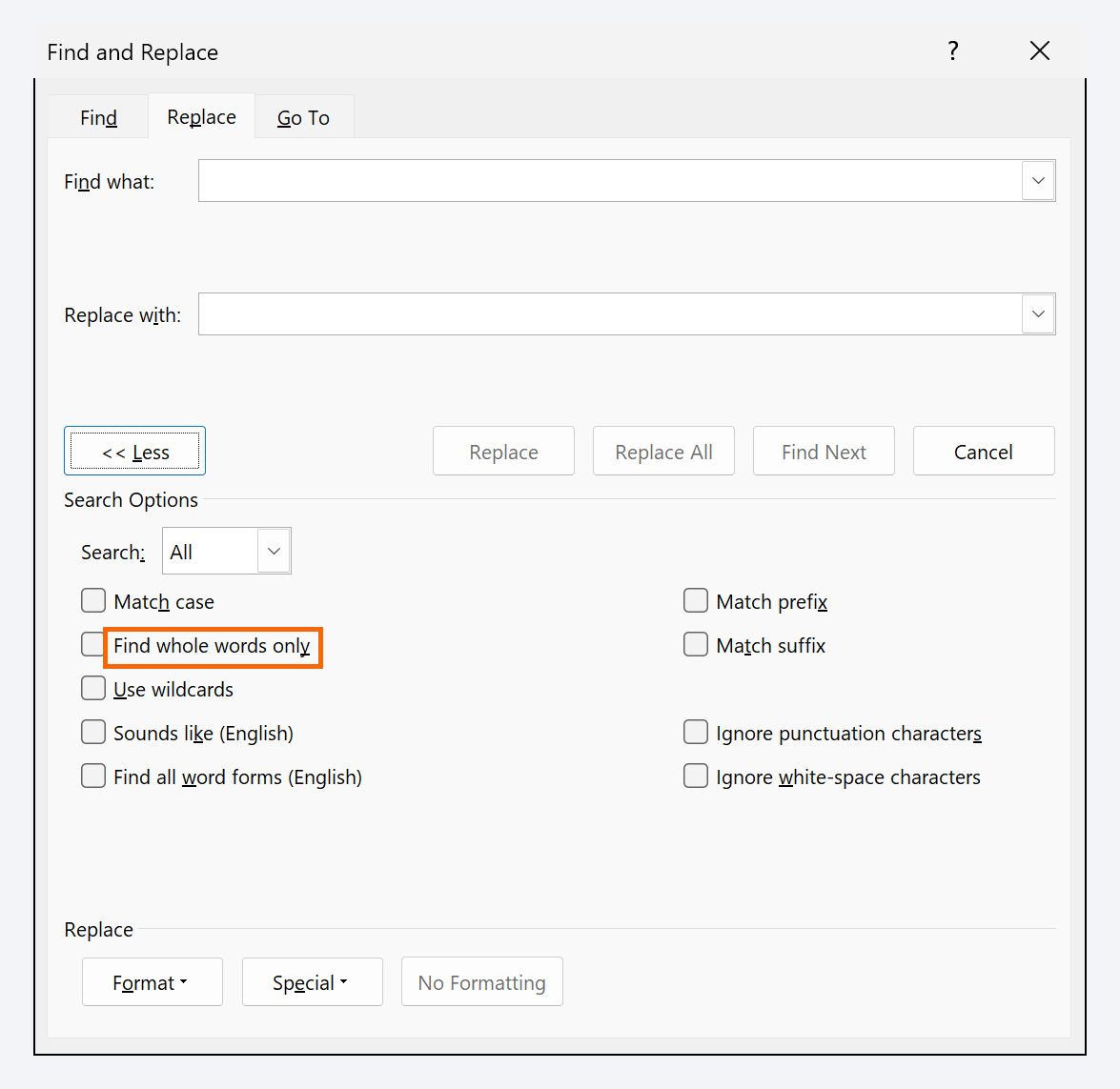
Two checkboxes save you from accidents. Match case: if you search for “Party” (the defined term in a contract) you don't want to touch “third party”. Find whole words only: if you change “Lease” to “Agreement” without it, “Release” becomes “ReAgreement” and “Leasehold” becomes “Agreementhold”.
Type the invisible with the Special button
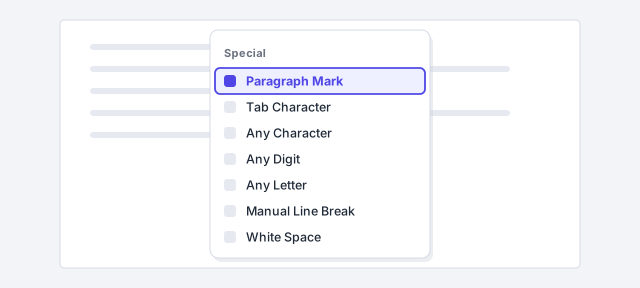
With the cursor in Find what, click Special. A list appears of the things you can't type: Paragraph Mark, Tab Character, Manual Line Break… When you pick one, Word inserts a code with ^. Soon you'll type them straight in:
| Code | What it is |
|---|---|
^p | Paragraph mark (the ¶ from Enter) |
^l | Manual line break (↵, Shift+Enter) |
^t | Tab character |
^? | Any character |
^# | Any digit |
^$ | Any letter |
^w | White space (spaces and tabs in a row) |
^c | Clipboard contents (Replace with only) |
^& | The text that was found (Replace with only) |
To know what your document actually contains, first show the formatting marks with Ctrl+Shift+8.
Recipe 1: double spaces and empty paragraphs
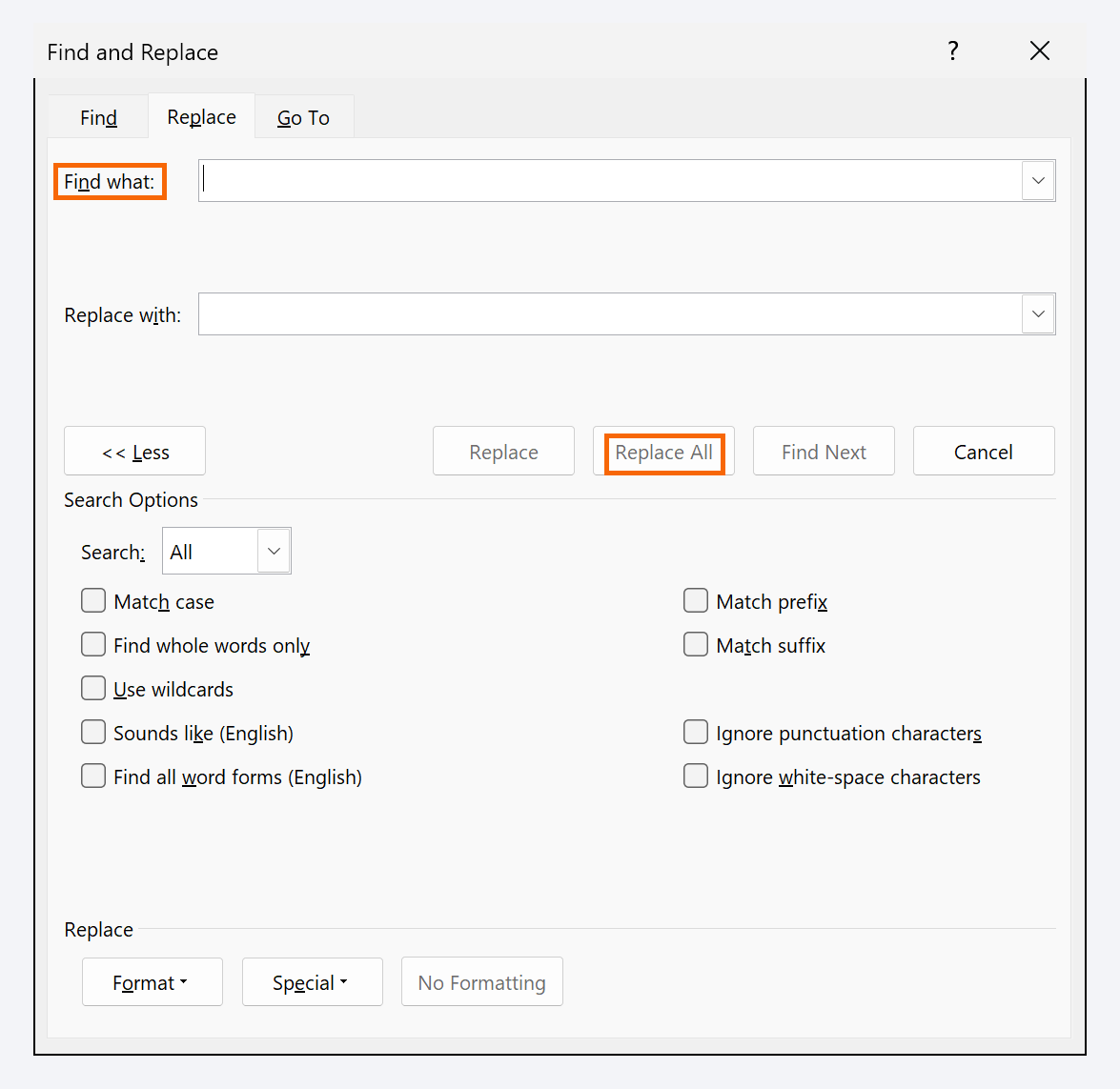
Double spaces → one. In Find what type two spaces; in Replace with, one. Click Replace All and repeat until Word reports 0 replacements (three spaces become two first). Expert shortcut: search for ^w and replace with one space.
Empty paragraphs. Someone separated the paragraphs by pressing Enter twice. Search for ^p^p, replace with ^p and repeat until 0. Then give them room with Spacing After in the Normal style, not with blank lines.
If you used blank lines on purpose (before a signature, for example), review the document when you're done. Ctrl+Z brings everything back.
Recipe 2: remove the line breaks from a pasted PDF
Text copied from a PDF arrives chopped at the end of every line. Show the formatting marks and look at what sits at each line end.
If you see ↵ (manual line break): search for ^l and replace with a space. Done.
If you see ¶ on every line and the real paragraphs are separated by a blank line, do it in three passes: 1) ^p^p → a marker that doesn't exist in the text, such as ###; 2) ^p → a space; 3) ### → ^p. Finish with the double-spaces recipe.

It also works for what you paste from ChatGPT, Gemini or Claude: check first whether you have ¶ or ↵.
Find and replace formatting: from manual bold to a style
A contract (or an AI draft) has dozens of terms bolded by hand. Turn them into a character style and you can change them all at once. Click in Find what, leave it empty and click Format › Font…; under Font style choose Bold and click OK. The criterion appears under the box: Font: Bold.
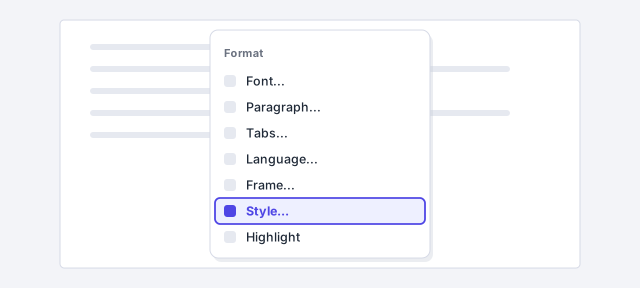
Click in Replace with, leave it empty and click Format › Style…; choose Emphasis (or whichever character style you prefer, such as Strong) and click OK. Click Replace All: everything that was bold now carries the style, and when you modify the style they all change together (that's how styles work).
Emphasis is italic and doesn't remove the direct bold: add a second criterion to Replace with, Format › Font… › Font style › Not Bold.
The dialog remembers the formatting. Before your next search, click in each box and press No Formatting, or Word will “fail to find” text that is clearly there.
Turn on wildcards to search for patterns
Check Use wildcards. From then on, some symbols describe patterns instead of being text:
| Wildcard | Meaning | Example |
|---|---|---|
? | any single character | c?t: cat, cot |
* | any string of characters | cl*se: clause |
[a-z] | one character in the range | [0-9]: a digit |
[!x] | anything except x | [!0-9]: anything but digits |
{n} {n,} {n,m} | repetitions of the previous | [0-9]{4}: a year |
@ | one or more of the previous | [0-9]@: a number |
< > | start and end of a word | <art>: only “art” |
( ) and \1 | group and what it captured | see example |
Legal example: search for Section ([0-9]{1,3}) and replace with § \1: “Section 12” becomes “§ 12” throughout the brief, keeping the number.
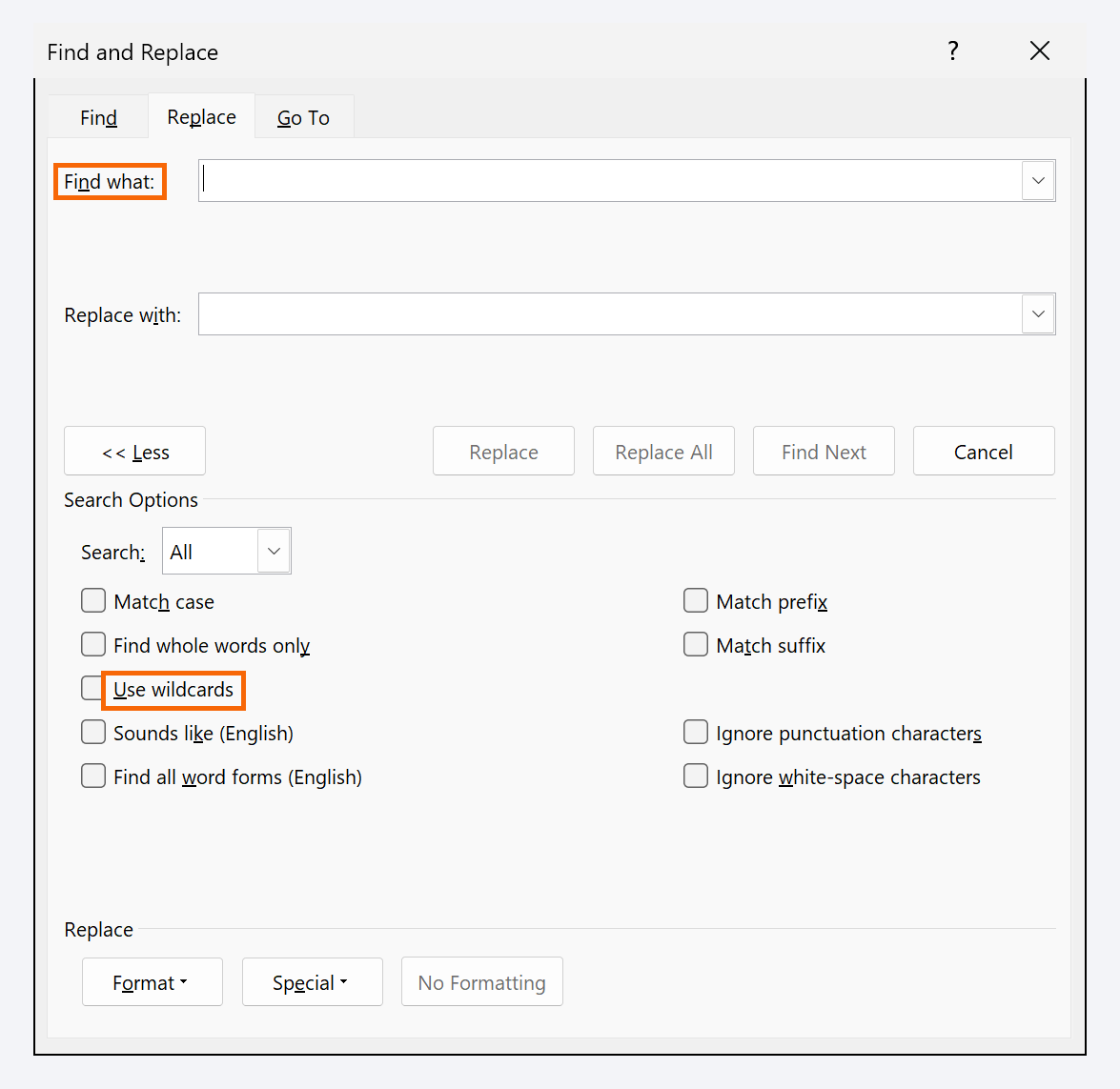
With wildcards on, the search is case-sensitive and ^p doesn't work in Find what (use ^13; ^l is ^11). In some regional settings the separator in {n,m} is a semicolon: {1;3}. A literal ? or ( is typed with a backslash: \? \(.
Replace “Mr. Pérez” with a field using ^c
The Replace with box only accepts text, but it has a back door: ^c, the Clipboard Contents. Whatever you copied (a field, a picture, a table) gets pasted at every match.
To make a name repeated 140 times update itself: insert the field that will display it once (for example a DocProperty field tied to a document property; see Automatic fields), select it and copy it with Ctrl+C. In Find what type Mr. Pérez, in Replace with type ^c and click Replace All. When the name changes: edit the property, select all with Ctrl+A and press F9.
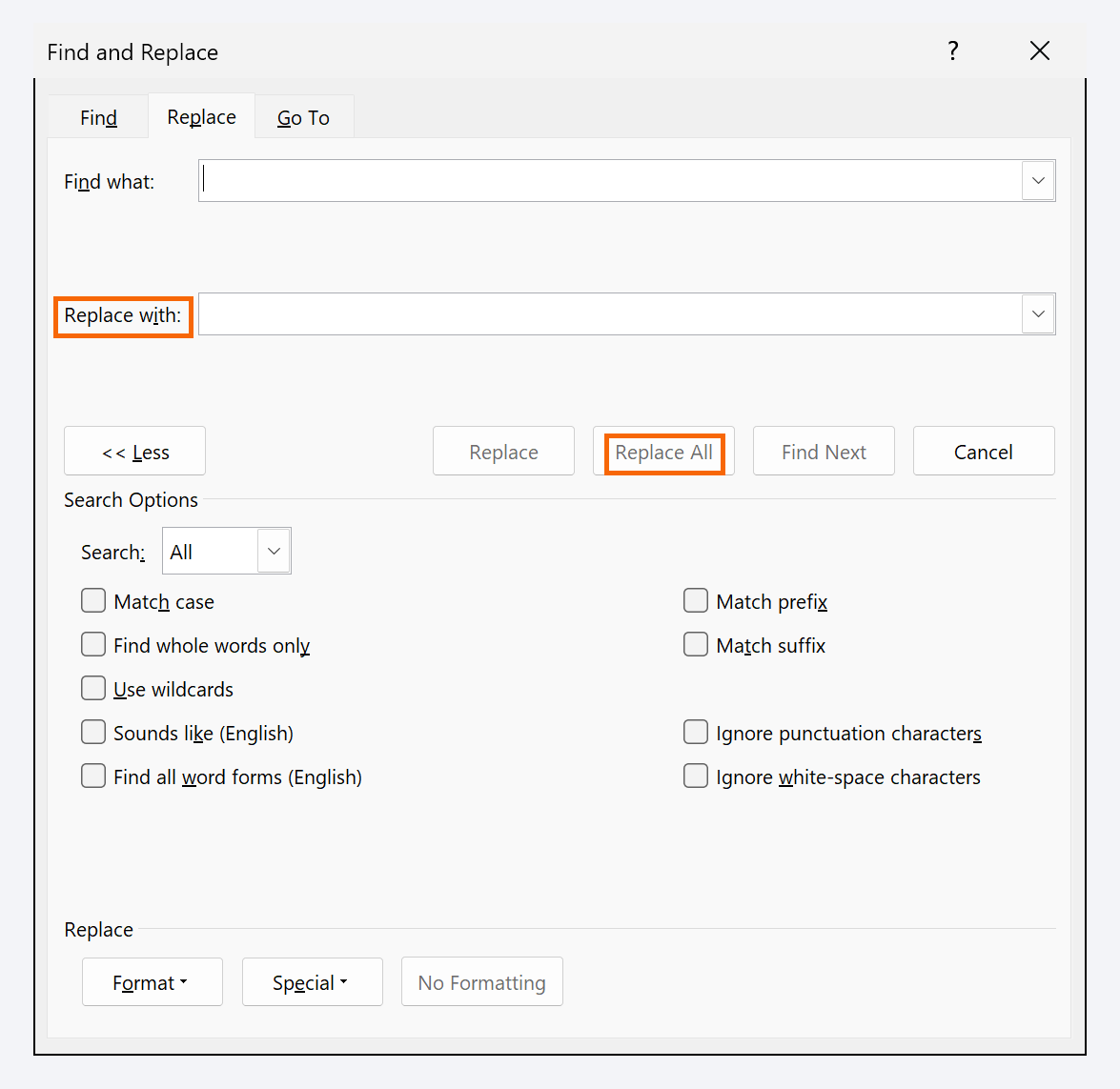
The same trick swaps a word for a logo, a signature or a table.
Replace All with care (and undo with Ctrl+Z)
Before Replace All, click Find Next a couple of times to check what Word finds, and Replace once to see the result. If you have text selected, Word replaces only inside the selection and then asks whether to continue with the rest: useful for limiting a change to one clause.
When it finishes, Word tells you how many replacements it made. If the number surprises you, Ctrl+Z undoes the entire Replace All in one go. With Track Changes on, every replacement is marked so the other side can review it.

Expert tips
- AI Markdown to real bold. With wildcards on, search for
\*\*([!*]@)\*\*, replace with\1and give the Replace with box the formatting Format › Font › Bold: the asterisks vanish. More in Turn AI Markdown into Word headings and lists. - Highlight before you replace. On the Find tab of the same dialog, Reading Highlight › Highlight All marks every match: you can see at a glance whether your pattern is right.
- Can't find “Section 12” even though you can see it? There may be a nonbreaking space (
^s) between the two words. Search for it with Special › Nonbreaking Space. - Repeat the clean-up with a macro. If you repeat the same replacements every week, record them once: Macros without fear.
Common mistakes and how to fix them
Word says it can't find anything, but the text is right there.
Click in each box and press No Formatting; uncheck Use wildcards, Find whole words only and Match case.
Removing the line breaks merged all the paragraphs into one.
The lines ended in paragraph marks (^p), not line breaks (^l). Press Ctrl+Z and use the three-pass recipe with the ### marker.
Replace All changed letters inside other words.
Check Find whole words only (and Match case if the term is capitalized). Ctrl+Z undoes the whole batch.
In Word for Mac, Control+H opens the Find and Replace pane (also Edit › Find › Replace). To use Format, Special and wildcards you need the full dialog: Edit › Find › Advanced Find and Replace… The ^p, ^l and ^t codes and the wildcards work exactly as on Windows.
Frequently asked questions
What's the difference between Ctrl+F and Ctrl+H?
Ctrl+F opens the Navigation Pane search: fast, but no replacing. Ctrl+H opens the full dialog. To search with formatting or wildcards without replacing, use Home › Editing › Find › Advanced Find…: it's the same dialog on its Find tab.
Why doesn't ^p work when I turn on wildcards?
In wildcard mode the Find what box uses numeric codes: ^13 for the paragraph mark and ^11 for the manual line break. In Replace with, ^p still works.
How do I replace text with other text in bold or in another color?
Type the new text in Replace with, leave the cursor there and click Format › Font… If you leave the box empty and only set formatting, Word keeps the text it found and changes only its formatting.
Does all of this work in Word for the web?
Word for the web has a basic find and replace. Format, Special and wildcards live in desktop Word, on Windows and on Mac.
Official sources
Microsoft documentation consulted for this guide.
Saved only in this browser.