Turn AI Markdown (##, **, -) into real Word headings and lists
The ##, ** and dashes in AI text are Markdown. Quick route: ask the AI for plain text or a .docx. In Word: Ctrl+H › More >>; find “## ”, leave Replace with empty, choose Format › Style › Heading 2 and click Replace All; then click No Formatting and repeat to delete the marks. Bold: with wildcards, find \*\*(*)\*\* and replace with \1 plus Format › Font › Bold.
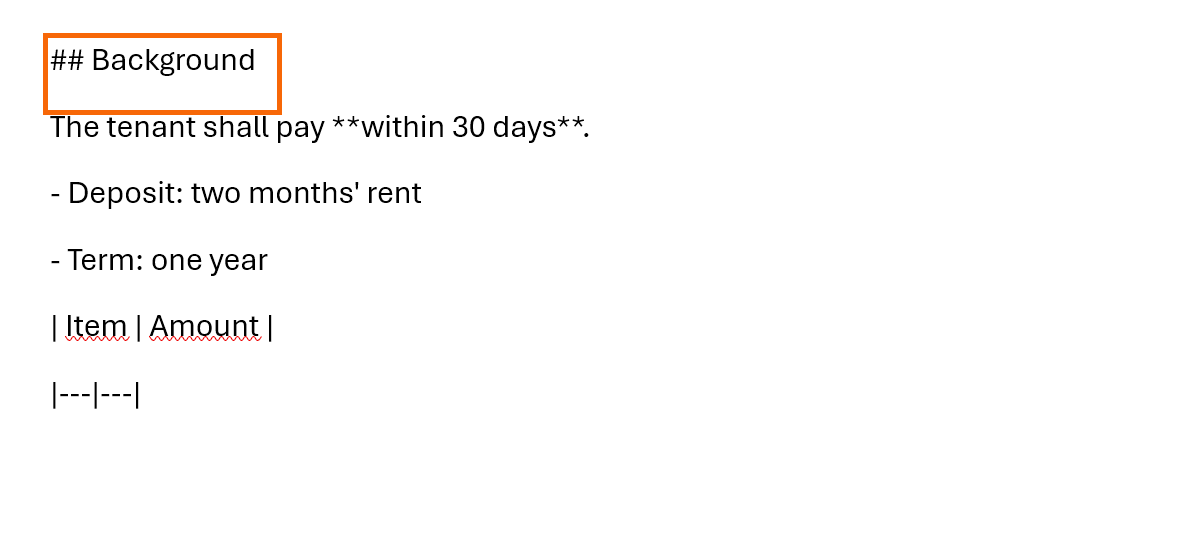
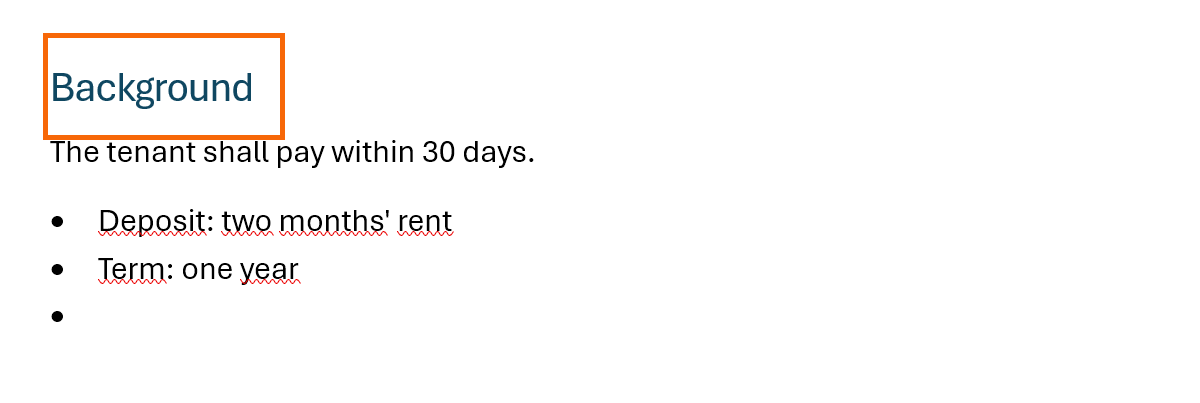
You ask ChatGPT, Gemini or Claude for a report, hit its Copy button, paste into Word… and get this: ## Background, **within 30 days**, lines starting with a dash and tables drawn with | bars. Nothing is a heading or a list.
Those symbols are Markdown: a way of marking formatting with ordinary characters, like an editor's pencil notes in the margin. AIs write this way because their chat window turns the marks into formatting instantly. Word doesn't read them: to Word they're just text. Here you turn each mark into real styles, in minutes and without fixing lines one by one.
What you'll learn
- Recognize Markdown marks and what each one means
- Ask the AI for text in a format Word understands right away
- Turn ##, ** and dashes into headings, bold and lists with Find and Replace
- Convert tables drawn with | bars into real Word tables
- Check the result with ¶ marks and the Navigation Pane
Step by step
Recognize the Markdown marks
Before cleaning up, identify what you're looking at. These are the marks AIs use:
| Markdown | Means | In Word it becomes |
|---|---|---|
# ## ### + space | Level 1, 2 or 3 heading | Heading 1, Heading 2, Heading 3 |
**text** | Bold | Bold |
*text* | Italic | Italic |
- at line start | Bullet | List Bullet |
1. at line start | Numbered list | List Number |
`text` | Code or literal term | Normal text |
> at line start | Quote | Quote |
--- | Divider line | Deleted |
| a | b | | Table | Word table |
Order matters: headings first, then bold, then lists and tables.
Quick route: ask the AI for a format Word understands
The fastest cleanup is none at all. Add to your request: “Reply in plain text, no Markdown: no #, no asterisks and no list dashes”. You'll get clean paragraphs and apply the styles yourself.
Another option: “Create the result as a .docx file, with headings in the Heading 1 and Heading 2 styles”. Several AIs can produce a downloadable file. And if you select the already-formatted answer in the chat instead of using the Copy button, it usually arrives with real formatting: see Paste ChatGPT text into Word.

If you already have text full of symbols, don't regenerate it: the next steps fix it in a few minutes.
Paste the text and open Replace with Ctrl+H
Paste the text into Word. Press Ctrl+H or go to Home › Editing › Replace and click More >>. The Format, Special and No Formatting buttons appear, along with the Use wildcards checkbox: leave it unticked for headings.
Full tour of the dialog in Advanced Find and Replace.

Save before you start. Ctrl+Z undoes each Replace All, but one at a time.
Apply Heading 2 to every line that starts with “## ”
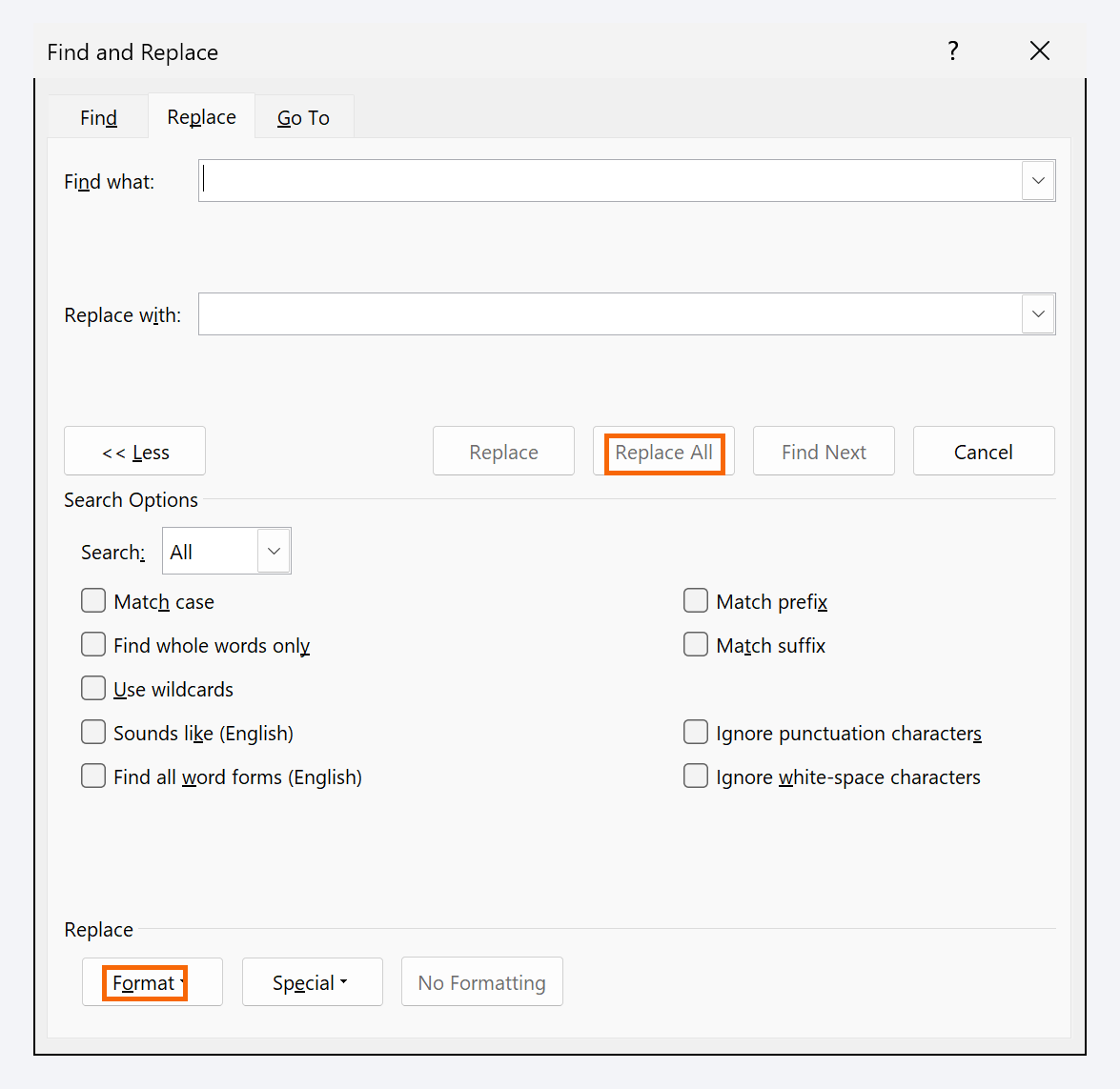
Golden rule: go from the longest mark to the shortest. If your text has ### , do this step and the next with it first (using Heading 3). Then type ## (two hashes and a space) in Find what. Click in Replace with, leave it empty and click Format › Style…; choose Heading 2 and click OK. Click Replace All.
A paragraph style applies to the whole paragraph: every line with ## is now a real Heading 2. The symbols are still there, and that's expected: when Replace with is empty but has formatting, Word changes only the formatting and keeps the text it found.
Delete the marks and repeat for each heading level
Without closing the dialog, click in Replace with and click No Formatting. Keep ## in Find what, leave the other box empty and click Replace All: now the hashes disappear and the style stays.
Finish with # → Heading 1, using the same two passes. Order matters because # also sits inside ## and ### : start with it and all your subheadings end up as Heading 1.

Before each style pass, make sure Replace with isn't still carrying Bold or another format from the last one: click No Formatting and choose the style again.
Turn **text** into real bold with wildcards
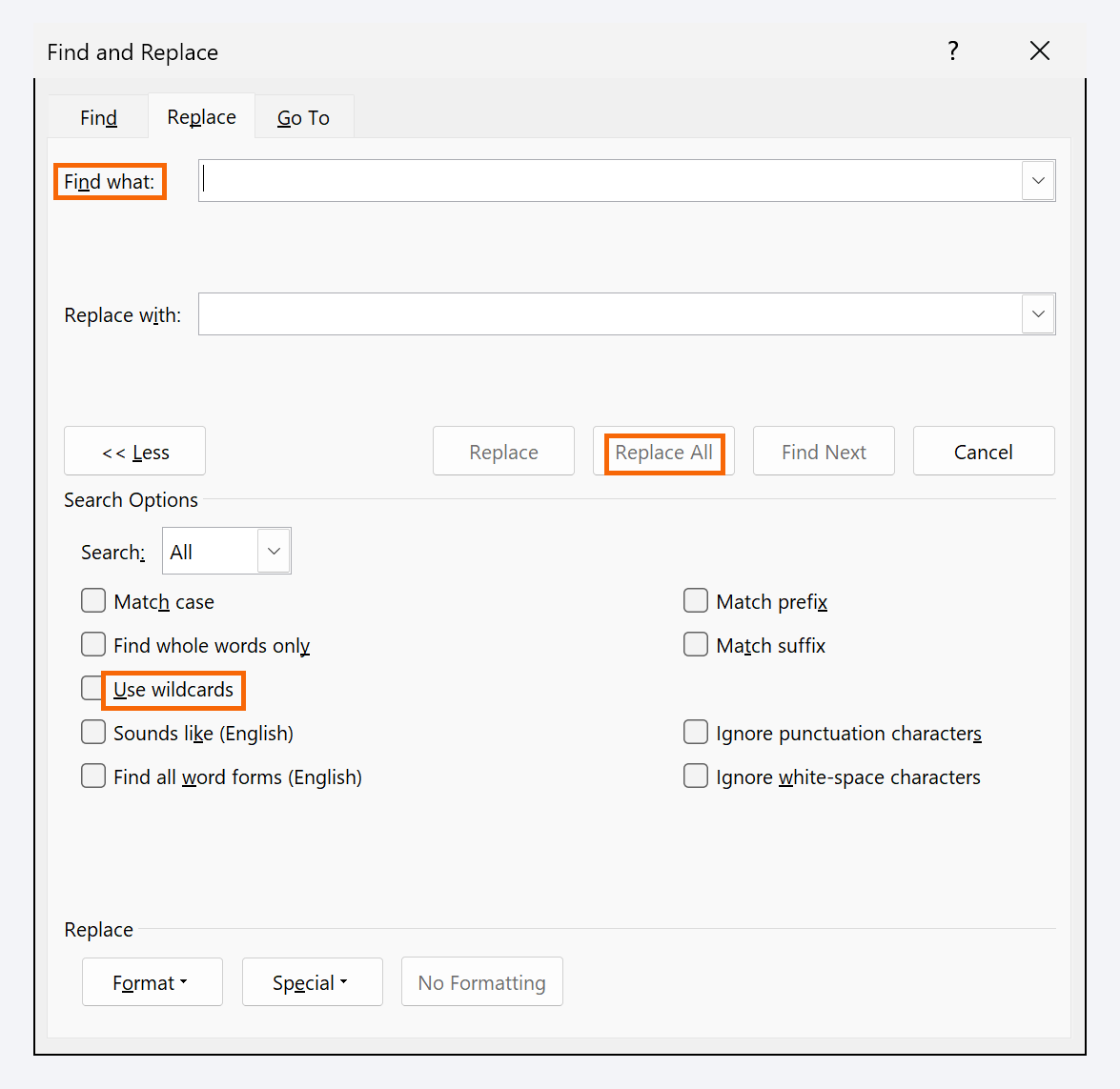
Tick Use wildcards. In Find what type \*\*(*)\*\* and in Replace with, \1. With the cursor in Replace with, click Format › Font…, choose Bold under Font style and click OK. Click Replace All.
How to read it: \* is a literal asterisk (with wildcards on, * means “any text”); (*) captures whatever sits between the two pairs of asterisks, and \1 writes it back, without asterisks and in bold. “**within 30 days**” becomes within 30 days.
For italics (*text*), repeat with \*(*)\* and Format › Font › Italic, once there are no ** or asterisk bullets left.
If a ** lost its partner, the pattern can stretch across several sentences. Click Find Next a couple of times first and check what Word selects.
Turn dashes and numbers into real lists
Untick Use wildcards and click No Formatting in both boxes. For bullets, use the same two passes as for headings: find - (dash and space), Format › Style… › List Bullet and Replace All; then No Formatting and another Replace All to delete the dashes.
For numbered lists, turn wildcards on and find [0-9]@. (one or more digits, a period and a space) with the List Number style; then delete them the same way. Reorder the points of a contract and they renumber themselves.

Dashes and numbers mid-sentence (“2023 - 2024”, “section 12. The”) match too. If your text has them, select just the list first: Word replaces inside the selection and then asks whether to continue with the rest; answer No.
Convert | bar tables into Word tables
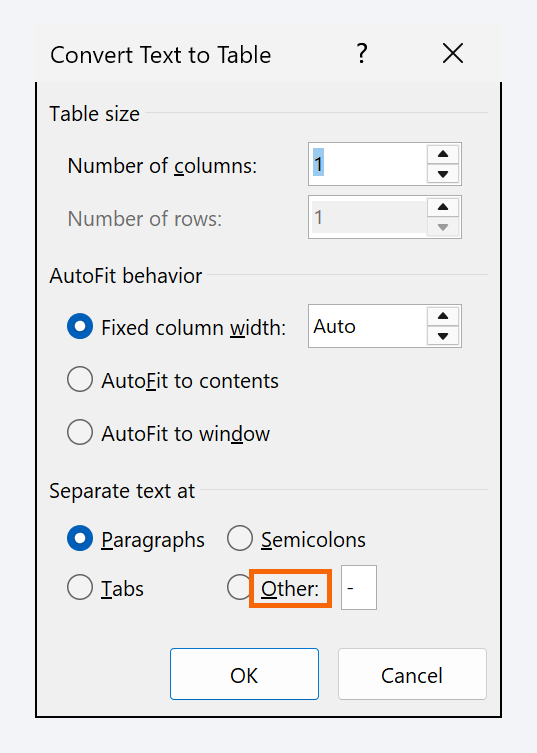
In Markdown, each line of a table is a row and each | separates cells. First delete the second line, the one with dashes (|---|---|): it only marks where the header ends. Select the table lines and go to Insert › Table › Convert Text to Table….
Under Separate text at choose Other and type | (on a US keyboard, Shift+\; or copy it from the text). Because each line starts and ends with a bar, Word creates an empty column on each side: select them and remove them with Layout › Rows & Columns › Delete › Delete Columns. Finishing touches in Well-made tables.
Check it with ¶ marks and the Navigation Pane
Turn on formatting marks with Ctrl+Shift+8: you'll see any stray spaces at the start of lines or empty paragraphs. Then open View › Show › Navigation Pane: under Headings all your headings should appear with the right hierarchy. If one is missing, it didn't get the style.
Finally, hunt for leftovers with Ctrl+F: type #, ** or | in the pane's search box. With 0 results, the document is clean and ready for an automatic table of contents.
Expert tips
- The other leftovers, in a minute. Find
`and replace it with nothing. Lines starting with>get the Quote style with the same two passes as headings, and---lines get deleted. - External route: Pandoc. Pandoc is a free command-line program (not part of Word) that converts an .md file into a .docx with styles:
pandoc report.md -o report.docx. Add--reference-doc=template.docxto use your template's styles. - Record the cleanup as a macro. If you get Markdown every week, record these replacements once and replay them in one click: Macros without fear.
- Lawyers: headings that work for you. In an AI-drafted legal opinion, ## turned into Heading 2 lets you reorder sections by dragging them in the Navigation Pane.
Common mistakes and how to fix them
You replaced “## ” with nothing plus the style, and the symbols are still there.
That's expected: with Replace with empty but formatted, Word changes only the formatting. Do the second pass: click in Replace with, No Formatting and Replace All.
Subheadings came out as Heading 1 and some lines still start with #.
You started with “# ”. Undo with Ctrl+Z and repeat from the longest mark to the shortest: ###, ## and #.
Word says it can't find “## ” even though you can see it.
The dialog remembers the formatting and wildcards from the previous search. Click No Formatting in both boxes and untick Use wildcards.
The second numbered list starts at 4 instead of 1.
The List Number style continues numbering. Right-click the first number of that list and choose Restart at 1.
In Word for Mac, open the full dialog from Edit › Find › Advanced Find and Replace…: it has Format, Special and Use wildcards, and the patterns work the same. Formatting marks toggle with ⌘+8, and Convert Text to Table is under Insert › Table.
Frequently asked questions
Why does the AI give me text full of # and asterisks?
Because it writes in Markdown, a text format its chat window turns into headings and bold when it displays the answer. The Copy button gives you the raw marks, not the formatting.
Can Word open or import a Markdown (.md) file and convert it by itself?
Don't count on it: Word doesn't turn Markdown marks into styles, so you'll see the text with its # and asterisks. That's what the replacements in this guide, or an external tool such as Pandoc, are for.
What if I use Copilot inside Word?
Copilot writes straight into the document, so it usually leaves no Markdown behind. Still check that headings use heading styles. More in Copilot in Word.
Official sources
Microsoft documentation consulted for this guide.
Saved only in this browser.