Paste text from ChatGPT, Gemini or Claude into Word without breaking the formatting
Paste the answer and choose Keep Text Only from the Paste Options (Ctrl) button, press Ctrl+Shift+V, or use Home › Clipboard › Paste › Paste Special › Unformatted Text. Then apply Heading 1, 2 and 3 with Ctrl+Alt+1, 2 and 3, and clear asterisks, double spaces and line breaks with Home › Editing › Replace. To avoid repeating it, set Pasting from other programs to Keep Text Only in File › Options › Advanced.
You ask ChatGPT for a summary for your assignment, paste it into Word… and the document turns into a collage: a different font, huge gaps between paragraphs, asterisks around words and headings that are really just loose bold text. Then you try to build the automatic table of contents and Word can't find a single heading.
AI and Word speak different languages. The chat shows its answer as a web page (HTML) or stores it in Markdown, a markup system where ## means “heading” and **text** means “bold”. Word organizes a document with styles: named formats such as Heading 1 or Normal. Pasting as-is is forcing in a piece from another puzzle: it goes in, but it doesn't fit.
Here you'll see three ways to bring the text in clean, how to give it real structure in a minute, and how to set Word up so a plain Ctrl+V is enough.
What you'll learn
- What an AI answer secretly brings along when you paste it into Word
- Three ways to bring it in clean: paste text only, copy the right way, ask for it unformatted
- How to turn it into real headings and lists in a minute
- How to remove asterisks, double spaces and line breaks in one go
- When Copilot inside Word is the better choice
Step by step
See what arrives when you paste an AI answer
If you just paste with Ctrl+V, an answer from ChatGPT, Gemini or Claude usually brings:
- A different font and size, copied from the chat page.
- Extra spacing or blank lines between paragraphs.
- Markdown marks:
##before headings,**around bold words and hyphens-instead of bullets. - Fake headings: large bold text that still has the Normal style.
- Double spaces and manual line breaks (↵) that chop sentences apart.
Turn on formatting marks with Ctrl+Shift+8 to see the invisible. Why this happens when pasting from anywhere: paste without formatting.

Option 1: paste with Keep Text Only
It's the fastest route and it works with any chat. Paste with Ctrl+V, click the Paste Options (Ctrl) button that appears next to the text and choose Keep Text Only. In current Microsoft 365, Ctrl+Shift+V does it in one go (in Word 2016–2021 that shortcut pastes formatting instead). Or decide before pasting: Home › Clipboard › Paste › Paste Special… › Unformatted Text › OK.
The text takes on your document's font and style. You lose bold, links and tables, and that's what you want: you'll add formatting with styles in step 5. If you copied with the chat's button, you'll see the ## and ** as plain characters; you'll remove them in step 6.

Option 2: choose between the chat's Copy button and selecting with the mouse
How you copy changes what arrives:
- The chat's Copy button (the icon under the answer): in many apps it copies Markdown. Pasted as text only you'll see
##,**and-, but it copies the whole answer and the marks tell you where headings and lists were. - Selecting with the mouse and Ctrl+C: copies the HTML version, with bold, lists and tables, but also the chat's font and colors. It's easy to miss a line.
Rule of thumb: for running text, use the Copy button and paste as text only. For a table, select it with the mouse and paste with Merge Formatting: it takes your font and usually keeps the table.

What the Copy button copies varies by app and version. Test it with a short answer before pasting a whole assignment.
Option 3: ask the AI for plain text or a .docx file
Skip the cleanup from the start. Add this to the end of your request:
“Answer in plain text, no Markdown: no asterisks, hash marks or list hyphens. Each heading on its own line.”
If you already have the answer, type: “Repeat your previous answer in plain text, without Markdown.” Some tools can also generate a Word file (.docx) to download; if yours can, ask for one and check that the headings really use Heading 1 and Heading 2.

Plain text doesn't mean no structure: keep asking for headings and lists, just without the marks.
Apply headings and lists in a minute
Click in each heading (no need to select it) and press Ctrl+Alt+1 for Heading 1, Ctrl+Alt+2 for Heading 2 or Ctrl+Alt+3 for Heading 3. If you copied with the chat's button, the hash marks are your clue: the more #, the lower the level.
For lists, select the hyphenated lines and click Home › Paragraph › Bullets (or Numbering). Once the headings are applied you can use the Navigation Pane and build an automatic table of contents.
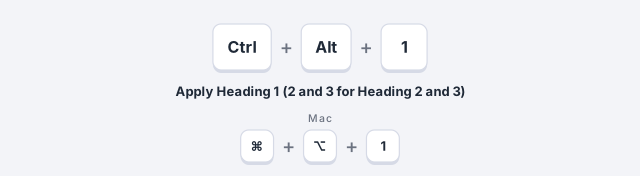
Apply the headings before deleting the hash marks: they're your map of levels.
Clean up in seconds with Find and Replace
Open Home › Editing › Replace (Ctrl+H), fill in both boxes and click Replace All:
| Find what | Replace with | What it fixes |
|---|---|---|
** | (nothing) | Bold asterisks |
### then ## | (nothing) | Hash marks (longest first) |
^p- | ^p | Hyphens in front of bullets |
| two spaces | one space | Double spaces (repeat until 0) |
^l | ^p | Manual line breaks → paragraphs |
^p^p | ^p | Blank lines (repeat until 0) |
^p and ^l are also under More >> › Special. More recipes in advanced find and replace; to turn ** into real bold, see turn AI Markdown into Word headings.

Check under More >> that Use wildcards is unchecked: with it on, the asterisk means “any text” and you could wipe out half the document.
Make “text only” the default when pasting from other programs
Go to File › Options › Advanced, scroll to Cut, copy, and paste and, under Pasting from other programs, choose Keep Text Only. Click OK.
The browser or chat app counts as “another program”, so from now on Ctrl+V brings in clean text. Pasting between Word documents doesn't change, and the Paste Options button is still there if you ever want the formatting.

This is a setting of your Word, not of the file: on another computer you'll have to repeat it.
Use Copilot in Word when you want the text born inside the document
If your Microsoft 365 subscription includes Copilot, ask for the draft inside Word with the Copilot button on the Home tab. The text is written straight into the document, without going through the clipboard, and it can also summarize or rewrite what you already have.
It's the better choice when the end result is a Word document. Stick with ChatGPT, Gemini or Claude if you don't have Copilot or if all the context is already in a long conversation. More in Copilot in Word.
Open the Navigation Pane afterwards: if Copilot's headings show up there, they're real styles.
Expert tips
- Ask for structure, not formatting. Ask the AI for headings, lists and short paragraphs; set the font and spacing yourself with styles. If you change your mind, you modify the style and everything updates: what styles are.
- Markdown tables arrive full of pipes. If you see
| Year | Data |, copy the table again by selecting it with the mouse and paste it with Merge Formatting, or ask for it separated by tabs and use Insert › Table › Convert Text to Table. - Check the sources before you hand it in. AI can invent authors, page numbers and links. Verify them and manage them with References › Insert Citation: citations and bibliography.
Common mistakes and how to fix them
You make headings bold and bigger by hand, and the automatic table of contents comes out empty.
Word only recognizes paragraphs with a heading style as headings. Apply Heading 1, 2 or 3 (Ctrl+Alt+1, 2 or 3) and update the table of contents.
You replace the asterisks and half the document disappears.
Use wildcards was checked. Press Ctrl+Z, uncheck the box under More >> and run it again.
You paste as text only and blank lines still show up between paragraphs.
They're empty paragraphs that came with the answer. Replace ^p^p with ^p until 0 replacements and let the Normal style's spacing separate the paragraphs.
In Word for Mac the Paste Options button works the same and Paste Special is under Edit › Paste Special. Headings are applied with ⌘+⌥+1, 2 and 3, Replace is under Edit › Find › Replace, and the default paste behavior is changed in Word › Preferences › Edit.
Frequently asked questions
Why does ChatGPT text come in with a different font or a gray background?
Because selecting and copying takes the HTML of the chat page, with its font, colors and code blocks. Paste it with Keep Text Only and it adopts your document's font.
Do I lose bold when I paste text only?
Yes. If there are only a few, reapply them with Ctrl+B. If there are many, copy with the chat's button and turn the ** into real bold with this recipe.
Does this work the same with Gemini, Claude or another chat?
Yes. They all deliver HTML or Markdown, so the method works for any of them. Only what each app's Copy button copies changes.
Do I have to pay to use Copilot in Word?
Copilot only shows up if your Microsoft 365 subscription includes it. Everything else in this guide works in any version of Word.
Official sources
Microsoft documentation consulted for this guide.
Saved only in this browser.