Automatic citations and bibliography in APA, ISO 690 or Chicago
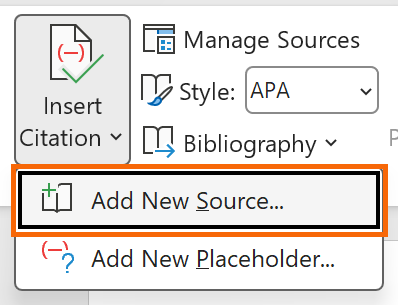
In Word, go to References › Citations & Bibliography. Pick the format in the Style list (APA, MLA, Chicago, ISO 690, IEEE…), click Insert Citation › Add New Source and fill in author, title, year and publisher. At the end of the document, References › Bibliography inserts the full list. When you add or fix citations, click the bibliography and choose Update Citations and Bibliography.
It's the night before the paper is due. You have twenty sources scattered across three places, you can't remember which page you cited in chapter 2, and you're about to type the bibliography “by hand” with the APA manual open next to you. The next day someone asks for it in ISO 690. Back to square one.
Word has a tool that solves all of this and almost nobody uses: References › Citations & Bibliography. Think of it as a card index: you describe each book, article or web page once (the source), and Word writes the short in-text citation and the full bibliography entry for you, in the exact format of the style you choose. Switching from APA to Chicago? One click and everything is rewritten.
In this guide you create your first sources, insert citations, generate the bibliography, fine-tune it and learn how to reuse your library in the next paper. You'll also see when an external manager such as Zotero or Mendeley is worth it.
What you'll learn
- Choose a citation style (APA, MLA, Chicago, ISO 690, IEEE, Harvard…) and switch it in one click
- Create sources properly: type, authors through the Edit button and all bibliography fields
- Insert the bibliography and keep it up to date without typing a single entry
- Fine-tune a citation (pages, hidden author) and reuse your sources in other documents
Step by step
Choose the citation style before you start
Go to References › Citations & Bibliography and open the Style list. Word ships with several: APA, MLA, Chicago, Turabian, Harvard - Anglia, IEEE, GOST, GB7714, SIST02 and two flavours of ISO 690 (First Element and Date and Numerical Reference). Pick the one your university, journal or firm asks for.
A citation style is the set of rules that decides how the citation looks in the text (“(Garcia, 2021)” in APA, “[1]” in IEEE) and how each bibliography entry is written and sorted. You can change it whenever you like: Word rewrites every citation and the list.

Microsoft doesn't say which edition of each manual a style follows, and the rules change over the years. If your institution is strict, compare the output with its guide and fix the details at the end.
Insert the first citation and create its source
Put the cursor right where the sentence you want to cite ends, before the period. Click References › Insert Citation › Add New Source…. The Create Source window opens.
A source is the record with the details of the work: author, title, year, publisher… From that record Word builds the short in-text citation and the full bibliography entry. Whatever you type here shows up throughout the document.
Fill in the source record carefully
Start with the Type of Source: Book, Book Section, Journal Article, Web site, Report, Case… The fields change with the type. For a book you'll see Author, Title, Year, City and Publisher.
Don't type the author's name as one string in Author: click Edit and fill in Last, First and Middle; Add lets you stack several authors in order. That way Word knows which part is the surname and inverts or abbreviates it as the style requires. If the work is by an organization, tick Corporate Author.
Tick Show All Bibliography Fields to reveal the rest: edition, volume, pages, DOI, URL… The fields the active style recommends are marked with a red asterisk. Click OK and the citation appears in the text.

Type the details exactly as you want them to appear: Word doesn't fix capitalisation or typos. A mistake in the record is repeated in every citation and in the bibliography.
Cite a source again or leave a placeholder
The second time you cite the same work there's nothing to create: Insert Citation lists the sources in the document; click the one you need. Each source is created once and cited as many times as you like.
Writing fast and don't have the details to hand? Choose Add New Placeholder…, give it a short name with no spaces (for example Ruling2023) and keep going. Word inserts a provisional citation and flags it with a question mark in the source manager so you can complete it later.

Ask an AI to summarize an article if you like, but copy the source details (author, year, journal, DOI) from the original yourself: language models invent references with astonishing ease.
Insert the bibliography at the end of the document
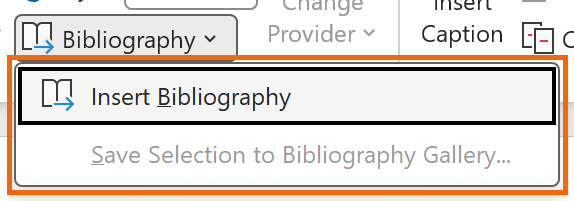
Put the cursor where you want the list (usually on a new page at the end) and click References › Bibliography. The gallery offers three blocks with a heading already in place: Bibliography, References and Works Cited. If you'd rather write the heading yourself, choose Insert Bibliography, which inserts the list only.
Word sorts the entries according to the style (alphabetically in APA, in order of appearance in IEEE or numerical ISO 690) and formats each one. Don't touch anything by hand yet.
Fine-tune a citation: specific pages and a hidden author or year
Click a citation in the text: it turns into a gray box with an arrow on the right. Open the arrow and choose Edit Citation…. Under Add › Pages you type the exact pages (“45-47”), and under Suppress you can hide the Author, Year or Title.
Suppressing the author is the trick for narrative citations: if you write “As Garcia explains (2021, p. 45)”, the surname is already in your sentence and the citation only needs to show the year. The same menu gives you Edit Source…, Convert citation to static text and Update Citations and Bibliography.

Manage your sources and reuse them in other documents
Click References › Manage Sources. The Source Manager has two columns. The Master List is your personal library: every source you have created on this computer, stored in a file called Sources.xml inside your user profile. The Current List holds the sources of this document and travels inside the .docx file.
To reuse a source in a new paper, select it in the master list and click Copy. Edit… lets you fix a record or complete a placeholder (the ones marked ?); New… creates sources without leaving the window. Sources already cited show a tick, and Browse… opens the Sources.xml from another computer.

Update the bibliography and, only at the end, convert it to text
Every time you add or fix a citation, click the bibliography and press the Update Citations and Bibliography button that appears at the top of the box (or select it and press F9). Until then, the list shows whatever was there when you inserted it.
If someone is going to tweak the list by hand, or the journal demands a detail Word can't reproduce, open the arrow on the box and choose Convert bibliography to static text. The list is disconnected from the sources: you can now edit it like any paragraph, but it stops updating. Do it on a copy, once the text is final.

Converting to static text can only be undone with Ctrl+Z right there and then. Keep a version with the “live” bibliography in case you need to add citations later.
Expert tips
- Chicago here isn't footnotes. Word's Chicago style produces author-date citations in brackets. If your institution wants the notes version, insert them with References › Footnotes (footnotes guide) and use the automatic bibliography only for the final list.
- Lawyers: Case and Table of Authorities. To cite a ruling, the Case source type has fields for the court, case number and date. If a brief carries dozens of citations to case law and statutes, the tool built for that is the table of authorities.
- Back up your library. The master list lives in
%AppData%\Microsoft\Bibliography\Sources.xml. Copy that file to the cloud or to your new machine and all your sources come back. - Zotero or Mendeley? They earn their place when you have hundreds of sources, need a style Word doesn't ship (a specific journal, a local legal standard), share a library with co-authors or want to capture references from the browser. They install their own tab in Word. For a class paper with 20 or 30 sources, what Word includes is more than enough.
Common mistakes and how to fix them
You changed the style or fixed a source and the bibliography looks the same.
The list doesn't update on its own. Click it and choose Update Citations and Bibliography (or select it and press F9).
Names in the bibliography come out reversed or with the wrong initials.
You typed the author as one string in the Author field. Open the source via Manage Sources › Edit…, click Edit next to Author and split last name and first name into their boxes.
You handed in the paper with citations reading “Ruling2023” or similar.
Those were unfinished placeholders. In Manage Sources they show a question mark: select them, click Edit…, fill in the details and update the bibliography.
In Word for Mac, References › Insert Citation opens the Create Source window directly. To choose the style and manage sources, click References › Citations: the Citations pane opens, with the Citation style list and a settings (gear) button that leads to the Citation Source Manager, Edit Source and Edit Citation. The bibliography is inserted the same way, with References › Bibliography.
Frequently asked questions
Which edition of APA, MLA or Chicago does Word use?
The style list doesn't state an edition and the manuals change over time, so don't assume Word follows the latest one. For a class paper it's usually fine; if your institution or journal is demanding, compare one entry with its guide and fix the details by hand at the end.
Do the citations break if I send the document to someone else?
No. The document's sources (the Current List) travel inside the .docx file. Whoever opens it can update the bibliography, switch styles and edit the sources. What doesn't travel is your Master List.
Can I cite two works in the same brackets?
Insert the second citation right after the first. Word keeps each one in its own box; if the style requires a single set of brackets, review it at the end or convert those citations to static text and merge them.
Does this work in Word for the web?
Word for the web displays the citations and bibliography of a document that already has them, but it doesn't include the tools to create sources or insert citations. For that you need desktop Word on Windows or Mac.
Official sources
Microsoft documentation consulted for this guide.
Saved only in this browser.