Footnotes and endnotes: insert, format and convert
In Word, put the cursor where the reference mark should go and choose References › Footnotes › Insert Footnote (Alt+Ctrl+F) or Insert Endnote (Alt+Ctrl+D). Word adds a superscript number and takes you to the bottom of the page to type the note. To change the number format, the numbering or to convert footnotes into endnotes, open the Footnotes group's dialog launcher (the small arrow in the corner).
You're writing a thesis, a report or a brief and you need to cite a case or a book without breaking the flow of the text. What most people do: type a number “by hand” and add a small paragraph at the bottom of the page. The moment you add another citation earlier on, the whole numbering falls apart.
A footnote is a short comment that Word places at the bottom of the page and ties to a numbered mark in the text. Think of it as a label on a string: if the text moves to another page, the note travels with it and Word renumbers everything for you. Endnotes work the same way, but they're collected at the end of the document or section. Here you learn how to insert them, number them, convert them and format all of them at once.
What you'll learn
- Insert footnotes and endnotes from the References tab
- Change the number format, the starting number and whether numbering restarts per section or per page
- Convert every footnote into an endnote (and back) with one button
- Format all notes at once with the Footnote Text style and change the separator line
- Delete a note without leaving gaps in the numbering
Step by step
Insert a footnote
Put the cursor right after the word or sentence you want to annotate (usually after the punctuation mark). Go to References › Footnotes › Insert Footnote, or press Alt+Ctrl+F. Word types a superscript number at that spot, draws a short line at the bottom of the page and leaves the cursor below it for you to type the note. When you're done, double-click the number in front of the note to jump back to the exact spot in the text.

Hover over the button: the tooltip shows the shortcut for your installation, so you never have to guess.
Insert an endnote when the notes should sit together
An endnote works the same way, but its text doesn't go at the bottom of the page: Word collects it at the end of the document (or section), numbered i, ii, iii by default. Books and articles use endnotes when the notes are long or very numerous. Place the cursor and go to References › Footnotes › Insert Endnote, or press Alt+Ctrl+D. You can mix both kinds in one document: Word keeps two independent numbering sequences.

Endnotes appear after the last paragraph, ahead of any bibliography or appendices. In the next step you can send them to the end of each section instead.
Open the Footnote and Endnote dialog to control the numbering
In the bottom-right corner of the Footnotes group there's a small diagonal arrow: the dialog launcher. Click it and the Footnote and Endnote dialog opens:
- Location: footnotes at Bottom of page or Below text; endnotes at End of document or End of section.
- Number format: 1, 2, 3; a, b, c; i, ii, iii or symbols (*, †, ‡).
- Start at: the first number.
- Numbering: Continuous, Restart each section or Restart each page.
- Apply changes to: Whole document or This section.
Click Apply to change the notes you already have; Insert applies the changes and also creates a note where the cursor is.
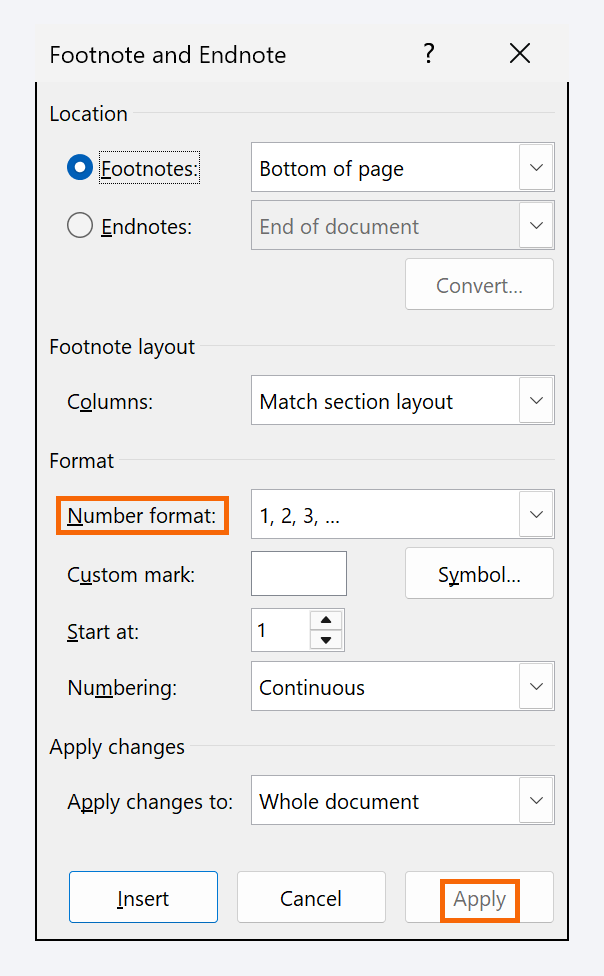
“Restart each section” only does something if each chapter starts with a real section break, not a page break.
Convert footnotes into endnotes (or back) with one click
Wrote everything as footnotes and the journal or the firm wants endnotes? Don't redo them. In the Footnote and Endnote dialog, click the Convert… button in the Location section. The Convert Notes box offers three options: all footnotes to endnotes, all endnotes to footnotes, or swap them. Pick one, click OK and close the dialog.
To convert a single note, right-click its text in the notes area and choose Convert to Endnote (or Convert to Footnote).

Format every note at once with the Footnote Text style
Don't resize notes one by one. Note text uses the Footnote Text style; the superscript number uses Footnote Reference. Click inside any note and open the pane with the launcher in Home › Styles: the active style is marked. Open the arrow next to Footnote Text, choose Modify…, change the font, size (10 points is the usual) or line spacing and click OK: every note, present and future, updates. Endnotes use Endnote Text and Endnote Reference.

Change the separator line from Draft view
The short line between the text and the notes can't be selected in the normal view. Go to View › Views › Draft and then References › Footnotes › Show Notes. A pane opens at the bottom with a drop-down: choose Footnote Separator. There you can delete the line, replace it (a paragraph border, the word “Notes”) or change its alignment. The same drop-down holds the Footnote Continuation Separator, the long line that appears when a note runs onto the next page. The Reset button brings back the original line. When you're done, go back to View › Print Layout.

Delete a note by its mark and step through notes with Next Footnote
To remove a note, don't delete the text at the bottom of the page: you'd be left with an empty number. Select the superscript number in the body text and press Delete. The mark and the note disappear, and Word renumbers the rest.
To review them one by one, use References › Footnotes › Next Footnote; its arrow also offers Previous Footnote, Next Endnote and Previous Endnote. Show Notes jumps between the mark and the note text.
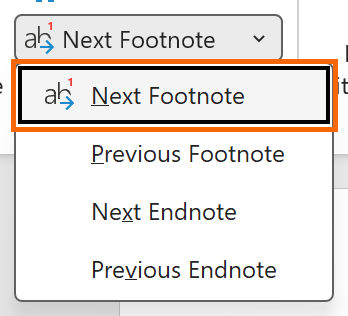
To move a note, cut and paste the superscript mark to its new spot: the note travels with it. If you copy and paste it instead, Word creates a new note with the same text.
Use it in a legal brief or a thesis
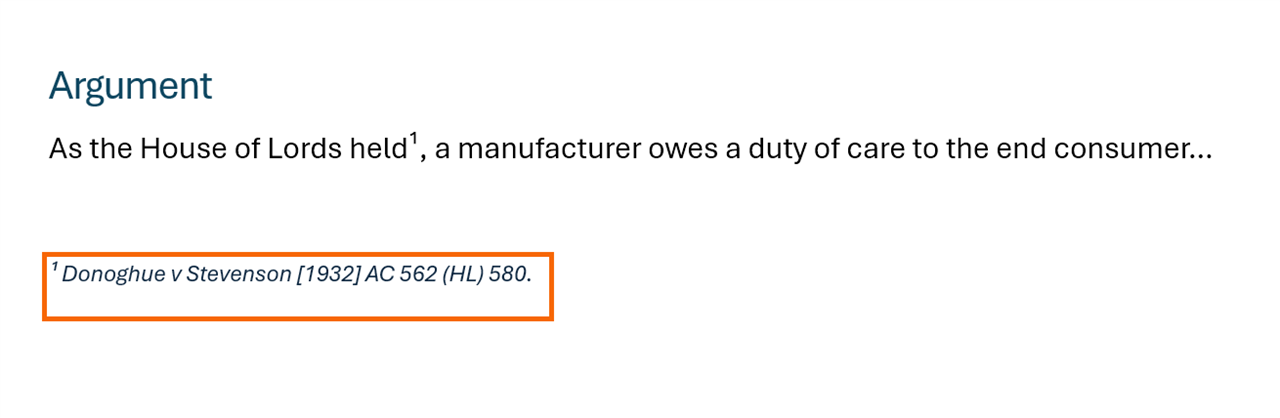
In legal writing the footnote is the natural home for case citations that would otherwise interrupt the argument: the body says “as the House of Lords held” and the note carries the full citation, for example Donoghue v Stevenson [1932] AC 562 (HL). OSCOLA and most law reviews rely on footnotes, and practitioners prefer footnotes with continuous numbering over endnotes, because a brief is read page by page. In a thesis the citation style decides: Chicago and many journals use footnotes; APA cites in parentheses and keeps notes for clarifications only. If your draft came from ChatGPT with references in square brackets, turn each one into a real note: delete the bracket, insert the note and paste the reference.
Expert tips
- Refer back to an earlier note without typing the number. For a “see note 3” that never breaks, use References › Captions › Cross-reference, reference type Footnote. More in cross-references.
- Per-chapter numbering in a thesis. Separate chapters with section breaks and, in the dialog, choose Restart each section.
- Symbols instead of numbers. For one or two notes on a cover page or in a table, pick the *, †, ‡ format or type your own symbol in the dialog's custom mark field (Symbol… button).
- Notes and AI. If you ask an AI for the citation of a case or a book, paste it into the note with Keep Text Only so it doesn't drag odd formatting along: paste without formatting.
Common mistakes and how to fix them
You deleted the text of a footnote but the number is still in the text.
Delete the superscript number in the body of the document, not the text at the bottom. Removing the mark removes the note and renumbers the others.
Your endnotes show up before the bibliography or the appendices.
In the dialog, under Endnotes choose End of section and put a section break before the bibliography. Or convert them into footnotes.
The numbering goes back to 1 halfway through the document without you asking.
There's a section break and the numbering is set to Restart each section. Open the dialog, choose Continuous and apply it to Whole document.
In Word for Mac the buttons are in the same place: References › Insert Footnote and Insert Endnote, with the shortcuts ⌘+⌥+F and ⌘+⌥+E. The group has no dialog launcher: the dialog with location, format and the Convert button opens from the Insert menu › Footnote… Draft view is in the View menu › Draft.
Frequently asked questions
What's the difference between a footnote and an endnote?
A footnote prints at the bottom of the same page as its mark; an endnote is collected with the others at the end of the document or section. Both are numbered automatically, and you can convert one kind into the other at any time.
Can I add footnotes in Word for the web?
Yes: the web version also has Insert Footnote and Insert Endnote on the References tab. The advanced options, such as converting notes or changing the separator, need the desktop version of Word.
Why does part of my footnote appear on the next page?
Because it doesn't fit. Word would rather continue the note on the next page than separate the mark from its note. Shorten it, reduce the size of the Footnote Text style or turn it into an endnote.
Do footnotes count toward the word count?
Only if you ask. Click the word count on the status bar and tick “Include textboxes, footnotes and endnotes”. Many universities exclude them from the limit: check your regulations.
Saved only in this browser.