Copilot in Word: what it does well, what it doesn't, and how to ask
Copilot in Word is Microsoft's AI assistant built into Word. You need a Microsoft 365 Copilot license (business) or a Microsoft 365 Personal or Family plan that includes it. Open it with the Copilot button (in the corner of the document or on the Home tab, depending on your version). It drafts, rewrites, summarizes and turns text into tables. Always check figures, citations and formatting.
You have Copilot in Word and aren't quite sure what to ask it. Or you tried it, got a decent but generic text, and went back to ChatGPT. That happens to almost everyone: Copilot isn't magic, but used well it saves you from the blank page, the summaries and the tedious rewrites.
Think of Copilot as a very fast intern working inside your document: it writes well, never gets tired and reads what's in front of it. But it doesn't know your case, it sometimes makes things up, and it knows nothing about your company template. In this guide you'll see where it lives, what it does well, what it gets wrong, and how to brief it so the result works the first time.
What you'll learn
- What you need to get Copilot in Word and where to find it
- How to draft, rewrite, summarize and build tables with Copilot
- How to write clear prompts that give good results
- Where Copilot fails and how to protect yourself: figures, citations and formatting
- What to do if you prefer ChatGPT, Claude or Gemini
Step by step
Check that your plan includes Copilot
Copilot doesn't come with every copy of Word. At work, you need a Microsoft 365 Copilot license assigned by your IT department. At home, it's included in Microsoft 365 Personal and Family plans, with a limited number of monthly AI credits (each request uses credits). You also need to be signed in to Word with the account that has that plan.
Plans, credits and prices change often and vary by country: always check Microsoft's current information before you buy anything.

Open Copilot from its button
Depending on your version, you'll find the Copilot button floating in a corner of the document or on the Home tab, at the far right of the ribbon. Clicking it opens the Copilot pane on the right: that's where you type your requests and read the answers.
In an empty document, Copilot usually offers to help you start a draft right away. And when you select text, a small Copilot icon appears next to the selection. Microsoft changes this interface often, so button names and positions may differ from what you see here.

In recent versions you can right-click the floating button to dock it to the side or move it to the ribbon.
Ask for a draft from scratch
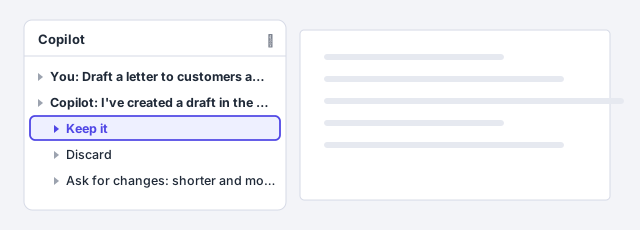
In a new document, describe what you need in the pane: a letter, a report, a procedure. Copilot writes the text straight into the document. Then you can keep it, discard it or keep asking for changes (“shorter”, “add a risks section”).
This is its strong suit: beating the blank page. An 80% first draft in a minute, which you then complete with the real facts.
Use another file as the starting point
Copilot can build on documents you already have. In the pane, type / and start typing the file name; pick the one you want from the list. For example: “Write meeting minutes from /March meeting notes” or “Create a proposal using /Client X offer as a model”.
It works with files stored in Microsoft's cloud (OneDrive or SharePoint). With work accounts it can also use emails and meetings, if your organization allows it.

Copilot blends and summarizes; it doesn't copy. If you need an exact clause or figure from the original file, copy it yourself and compare.
Rewrite a paragraph or change its tone
Select the text and click the Copilot icon that appears next to the selection. Choose a quick option such as Rewrite or describe the change: “more formal”, “for a non-technical client”, “half the length”. Copilot suggests a new version and you decide whether it replaces the original or goes below it so you can compare.

Ask for two or three versions and take the best sentences from each. It's faster than rewriting from scratch.
Summarize the document and ask it questions
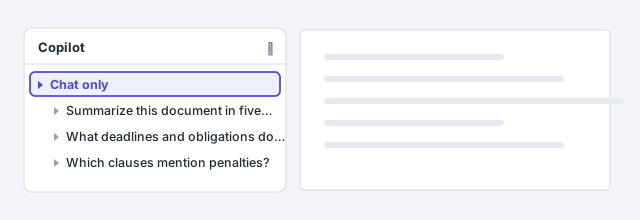
With a long document open, ask in the pane: “Summarize this document in five bullet points”, “What deadlines and obligations does it mention?” or “Which parts contradict section 3?”. If you only want answers and don't want it to touch the text, choose Chat only mode (if your version shows it).
Depending on your license and settings, Word may also show an automatic summary when you open the document.
A summary can leave out important exceptions or nuances. With contracts, use it to get your bearings, never as a substitute for reading.
Turn text into a table
If you have repeated data in paragraphs (tasks, owners, dates), select it and ask: “Turn this text into a table with columns Task, Owner, Due date and Status”. Copilot creates a real Word table. Check that no data was changed or lost, then format it with a table style.

Write the prompt as a complete brief
The quality of the answer depends on the prompt. Include: context (what it is and what it's for), audience, length, tone, explicit format (“use heading styles for the sections”, “three-column table”) and one golden rule: “don't invent data; if something is missing, write [TBD]”.
| Weak prompt | Prompt that works |
|---|---|
| Write a sales report | Write a one-page internal report on this quarter's sales for the leadership team. Direct tone. Use heading styles for Summary, Results and Next steps. Don't invent figures: put [DATA] where they're missing. |
| Improve this | Rewrite this paragraph for a client with no legal background, in 80 words or fewer, without changing any deadlines or amounts. |
| Write me a contract | Create an outline for a services agreement with numbered clauses: scope, fees, term, confidentiality and termination. Headings only, plus one sentence per clause. |

Review the result and apply your styles
Read everything before you sign off on it. Check figures, dates, names and citations against the original source. Then tidy up the formatting: apply Heading 1 and Heading 2 from Home › Styles wherever Copilot made “manual” headings, and apply your company template. Copilot writes well, but it doesn't know your template.

Expert tips
- Split long documents. Ask for the outline first, review it, then draft section by section. Copilot loses coherence and structure in long texts generated in one go.
- Never trust figures or citations. Copilot can confidently invent case law, statutes, percentages or references. Check every fact against the source before you send it.
- Styles first, free table of contents. If the result uses real heading styles, you can build an automatic table of contents in two clicks.
- Prefer another AI? ChatGPT, Claude or Gemini are just as good for drafting. The key is how you bring the text into Word: paste text from ChatGPT into Word without breaking the formatting.
Common mistakes and how to fix them
You send out Copilot text with an invented figure, date or citation.
Always ask “don't invent data; mark anything you don't know with [TBD]”, and check every figure and citation against the original source before sending.
The generated document has fonts, sizes and headings that don't match your template.
Select the text, use Clear Formatting and apply your styles (Heading 1, Heading 2, Normal). You can also ask Copilot to use heading styles from the start.
You can't find the Copilot button.
Check which account you're signed in with in Word (File › Account), that your plan includes Copilot and that Word is up to date. At work, ask IT whether a license has been assigned to you.
Copilot is available in Word for Mac with Microsoft 365 and in Word for the web, with the same Copilot button and the same pane. Plan and account requirements are the same as on Windows.
Frequently asked questions
Is Copilot in Word free?
Not entirely. It requires a Microsoft 365 Copilot license at work, or a Microsoft 365 Personal or Family plan that includes it, usually with monthly AI credits. Terms and prices change often, so check Microsoft's current information.
Does Microsoft use my documents to train its AI?
For business versions, Microsoft states that your organization's data isn't used to train its foundation models. For personal accounts, Microsoft publishes a separate privacy policy. Either way, check your company's AI policy before using it with confidential documents or client data.
Is Copilot or ChatGPT better for writing in Word?
Copilot has one advantage: it sees your document and your files without copying and pasting. ChatGPT, Claude or Gemini can produce equally good text, but you have to bring it into Word carefully: see paste text from ChatGPT into Word.
Why are Copilot's answers weaker in other languages?
Microsoft says Copilot supports many languages, but quality is highest in English. Write clear, specific prompts and review the output more carefully when working in another language.
Official sources
Microsoft documentation consulted for this guide.
Saved only in this browser.