Merge, split, reorder, rotate and delete PDF pages (free or with Acrobat)
In Acrobat Pro, merge files with Menu › Combine files › Add files › Combine, and reorder, rotate, delete, insert, extract or split pages with All tools › Organize pages. For free: PDF24 (Merge PDF, Split PDF, Sort PDF pages; PDF24 Creator keeps files on your computer) or PdfCraft, still in alpha. On a Mac, Preview does it by dragging thumbnails. Acrobat Reader cannot organize pages.
The scanned contract arrives with two pages upside down, the appendix in a separate file and a blank sheet in the middle. Or you need to file a brief with twenty exhibits and the court wants a single PDF. You don't have to rescan or print anything: the pages of a PDF can be moved, rotated, deleted and combined.
Think of a PDF as a ring binder. You can open the rings, take sheets out, change their order, add sheets from another binder or split it into two. What you don't do here is change what each sheet says: that is editing the text of a PDF.
In this guide you compare Acrobat Pro with the free tools, learn each operation and put together a complete case file with one bookmark per document.
What you'll learn
- Which tool to use for each job, and which ones are free
- How to merge several PDFs, Word documents or images into one file
- How to reorder, rotate, delete, insert, extract and split pages
- How to build a case file with exhibits and one bookmark per document
- When you should not upload a file to a free website
Step by step
Pick the right tool for the job
All these tools work with whole pages. Choose based on what you have installed and how sensitive the document is:
| Tool | Merge | Split and extract | Reorder, rotate, delete, insert | Uploads the file? | Cost |
|---|---|---|---|---|---|
| Acrobat Pro | Yes, also Word, Excel and images | Yes | Yes | No | Paid |
| Acrobat Reader | No | No | No | No | Free |
| PDF24 (web) | Yes | Yes | Yes | Yes, to its server | Free |
| PDF24 Creator | Yes | Yes | Yes | No | Free, Windows |
| PdfCraft | Yes, with bookmarks | Yes | Yes | No | Free, alpha |
| Microsoft Edge | No | No | Only rotates the view | No | Free |
Rule of thumb: if you have Acrobat Pro, use it. If not, use PDF24 Creator or PdfCraft for confidential documents, and the PDF24 website only for files you wouldn't mind a stranger seeing.

Merge several files in Acrobat with Combine files
Go to Menu › Combine files. Click Add files (or drag them into the window) and pick the PDFs, Word documents, Excel workbooks, presentations or images you want to put together. Acrobat converts anything that isn't a PDF yet.
You'll see one thumbnail per file. Drag them into their final order and click Combine in the top-right corner. Acrobat creates a new PDF and leaves the originals untouched. Save it with a clear name, such as “Full-proposal.pdf”.
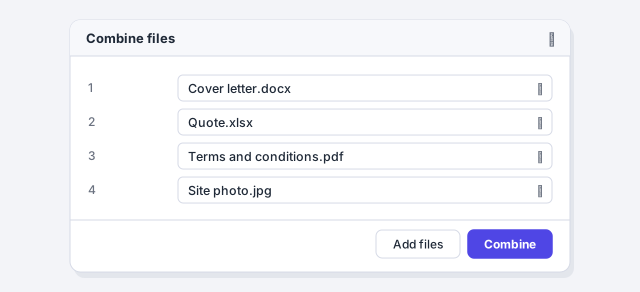
Number your files before adding them (01, 02, 03…): they arrive almost in order and you move fewer thumbnails.
Reorder, rotate and delete pages with Organize pages
Open the PDF in Acrobat Pro and go to All tools › Organize pages. Every page appears as a thumbnail, like sheets spread out on a desk.
- Reorder: drag a thumbnail to its new place. Hold Ctrl to select several and move them together.
- Rotate: select the pages and use the rotate left or rotate right buttons. The page-range box lets you apply it to even pages, odd pages or all pages.
- Delete: hover over a thumbnail and click the delete icon, or type “2, 4” or “6-8”, click Delete pages and confirm with OK. You can't delete every page.
When you're done, save the file, ideally under a new name so you keep the original.
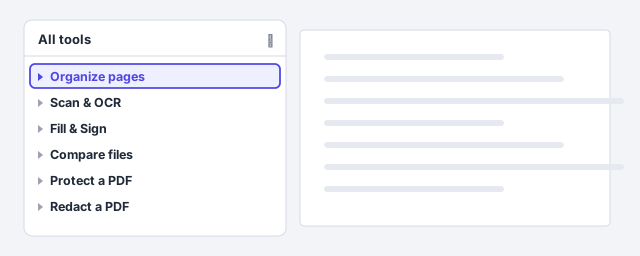
View › Rotate view only turns the page on your screen and is not saved. For the rotation to stay in the file, use the buttons in Organize pages.
Insert, extract or split pages in Acrobat
Still in Organize pages:
- Insert another PDF: choose Insert › From file, pick the file and, in the Insert Pages box, set the Location: before or after the first page, the last page or a specific page.
- Extract: select the pages and click Extract pages. They go into a separate PDF, and you can choose whether to remove them from the original.
- Split: in the left panel, open Split, then Split by, and choose Number of pages (say, every 10), File size or Top-level bookmarks (one file per chapter or per document).

Splitting by file size solves the classic “attachment too large” message from email and e-filing portals.
Do it for free with PDF24, online or with PDF24 Creator
On the PDF24 website each job is a separate tool: Merge PDF, Split PDF, Extract PDF pages, Sort PDF pages, Rotate PDF and Remove PDF pages. Drop the file in, work on the thumbnails and download the result.
For documents with personal data, install PDF24 Creator, the free Windows program. It has the same tools and works on your computer without uploading anything.
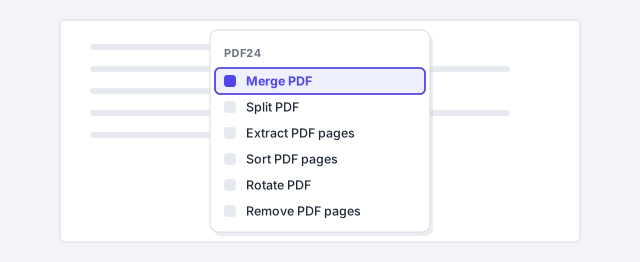
The PDF24 website, like any free website, uploads your file to a server. For contracts, payslips, medical records or client files, use PDF24 Creator, PdfCraft or Acrobat.
Use PdfCraft for a free program with no cloud
PdfCraft is an open-source program for Windows, Mac and Linux. It needs no account and your documents never leave your computer. It's in alpha: it can't yet edit existing text reliably or convert to Word, but page operations work well.
Open the PDF, press Ctrl+K to open the command palette and type Organize pages: you can rotate, delete, move and insert blank pages or pages from another file. The same palette finds Combine, Extract and Split (every so many pages, or before the pages you pick).

Alpha software deserves a backup: keep a copy of the original until you've checked the result.
Law-firm example: build a case file with one bookmark per document
You need to file a claim with twelve exhibits. Put one file per item in a folder and number them: “00 Complaint.pdf”, “01 Power of attorney.pdf”, “02 Contract.pdf”… In PdfCraft, use Combine and add the files in order: each file becomes a bookmark in the final PDF. The court or the client can then jump to the contract or the invoices with one click.
Before filing, check that every page is upright, that no blank scanner pages are left and that the text is searchable (if not, see OCR and PDF/A). If you need page numbers, PDF24 can add them. If the portal limits file size, split by size or by top-level bookmarks.
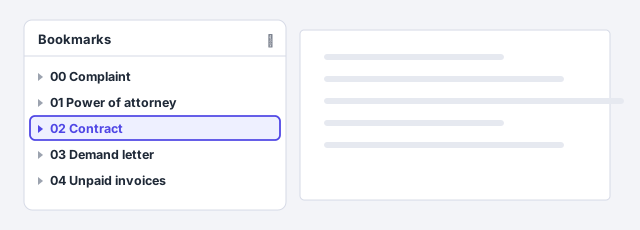
Build files with client data on your own computer (PdfCraft, PDF24 Creator or Acrobat). Client confidentiality and data-protection rules such as the GDPR argue against uploading them to free websites.
Check the result in another viewer before sending it
Open the final PDF in a different program (Edge or Acrobat Reader) and scroll through the thumbnails: page count, order and rotation. That way you know what you saved is what the recipient will see.
Be careful with Edge: its rotate button only changes how you see the document right now. It doesn't reorder, doesn't delete and doesn't save the rotation in the file. For the change to stick, use one of the tools from the earlier steps.

Expert tips
- Always work on a copy. Save the result under a new name (“-sorted”, “-complete”) until you've confirmed it's right.
- If you wrote the original, merge in Word. When the appendix is also a Word file, it's sometimes cleaner to combine everything in Word and export once, with bookmarks from the headings: convert Word to PDF.
- AI drafts the index, you check the order. Ask ChatGPT for a numbered list of exhibits from your brief and use it to name the files; checking the page order is still your job.
- Deleting a page is not redacting. If you need to hide an ID number inside a page, you have to redact it properly: redact and protect a PDF.
Common mistakes and how to fix them
I rotated the page in the viewer, but it's still upside down when I send the PDF.
You only rotated the view (in Edge, or with View › Rotate view in Acrobat). Rotate with Organize pages, PDF24 Rotate PDF or PdfCraft, then save.
The documents come out in the wrong order after merging.
Reorder the thumbnails before clicking Combine, or number the file names (01, 02…) before adding them.
I can't find Organize pages in Acrobat Reader.
The free Reader doesn't organize or merge pages. Use PDF24 Creator, PdfCraft or, on a Mac, Preview.
On a Mac, Preview does this for free: it shows thumbnails in the sidebar, you drag them to reorder, select and press Delete to remove them, use the rotate button, and drag another PDF into the sidebar to merge. In Acrobat for Mac, Combine files is under File instead of Menu. PDF24 Creator is Windows-only; PdfCraft has a Mac version.
Frequently asked questions
Can I merge PDFs for free without installing anything?
Yes, with Merge PDF on the PDF24 website. But the file is uploaded to its server: for confidential documents, install PDF24 Creator or PdfCraft, which work on your computer.
Can I delete a page with Acrobat Reader?
No. The free Reader reads, comments and signs, but doesn't organize pages. You need Acrobat Pro or a free tool such as PDF24 or PdfCraft.
Can Edge rotate a PDF?
Only for comfortable reading: it rotates the view, but the file doesn't change. To save the rotation, use Acrobat, PDF24, PdfCraft or Preview.
Can I reorder pages in a PDF that's already digitally signed?
You can, but the signature will no longer be valid for that version. Organize first and sign last, as explained in fill in and sign a PDF.
Saved only in this browser.