Edit the text of a PDF: with Acrobat, with Word and with free tools
If you have the original Word file, edit it and export a new PDF: it's the cleanest option. If all you have is the PDF, Acrobat Pro changes text in place: click Edit, click the text block and type. For free, Word turns it into an editable document with File › Open, though the layout may shift. PDF24 “Edit PDF” only adds or covers content on top; it doesn't rewrite.
A contract arrives as a PDF with the wrong date, or your own report has a typo and the Word file is nowhere to be found. You open the PDF, click the sentence… and nothing happens. That's expected: a PDF isn't built to be edited, it's built to look the same for everyone.
Think of a PDF as a page that has already been printed. You can write on it, stick a note on it or, with the right tool, erase a line and rewrite it. But it's never like editing a Word document, where text flows and rearranges itself.
In this guide you pick the right method for each case: the original Word file, Acrobat Pro, Word or the free tools. And you learn which tricks look like they work but leave the old text hidden underneath.
What you'll learn
- Why editing the original Word file and exporting again is almost always best
- How to change text in place with Acrobat Pro and what happens with fonts
- How to turn the PDF into an editable document with Word
- What free tools such as PDF24 really do
- Why covering a typo with a white box isn't editing
Step by step
Pick the method based on what you have
Before you touch anything, check this table. The key question is whether the tool changes the existing text or just puts something on top of it.
| Tool | Changes existing text? | Cost | Best for |
|---|---|---|---|
| Original Word file | Yes, no limits | Microsoft 365 | Whenever you have it |
| Acrobat Pro | Yes, in place | Paid | Fixes without the original |
| Word (File › Open) | Yes, after converting | Microsoft 365 | Letters and plain-text documents |
| PDF24 “Edit PDF” | No: adds or covers on top | Free | Adding a date, a note, a logo |
| Acrobat Reader and Edge | No: they only add text on top | Free | Filling in and annotating |
| PdfCraft | Not reliably yet | Free | Organizing, commenting, redacting |
PdfCraft is in alpha (version 0.9) and its text editing isn't reliable yet: use it for other jobs, not this one.

If you have the original Word file, edit it and export again
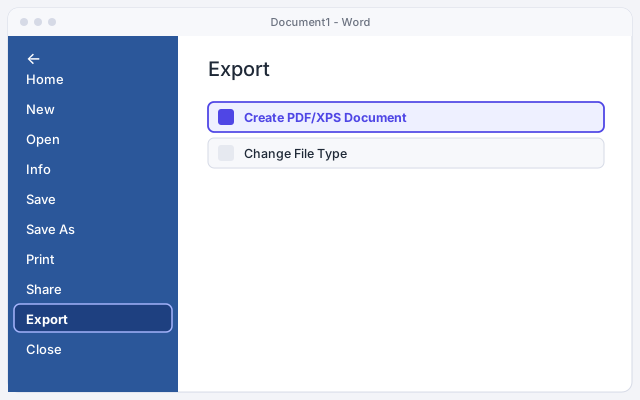
This is the golden rule. Open the Word document, fix whatever you need and create a new PDF with File › Export › Create PDF/XPS Document. The result is perfect: text reflows, the table of contents updates and there's no trace of the old version.
Look hard before giving up: in your Documents folder, in OneDrive, in the email you sent it with. If someone else made the PDF, ask them for the editable file. A one-minute email saves half an hour of fighting with the PDF. Settings for a high-quality PDF are in convert Word to PDF.
Put the version in the file name, for example “contract-v2.pdf”, so nobody signs the old one.
Check whether the PDF is scanned or signed
Press Ctrl+F and search for a word you can see on the page. If it isn't found, or nothing gets selected when you drag the mouse, the PDF is a picture of the pages. No tool can edit that text until you run OCR (text recognition) on it: see scanned PDFs and OCR.
Also check whether it carries a digital certificate signature. If you edit a signed PDF, the signature is no longer valid for that version. Fix the unsigned version and sign again at the end, as explained in fill in and sign a PDF.

With Acrobat Pro, edit the text in place
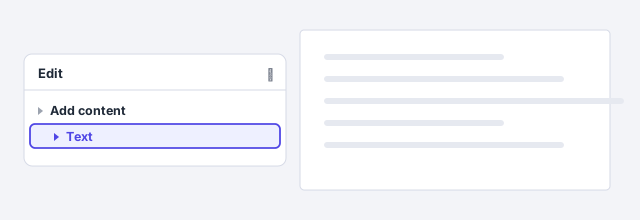
Open the PDF in Acrobat Pro or Standard and click Edit in the top bar. Acrobat draws a box around each block of text. Click inside, delete and type as in a word processor: lines in the same block rearrange themselves.
To add new text, choose Text under Add content in the Edit panel and click where you want to type. When you're done, save under a new name to keep the original.
Acrobat edits one block at a time. If you change a paragraph a lot, the block can run into the next one: check the whole page before saving.
Check the font and the result in Acrobat
Acrobat needs the original font to type with it. If the PDF has the font embedded but it isn't installed on your computer, you can only change the color or size of the text, not type new letters. The fix is to install that font or switch the whole paragraph to a similar one, so the patch doesn't show.
Acrobat also has an AI Assistant that lets you request changes by chatting. It can save time, but always check every sentence: in a contract, one comma can change a clause.
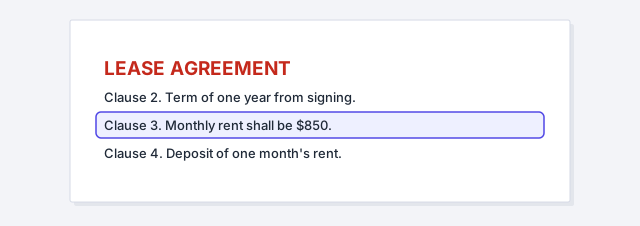
Check numbers carefully: a wrongly corrected rent, deadline or amount is the most expensive mistake.
Without Acrobat, open the PDF in Word to convert it
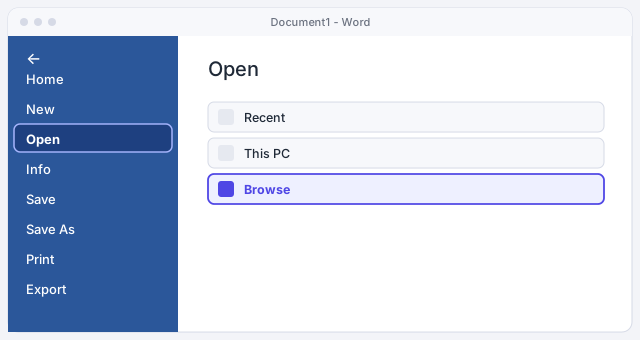
In Word, go to File › Open › Browse and pick the PDF. Word warns that it will convert it into an editable document and that it may not look exactly the same. Click OK. A few seconds later you have a new document: the original PDF is untouched.
It works very well with running text, such as letters, filings or simple reports. With tables, columns, footnotes or heavy design, things shift: you get text boxes, odd breaks or different fonts.
If the PDF came from email or the internet, Word may open it in Protected View. Click Enable Editing so it converts.
Fix it in Word and save a new PDF
Make your changes and go through the document from top to bottom: margins, page breaks, numbering and tables. If something has fallen apart, it's sometimes faster to copy the text into a clean document and apply styles.
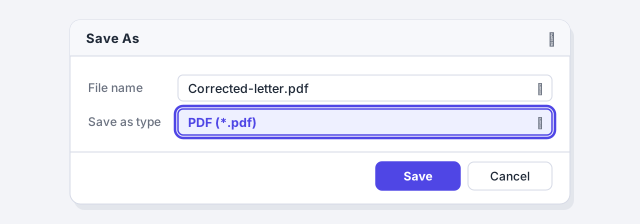
Then press F12, pick PDF (*.pdf) under Save as type and save under a new name. Keep the .docx too: next time you'll have the original.
With PDF24, add text or images on top of the page
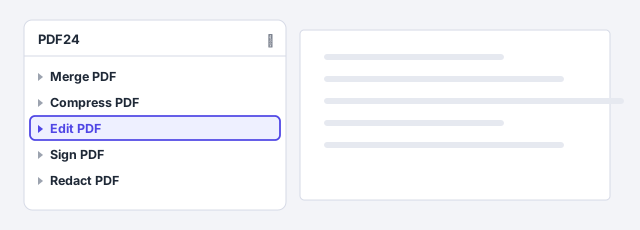
In PDF24, the Edit PDF tool places new elements on the page: text boxes, images, shapes and drawings. It's handy for adding a date, a case number or a logo. But it doesn't rewrite existing text: at most, it covers it with something on top.
Mind your privacy: the web version of PDF24 uploads the file to its server. For contracts, payslips or personal data, use PDF24 Creator, the free Windows program that works on your computer.
If your firm handles client data, don't upload their documents to free websites: confidentiality duties and data protection law apply here too.
Don't cover a typo with a white box
Drawing a white rectangle over the sentence and typing on top looks like a fix, but it isn't. The old text is still underneath: anyone can select it, copy it or find it with Ctrl+F. And if they move the rectangle, they see it.
If you want to remove information for good, such as an ID number or a confidential figure, use real redaction: redact and protect a PDF.

Expert tips
- Always ask for the editable file. If the PDF belongs to someone else, asking for the Word file is faster and safer than any editing tool.
- Work on a copy. Save the result under a new name. If something goes wrong, the original is still intact.
- AI fixes, you format. If the PDF has real text, copy it, ask ChatGPT to review it and paste it into Word with styles: see paste text from ChatGPT into Word.
- Compare before sending. For legal documents, compare the corrected version with the previous one to confirm only what you intended changed: see compare documents.
Common mistakes and how to fix them
I covered a sentence with a white rectangle and the recipient copied the old text.
The rectangle only hides it. Edit the text in Acrobat or the original Word file, or use a redaction tool and save the result.
In Acrobat the new text comes out in a different font or won't let me type.
The font isn't installed on your computer. Install it or switch the whole paragraph to a similar font so it doesn't show.
When I open the PDF in Word, tables and columns get jumbled.
Word rebuilds the layout and doesn't always get it right. For design-heavy documents, use Acrobat Pro or get the original.
On a Mac, Acrobat Pro edits the same way with Edit, but the main menu is File instead of Menu. macOS Preview doesn't edit existing text: it only adds text and shapes on top, with the same white-box problem. PDF24 Creator is Windows-only; on a Mac, the PDF24 website uploads your files.
Frequently asked questions
Can I edit the text of a PDF for free?
Yes, by converting it with Word if you have Microsoft 365, although the layout may shift. Free tools such as PDF24 “Edit PDF”, Acrobat Reader or Edge only add text on top; they don't change what's already there.
Why won't Acrobat Reader let me edit the text?
Because Reader is the free viewer: it comments, highlights, fills in and signs, but it doesn't edit text. For that you need Acrobat Standard or Pro, which are paid.
Can PdfCraft edit the text?
Not yet. PdfCraft is in alpha and editing existing text isn't reliable. It's a good free option for organizing pages, commenting or redacting without uploading anything.
Can I edit a signed PDF?
Technically yes, but the certificate signature is no longer valid for that version. Fix the unsigned document and sign it again: signing is always the last step.
Saved only in this browser.