Redact a PDF for real, remove hidden data and add a password
A black box or a highlighter on top doesn't redact anything: the text is still underneath and can be copied. In Acrobat Pro use All tools › Redact a PDF, apply the redactions and save; then Sanitize document removes metadata and hidden data. Free option: PDF24's Redact PDF. To protect it, use Protect a PDF › Protect using password with an open password (Viewing), and send it separately.
You need to send a court ruling, a pay slip or a report, and some details mustn't show: an ID number, a home address, a diagnosis. The quick fix is to draw a black box on top or run a black highlighter over it. It looks perfect, and it's a mistake that has exposed documents from governments and law firms: the text is still under the box, and anyone can select and copy it.
Real redaction is cutting that piece out of the paper with scissors, not covering it with a sticky note. Redaction tools delete the content and put a black box in its place. Then there's what you can't see: the author, comments or attachments travelling inside the PDF.
In this guide you redact with Acrobat Pro and with free tools, clean out hidden information, check that nothing leaks and protect the file with the right kind of password.
What you'll learn
- Why covering text with a box or a highlighter doesn't remove it
- How to redact for real with Acrobat Pro, PDF24 or PdfCraft, including by pattern
- How to remove metadata, comments and other hidden data
- How to check that the redaction worked before you send
- The difference between an open password and a permissions password
Step by step
Understand why a black box doesn't redact anything
A PDF has layers, like a stack of transparencies. When you draw a rectangle, a black highlight or a shape in Acrobat Reader, Edge or Word, you add a layer on top: the original text is still in the layer below. Anyone can select it, copy it and paste it into Notepad, or find it with search.
Redacting means deleting the text or image from the file and leaving a box in its place. There's no way to get it back from that PDF.

The same happens if you cover something in Word with a black text box and export to PDF: the text travels underneath. Delete it in Word before exporting.
Pick the tool for what you need
| Tool | Real redaction | Remove hidden data | Password | Cost |
|---|---|---|---|---|
| Acrobat Pro | Yes, with search and patterns | Yes (Sanitize document) | Yes | Paid |
| PDF24 | Yes (Redact PDF) | Metadata (Remove PDF metadata) | Yes (Protect PDF) | Free |
| PdfCraft | Yes (alpha) | Yes, sanitizing (alpha) | Yes | Free |
| Word | No: delete it in the original | Inspect Document | When exporting to PDF | Microsoft 365 |
Acrobat Reader, Edge and Preview are fine for reading and annotating, but their shapes and highlights are layers on top: don't use them to redact.

Redact for real with Acrobat Pro
Make a copy of the file first: redaction can't be undone. Open the PDF and go to All tools › Redact a PDF. Select the text or drag a box over the area you want gone, such as a signature or a photo of an ID card. The areas are marked, but nothing has been removed yet.
Once everything is marked, apply the redactions and save the file under a new name, for example “complaint-redacted.pdf”. Until you apply and save, the text is still under the marks.
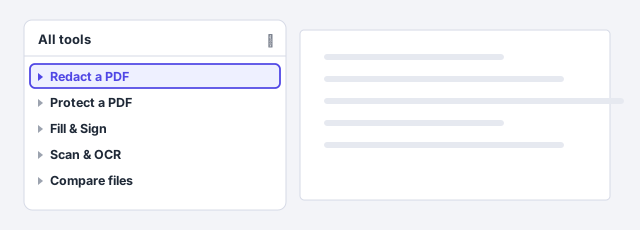
If you send the PDF with the marks not yet applied, the recipient can read everything. Applying and saving isn't optional.
Find every instance at once by searching or using patterns
In an 80-page case file you won't find every mention of a name by hand. Inside Redact a PDF, use the option to find text and redact: type one or more words (the client's name, their street) or choose Patterns to look for types of data such as phone numbers, email addresses or ID numbers.
Review the results and mark all of them or, if there are some you want to keep, select only those you want removed. Then apply the redactions and save, as in the previous step.
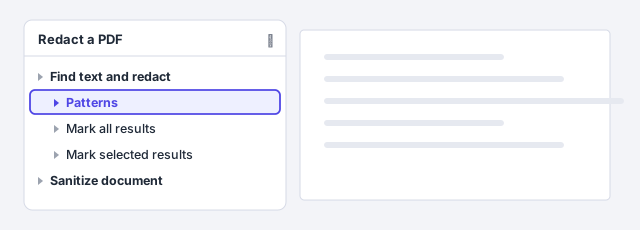
For a firm handling client data, this search is your best ally under privacy laws such as the GDPR or HIPAA: ID numbers, home addresses and health details the document doesn't need shouldn't leave the office.
Remove what you can't see with Sanitize document
A PDF can carry the author's name, the original title, comments, hidden layers or attachments. In Acrobat Pro, Sanitize document removes them: you can strip everything at once or choose item by item in the hidden information panel.
If the PDF comes from Word, clean the original before exporting too (comments, tracked changes, author): see protect a document and remove its metadata.

Do it for free with PDF24 or PdfCraft, on your own computer
PDF24 has Redact PDF to remove areas and Remove PDF metadata to clear the author and properties. But careful: the web version uploads your file to a server, exactly what you don't want with personal data. Use PDF24 Creator, the free Windows program that does the same without uploading anything.
PdfCraft, free and open source, also redacts and sanitizes without the cloud: press Ctrl+K and type redact. It's in alpha, so always check the result.
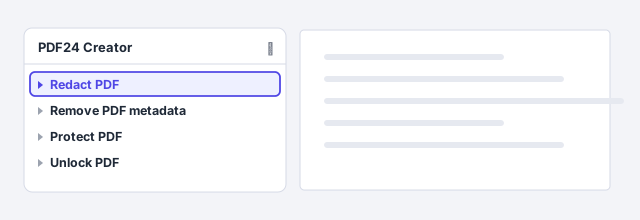
Check the redaction: try to recover what you covered
Close the redacted PDF and open it again, ideally in a different program (Edge or Acrobat Reader). Run three tests:
- Select the text around a black box, copy it and paste it into Notepad: the hidden detail mustn't appear.
- Search with Ctrl+F for the name or number you redacted: it should find nothing.
- Look at the file's properties: the author shouldn't be someone you don't want named.
If any test fails, go back to the original and redact again.

Use an open password, not just a permissions password
In Acrobat, go to All tools › Protect a PDF › Protect using password, choose Viewing or Editing, type the password twice and click Apply. In PDF24, the tool is Protect PDF.
- Open password (Viewing): without it the PDF won't open, because the content is encrypted. This is the one that really protects.
- Permissions password (Editing): the PDF opens, but printing, copying or editing are restricted. Many programs ignore it, so it doesn't protect anything confidential.
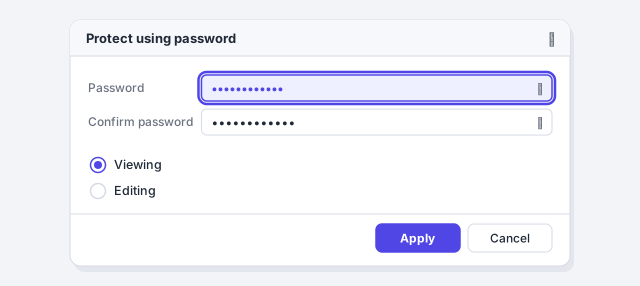
From Word, encrypt on export and send the password separately
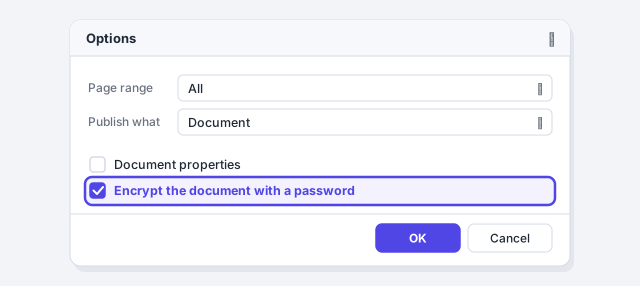
If the PDF comes from Word, add the password when you create it: File › Save As, type PDF, Options… button, and tick Encrypt the document with a password. The other export settings are in export a high-quality PDF.
And the step everyone forgets: never send the password in the same email as the PDF. Email the file and share the password by phone, text message or another app. If someone gets hold of the email, they won't have both pieces.
Expert tips
- Keep two files. “case-file-original.pdf” stored safely and “case-file-redacted.pdf” to send. Redaction can't be undone, and you'll need the original.
- Scans don't search themselves. In a scanned PDF the text is an image, so search finds nothing. Mark the areas by hand or run OCR before searching.
- AI isn't a reliable redactor. Asking an AI to “anonymize” a document means uploading the very data you want to protect, and it misses some. Redact yourself and check.
- A phrase beats a word. A password made of four random words is stronger than “Office2026” and easier to read out over the phone.
Common mistakes and how to fix them
The details were covered with a black highlighter and the text could still be copied.
A highlighter or a box only draws on top. Use a redaction tool (Redact a PDF in Acrobat Pro, Redact PDF in PDF24) and check by copying and searching.
I marked everything for redaction but sent the PDF without applying it.
In Acrobat the marks are only a proposal until you apply the redactions and save. Apply, save under a new name and repeat the copy-and-search test.
I set a permissions password and thought nobody could read the file.
Permissions only restrict printing, copying or editing, and they're easy to bypass. To keep anyone without the password from reading it, use an open password (Viewing).
I sent the PDF and the password in the same email.
Whoever has that email has both. Share the password by phone, text message or another app.
On a Mac, Preview can add a password when you export (File › Export, encryption option). For redaction, don't use its shapes or highlights, which are annotations on top: use Acrobat Pro, PdfCraft for Mac or PDF24, and check the same way. In Acrobat for Mac the tools are the same and the main menu is File.
Frequently asked questions
Why isn't covering the text with a black box enough?
Because the box is a layer on top and the text is still in the file. Anyone can select and copy it, or search for it, and read it. Only a redaction tool removes it.
Can I redact a PDF for free?
Yes: PDF24 has Redact PDF, and PdfCraft redacts too, although it's in alpha. With personal data, use PDF24 Creator or PdfCraft, which work on your computer, rather than the website.
Can a PDF password be removed?
If you know it, yes: PDF24 has an Unlock PDF tool. Permission restrictions are easy to remove even without the password, so for anything confidential use an open password.
Is redacting enough to comply with privacy laws?
It helps: not sending data that isn't needed is part of data minimization under laws like the GDPR. But it doesn't cover everything; for a specific case, check with your data protection officer or legal counsel.
Saved only in this browser.