Protect the document: restrict editing, mark as final and remove metadata
In File › Info › Protect Document you get three levels: Mark as Final (a warning only), Encrypt with Password (nobody opens it without it) and Restrict Editing (read only, tracked changes, comments or forms). Before sending, go to File › Info › Check for Issues › Inspect Document and click Remove All to delete comments, revisions and personal information.
You send a “clean” contract to the other side and, when they open it, they see your internal comments, the clauses you deleted with Track Changes and, in the properties, the name of your firm and of the previous client whose contract you built this one on. That is not an exaggeration: it is what every Word file keeps unless someone cleans it.
Think of a Word document as a house with a basement. What you see on screen is the ground floor. In the basement live the metadata: author, company, template, editing time, versions, comments and hidden text. Whoever receives the file can go downstairs whenever they like.
In this guide you learn to lock the house (password), to let people in only where you want (restrict editing) and to empty the basement before handing over the keys (inspect and remove metadata). And to pick the right option for each case, because they do not all protect the same thing.
What you'll learn
- The difference between Mark as Final, Encrypt with Password and Restrict Editing
- How to let the other side use only tracked changes or comments
- How to delete comments, revisions, properties and hidden text with the Document Inspector
- How to make Word strip your personal information every time you save
- When to send a PDF instead of the Word file
Step by step
Open File › Info › Protect Document
Go to File › Info. The first block in the panel is Protect Document: a drop-down button with every option in this guide. The three you will use are Mark as Final, Encrypt with Password and Restrict Editing.
The other two (Restrict Access and Add a Digital Signature) depend on company services or a digital certificate; we do not cover them here.

Mark as Final if you only want to warn people (it is not security)
Choose Protect Document › Mark as Final and accept the notice. Word saves the file as read-only, disables the ribbon and shows a yellow bar: Marked as Final. It is the way to say “this is the definitive version, leave it alone”.
But it is only a warning. Anyone can click Edit Anyway on that bar and keep typing. Use it to prevent accidental edits inside your team, never to stop someone from editing.
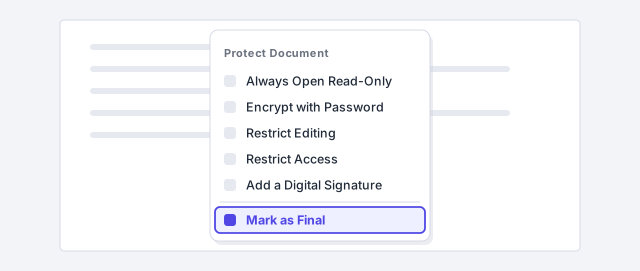
Mark as Final protects nothing and hides nothing: comments, revisions and metadata are all still there.
Encrypt with a password if nobody should open it without permission
Choose Protect Document › Encrypt with Password. Type the password, click OK, type it again to confirm and save. From now on Word asks for the password when the file is opened, and the content is encrypted: without it the file cannot be read, even if copied to another computer.
It is case-sensitive. Send it through a different channel from the file (by phone or message, not in the same email).

There is no recovery. If you forget the password, neither you nor Microsoft can open the document. Store it in your password manager before you close the file.
Open the Restrict Editing pane
To control what the other person can change, use Review › Protect › Restrict Editing (or File › Info › Protect Document › Restrict Editing: it is the same pane). The Restrict Editing pane appears on the right with three numbered blocks.
Block 1. Formatting restrictions limits which styles can be applied (tick Limit formatting to a selection of styles and click Settings…). Handy with a corporate template, but the important part is block 2.

Choose which kind of editing you allow
Under 2. Editing restrictions, tick Allow only this type of editing in the document and open the list:
- No changes (Read only): nobody edits anything, except in the areas you mark as exceptions.
- Tracked changes: everything they type is recorded as a tracked change and they cannot switch it off. The ideal option for negotiating a contract.
- Comments: they can comment, but not touch the text.
- Filling in forms: they can only type in form fields.
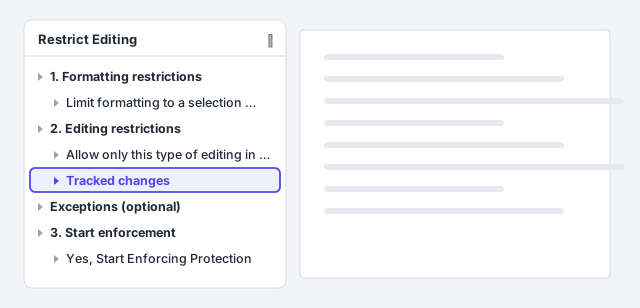
For a negotiation draft, pick Tracked changes: the document comes back with every edit marked and you review it with Track Changes.
Add exceptions and click “Yes, Start Enforcing Protection”
If you chose No changes (Read only) or Comments, the Exceptions (optional) block appears. Select in the document the areas that may be edited (for example, the client details box or the pricing annex) and tick Everyone. Word highlights them: everything else stays locked.
Scroll down to 3. Start enforcement and click Yes, Start Enforcing Protection. Enter a password (optional, but without one anyone can remove the protection with a click) and click OK. To remove it later: same pane, Stop Protection button.

This password stops people from lifting the restriction, but it does not encrypt the file. If the content is confidential, combine it with Encrypt with Password.
Inspect the document before you send it
Save a copy (F12, Save As) under another name: the clean-up cannot be undone. Then go to File › Info › Check for Issues › Inspect Document. The Document Inspector opens with a list of checkboxes. Keep at least these four ticked:
- Comments, Revisions, and Versions: comments and changes waiting to be accepted.
- Document Properties and Personal Information: author, company, last person who saved, template.
- Headers, Footers, and Watermarks: the DRAFT watermark you forgot to remove.
- Hidden Text: text formatted as Hidden that does not show on screen.
Click Inspect.
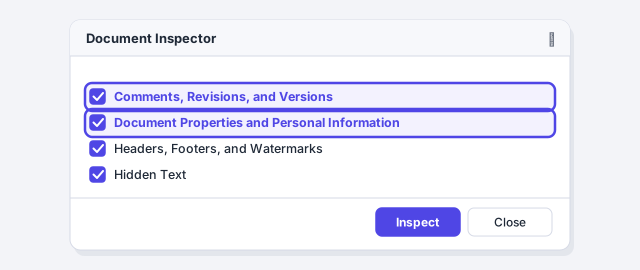
Click “Remove All” on each finding and save
The Inspector shows an exclamation mark next to every category where it found something, with a Remove All button beside it. Click it for each one. For revisions, Word accepts every pending change and deletes the comments; for properties, it blanks the author, company and the rest of the personal data.
Click Reinspect to confirm everything is clean, close and save (Ctrl+S). If you would rather review change by change before accepting in bulk, do it first with Track Changes.
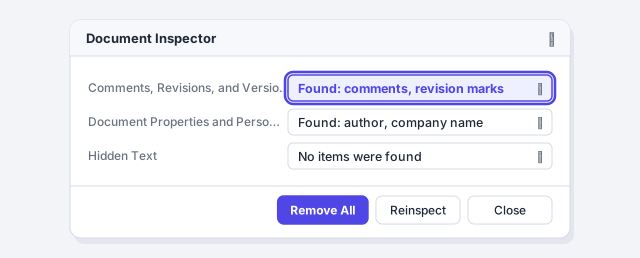
Remove All cannot be undone with Ctrl+Z. That is why you work on a copy: the version with revisions and comments stays on your computer.
Turn on “Remove personal information on save”
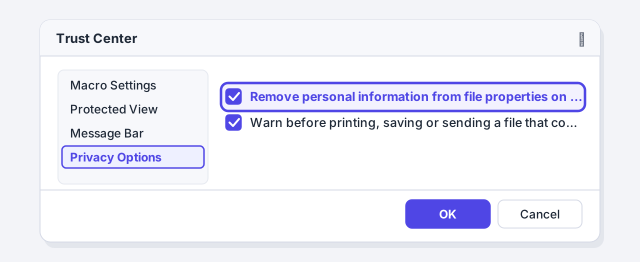
So that this document does not fill up with personal data again every time you save, go to File › Options › Trust Center › Trust Center Settings… › Privacy Options. Under Document-specific settings, tick Remove personal information from file properties on save and click OK.
It is a per-document option, not a global one: Word enables it only after you have run the Inspector and removed the properties (until then it is greyed out). Save it in your contract template and every new document inherits it.
Expert tips
- Turn on the revisions warning. On that same Privacy Options screen, tick Warn before printing, saving or sending a file that contains tracked changes or comments. Word stops you right before you send a document with visible changes.
- PDF for the final version. If the other side does not need to edit, send a PDF: it carries no revisions or comments. When exporting, click Options and untick Document properties so the author does not travel either. We explain it in save a professional PDF.
- Password to modify only. In Save As › Tools › General Options you can set a Password to modify: anyone can open the file, but without the password it opens read-only. Weaker than encryption, but convenient for templates and model documents.
- Use AI without leaving traces. If you paste a ChatGPT or Copilot draft with your own comments (“check this clause”), the Inspector deletes them in one go. Better still: resolve them before delivery day arrives.
- Compare instead of trusting. When the contract comes back from the other side, use Compare documents even if you required tracked changes: that way you catch any edit that slipped through.
Common mistakes and how to fix them
You marked the document as final and the other side edited it anyway.
That is expected: Mark as Final is a warning. If you want to prevent changes, use Restrict Editing with a password or send a PDF.
You restricted editing but the Exceptions block does not appear.
Exceptions only exist with No changes (Read only) and with Comments. With Tracked changes or Filling in forms there are no exceptions.
You cleaned the file with the Inspector and lost comments you needed.
Remove All cannot be undone. Recover the earlier version with File › Info › Version History (if the file is on OneDrive or SharePoint) and, from now on, always clean a copy.
The Remove personal information on save box is greyed out.
Word only enables it in documents where you have already run the Inspector and removed the properties. Run Inspect Document, click Remove All under Properties and go back to Privacy Options.
In Word for Mac everything lives in Review › Protect › Protect Document: a single dialog with a password to open, a password to modify, editing restrictions (Tracked changes, Comments, Forms, Read only) and the “Remove personal information from this file on save” box. There is no Document Inspector and no Mark as Final; to clean metadata use that box or export to PDF.
Frequently asked questions
What metadata does a Word file actually store?
Author, last person who saved, company, source template, revision number, total editing time, creation date and, unless you removed them, comments and changes with name and time. You can see them in File › Info › Properties, and so can the other side.
Is Encrypt with Password really secure?
Yes: Word 2013 and later encrypt the file with AES. With a long password there is no practical way to open it. With a short or guessable one, not so much. And remember there is no recovery.
Can I remove the password later?
Yes. Open the document with the password, go to File › Info › Protect Document › Encrypt with Password, clear the field, click OK and save.
Is Restrict Editing useful for a contract the other party will sign?
It is useful so they can only fill in their details or propose edits as tracked changes. For the final version that gets signed, the usual choice is a PDF: it is the format with the fewest surprises. If they insist on an editable Word file, use Tracked changes and compare when it comes back.
Does the Inspector also strip the information from the exported PDF?
No. The PDF takes the author and title from the Word properties. Clean up with the Inspector first, or untick Document properties in the export options.
Official sources
Microsoft documentation consulted for this guide.
Saved only in this browser.