Export to PDF with quality, bookmarks and no hidden information
In Word, go to File › Export › Create PDF/XPS Document › Create PDF/XPS (or File › Save As and pick the PDF type). Click the Options button and check “Create bookmarks using: Headings” and “Document structure tags for accessibility”. Pick Standard (quality) or Minimum size (email). Don't use Print to PDF: it drops links and bookmarks.
You finish the report or the contract, save it as PDF and send it. A while later the reply comes back: the file is 18 MB, the links in the table of contents do nothing and, worse, the client spotted an internal comment you thought was gone. That's not bad luck: these are decisions Word makes for you when you export in a hurry.
Think of the PDF as the “printed” version of your document, but with superpowers: it can carry a clickable outline (the bookmarks), working links, a structure that screen readers can follow and even a password. All of that is already in your Word file; you just have to tell Word to include it. In this guide you prepare the document, export with the right options and check the result.
What you'll learn
- What to clean up before exporting so nothing hidden slips through
- The difference between Save As PDF, Export and Print to PDF (and which one to avoid)
- What to check in the Options button: bookmarks, properties, accessibility, PDF/A and password
- When to choose Standard or Minimum size and how to compress pictures
Step by step
Accept all changes and delete the comments
If the document has Track Changes on, the PDF may come out with strikethroughs and balloons, or with a version that isn't final. Go to Review › Changes › Accept and choose Accept All Changes and Stop Tracking. Then, under Review › Comments › Delete, click Delete All Comments in Document.
In a contract, the version with the history is for the negotiation; the clean one goes out for signature. Keep both.
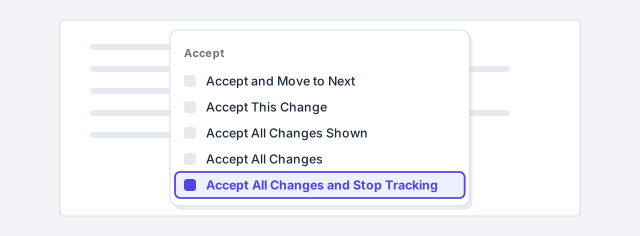
Save a copy under a different name first (for example “contract-v3-tracked.docx”): once the file is closed, accepted changes can't be recovered.
Run the Document Inspector to remove hidden data
Go to File › Info › Check for Issues › Inspect Document and click Inspect. Word tells you whether there are leftover comments, properties with the author's name, hidden text or watermarks. Click Remove All next to anything you don't want to share.
That way the PDF won't carry the name of whoever wrote the first draft or the title of an earlier version. More detail in protect the document and clean metadata.
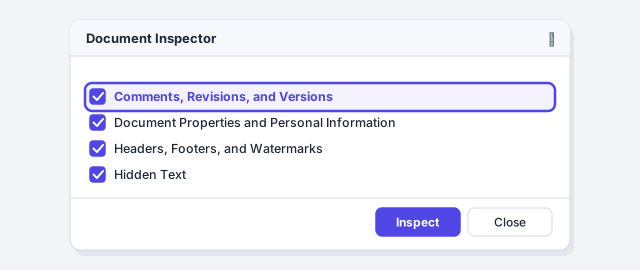
Removing “Document Properties and Personal Information” also clears the author. If you want the PDF to show your name or your firm's, type it again under File › Info before exporting.
Compress the pictures if the file is too heavy
Phone photos weigh several megabytes each. Click a picture and go to Picture Format › Adjust › Compress Pictures. Clear Apply only to this picture so it affects all of them, keep Delete cropped areas of pictures checked and pick a resolution: Print (220 ppi) if it will be printed, Web (150 ppi) if it will only be read on screen.
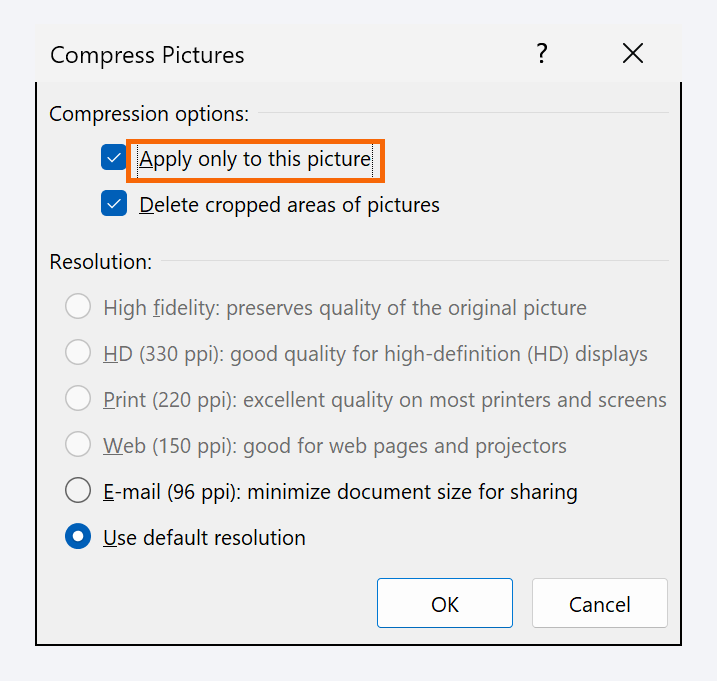
Compression throws pixels away and there's no way back once the file is saved. Do it on a copy.
Open File › Export › Create PDF/XPS Document
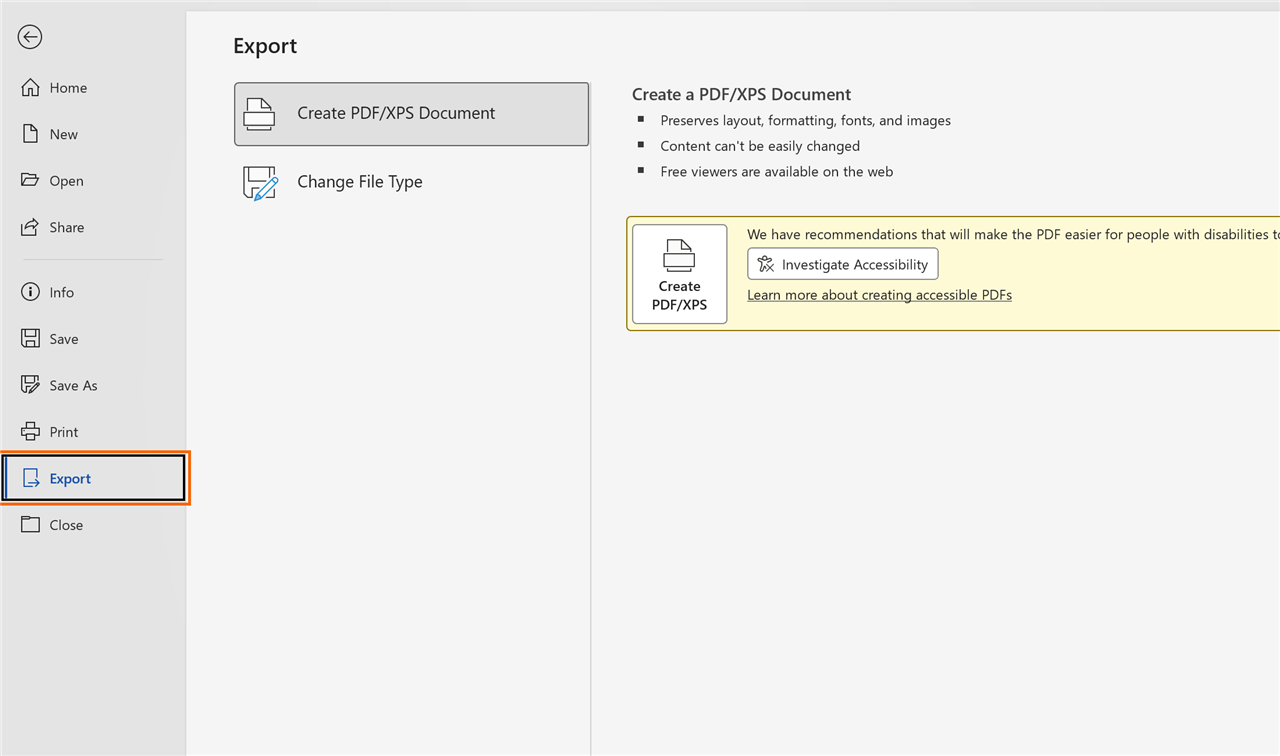
Go to File › Export, select Create PDF/XPS Document and click the Create PDF/XPS button. The Publish as PDF or XPS window opens, and that's where all the settings live. You reach the same place through File › Save As, choosing PDF (*.pdf) as the file type and clicking More options….
What you should not do is File › Print with the “Microsoft Print to PDF” printer: it draws the document as if it were paper and loses the links, the bookmarks and the accessible structure.
Choose Standard or Minimum size, then click Options
Under Optimize for there are two choices: Standard (publishing online and printing) keeps the pictures at full quality; Minimum size (publishing online) shrinks them so the file travels well by email. For a contract with text and a logo the difference is small; for a brochure full of photos, huge.
Then click the Options… button: that's what turns an ordinary PDF into a professional one.
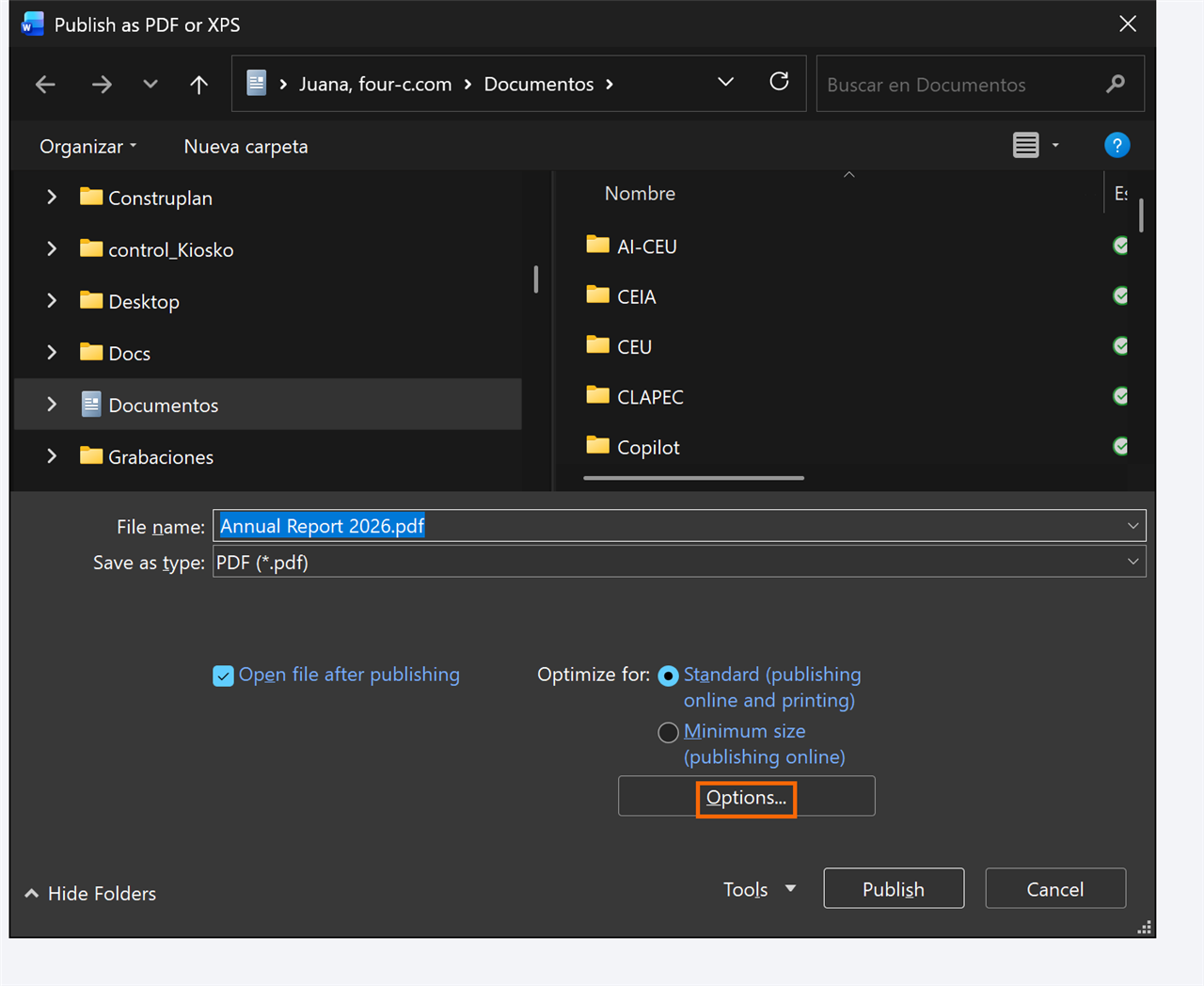
Check “Open file after publishing” so the PDF opens by itself when it's done and you can review it right away.
Turn on bookmarks, properties and structure tags
Under Page range leave All, or enter Page(s) if you only want to send, say, the schedule. Under Publish what, keep Document (Document showing markup would print the changes and comments).
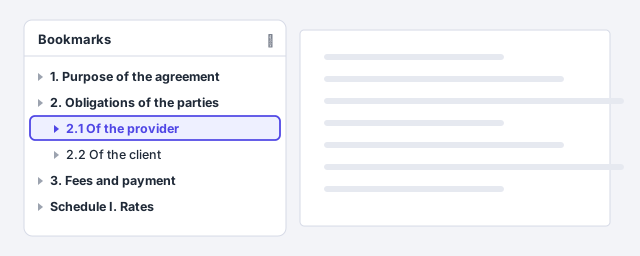
Under Include non-printing information check Create bookmarks using: Headings, Document properties and Document structure tags for accessibility. Bookmarks are the side outline the reader sees in Acrobat or in the browser, and they come from your Heading 1, Heading 2… styles. The tags let a screen reader understand the order of headings, lists and tables.
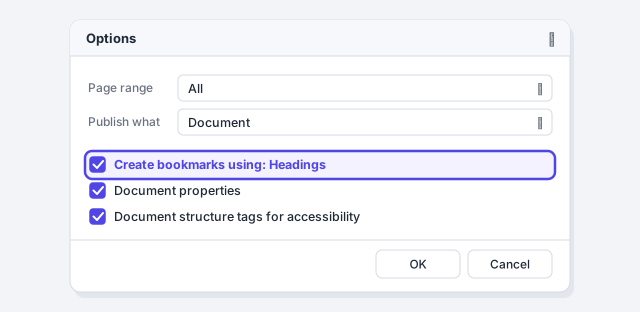
If the “Headings” option is greyed out, the document doesn't use heading styles. Apply them first (Home › Styles) and export again.
Decide whether you need PDF/A or a password
Under PDF options, PDF/A compliant (in older versions: ISO 19005-1 compliant (PDF/A)) creates an archival PDF: it embeds every font and depends on nothing external. Many registries, courts and e-filing platforms require it for submissions.
Encrypt the document with a password makes the PDF ask for a key when opened. When you click OK, Word asks you to type it twice (6 to 32 characters). Send the password through a different channel, never in the same email. PDF/A doesn't allow encryption: pick one or the other.

Publish and check the PDF
Click OK and then Publish. Open the PDF and run three checks: the reader's bookmarks panel shows your headings, the links in the table of contents jump to their page, and the file size is reasonable.
If one day you need to edit a PDF and no longer have the Word file, open it from File › Open: Word warns that it's going to convert it and creates an editable document. It works well with running text; with tables, columns and scanned PDFs expect to do some fixing.
Expert tips
- Standard for signing and printing, minimum for email. If the PDF goes to a registry, a court or a print shop, use Standard. If it will only be read on screen and is over 5 MB, use Minimum size.
- Bookmarks come free if you use heading styles. If ChatGPT wrote the draft and you made the headings “by hand” in bold, the PDF will have no bookmarks. Apply Heading 1 and Heading 2 first: here's how styles work.
- Check accessibility before you export. Under Review › Check Accessibility Word flags pictures without alt text and tables without a header row; the PDF inherits those problems. More in accessible documents.
- Export only the range you need. Under Options › Page range enter “From 12 To 15” to send just one schedule without touching the original document.
Common mistakes and how to fix them
The table of contents links and cross-references don't work in the PDF.
You used Print with “Microsoft Print to PDF” or another virtual printer. Generate the PDF again with File › Export › Create PDF/XPS Document (or Save As › PDF).
The PDF shows strikethroughs, red text or comments.
There were unaccepted changes. Go to Review › Accept › Accept All Changes and Stop Tracking, delete the comments and, under Options, keep “Publish what: Document”.
The PDF is far heavier than the Word file.
You chose Standard with large photos or checked “Optimize for image quality”. Compress the pictures (Picture Format › Compress Pictures) or export with Minimum size.
In Word for Mac go to File › Save As and pick PDF under File Format; choose the “electronic distribution and accessibility” option to keep links and tags (the “printing” option drops them). There is no Options button on Mac: you can't set a page range, PDF/A or a password from Word; to password-protect, use Preview or Acrobat. Also avoid File › Print › PDF, which loses the links.
Frequently asked questions
What's the difference between Save As PDF and Export?
None in the result: both routes reach the same window and the same options. Export is more direct because it only does PDF/XPS; Save As makes you change the file type and click More options.
Why shouldn't I use Print to PDF?
Because a virtual printer receives the document as a picture of each page: it doesn't know what a heading, a link or a table is. The resulting PDF has no bookmarks, the links can't be clicked and screen readers can't navigate it.
Can I edit a PDF in Word?
Yes: File › Open › pick the PDF. Word converts it into an editable document. With PDFs generated from Word the result is good; with complex tables, columns or scanned PDFs (which are photos) you'll need a thorough review.
What is PDF/A and when do I need it?
It's the flavour of PDF designed for long-term archiving: it embeds fonts, forbids encryption and doesn't depend on external content. Many registries, courts and e-government portals require it. If nobody asks for it, a regular PDF is enough.
Official sources
Microsoft documentation consulted for this guide.
Saved only in this browser.