Accessible documents: alt text, Accessibility Checker and accessible PDF
In Word, go to Review › Check Accessibility: a pane opens with errors, warnings and tips. Fix the most common issues: alt text on pictures (right-click › View Alt Text), headings with heading styles, tables with a header row and descriptive links. For the PDF: Save As › PDF › Options › Document structure tags for accessibility.
You send a flawless report and, to a blind person using a screen reader (software that reads the screen aloud), it is word soup: “image, image, table, column 1…”. There are no headings to jump between and the links read “click here”. And it is not just goodwill: in the European Union, Directive (EU) 2016/2102 requires public-sector websites and apps, including the documents they publish, to be accessible, and the European Accessibility Act (Directive (EU) 2019/882) has applied to many products and services since June 2025. In the US, Section 508 does the same for federal agencies. More and more clients and tenders write it into the contract.
The good news: an accessible document is almost always a well-built document. It is like a ramp at a building entrance: it serves the wheelchair user and anyone pulling a suitcase. Here you use the checker built into Word and fix what goes wrong most often, in the document and in the PDF.
What you'll learn
- How to use the Accessibility Checker and read its errors, warnings and tips
- How to write useful alt text and when to mark a picture as decorative
- Why heading styles, simple tables and descriptive links change everything
- How to handle contrast, color and the document language
- How to save an accessible PDF with structure tags
Step by step
Open Review › Check Accessibility
Go to the Review tab and click Check Accessibility (in the Accessibility group). Word scans the whole document and opens the Accessibility pane on the right. In older versions it lives under File › Info › Check for Issues.

Review the errors, warnings and tips
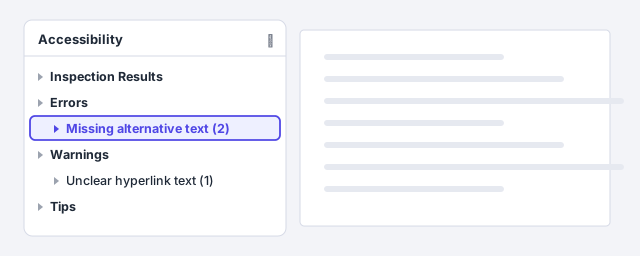
Under Inspection Results the issues fall into three groups: Errors (content that is very hard or impossible for people with disabilities to understand), Warnings (hard to understand) and Tips (understandable, but could be better organized). Click an issue: Word selects the affected item and offers a one-click fix.
Leave the Keep accessibility checker running while I work box checked: the status bar at the bottom will then flag any new issue as soon as it appears.
Add alt text to every picture and chart
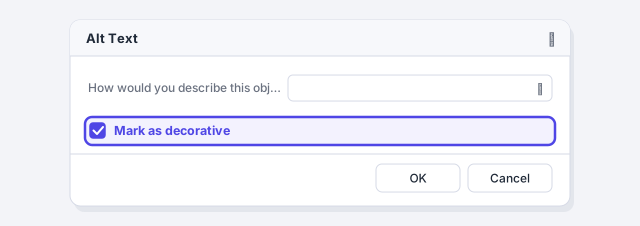
Alt text is a short description the screen reader reads instead of the picture. Right-click the picture and choose View Alt Text… (in older versions: Edit Alt Text). It's also under Picture Format › Alt Text.
Write one or two sentences about what matters in the picture, not what it looks like: “Chart: sales grow 12% in 2025”, not “blue bar chart”. Don't start with “Image of…”: the screen reader already announces that it's an image.

If AI helps you, ask it for a draft alt text by pasting the point you want to make, then check it yourself: only you know why that picture is there.
Mark pictures that add no information as decorative
A decorative line, a background or an icon that repeats what the text already says needs no description: it would only add noise. In the Alt Text pane check Mark as decorative and the screen reader will skip it.
A letterhead logo is usually decorative if the company name is already in the text. A scanned signature or a seal on a legal filing, on the other hand, does carry meaning: describe it (“Signature of attorney Mary Smith”).
Structure the document with heading styles
A screen reader lets people jump from heading to heading, but it only recognizes real headings: the ones using the Heading 1, Heading 2, Heading 3 styles (Home › Styles). Bold 16-point text is, to it, just another paragraph.
Keep the order: don't jump from Heading 1 to Heading 3. If you want them to look different, modify the style instead of changing the level.

If you paste text from ChatGPT or another AI, apply the heading styles yourself afterwards: pasted ## marks or bold lines aren't headings to Word.
Build simple tables with a header row
A screen reader moves through a table cell by cell and uses the headers to say which column each value belongs to. Click inside the table and, under Table Design › Table Style Options, check Header Row. If the table runs over several pages, go to Table Properties › Row and check Repeat as header row at the top of each page.
Avoid merged or split cells, tables inside tables and empty rows added “for breathing room”: they throw off the cell count.

Don't turn a table into a picture so it “won't move”: the data stops existing for the screen reader.
Write descriptive links and don't rely on color alone
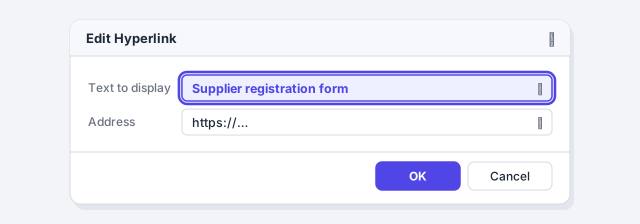
Screen reader users often pull up a list of every link in the document. Ten “here” links in a row are useless. Right-click the link, choose Edit Hyperlink… and change Text to display to something that makes sense on its own: “Supplier registration form”, not “click here”.
Watch the contrast too: light gray text on white is hard for many people to read (the checker flags it). And don't convey information with color alone: if overdue amounts are in red, add a “Status” column or a symbol.
Set the document language
The screen reader uses the marked language to pronounce the text. Select everything (Ctrl+A) and go to Review › Language › Set Proofing Language…. Choose the right language and click OK.
In a bilingual document, such as a side-by-side contract, select only the paragraphs in the other language and mark them separately.

Save an accessible PDF with structure tags
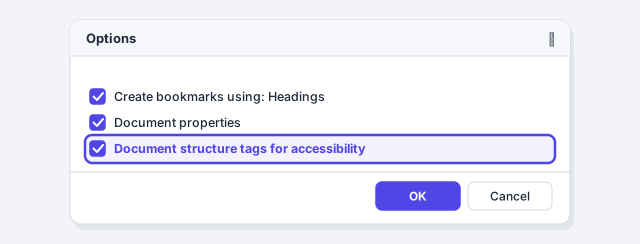
All of the above is lost if the PDF comes out “flat”. Go to File › Save As, choose the PDF (*.pdf) file type and click Options…. Under Include non-printing information check Document structure tags for accessibility and, while you're there, Create bookmarks using: Headings. Click OK and Save.
The tags tell the screen reader what is a heading, what is a list and what is a table. There's more in how to save a professional PDF.
Printing to PDF with a virtual printer (such as Microsoft Print to PDF) creates no tags. Always use Save As or Export.
Expert tips
- Do it in the template. If your corporate template already has heading styles, tables with header rows and high-contrast colors, every new document starts out almost accessible.
- Check the order in the Navigation pane. Open the Navigation pane: what you see there is, roughly, the outline a screen reader “hears”.
- Test it for real. Windows includes Narrator (Ctrl+Win+Enter turns it on and off). One minute listening to your document teaches more than any checklist.
Common mistakes and how to fix them
The checker says “Good to go”, so you assume the document is accessible.
The checker finds technical issues, not whether your alt text makes sense or the reading order is logical. Review headings, pictures and links by eye as well.
You use the file name or “image1” as alt text.
Describe the information or purpose of the picture in one or two sentences. If it adds nothing, mark it as decorative.
The Word file is perfect, but the PDF still fails the client's validator.
Export the PDF again with Save As › PDF › Options and check Document structure tags for accessibility. Don't use a PDF printer.
Word for Mac also has Review › Check Accessibility, and you edit alt text by right-clicking (or Control+clicking) the picture. For the PDF, go to File › Save As, choose PDF and select the option for electronic distribution and accessibility, which creates a tagged PDF (it uses a Microsoft online service).
Frequently asked questions
Do my Word documents have to be accessible?
It depends on who you are and where you publish. EU public bodies must publish accessible documents on their websites, and the European Accessibility Act has covered many private services since 2025. Even when the law doesn't require it, clients, universities and tenders often do.
What's the difference between a checker error and a warning?
An error flags content a person with a disability won't be able to understand, such as a picture with no alt text. A warning flags content that is hard to understand, such as a vague link. Fix both; tips are optional improvements.
Is checking the tags option enough to make the PDF accessible?
The tags only reflect what's in the Word file. If the document has no heading styles or alt text, the tagged PDF won't either. Fix the Word file first, then export.
Official sources
Microsoft documentation consulted for this guide.
Saved only in this browser.