Convert Word to PDF: Print, Save As or Acrobat (with bookmarks and comments)
For almost everything, use File › Save As › PDF (or File › Export › Create PDF/XPS): it keeps links, bookmarks and accessibility. Printing to “Microsoft Print to PDF” is only for a paper-like copy. To include comments and changes, under Options set Publish what: Document showing markup. To turn them into PDF notes people can reply to, use Acrobat › Preferences › Word.
The document is done and it has to go out as a PDF. Word gives you at least three ways to get there: Print to the “Microsoft Print to PDF” printer, Save As (or Export) and, if Acrobat is installed, the Create PDF button on its tab. All three produce a file that looks the same, but they don't carry the same things inside.
Think of the difference between a photocopy and the original. Print to PDF is the photocopy: it looks fine, but the table of contents and the links can't be clicked anymore. Save As is the original, structure included. Acrobat is the original with extras, such as turning your Word comments into PDF notes the other person can reply to.
In this guide you compare the methods, pick the right one for each job and learn to produce a PDF with bookmarks, with comments on show or with real notes.
What you'll learn
- What each method keeps and loses: Print, Save As or Export, and Acrobat
- How to build the PDF bookmarks from headings or from your Word bookmarks
- How to produce a PDF with comments and changes visible
- How to turn Word comments into PDF notes with Acrobat
Step by step
Decide what your PDF needs to carry
Before you pick a button, ask what the PDF is for. This table sums up what each method keeps:
| Method | Clickable TOC and links | Bookmarks | Comments |
|---|---|---|---|
| Print › Microsoft Print to PDF | No | No | Drawn in the margin, if markup is printed |
| Save As / Export | Yes | Yes, from headings or Word bookmarks | Drawn in the margin (Document showing markup) |
| Acrobat (PDFMaker) | Yes | Yes, from styles too | As PDF notes people can reply to |
Rule of thumb: Save As for almost everything, Acrobat when the PDF goes out for review with comments, and Print only when you want a copy identical to paper.

Use Save As › PDF for everyday work
Press F12 (or File › Save As › Browse). Under Save as type, pick PDF (*.pdf): Optimize for and the Options… button appear. Type the name and click Save.
- Pros: it's built into Word and free; it keeps the clickable table of contents, links, bookmarks and accessibility tags; it supports PDF/A and passwords.
- Cons: comments can only be drawn in the margin, not exported as notes; and fonts whose license forbids embedding come out as images.
File › Export › Create PDF/XPS Document opens the same window and gives the same result. Quality, PDF/A and password settings are covered in export to PDF with quality and bookmarks.
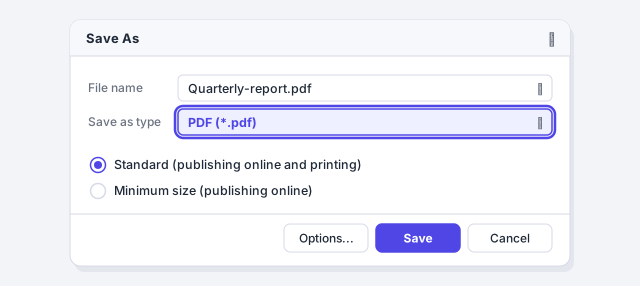
Check “Open file after publishing”: the PDF opens by itself when it's done and you can review it right away.
Print to PDF only when you want a “paper” copy
Go to File › Print and, under Printer, choose Microsoft Print to PDF. Click Print and Windows asks where to save the file.
- Pros: it works the same from any program; what you see in the preview is exactly what you get; and you can use print options such as 2 Pages Per Sheet or printing only some pages.
- Cons: the PDF is a drawing of each page. The table of contents and links can't be clicked, there are no bookmarks and screen readers can't find headings or tables.
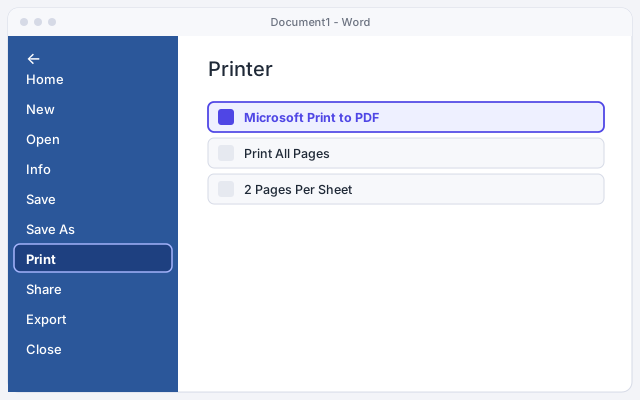
If the document has visible comments or changes, Print includes them: in the Print All Pages drop-down, Print Markup is turned on. Turn it off for a clean copy.
Choose where bookmarks come from: headings or Word bookmarks
In the Save As PDF window, click Options… and check Create bookmarks using. You have two sources:
- Headings: every paragraph styled Heading 1, Heading 2… becomes a bookmark. That's the norm for reports, theses and contracts.
- Word bookmarks: only the spots you marked with Insert › Links › Bookmark appear. Handy when you want a short side outline, for example just the exhibits of a court filing.
If you've never created one, see bookmarks and hyperlinks.
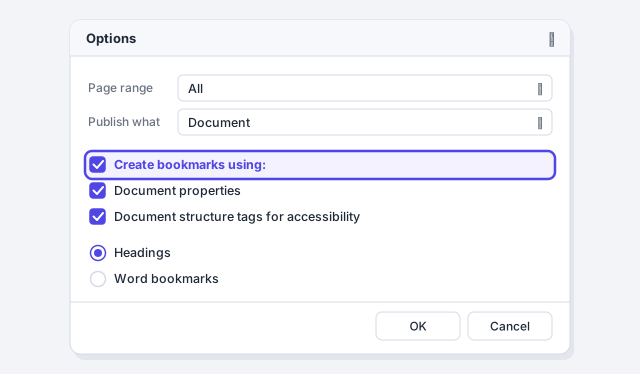
Word bookmark names can't contain spaces, so the PDF will show “Exhibit_A”. If you want clean names, use headings.
If “Headings” is greyed out, the document doesn't use heading styles. Apply them under Home › Styles and save again.
Produce a PDF with comments and changes on show
To send a commented draft to someone who doesn't use Word, under Options… change Publish what to Document showing markup. The PDF shows comments in balloons in the margin and changes in color, just as you see them on screen. The page shrinks slightly to make room for the balloons.
Those comments are part of the page drawing: the recipient can read them but can't reply to them or hide them. In a law firm it's the usual way to send the client “the version with our notes”.
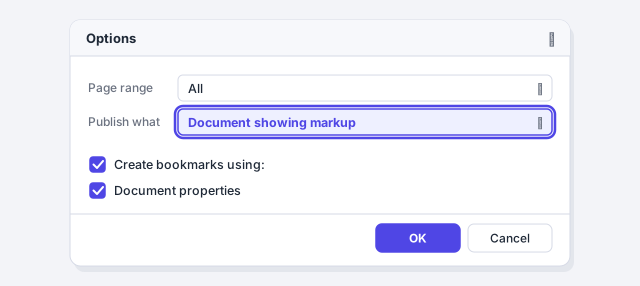
Balloons show the name of whoever made the comment. Before sending, make sure no internal comment is left.
Choose which markup appears with Show Markup
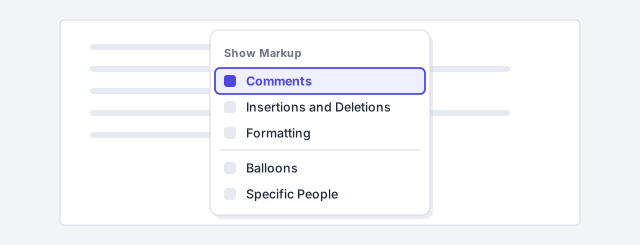
The PDF copies what Word displays. Before saving, go to Review › Tracking › Show Markup and keep only what you want to send: for example, Comments without Formatting, so you don't get balloons like “Formatted: Font: 12 pt”. With Specific People you can send just one reviewer's comments.
If what you need is the clean version, accept the changes and delete the comments before saving: it's all in Track Changes.
With Acrobat, turn comments into PDF notes
If you have Acrobat Standard or Pro, Word shows an Acrobat tab. Click Preferences and open the Word tab. Check Convert Displayed Comments To Notes In Adobe PDF: every Word comment becomes a PDF note, with its author and color, which the recipient can open and reply to, even in the free Acrobat Reader.
On the same tab, Convert Footnote And Endnote Links makes each note number a link, and Enable Advanced Tagging improves accessibility. Click OK and then Create PDF.
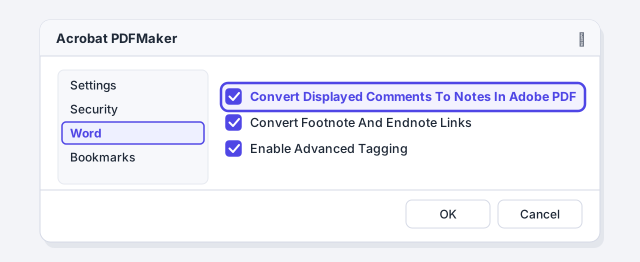
If you'd rather see changes struck through and in color instead of notes, leave that box unchecked: Acrobat will carry the markup over exactly as it looks on screen.
With Acrobat, decide what becomes a bookmark
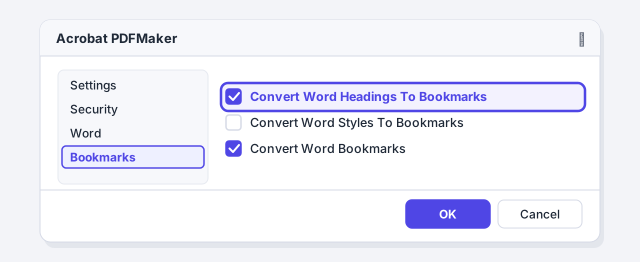
In Preferences, on the Settings tab, make sure Add Bookmarks To Adobe PDF and Add Links are checked: without the first one, Acrobat creates no bookmarks at all. Then, on the Bookmarks tab, choose between Convert Word Headings To Bookmarks, Convert Word Styles To Bookmarks and Convert Word Bookmarks.
The advantage over Save As is that you can combine sources and pick specific styles from the list: for example, have your Clause style show up as a bookmark even though it isn't a heading. When it's done, open the PDF and check the Bookmarks and Comments panels.
Expert tips
- Two PDFs from the same document. A clean one to sign or publish and one with markup for the negotiation. Make it obvious in the name: “contract-v3-markup.pdf”.
- The PDF is only as good as the Word file. If the draft came from ChatGPT with headings made bold “by hand”, no method will create bookmarks. Apply styles first: what styles are.
- Print is great for review sheets. If you want a PDF with 2 or 4 pages per sheet to study or proofread on paper, Print to PDF is the Word method that does it.
- Export just a snippet. Select the text before Save As and, under Options › Page range, choose Selection: the PDF will contain only that part.
Common mistakes and how to fix them
The PDF came out with comment balloons you didn't want to send.
You printed with Print Markup on or chose Document showing markup. Save again with Publish what: Document, or turn off Print Markup in the Print All Pages drop-down.
The PDF's table of contents can't be clicked and there are no bookmarks.
You used Print with Microsoft Print to PDF. Create the PDF with File › Save As › PDF or with File › Export.
Acrobat doesn't turn the comments into notes.
Under Acrobat › Preferences › Word check Convert Displayed Comments To Notes In Adobe PDF, and make sure comments are visible on screen (Review › Show Markup › Comments): only displayed comments are converted.
In Word for Mac go to File › Save As and pick PDF under File Format; the electronic distribution and accessibility option keeps links and tags, the printing option doesn't. There's no Options button and no Document showing markup: for a PDF with comments, show them on screen and use File › Print › PDF › Save as PDF. The Acrobat add-in on Mac has fewer options than on Windows.
Frequently asked questions
What's the best way to convert Word to PDF?
Save As › PDF (or Export) in almost every case: it's free and keeps links, bookmarks and accessibility. Acrobat pays off when you need comments as notes or fine control over bookmarks. Print to PDF only for a copy identical to paper.
Do I need to pay for Acrobat to create PDFs from Word?
No. Word creates PDFs with nothing extra installed. The Acrobat tab (PDFMaker) only appears with Acrobat Standard or Pro, which are paid. The free Acrobat Reader doesn't add it, but it does let you read and reply to comments in an existing PDF.
Do footnotes show up in the PDF?
Yes, with any method: they're part of the page, just like on paper. With Acrobat you can also turn each note number into a link.
Can I convert to PDF in Word for the web?
Yes, from File › Export › Download as PDF (in some versions it's under Save As). It's quick, but it lacks the desktop Options button: you can't choose bookmarks, Document showing markup or PDF/A.
Official sources
Microsoft documentation consulted for this guide.
Saved only in this browser.