Scanned PDFs: recognize text (OCR), reduce the file size and save as PDF/A
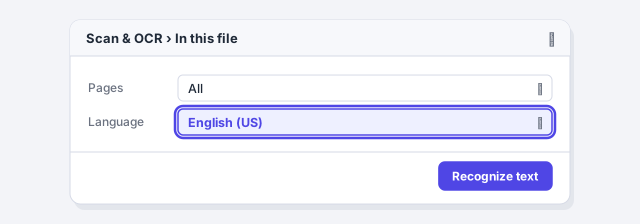
If you can't select or search the text, the PDF is a scan. Recognize the text in Acrobat (All tools › Scan & OCR › In this file, pick the language and click Recognize text) or for free with PDF24's PDF OCR. Then reduce the size (Menu › Save as other › Reduced size PDF, or Compress PDF), convert to PDF/A if it's required and always sign last.
Someone sends you a scanned contract. You search for the other party's name with Ctrl+F and nothing comes up. You try to copy a clause and the whole page gets selected. And when you go to upload it to the court or government portal, the file is too big or gets rejected for not being PDF/A.
A scanned PDF is a photo of each page: you see letters, but to the computer it's just dots of color. OCR (optical character recognition) is like hiring someone to transcribe that photo: it reads the letters and tucks an invisible text layer behind the image that you can now search and copy. The page looks exactly the same.
In this guide you learn to spot a scan, to scan well in the first place, to run OCR in Acrobat or with free tools, to shrink the file and to save it as PDF/A, in the right order and without breaking the signature.
What you'll learn
- How to tell in ten seconds whether a PDF is a scan
- How to scan so OCR works the first time
- How to recognize text with Acrobat, PDF24 or PdfCraft
- How to reduce the size and convert to PDF/A without losing legibility
- The order that matters: OCR, compress, PDF/A and sign last
Step by step
Check whether your PDF is a scan
Open the PDF in Edge or Acrobat Reader and run two quick tests:
- Select a word by dragging the mouse. If nothing gets selected, or a box covering the whole page does, it's an image.
- Search for a word you can see (Ctrl+F in Edge). If there are no results, the PDF has no text.
Other clues: the page is slightly crooked, the background is grayish, or you can see stamps and staples. If you open that PDF in Word, it comes in as an image and you can't edit anything. Some office copiers already run OCR when scanning, so always check before doing the work twice.

Pick the tool and stick to the order
This table sums up who does what:
| Tool | OCR | Reduce size | PDF/A | Cost |
|---|---|---|---|---|
| Acrobat Pro | Yes, with language | Yes | Yes | Paid |
| Acrobat Reader | No | No | No | Free |
| PDF24 (web and Creator) | Yes | Yes | Yes, and it validates it | Free |
| PdfCraft | Yes, Latin script only (alpha) | — | — | Free |
| Word | No | — | When exporting its own documents | Microsoft 365 |
Order matters: OCR → compress → PDF/A → sign. Every step rewrites the file, so anything you do after signing invalidates the signature, and anything you do after converting to PDF/A can break the format.

Scan well in the first place
OCR is only as good as the image. On the scanner or copier:
- Resolution: 300 dpi (dots per inch) for text. Lower causes errors; higher just bloats the file.
- Black and white or grayscale. Use color only when stamps, blue-ink signatures or photos matter.
- Straight pages, no staples, no folds and no shadows along the edge.
- One document, one PDF: don't merge the contract with its exhibits if you'll file them separately.
On a phone, use a document-scanning app (not the regular camera): it detects the edges, straightens the page and saves straight to PDF. Lay the sheet on a flat surface in good light.
If the scanner offers to save as a searchable PDF or a PDF with text, turn it on: you skip the OCR step.
Recognize the text in Acrobat
In Acrobat (paid), open the PDF and go to All tools › Scan & OCR › In this file. Choose the page range and the document's language: pick English for a Spanish text and the accents and ñ will come out wrong. Click Recognize text and save.
For a batch of case files, use In multiple files in the same panel. When it's done, repeat the test from step 1: search should now find the words.
Save a copy of the original scan first. If OCR or compression goes wrong, you can start over.
Acrobat Reader, the free reader, doesn't do OCR. If Reader is all you have, use PDF24 or PdfCraft.
Run OCR for free with PDF24 or PdfCraft
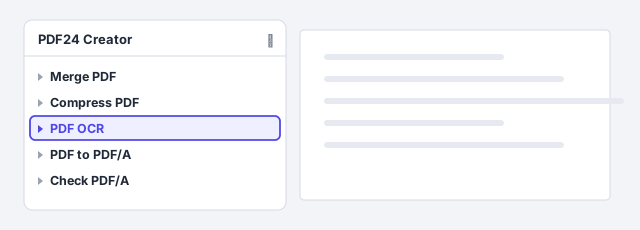
PDF24: at tools.pdf24.org open PDF OCR, upload the file, pick the language, start the job and download the result. The website uploads your file to a server: for payslips, medical records or filings with personal data, use PDF24 Creator, the free Windows program with the same tools, which works on your computer.
PdfCraft: a free, open-source program that keeps everything on your computer. Press Ctrl+K and type Scan & OCR. It's in alpha and its OCR only handles Latin script: fine for English and Spanish, not for Greek, Russian or Chinese.
Lawyers: client confidentiality and data-protection rules are reason enough not to upload case files to free websites. A local program solves the problem at no cost.
Reduce the size without losing legibility
Scans are heavy because every page is an image. To slim them down:
- Acrobat: Menu › Save as other › Reduced size PDF, pick a version under Make compatible with, click OK and save under a new name.
- PDF24: Compress PDF, on the website or in PDF24 Creator.
Then open the result at 100% and check the small print, stamps and figures. If anything looks blurry, compress less. If it's still too big, split the document: see organize the pages of a PDF.

Compressing after signing invalidates the signature. Always compress first.
Convert to PDF/A if you'll file or archive it
PDF/A is a flavor of PDF designed to last for years: it embeds every font, depends on nothing external and doesn't allow passwords. Many registries, courts and e-filing portals require it.
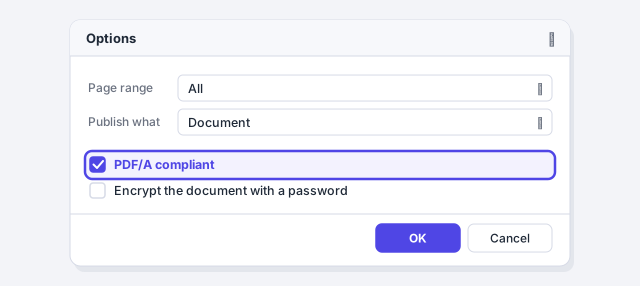
- If the document is yours and lives in Word, don't scan it: export with File › Export › Create PDF/XPS › Options and check PDF/A compliant. See export to PDF with quality.
- If it's a scan, use PDF24's PDF to PDF/A, then Check PDF/A to confirm it complies.
- Acrobat Pro also converts to PDF/A from its save options.
If the portal asks for a specific version (for example PDF/A-1b or PDF/A-2b), choose it when the tool lets you.
Sign last and check the portal's requirements
With the text recognized, the size trimmed and PDF/A validated, you can sign: with a digital certificate under All tools › Use a certificate › Digitally sign, or as explained in fill in and sign a PDF. Once it's signed, don't touch the file again.
Court e-filing systems and government portals often require searchable text, PDF/A and a maximum size per file. Limits vary between platforms and change over time: check the exact requirements of the platform you file with before you prepare the document.

Expert tips
- Double-check OCR'd numbers. OCR sometimes mixes up l and 1 or O and 0. Before copying an ID number, an amount or a date into another document, compare it with the image.
- From scan to Word. Run OCR first, then open it in Word or convert it: see turn a PDF into Word or Excel. Without OCR, Word only sees pictures.
- AI needs text too. If you're going to ask ChatGPT or Copilot to summarize a scan, run OCR first: you'll get better results than uploading a photo of every page.
- Name files by stage. “complaint-scan.pdf”, “complaint-ocr.pdf”, “complaint-pdfa-signed.pdf”. If something fails, you know which version to restart from.
Common mistakes and how to fix them
The signature shows as invalid after you send the PDF.
You compressed, OCR'd or converted it after signing. Go back to the unsigned version, finish every step and sign last.
The OCR text is full of errors and gibberish.
You chose the wrong language or the scan is poor. Run OCR again with the right language, or rescan at 300 dpi with the page straight.
After compressing, the small print and stamps are unreadable.
You compressed too hard. Start again from the original copy and use a gentler setting, or split the document into several files.
The PDF/A tool won't let you add a password.
That's expected: PDF/A doesn't allow encryption. If the portal requires PDF/A, submit the file without a password and protect it some other way.
On a Mac, Acrobat has the same tools, but the main menu is File: File › Save as other › Reduced size PDF. Preview can shrink a PDF with File › Export… and the Reduce File Size Quartz Filter, though it often lowers the quality of scans a lot. PDF24 Creator is Windows-only: for OCR on a Mac use Acrobat, PdfCraft or the PDF24 website.
Frequently asked questions
Can the free Acrobat Reader do OCR?
No. OCR is part of paid Acrobat. For free, use PDF24's PDF OCR (website or PDF24 Creator) or PdfCraft, which is in alpha and only recognizes Latin script.
Does OCR change how the document looks?
It shouldn't: the page still looks like the scan and the recognized text sits in an invisible layer behind it. That's why OCR mistakes don't show at a glance, only when you search or copy.
What's the maximum file size for court or government portals?
It depends on each platform and changes over time, so don't trust figures from memory. Check the exact requirements of the platform you file with and, if you're over, compress or split the document.
Is it safe to upload a scan to the PDF24 website?
The website uploads the file to a server. For documents with personal or confidential data, use a program that works on your computer: PDF24 Creator, PdfCraft or Acrobat.
Saved only in this browser.