Convert a PDF to Word or Excel without losing the layout (and pull tables into Excel)
For text, open the PDF in Word with File › Open and accept the conversion, or use Acrobat: Convert › Microsoft Word › Convert to DOCX. For tables, in Excel go to Data › Get Data › From File › From PDF and pick the table in the Navigator. For free, PDF24 has “PDF to Word” and “PDF to Excel”. If the PDF is scanned, run OCR first.
Someone sends you a report as a PDF and you need to reuse half the text, or a bank statement with twenty pages of transactions you need to add up. Copying and pasting by hand is slow and leaves line breaks in the middle of every sentence.
Converting a PDF is like asking someone to retype a document from a photocopy: the text comes out fine, but they have to guess where the margins, columns and tables went. The simpler the layout, the better the result.
In this guide you pick the right tool for Word or Excel, pull clean tables with Power Query and go through what always needs checking afterwards.
What you'll learn
- Which tool suits Word and which suits Excel
- How to convert with Word, with Acrobat and for free with PDF24
- How to pull tables from a PDF into Excel with Power Query
- What to check in the converted document before you use it
Step by step
Pick the tool based on where the content is going
There's no perfect converter for everything. This table sums up the options:
| Tool | To Word | To Excel | Cost |
|---|---|---|---|
| Word (File › Open) | Yes, good with running text | No | Microsoft 365 |
| Acrobat Pro | Yes, most faithful to the layout | Yes | Paid |
| PDF24 | “PDF to Word” | “PDF to Excel” | Free |
| Excel (Power Query) | No | Yes, best for tables | Microsoft 365 on Windows |
| PdfCraft | Loses the layout | No | Free |
PdfCraft is in alpha and its .docx export loses the layout: for now, don't use it for this.

Check that the PDF has text, not just images
Press Ctrl+F and search for a word you can see on the page. If it isn't found, the PDF is scanned: each page is a photo. Any converter will give you a document full of images instead of text, and Power Query won't find any tables.
The fix is to run OCR (text recognition) first, which turns the photo into letters you can copy. See scanned PDFs and OCR.

With Word, open the PDF from File › Open
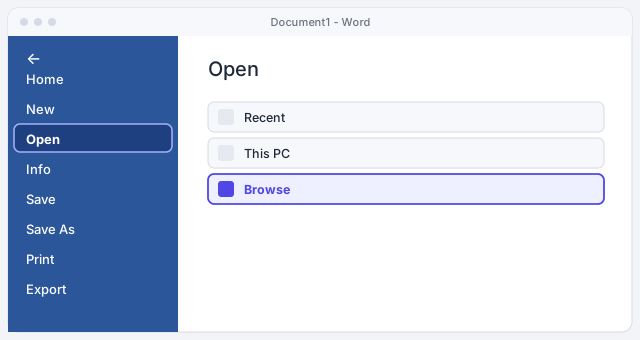
In Word, go to File › Open › Browse and pick the PDF. Word warns that it will convert it into an editable document and that it may not look exactly the same. Click OK. A new document opens; the original PDF is untouched.
It's the easiest option if you already have Microsoft 365 and the PDF is mostly text: letters, filings, reports. Save the result as a Word document with F12.
If the PDF came from email or the internet, Word may open it in Protected View. Click Enable Editing so it converts.
With Acrobat, convert to DOCX or XLSX
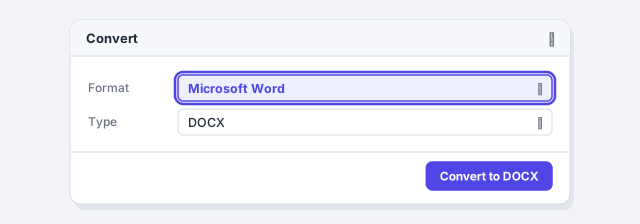
Open the PDF in Acrobat and click Convert in the top bar. For Word, choose Microsoft Word, DOCX format, and click Convert to DOCX. For Excel, choose Microsoft Excel, XLSX format, and click Convert to XLSX. Then save the file.
Acrobat respects columns, tables and fonts best, which is why it pays off for design-heavy documents. You need Acrobat Pro or Standard: the free Reader doesn't convert.
For free, use PDF24's PDF to Word or PDF to Excel
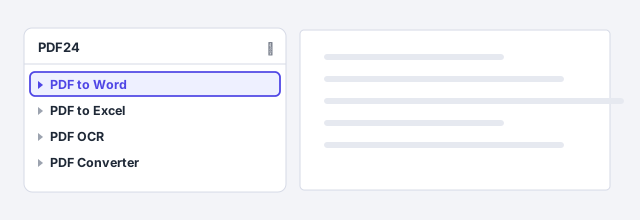
In PDF24, choose PDF to Word or PDF to Excel, add the file and download the result. It's usually fine with simple documents.
Mind your privacy: the PDF24 website uploads your file to its server. For payslips, contracts or client data, use PDF24 Creator, the free Windows program that converts on your computer without uploading anything.
At a law firm, confidentiality duties and data protection law apply to online converters too: don't upload client documents to free websites.
For tables, go to Data › Get Data in Excel
If what you want is the numbers, Power Query is the best option. In Excel, go to Data › Get Data › From File › From PDF and pick the PDF. Excel reads the file and looks for the tables inside it.
It's only in Excel for Microsoft 365 (or 2021 and later) on Windows, and it only works with text PDFs, not scans. If you've never used Power Query, start with Power Query to clean data.

Pick the table in the Navigator and load it
The Navigator opens with a list of the tables and pages it found. Click each one to see the preview on the right and choose the one you want. Check Select multiple items if you need more than one.
Click Load to bring it into a new sheet as is, or Transform Data if you first want to remove empty rows, combine tables from several pages or fix data types.

If you get the same PDF every month, save it with the same name in the same folder and click Data › Refresh All: Excel reads it again by itself.
Check the result before you use it
No conversion is perfect. Always go through this list:
- Fonts: if you don't have the PDF's fonts, Word substitutes others and the text takes up more or less space.
- Tables: make sure there are no split cells or shifted columns.
- Footnotes: they sometimes arrive as ordinary text at the bottom of the page.
- Headers and footers: they can end up repeated inside the text.
- Numbers in Excel: check they're numbers, not text, by adding up a column.
Finally, apply heading and paragraph styles: that makes the document easy to edit again. See what styles are.

Expert tips
- Just one paragraph? Don't convert. If you need a few lines, copy them from the PDF and paste them as plain text: see paste without formatting.
- Don't trust AI with numbers. If you ask an AI to move a PDF table into Excel, compare the totals: it can skip rows or change a figure.
- The conversion isn't the original. With someone else's contract, don't treat the converted Word file as the authoritative version. If you change it, compare it with the PDF before sending it back.
- Clean up in Power Query, not by hand. Removing total rows or repeated headers in the editor happens again automatically the next time you refresh.
Common mistakes and how to fix them
The converted document comes out as images and I can't edit anything.
The PDF is scanned. Run OCR on it first and convert again.
In Excel the numbers won't add up or are left-aligned.
They arrived as text. Change their type to a number in Power Query or see the guide on cleaning data in Excel.
The converted Word file is full of text boxes and odd breaks.
The PDF had a lot of design. Try Acrobat, or copy the text into a clean document and apply styles.
On a Mac, Acrobat converts the same way with Convert, although its main menu is File instead of Menu. Power Query from PDF only exists in Excel for Windows: on a Mac, use Acrobat or PDF24 to get the table into Excel. PDF24 Creator is Windows-only, so on a Mac the PDF24 website uploads your files.
Frequently asked questions
What's the best free way to convert a PDF to Word?
If you have Microsoft 365, open the PDF in Word: nothing to install and nothing to upload. Otherwise, PDF24 Creator on Windows, which converts without uploading anything.
Why don't I see From PDF in my Excel?
It's only in Excel for Microsoft 365 (or 2021 and later) on Windows. It doesn't exist in Excel for Mac or for the web; use Acrobat or PDF24 instead.
Is it safe to use an online converter?
For a brochure, yes. For payslips, contracts or personal data, better not: the file is uploaded to someone else's server. Use a program that works on your computer, such as Word, Acrobat or PDF24 Creator.
Does PdfCraft convert to Word?
It exports to .docx, but for now it loses the layout because the program is in alpha. Use another tool for conversions.
Saved only in this browser.