Power Query: import and clean data once, then refresh with one click
Power Query records every cleanup step (remove blank rows, trim spaces, change data types) and repeats it for you. Select your data, go to Data › Get & Transform Data › From Table/Range, clean it in the Power Query Editor and click Home › Close & Load. When new data arrives, use Data › Queries & Connections › Refresh All.
It happens every Monday: you download the sales report from your business software and lose half an hour before you can use it. Blank rows, customer names with extra spaces, amounts Excel treats as text and dates that won't sort properly. You fix it by hand… and next Monday you start all over again.
Power Query is a tool built into Excel (since Excel 2016) for importing and transforming data. Think of it as a recipe: the first time you write down the steps (remove this, trim that, turn this column into dates) and from then on Excel cooks on its own every time you give it fresh ingredients. Every step is saved in a list you can review, change or delete.
In this guide you turn a messy report into a clean table and automate the cleanup: next week a single click on Refresh All will be enough.
What you'll learn
- What Power Query is and why it replaces your weekly manual cleanup
- How to send your data to the editor with From Table/Range
- How to remove blank rows, trim spaces and fix data types
- How to load the result into a sheet and refresh it with one click
Step by step
Select your data and click “From Table/Range”
Click any cell in the report (for example, A1). Go to Data › Get & Transform Data › From Table/Range. You don't need to select the whole range: Excel detects where the data starts and ends.
If the report arrives as a file rather than pasted into a sheet, use Data › Get Data › From File and pick the file type. The rest of this guide is identical.
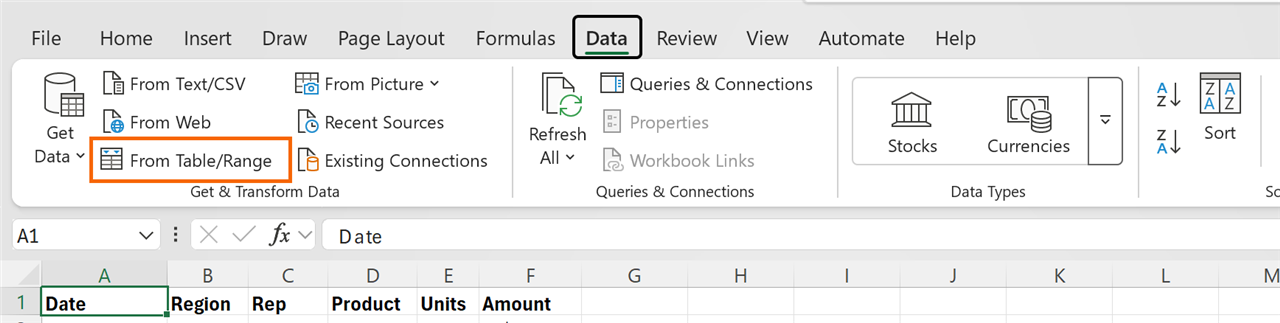
If your data is already an Excel table, Power Query uses it as is and skips the next step.
Confirm the range in “Create Table”
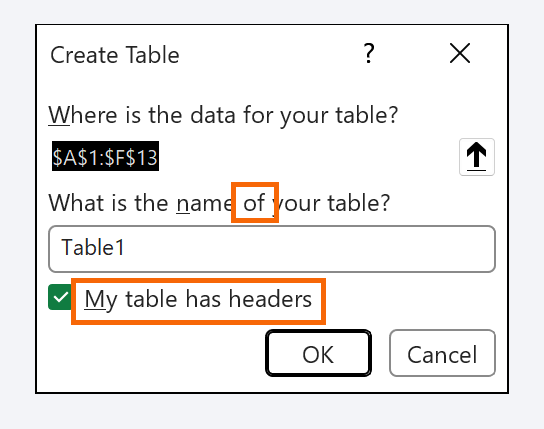
If the data isn't a table yet, Excel shows the Create Table window. Check that the range is right (for example, $A$1:$E$120) and that My table has headers is ticked. Click OK.
Excel turns the range into a table (a named range that grows on its own) and opens the Power Query Editor in a separate window.
Name the query and look at “Applied Steps”
On the right of the editor is the Query Settings pane. In Name, type something clear, such as Sales. Below it you'll see Applied Steps: the recipe. Source and Changed Type are already there; Power Query adds them automatically.
Everything you do from now on is added as a new step. Click a step to see what the data looked like at that point; click the X next to a step to undo it.
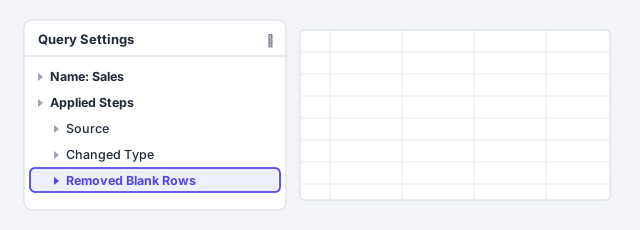
Changes in the editor never touch your original data: they only apply to the copy Power Query loads at the end.
Remove blank rows and the columns you don't need
Go to Home › Reduce Rows › Remove Rows › Remove Blank Rows. The empty rows your business software inserts between blocks disappear.
For columns you don't use (for example, Internal notes), right-click the header and choose Remove. If there are many, select the ones you do want and use Remove Other Columns: that way, if the report gains a new column tomorrow, it won't sneak in.

Trim the spaces from text
Select the text columns (Customer, Product) with Ctrl+click on their headers. Go to Transform › Text Column › Format › Trim. Trim removes leading and trailing spaces, which are what make Sun Hardware and Sun Hardware count as two different customers.
If there are values you want to change (for example, N/A instead of an amount), use Home › Replace Values.
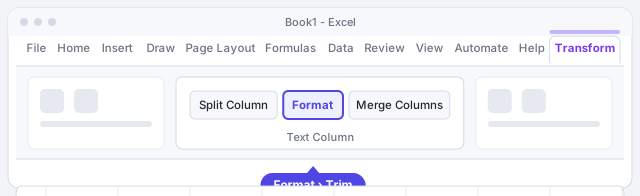
It's the same effect as the =TRIM(A2) worksheet function, but applied to the whole column, for good.
Give every column the right data type
Each header has an icon on its left showing its type (ABC for text, 123 for numbers, a calendar for dates). Click it and choose the right type: Date for Date and Decimal Number for Amount.
If the data comes from a system set to another language (dates like 06/10/2026 that are really day/month, or amounts with a decimal comma), choose Using Locale... and set the data type and the source's locale, for example Spanish (Spain).

If a cell can't be converted, Power Query shows Error in it. Check the original value before blindly removing errors.
Click “Close & Load”
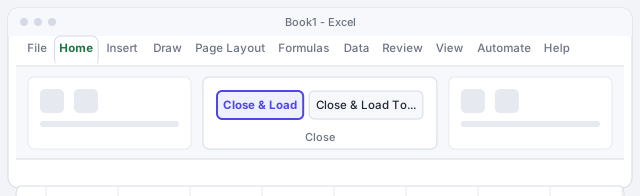
When the preview looks right, go to Home › Close & Load. Power Query creates a new sheet with a clean table named after the query (Sales). From there you can build a PivotTable, charts or formulas such as =SUM(Sales[Amount]).
If you'd rather choose the destination (an existing sheet, or just the connection), use Close & Load To....
Refresh with one click when new data arrives
Next week, paste the new report into the source table (or save the new file with the same name in the same folder). Then go to Data › Queries & Connections › Refresh All. Power Query replays the whole recipe in seconds.
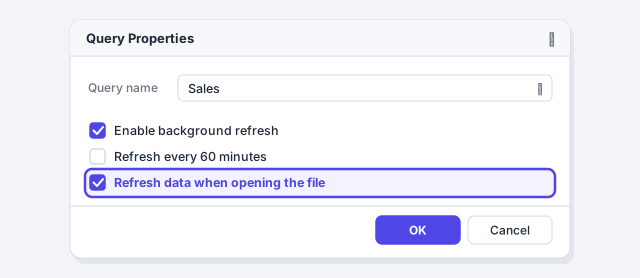
To have it refresh by itself when the workbook opens, open Data › Queries & Connections, right-click the query, choose Properties... and tick Refresh data when opening the file.
To edit the recipe again, double-click the query in the Queries & Connections pane.
Expert tips
- Rename the important steps. Right-click a step in Applied Steps and choose Rename: “Remove internal notes” is clearer than “Removed Columns” when you come back in three months.
- Turn on the editor's formula bar. Enable it in View › Formula Bar: each step is a line of M language. You don't need to write it, but if you paste it into an AI chat it can explain what each step does.
- Keep the columns you want, rather than removing the ones you don't. “Remove Other Columns” makes the query sturdier when the system adds new fields.
- Combine several files without copy-paste. Power Query can also read a whole folder and stack every file: see how to combine data from several sheets or files.
- Ctrl+Alt+F5 refreshes everything. It's the Windows shortcut for Refresh All; it refreshes the workbook's queries, connections and PivotTables.
Common mistakes and how to fix them
You clean the data in the loaded sheet and lose the changes when you refresh.
The table Power Query loads is overwritten on every refresh. Make your changes inside the editor (as steps) or in formula columns added to the right of the table.
When you refresh, you get an error saying a file or column can't be found.
You moved or renamed the file, or the report renamed a column. Open the query, click the step flagged with an error and fix the path in Source or the column name.
Dates come out with day and month swapped.
Delete the Changed Type step for that column and convert it again with Using Locale, choosing the language of the system that produced the file.
You ask an AI for a huge formula to clean every column.
If the cleanup repeats every week, Power Query is the better choice: the steps are visible, fixable with clicks and don't depend on dragging formulas down.
Excel for Mac (Microsoft 365) also has Power Query, with the editor and the same Data › Get Data path, but it supports fewer data sources than Windows. If a source is missing from the menu, you can build the query in Excel for Windows.
Frequently asked questions
Do I need to install anything to use Power Query?
No, if you have Excel 2016 or later (including Microsoft 365): it's built into the Data tab, in the Get & Transform Data group. In Excel 2010 and 2013 it was a separate add-in you had to download.
Does Power Query change my original data?
No. It reads the source, applies the steps and loads the result into another table. The original file or range stays as it was.
Do I need to know how to code?
No. Everything is done with buttons and each click is saved as a step. Under the hood Power Query writes code in a language called M, but you'll only need it for very advanced cases.
What's the difference between Power Query and a macro?
Power Query is designed to import and clean data, and refreshing it carries no security risk. A macro replays any Excel action (formatting, printing, copying sheets). If you're curious, see your first Excel macro.
Official sources
Microsoft documentation consulted for this guide.
Saved only in this browser.