Your first Excel macro: record a repetitive task and replay it with one click
Show the Developer tab in File › Options › Customize Ribbon. Then go to Developer › Code › Record Macro, give it a name and a shortcut (Ctrl+Shift+letter), do the task once and click Stop Recording. Save the file as an Excel Macro-Enabled Workbook (.xlsm) and run it from Developer › Macros or with the shortcut.
It happens every Monday: you download the weekly report and do exactly the same as always. Bold headers, currency format on the amounts, fit the column widths, freeze the top row, turn on filters. Five minutes of clicks you could do with your eyes closed.
A macro is a list of actions Excel records while you work and then replays for you, in a second. It works like a voice recorder: press record, do the task once, press stop. Under the hood Excel writes it in a language called VBA (Visual Basic for Applications), but you don't need to know how to code to record one.
In this guide you turn on the tools you need, record your first macro, save it properly so you don't lose it and learn to open it safely.
What you'll learn
- How to show the Developer tab
- How to record a macro and give it a keyboard shortcut
- When to use relative references while recording
- Why you must save as .xlsm and what the security warning means
Step by step
Show the Developer tab
The Developer tab is hidden by default. Go to File › Options › Customize Ribbon. In the list on the right, Main Tabs, tick Developer and click OK. A new tab appears on the ribbon with the Code group.
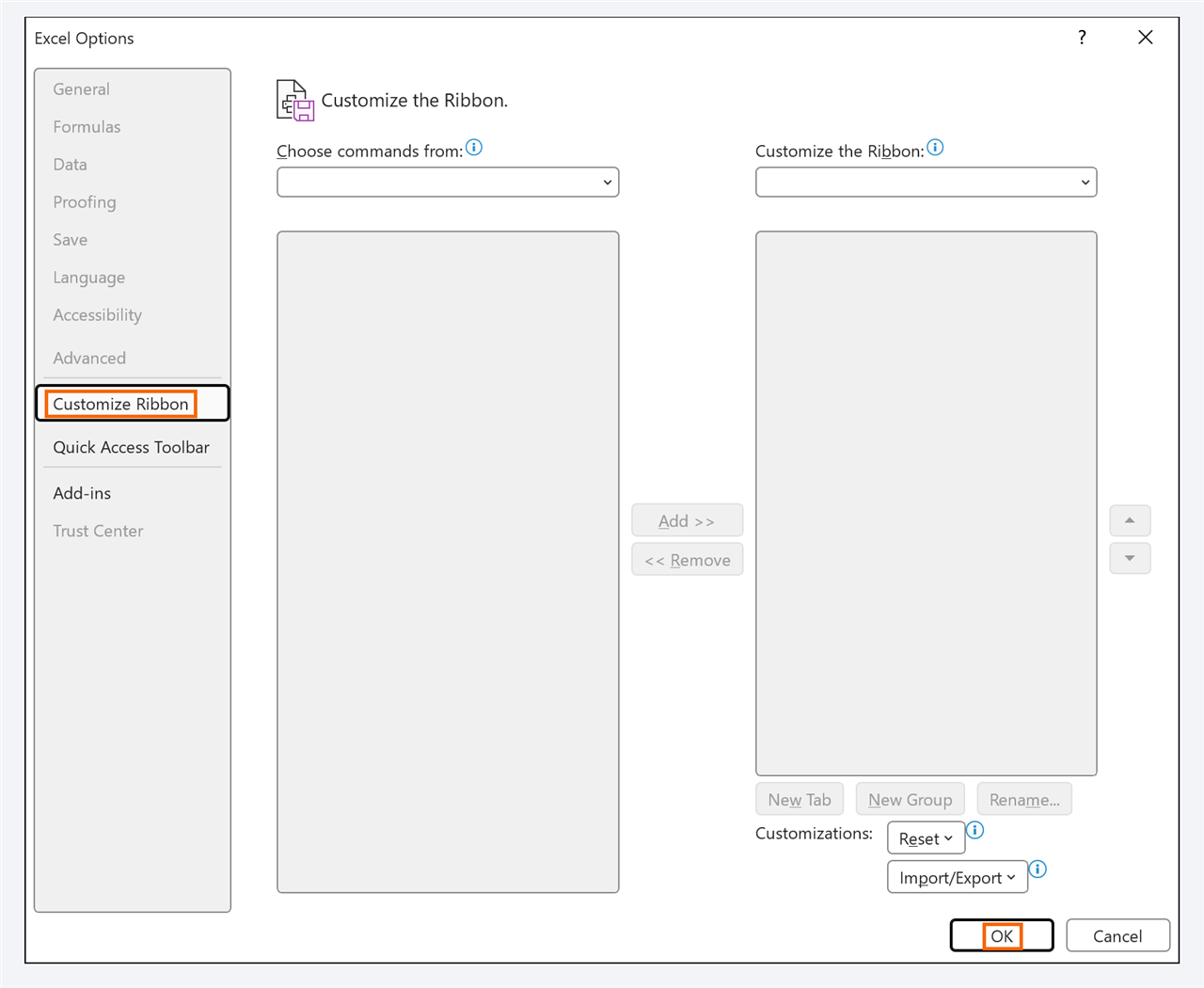
If you'd rather not turn it on, you can also record from View › Macros › Record Macro. But Developer keeps everything at hand.
Rehearse the task before recording
The recorder captures everything, including wrong clicks. Do the task once as a dry run and write down the steps. For the weekly report, for example:
- Row 1 in bold.
- Column
D(Amount) in accounting format. - AutoFit the column widths.
- Freeze the top row.
- Turn on filters.
Work on whole columns (click the column letter) rather than ranges like D2:D50: that way the macro still works when the report has more rows.

Decide whether you need “Use Relative References”
By default, the macro records exact cells: if you click A1, it will always go to A1. That's what you want for the weekly report, which always starts in the same place.
If you want the macro to act from whichever cell you're in (for example, “format this row and move down to the next”), turn on Developer › Code › Use Relative References before recording. The button stays highlighted while it's on.
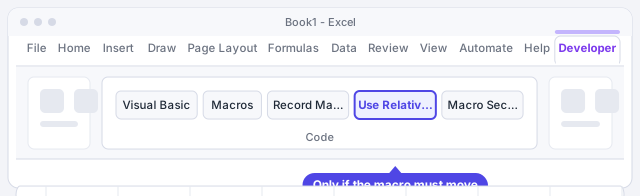
Click “Record Macro” and fill in the window
Go to Developer › Code › Record Macro. In the window:
- Macro name: no spaces, for example FormatReport.
- Shortcut key: type an uppercase letter (for example, F) so the shortcut becomes Ctrl+Shift+F.
- Store macro in: This Workbook.
- Description: what it does, for your future self.
Click OK. From that moment, Excel is recording.
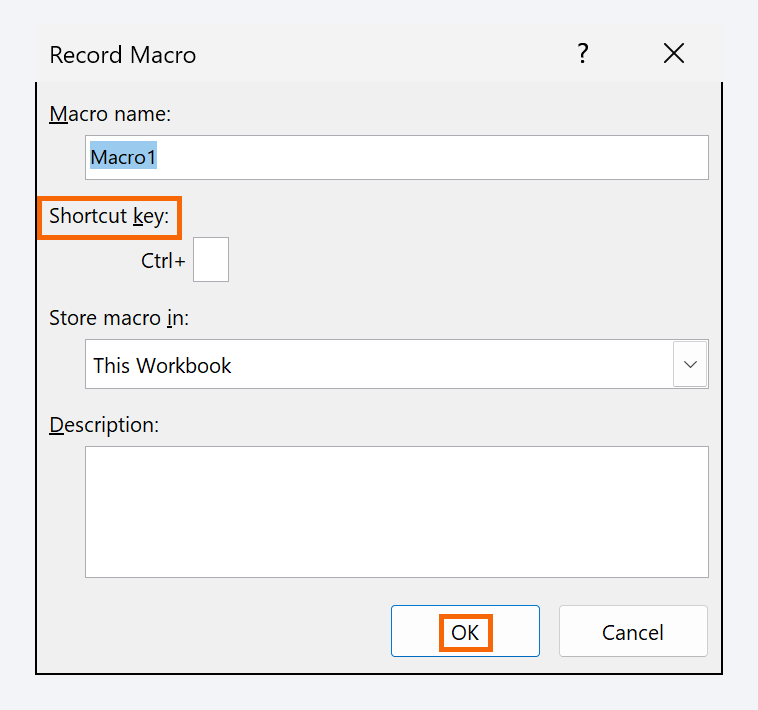
Avoid plain Ctrl+letter: you'd override a built-in Excel shortcut. For example, Ctrl+B is bold.
Do the task once, calmly
Follow your list. Click the row 1 header and click Bold in Home › Font. Select column D and choose Home › Number › Accounting Number Format. Select columns A:D and use Home › Cells › Format › AutoFit Column Width. Then View › Window › Freeze Panes › Freeze Top Row and, finally, Ctrl+Shift+L for the filters.
No rush: the recorder doesn't measure time, only actions.
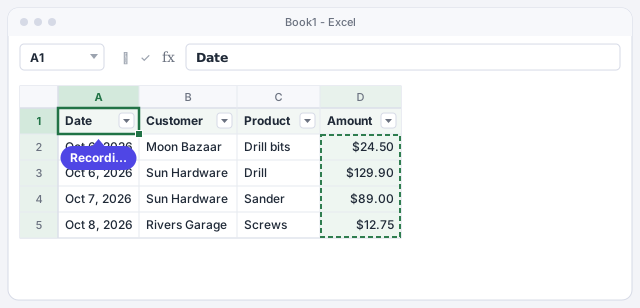
Click “Stop Recording”
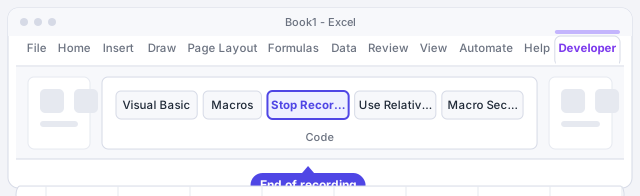
When you're done, go to Developer › Code › Stop Recording (the Record Macro button changes its name while you record). It's also under View › Macros. If you forget, Excel keeps recording everything you do.
Run the macro on the new report
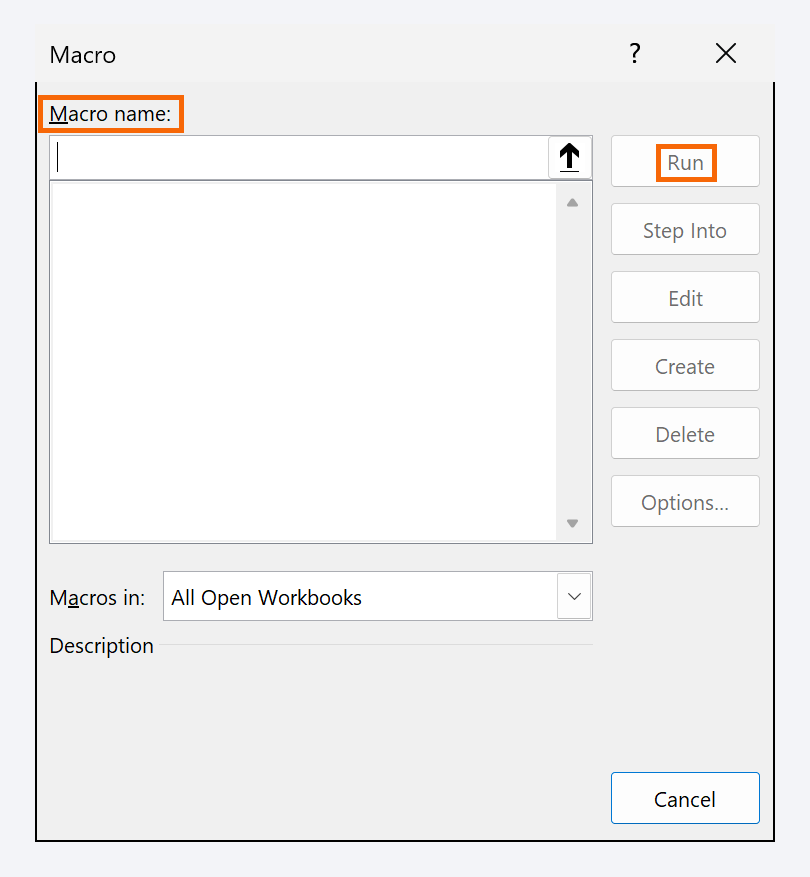
Next Monday, open the new report (with the macro workbook also open) and press Ctrl+Shift+F. Or go to Developer › Code › Macros (Alt+F8), pick FormatReport and click Run. All the formatting appears in a second.
What a macro does can't be undone with Ctrl+Z. Try it on a copy first and save before running it.
Save the workbook as an “Excel Macro-Enabled Workbook”
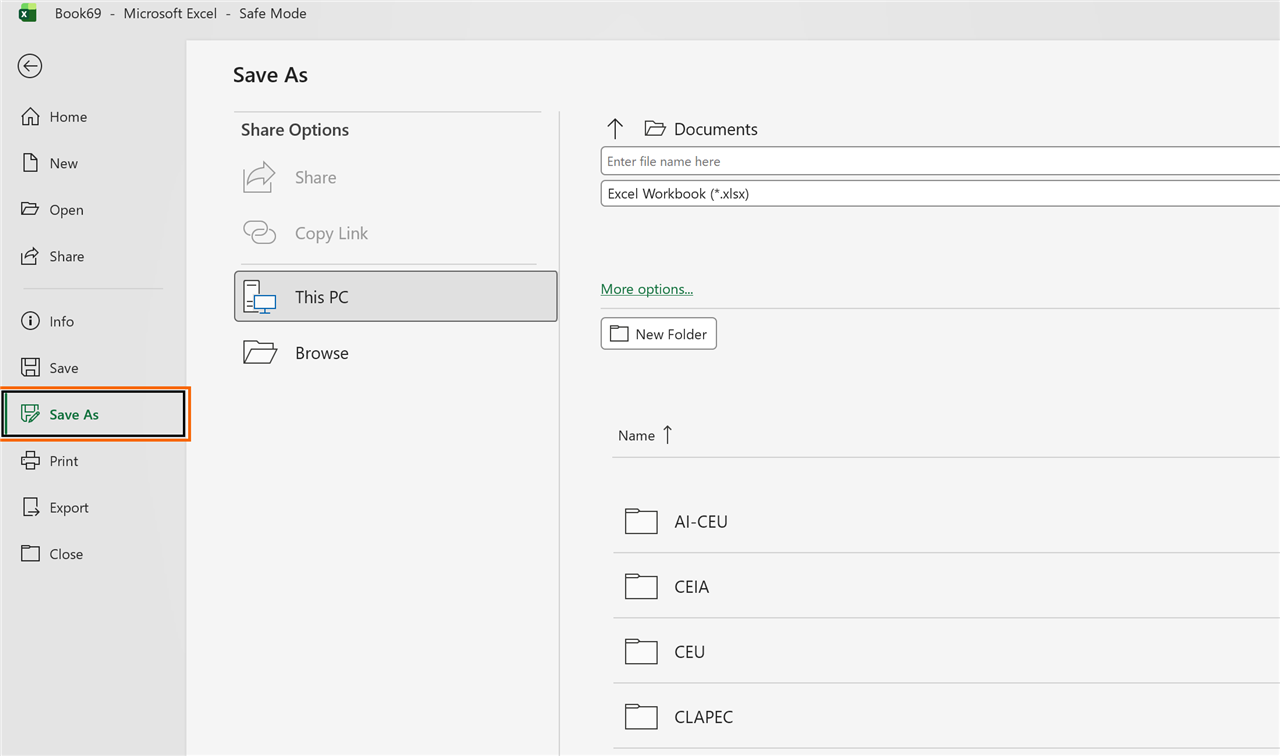
An .xlsx file can't store macros. Go to File › Save As, choose the folder and, in Save as type, select Excel Macro-Enabled Workbook (*.xlsm). Click Save.
If you save as .xlsx, Excel warns you that the VB project can't be saved in a macro-free workbook. If you answer yes, the file is saved without the macro.
Understand the security warning when you open the file
When you open an .xlsm, Excel shows a yellow SECURITY WARNING bar: macros have been disabled. If the file is yours or from someone you trust, click Enable Content. Excel remembers that choice for that file.
If the file came from the internet or an email, Excel may block the macros with a red security risk bar. If you trust it, close it, right-click the file in File Explorer, choose Properties, tick Unblock and open it again.

Never enable macros in a file you weren't expecting: macros can run harmful actions on your computer.
Expert tips
- Macros available in all your workbooks. In Store macro in, choose Personal Macro Workbook. Excel stores it in a hidden workbook that always opens with Excel, and your reports can stay
.xlsx. - A button instead of a shortcut. Draw a shape with Insert › Illustrations › Shapes, type “Format” inside it, right-click it and choose Assign Macro....
- Look at what you recorded. Click Developer › Code › Visual Basic (Alt+F11): you'll see the VBA code. You can paste it into ChatGPT or another AI and ask it to explain it line by line or adapt it, but always test the result on a copy.
- If the task is cleaning imported data, look at Power Query first: it repeats the cleanup with Refresh All, with no macros and no security warnings.
Common mistakes and how to fix them
You close the workbook, reopen it and the macro is gone.
You saved it as .xlsx. Record it again and save with File › Save As › Excel Macro-Enabled Workbook (*.xlsm).
The macro only formats down to row 50, even though the report has 80.
You recorded it by selecting a fixed range. Record again selecting whole columns (click the column letter).
The macro always types in the same cell, even when you're somewhere else.
It was recorded with absolute references. Record it again with Developer › Code › Use Relative References turned on.
Ctrl+B no longer makes text bold.
You assigned Ctrl+B to the macro. Open Developer › Macros, select the macro, click Options... and change the key to an uppercase letter to use Ctrl+Shift+letter.
In Excel for Mac, show the Developer tab in Excel › Preferences › Ribbon & Toolbar. The recorder, relative references and the .xlsm format work the same. Excel for the web doesn't run VBA macros.
Frequently asked questions
Do I need to know how to code to use macros?
Not to record them. The recorder writes the code for you. Knowing a little VBA lets you tweak them later, but it isn't essential to start saving time on day one.
Is it dangerous to enable macros?
Your own, no. The risk lies in files from unknown sources, because a macro can do almost anything on your computer. Only enable macros in files you're expecting from people you trust, and don't change macro security to “enable all”.
What about the Automate tab?
The Automate tab uses Office Scripts, a different automation system designed mainly for Excel on the web with work or school accounts. The VBA macros in this guide are the classic kind and work in Excel for Windows and Mac.
Can I use the macro in other files?
Yes, as long as the workbook that contains it is open (it shows up under Macros in: All Open Workbooks). If you want it always available, record it in the Personal Macro Workbook.
Official sources
Microsoft documentation consulted for this guide.
Saved only in this browser.