The Excel keyboard shortcuts that actually save time
The Excel shortcuts that save the most time are: Ctrl+arrow keys to jump to the end of your data, Ctrl+Shift+arrow keys to select, Alt+= to insert a sum, F4 to lock references with $, Ctrl+1 for Format Cells, Ctrl+T to create a table and Ctrl+Alt+V for Paste Special. Ctrl+A selects everything and Ctrl+S saves.
It happens every time: to reach the end of a 3,000-row list you drag the scroll bar, overshoot, scroll back, and when you finally select the column the mouse slips. Multiply that by every working day of the year. You don't need to learn a hundred combinations: with fifteen well-chosen ones you work twice as fast.
Think of shortcuts like the shortcuts in your neighborhood: the long way works, but the short one saves you time every single day. One detail almost nobody mentions: Excel in other languages uses some different letters. Everything in this guide is checked against Microsoft's official page for Excel for Windows in English.
What you'll learn
- How to move through thousands of rows without touching the mouse
- How to select whole columns and ranges instantly
- The shortcuts to sum, edit and lock references with $
- Which shortcuts change between language versions of Excel
- How to create tables, turn on filters and paste values from the keyboard
Step by step
Press Alt to see the ribbon letters
Press and release Alt. A letter appears over each ribbon tab: these are KeyTips. Press a tab's letter and you'll see the letters for its buttons. That way you can reach any command without the mouse, even if it has no shortcut of its own.
No need to memorize them: the letters change with Excel's language, so the practical move is to press Alt and read. If the ribbon takes up too much room, Ctrl+F1 collapses or expands it.

F10 does the same as Alt. Press Esc to leave KeyTips.
Jump to the end of your data with Ctrl+arrows
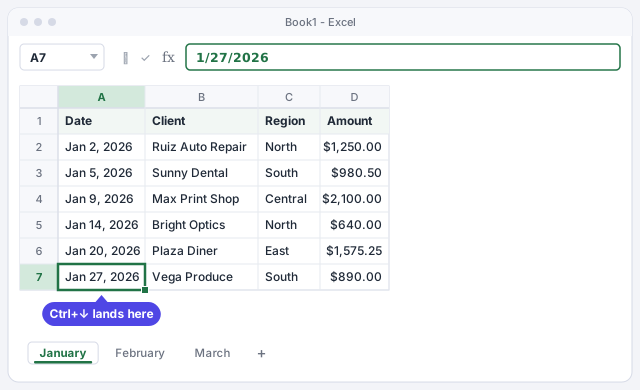
Ctrl+↓ takes you straight to the last filled cell in the column, even with thousands of rows. The other arrows do the same upward or sideways.
| Shortcut | What it does |
|---|---|
| Ctrl+arrow | Goes to the edge of the data block |
| Ctrl+Home | Back to A1 |
| Ctrl+End | Goes to the last used cell on the sheet |
| Ctrl+Page Down / Page Up | Moves to the next / previous sheet |
| F5 | Opens Go To: type a cell, such as D500, and jump |
Select columns and ranges without dragging
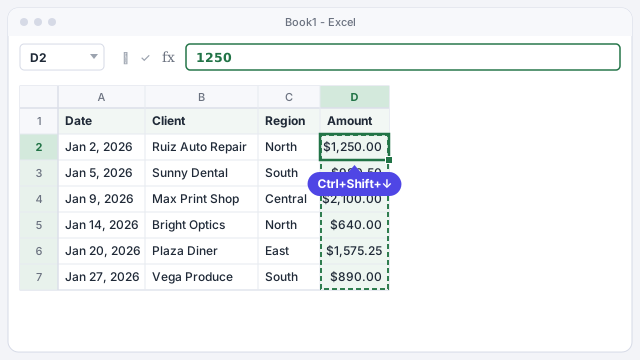
Add Shift to any movement and, instead of moving, you select. Ctrl+Shift+↓ selects from the active cell to the end of the data: perfect for copying a column of 3,000 amounts.
| Shortcut | Selects |
|---|---|
| Ctrl+Shift+arrow | Up to the end of the data block |
| Shift+arrow | One more cell at a time |
| Ctrl+Spacebar | The entire column |
| Shift+Spacebar | The entire row |
| Ctrl+A | The current data block; press it again (up to three times) to reach the whole sheet |
Shortcut letters depend on Excel's language: in Spanish Excel, for example, Ctrl+A opens a workbook and select-all is a different letter.
Sum a column with Alt+=
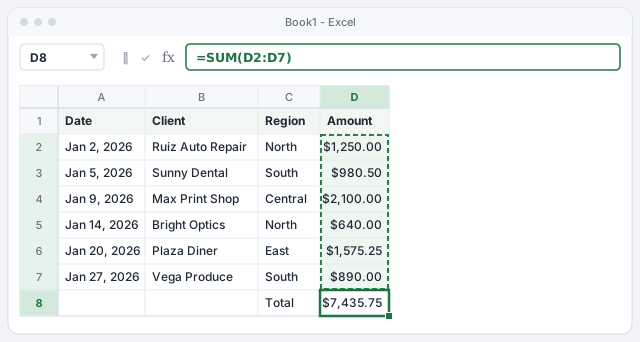
Click the empty cell below the numbers (D8) and press Alt+=. Excel types =SUM(D2:D7) and outlines the range it detected. If it's right, press Enter. It's the AutoSum button from Home › Editing, without hunting for it.
If the range Excel guessed is wrong, drag over the right cells before pressing Enter: the formula updates as you select.
Adds up the six January amounts: $7,435.75.
Edit without the mouse: F2, F4, Alt+Enter and Ctrl+Enter
Four keys you'll use every day when typing and fixing data:
| Shortcut | What it does |
|---|---|
| F2 | Edits the active cell with the cursor at the end, without wiping what's there |
| F4 | While typing a formula, cycles the reference through G1, $G$1, G$1 and $G1. Outside a formula, repeats the last action |
| Alt+Enter | Starts a new line inside the same cell |
| Ctrl+Enter | Enters the same thing in every selected cell at once |
For example, to apply a commission rate stored in G1 to every sale, type =D2*G1, press F4 right after G1 and drag down. We explain it in absolute references.
With F4, G1 stays locked as $G$1 when you copy the formula down.

Format from the keyboard
Ctrl+1 opens Format Cells, where everything lives: number, alignment, borders and fill. For the quick stuff:
| Shortcut | Format |
|---|---|
| Ctrl+B or Ctrl+2 | Bold |
| Ctrl+I or Ctrl+3 | Italic |
| Ctrl+U or Ctrl+4 | Underline |
| Ctrl+Shift+$ | Currency with two decimals |
| Ctrl+Shift+% | Percentage with no decimals |
| Ctrl+9 / Ctrl+0 | Hide the selected rows / columns |
More on formats in number formats.

Create a table, filter and paste values from the keyboard
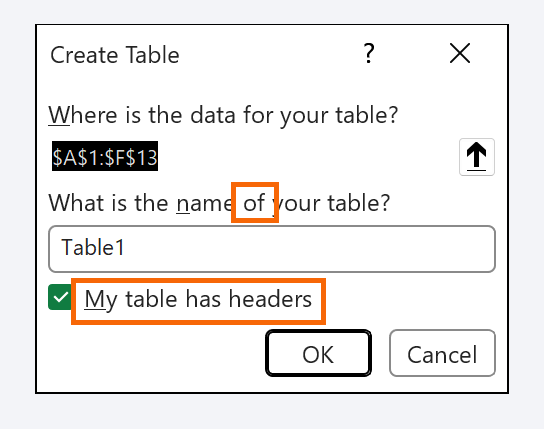
Click inside your data and press Ctrl+T: Create Table opens with the range already detected. Check that My table has headers is ticked and press Enter. You now have filters, formatting and formulas that extend on their own (all about tables).
| Shortcut | What it does |
|---|---|
| Ctrl+Shift+L | Turns filters on or off |
| Ctrl+Alt+V | Opens Paste Special (for example, to paste values only) |
| Ctrl+Q | Shows Quick Analysis for the selected data |
| Alt+F1 | Creates an instant chart from the current data |
Undo, repeat and save a copy without hunting menus
Mistakes are part of the job; what matters is fixing them in a second:
| Shortcut | What it does |
|---|---|
| Ctrl+Z | Undoes the last action (press it several times to go further back) |
| Ctrl+Y | Redoes or repeats the last action |
| Esc | Cancels what you're typing in the cell |
| Ctrl+S / F12 | Saves the workbook / opens Save As |
| Shift+F11 | Inserts a new worksheet |
| Ctrl+W | Closes the active workbook |

Expert tips
- Ctrl+2, Ctrl+3 and Ctrl+4 work in any language. They apply bold, italic and underline in English and Spanish Excel alike. If you switch between computers set to different languages, use those.
- Practice three shortcuts a week. Start with Ctrl+arrows, Ctrl+Shift+arrows and Alt+=. Once they come naturally, add three more. Fifteen shortcuts you actually use beat a hundred on a cheat sheet.
- To bring back hidden rows. After hiding with Ctrl+9 or Ctrl+0, select the rows or columns on either side, right-click and choose Unhide.
- When you ask AI, say which Excel. ChatGPT usually answers with Windows shortcuts for Excel in English. If you're on a Mac or use Excel in another language, say so, and test each shortcut before writing it down.
- Make your own shortcut. If you repeat the same task every day and it has no shortcut, record it as a macro and assign it a Ctrl combination: we show you how in your first macro.
Common mistakes and how to fix them
You try a shortcut from a video and nothing happens, or something else happens.
The video may use Excel in another language or on a Mac. Spanish Excel, for instance, uses Ctrl+N for bold. Use the number shortcuts Ctrl+2, Ctrl+3 and Ctrl+4, which work everywhere.
Ctrl+arrow stops halfway down the column.
There's an empty cell: Ctrl+arrow jumps to the edge of each data block. Press it again to keep going, or fill in the gaps.
F2 or F4 changes the screen brightness or volume instead of working in Excel.
On many laptops the function keys do something else by default. Hold down the Fn key while you press F2 or F4.
In Excel for Mac many shortcuts swap Ctrl for ⌘: ⌘+C, ⌘+V, ⌘+Z and ⌘+1 (Format Cells). Paste Special is ⌘+Control+V, and Ctrl+Shift+L also toggles filters. Function keys may need the Fn key.
Frequently asked questions
Why don't the shortcuts from tutorials work in my Excel?
Often because the tutorial uses Excel in another language or on another platform. Spanish Excel, for example, uses Ctrl+N for bold and Ctrl+K for italic. Shortcuts built on function keys, arrows and numbers are usually the same everywhere.
Is there an official complete list?
Yes. Microsoft publishes the "Keyboard shortcuts in Excel" page, with every shortcut for Windows, Mac and the web. It's linked in this guide's sources.
Do shortcuts work in Excel for the web?
Many do (copy, paste, undo, arrows). For the ribbon, Excel for the web uses Alt+Windows logo key instead of just Alt, and the browser may grab some combinations for itself.
Can I create my own shortcuts?
Yes, by recording a macro and assigning it a Ctrl combination. See how to record your first macro.
Official sources
Microsoft documentation consulted for this guide.
Saved only in this browser.