Paste Special: paste values only, transpose rows and columns, and calculate as you paste
In Excel, copy the cells with Ctrl+C, click the destination and open Home › Clipboard › Paste › Paste Special… (or press Ctrl+Alt+V). Choose Values to paste results without formulas, tick Transpose to turn rows into columns, or use Operation › Multiply to change many numbers at once, for example to raise every price by 5%.
It happens every time: you copy the totals from one sheet into your report and, when you paste, you get zeros or #REF! errors. Or you paste a table and it wrecks your formatting. Or the months sit in a row and your manager wants them in a column. Pasting with Ctrl+V brings everything along: formulas, formatting, borders… and often that's not what you want.
Paste Special is like a move where you choose which boxes to take: only the values, only the formatting, only the column widths. It can also rotate the data or do math while it pastes. In this guide you learn the four options that save the most time at the office.
What you'll learn
- How to paste only the results, without formulas
- How to turn a row into a column (and back) with Transpose
- How to raise or lower many prices at once by calculating as you paste
- How to copy only the formatting, the column widths or a link
Step by step
Copy the cells with Ctrl+C
Select the source cells and press Ctrl+C. You'll see a moving dashed border around them: that's Excel telling you the content is on the clipboard. In the example, the Total column (D2:D4) contains formulas such as =B2*C2.
Use copy, not cut: after Ctrl+X, Paste Special isn't available.
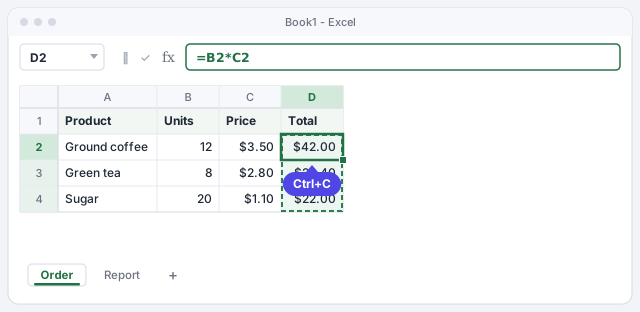
Press Esc when you're done to remove the dashed border and clear the copy selection.
Open the Paste menu and choose what to paste
Click the destination cell and go to Home › Clipboard. Click the arrow below Paste: a gallery opens with the paste options grouped together. Hover over each icon without clicking and Excel shows a live preview on the sheet plus the option's name: Formulas, Transpose, Values, Values & Number Formatting, Formatting, Paste Link…
At the bottom of the gallery is Paste Special…, which opens the dialog with every option.
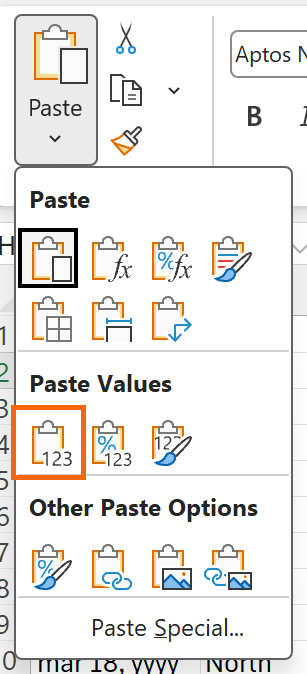
If you already pasted with Ctrl+V, a small Paste Options button appears next to the data with the same choices: no need to undo.
Paste values only, without formulas
Choose Paste › Values. Excel pastes the result of each formula, not the formula: the formula bar shows 42, not =B2*C2. Use it when:
- you're sending a quote and don't want the client to see your calculations;
- you're about to delete the source data and want to keep the totals;
- you want to break links to another workbook the recipient doesn't have.
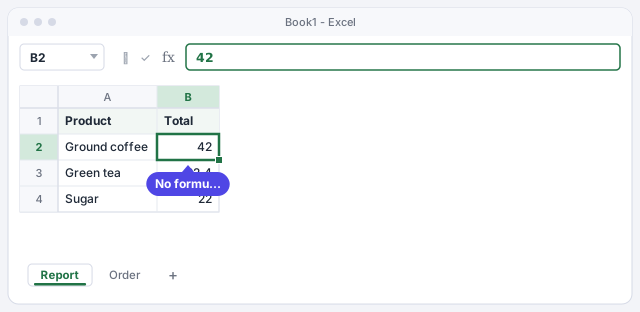
Values doesn't bring the number format. To keep dollar signs or percentages, choose Values & Number Formatting.
Open the Paste Special dialog with Ctrl+Alt+V
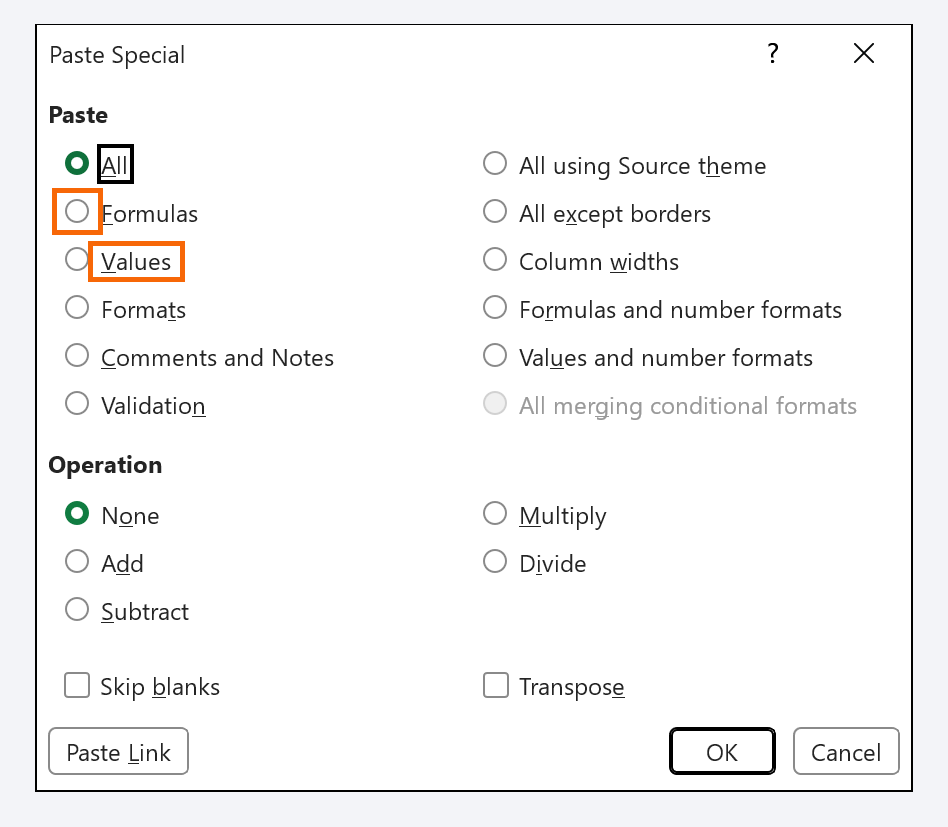
To see every option at once, press Ctrl+Alt+V (or Home › Paste › Paste Special…). The dialog has three areas:
- Paste: what you take along (All, Formulas, Values, Formats, Validation, Column widths…).
- Operation: None, Add, Subtract, Multiply or Divide what you copied with what's already in the destination.
- Two checkboxes, Skip blanks and Transpose, and the Paste Link button.
Flip rows and columns with Transpose
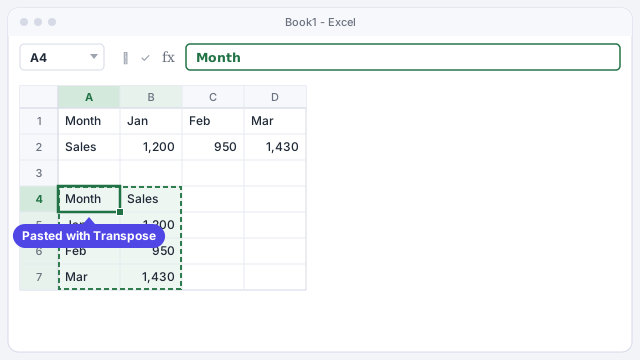
Copy the horizontal range (A1:D2), click an empty cell (A4) and choose Paste › Transpose, or tick Transpose in the Paste Special dialog. What was in rows moves into columns: the months end up one below the other.
The result is a static copy. If you want it to update when the data changes, use the TRANSPOSE function (Microsoft 365 and Excel 2021): type the formula in A4 and the result spills into the neighboring cells on its own.
Returns the rotated range and updates when the source data changes.
The destination can't overlap the copied range. Pick an empty area or another sheet.
Calculate as you paste: raise every price by 5%
Type 1.05 in an empty cell (F1) and copy it. Select the prices (C2:C4), press Ctrl+Alt+V, choose Paste › Values and Operation › Multiply, then click OK. Each price is multiplied by 1.05 in place: $3.50 becomes $3.675 (it shows $3.68). Then delete F1.
Pick Values, not All: with All, Excel also pastes the formatting of F1 and your prices can lose their currency format.
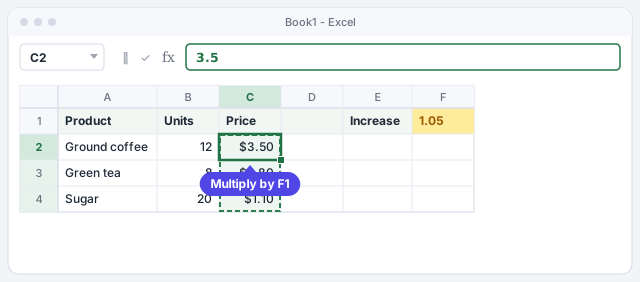
If the destination cells contain formulas, Excel changes them: =B2*C2 becomes =(B2*C2)*1.05. Do it on values or check the result.
Paste only formats, column widths or a link
Three more options in the Paste Special dialog you'll use often:
- Formats: copies colors, borders and number formats without touching the content. Ideal for making this month's table look like last month's.
- Column widths: gives the destination columns the same width as the source ones.
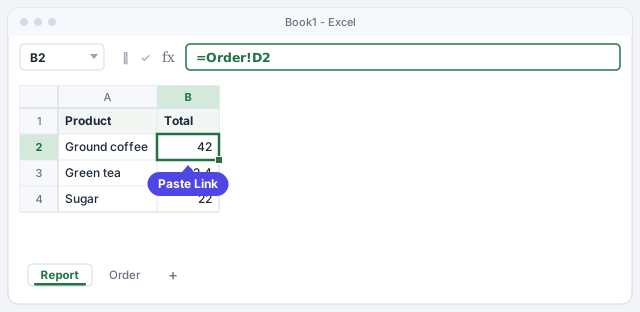
- Paste Link: instead of copying the data, it creates formulas that point to the source, such as
=Order!D2. If the order changes, the report updates on its own.
Expert tips
- Turn text into numbers in one go. If you imported numbers that Excel treats as text, type 1 in a cell, copy it, select the data and use Paste Special › Values + Multiply. They become real numbers. More tricks in how to clean imported data.
- Skip blanks protects your data. If the copied range has empty cells, tick Skip blanks and Excel won't wipe out what was already in those spots in the destination.
- Deliver without formulas. Before sending a quote, make a copy of the sheet, select it all with Ctrl+A and paste over it as Values. The client sees the numbers, not your calculations or links to your files.
- Tables that come from AI. If you copy a table from ChatGPT or a website and it pastes with odd formatting, see how to paste AI tables into Excel without breaking anything.
Common mistakes and how to fix them
You paste values over your original formulas and they no longer recalculate.
Press Ctrl+Z right away. Paste the values on another sheet or in a copy of the workbook and leave the source formulas alone.
Excel shows a warning and won't paste with Transpose.
The destination overlaps the copied range. Click a cell in an empty area (or on another sheet) and paste again.
After multiplying by 1.05, the prices lose their dollar format.
You chose All in the Paste area, so Excel also pasted the copied cell's formatting. Undo with Ctrl+Z and repeat with Values + Multiply.
Paste Special is grayed out.
You cut with Ctrl+X instead of copying. Press Esc, copy with Ctrl+C and try again.
In Excel for Mac the path is the same: Home › Paste arrow › Paste Special…, or the shortcut ⌘+Control+V. The dialog offers the same options: Values, Formats, Operation, Skip blanks and Transpose.
Frequently asked questions
Does pasting values lose the formatting?
Values pastes only the number; the destination keeps its own formatting. If you also want the dollar signs, percentages or dates, choose Values & Number Formatting. We explain formats in number formats.
Does transposed data update if I change the original?
No: pasting with Transpose makes a static copy. If you need it to update, use =TRANSPOSE(A1:D2) in Microsoft 365 or Excel 2021.
What's the Paste Special shortcut?
Ctrl+Alt+V on Windows, after copying with Ctrl+C. On a Mac, ⌘+Control+V.
Can I divide every amount by 1,000 to show it in thousands?
Yes: type 1000 in a cell, copy it and use Paste Special › Values + Divide. Keep in mind it changes the real values; if you only want to display thousands, a custom number format is a better choice.
Official sources
Microsoft documentation consulted for this guide.
Saved only in this browser.