Number formats: dates, currency, percentages and leading zeros that don't vanish
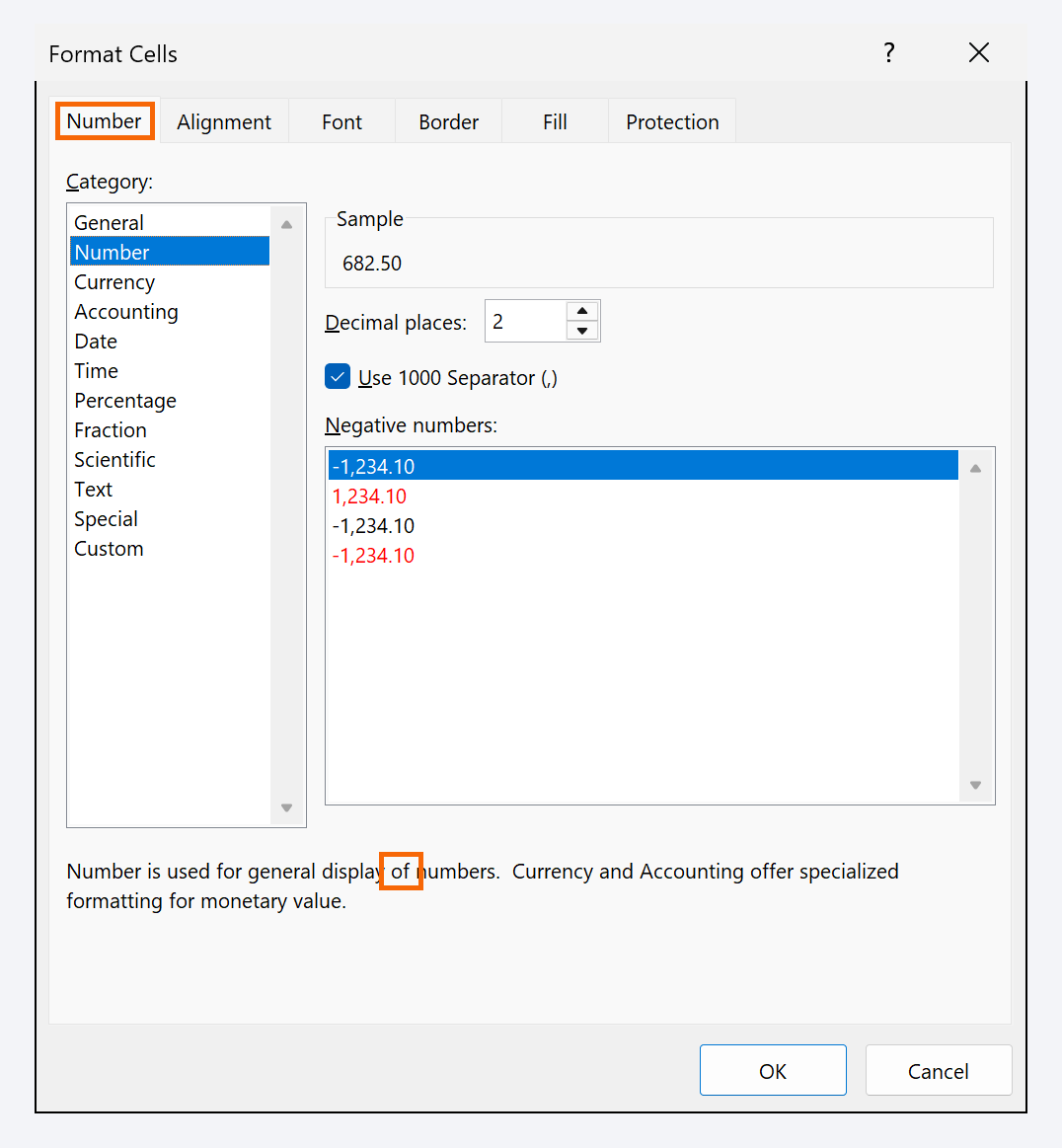
In Excel, a number format changes how a value looks, not the value itself. Select the cells and pick a format in Home › Number › Number Format (Currency, Short Date, Percentage, Text…), or press Ctrl+1 to open Format Cells › Number. To keep leading zeros, apply the Text format before typing, or use a Custom format such as 00000.
It happens every time: you type the ZIP code 02134 and Excel turns it into 2134. You paste a list of due dates and it fills up with numbers like 46305. You type 8 for the tax rate and, after applying a percentage format, it shows 800%. It looks like Excel does whatever it wants, but it follows a very simple logic almost nobody explains.
Think of a number format as a pair of glasses: the value in the cell never changes, but depending on the glasses you see it as dollars, as a date or as a percentage. In this guide you learn to pick the right glasses, fix the odd cases and build your own formats, so your invoices, budgets and lists look right the first time.
What you'll learn
- Why a format changes how a number looks but not its value
- How to apply currency, accounting, percentage and date formats in two clicks
- How to keep leading zeros in codes and IDs
- How to bring back lost zeros with the TEXT function
- How to build custom formats with units and long dates
Step by step
Check what value is really in the cell
Click a cell and look at the formula bar, the white strip above the columns. The cell shows the formatted value; the bar shows the real value. In the example, B2 shows $1,250.00 but contains the number 1250.
That's the golden rule: a format changes how a number looks, never its value. So you can add dollar signs, decimals or percentages without fear of breaking your formulas.
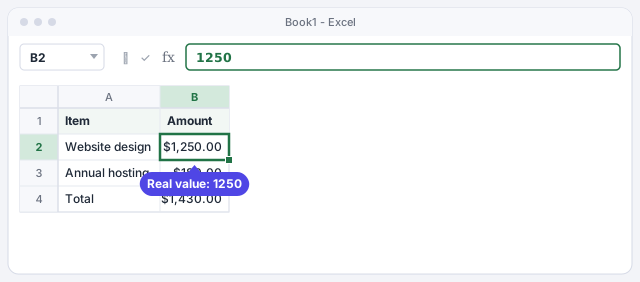
The Name Box, to the left of the formula bar, always tells you which cell you're in.
Pick a quick format in Home › Number
Select the cells and go to Home › Number. The Number Format drop-down (it usually says General) offers the most common formats: Number, Currency, Accounting, Short Date, Long Date, Percentage, Text… Below it you have five everyday buttons: Accounting Number Format, Percent Style, Comma Style, Increase Decimal and Decrease Decimal.
General is the default format: Excel shows the number as is and decides on its own whether what you type looks like a date or a percentage. That's where almost every surprise comes from.

Apply currency from Format Cells
To control every detail, press Ctrl+1 (or right-click › Format Cells…). On the Number tab, choose the Currency category and set Decimal places, Symbol and how Negative numbers look (for example, in red).
Currency or Accounting? Both add a symbol and decimals. Accounting lines the symbol up at the edge of the cell and shows zeros as a dash, so it looks cleaner in balance sheets and invoices. Currency puts the symbol right next to the number.
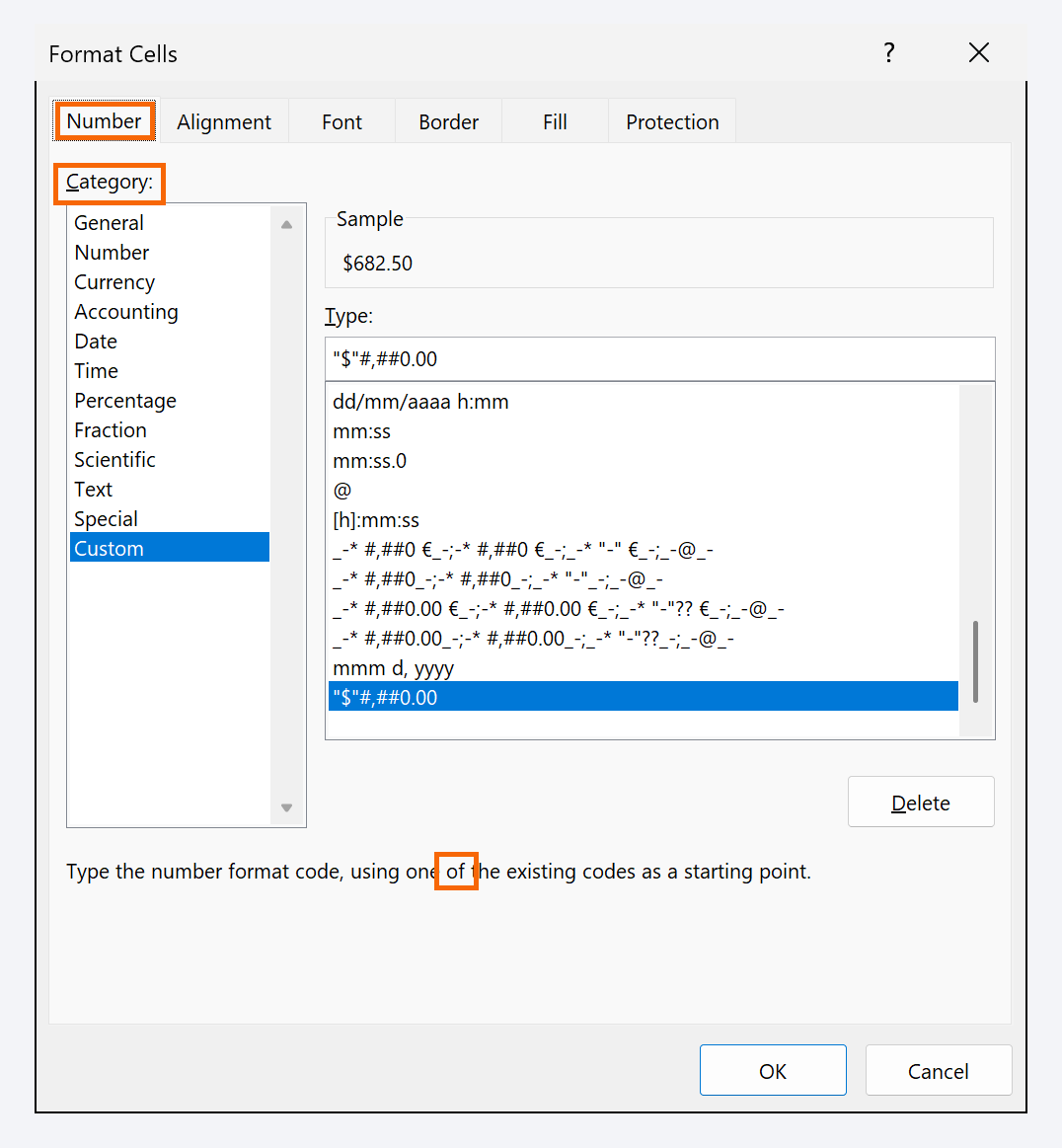
Working with other currencies? Pick €, £ or another symbol in the Symbol list; the cell value doesn't change.
Type percentages without multiplying by 100
A percentage is a fraction: 8% is 0.08. If you type 8% with the symbol, Excel stores 0.08 and applies the format for you. If the cell already holds 0.08, use Home › Number › Percent Style and you'll see 8%.
Because the real value is 0.08, working out the sales tax is just a matter of multiplying the subtotal by the rate cell. Type =B2*C2 in D2 and drag down.
Subtotal times tax rate: $1,000.00 × 8% = $80.00.
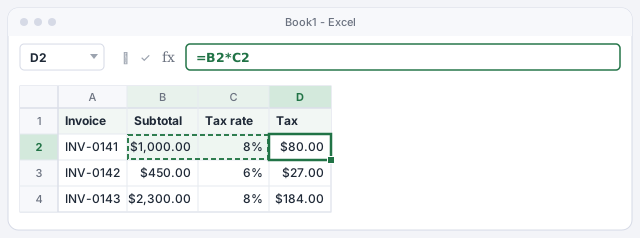
If you apply Percent Style to a cell that contains 8, you'll see 800%. Type 0.08, or retype 8 once the cell already has a percentage format.
Turn numbers like 46305 into dates
Excel stores every date as a serial number: the number of days since January 1, 1900. October 10, 2026 is, under the hood, 46305. That's why a column of due dates sometimes shows up full of five-digit numbers: the data is fine, it's just missing the format.
Select the column and choose Home › Number › Number Format › Short Date. It also happens the other way round: type 1/2 into a cell formatted as General and Excel turns it into January 2. If you wanted the text "1/2", apply the Text format first.
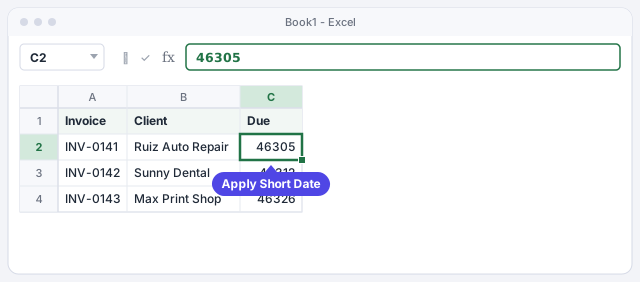
To see how many days are left until a due date, subtract: =C2-TODAY(). If the result shows up as a date, switch it to General or Number format.
Keep leading zeros
Type 02134 (a Boston ZIP code) and Excel shows 2134: to Excel it's a number, and leading zeros are worth nothing. You have two fixes, depending on the use:
- Text format before typing. Select the column, choose Home › Number › Number Format › Text and then type. Ideal for ZIP codes, employee IDs or part numbers you'll never add up. For a one-off entry, start with an apostrophe: '02134.
- Custom format. Press Ctrl+1, go to Number › Custom and type
00000in Type. The value is still a number, but it always shows five digits.
The Text format doesn't change what's already typed: apply it before you type or paste the data.
Bring back lost zeros with TEXT
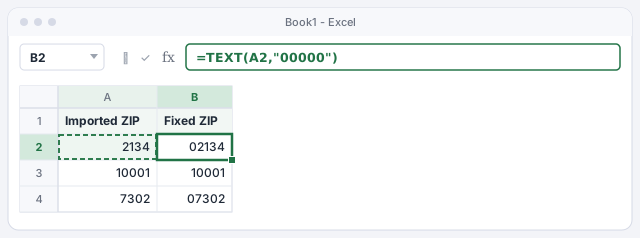
If you imported a list and the zeros are already gone, don't retype them. In a helper column use the TEXT function, which turns a number into text with the format you give it: =TEXT(A2,"00000") returns 02134 from 2134.
Drag the formula down and, once it looks right, copy the column and paste it back over itself as values with Paste Special.
Pads with leading zeros up to five digits and returns text.
Build your own formats with units and long dates
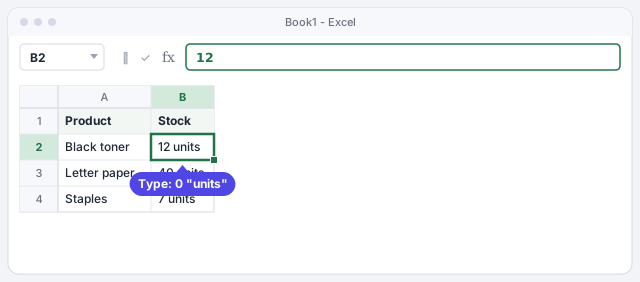
In Format Cells › Number › Custom you can combine codes with text in quotes. Three you'll use a lot:
| Type | Value | Displays |
|---|---|---|
0 "units" | 12 | 12 units |
$#,##0.00 | 1250 | $1,250.00 |
dddd, mmmm d, yyyy | Oct 10, 2026 | Saturday, October 10, 2026 |
The number is still a number: you can add up the "units" column with no problem. Heads-up: format codes depend on Excel's language; Spanish Excel, for instance, writes the year as aaaa instead of yyyy.
Expert tips
- Copy formats with the paintbrush. Home › Clipboard › Format Painter carries the number format (and the rest of the formatting) from one cell to others. Double-click the button to apply it several times in a row.
- Number format shortcuts. Ctrl+Shift+$ applies Currency with two decimals, Ctrl+Shift+% applies Percentage with no decimals and Ctrl+Shift+! applies Number with two decimals and a thousands separator. More in the shortcuts that actually save time.
- Hiding decimals is not rounding. Decrease Decimal only hides digits: 2.456 shows as 2.46, but Excel keeps adding 2.456. If you need the truly rounded value, use
=ROUND(A2,2). - When you ask AI for a format, say which Excel. Ask ChatGPT for the custom format "for Excel in English" if colleagues use other languages: codes change between language versions. Test it on one cell before applying it to the whole column.
Common mistakes and how to fix them
You add up a column of amounts and the total is 0.
The numbers are stored as text (they're usually left-aligned with a green triangle in the corner). Select them, click the warning icon and choose Convert to Number.
You switch the format to Text and the zeros don't come back.
The Text format only affects what you type afterwards. Retype the data or use =TEXT(A2,"00000") in a helper column.
The cell shows ######## instead of the number or date.
The column is too narrow to show the value in that format. Double-click the right edge of the column header to autofit the width.
In Excel for Mac the formats are in the same place: Home › Number Format. The Format Cells dialog opens with ⌘+1 and the categories (Currency, Accounting, Date, Text, Custom…) are the same.
Frequently asked questions
Why does Excel turn 1/2 or 3-4 into dates?
Because in the General format Excel reads anything that looks like a date as a date. Apply the Text format before typing, or start the entry with an apostrophe ('1/2).
Does changing the format change my calculations?
No. Formulas always use the cell's real value, the one you see in the formula bar. The only exception is the Text format: whatever you type afterwards is stored as text and won't add up.
What's the difference between the Text format and the TEXT function?
The Text format tells the cell to store whatever you type from now on as text. The TEXT function creates new text from a number that already exists, using the format you give it, for example =TEXT(A2,"00000").
Why do my dates show day and month the other way round?
Excel follows your computer's regional settings for date order. A file from another country shows dates the way your settings say; if the dates arrived as text, see how to clean imported data.
Official sources
Microsoft documentation consulted for this guide.
Saved only in this browser.