Dates in Excel: TODAY, DATEDIF and NETWORKDAYS to work out ages, deadlines and due dates
In Excel a date is a number, so you can add and subtract days. =TODAY() returns today's date; =B2+30 gives a due date 30 days out; =DATEDIF(B2,TODAY(),"y") returns completed years (age or length of service); =NETWORKDAYS(B2,C2,Holidays) counts working days between two dates, and =WORKDAY(B2,10,Holidays) returns the date 10 business days later.
It happens every month: you need to know which invoices are due this week, how many years each employee has been with the company, or the exact day a 10-business-day deadline lands. You pull up a calendar, count on your fingers, miss a holiday… and the answer is out of date by tomorrow.
The key to letting Excel do it for you is a single idea: to Excel, a date is a number. Each day is one unit, like the numbered pages of a giant book that starts on January 1, 1900. Subtracting two dates is like subtracting two page numbers: it tells you how many lie in between. With that plus four functions (TODAY, DATEDIF, NETWORKDAYS and WORKDAY) you can handle almost everything an office does with dates.
In this guide you build due dates, ages, length of service and business-day deadlines that recalculate every time you open the file.
What you'll learn
- Why a date is a number and how to use that to add and subtract days
- How to calculate due dates and days remaining with
=TODAY() - How to get age or length of service in years and months with DATEDIF
- How to count working days and business-day deadlines, skipping holidays
- How to jump to month end or add months with EOMONTH and EDATE
Step by step
Check that your dates are real dates
Type a date such as 10/10/2026 into a cell. If Excel recognizes it, it aligns it to the right (like numbers). Now copy it next door and change the format in Home › Number › Number Format › General: you'll see 46305. That's the date's serial number: the days elapsed since January 1, 1900.
That's why Oct 11, 2026 is 46306: one more day is one more unit.
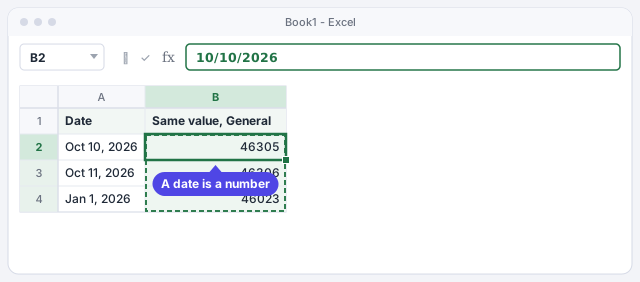
If the date stays left-aligned, Excel stored it as text and none of the formulas in this guide will work with it. Retype it in your system's date format (m/d/yyyy in the US) or check the number format guide.
Type =TODAY() to always have the current date
In any cell type =TODAY() and press Enter. The parentheses stay empty: the function takes no arguments. The result updates by itself every day you open the workbook. If you also need the time, use =NOW().
You don't need it in a separate cell: you can put TODAY() inside other formulas, as you'll see in the next steps. The screenshots in this guide assume today is Oct 10, 2026.
Today's date; updates by itself every day.
Current date and time.

If you want to freeze today's date (for example, the date a record was logged), don't use =TODAY(): type it by hand or paste just the value with Paste Special › Values.
Calculate due dates and days left by adding and subtracting
With a list of invoices, the 30-day due date is simply the date plus 30: in C2 type =B2+30. Days remaining is the due date minus today: in D2 type =C2-TODAY(). Select C2:D2 and drag the fill handle down.
A negative result means the invoice is already overdue: -9 means “9 days late”.
Due date 30 days after the invoice date.
Days left; negative means overdue.
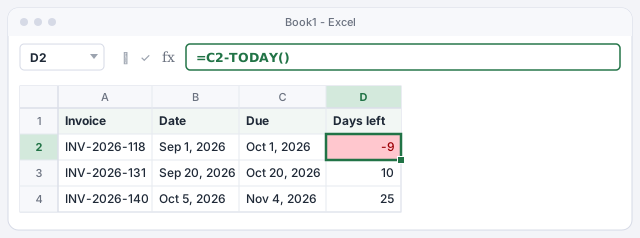
If the days column shows an odd date like 1/10/1900, Excel copied the date format into the result. Select the column and set it to General or Number.
Get age or length of service in years with DATEDIF
For completed years, subtracting and dividing by 365 isn't enough (leap years and birthdays that haven't arrived yet throw it off). Use DATEDIF: in C2 type =DATEDIF(B2,TODAY(),"y"). The arguments are, in this order, the start date, the end date and the unit: "y" completed years, "m" completed months, "d" days.
Look at the example: Andrew joined on Nov 1, 2020 and still has 5 years, because his November anniversary hasn't come yet. Megan hits 3 years exactly today, and Excel already counts them.
Completed years between the start date and today.
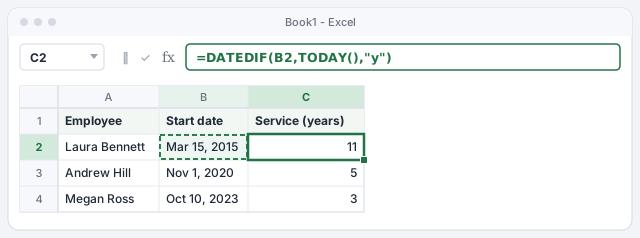
DATEDIF doesn't appear under Formulas › Date & Time or in AutoComplete: it's a legacy function Microsoft keeps for compatibility. Type it in full and it works.
The start date must come before the end date. If you swap them, DATEDIF returns #NUM!.
Show years and months in a single cell
For text such as “11 years, 6 months”, combine two DATEDIF calls with the & operator, which joins text. The "ym" unit returns the months left over after removing the completed years:
=DATEDIF(B2,TODAY(),"y")&" years, "&DATEDIF(B2,TODAY(),"ym")&" months"
It's what you need for a service certificate, a customer record or a student's exact age.
Returns text such as 11 years, 6 months.
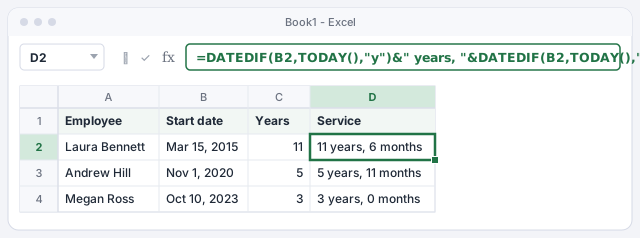
Microsoft advises against the "md" unit (leftover days) because it can return wrong results in some cases. For days, use "d" or just subtract the dates.
Count working days between two dates with NETWORKDAYS
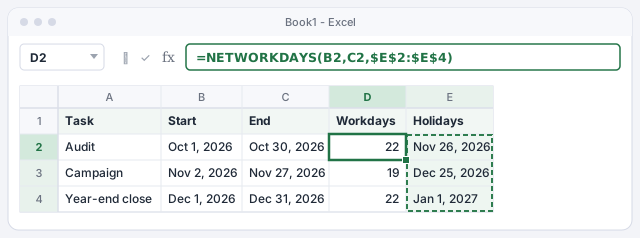
First list your holidays in a column, for example E2:E4. Then, in D2, type =NETWORKDAYS(B2,C2,$E$2:$E$4): start date, end date and, optionally, the holiday range. The function skips Saturdays, Sundays and the listed holidays, and counts both the first and last day inclusive.
The $ signs lock the holiday range so it doesn't shift when you drag the formula down (press F4 after selecting it).
Working days between start and end, excluding weekends and holidays.
If your work week isn't Monday to Friday, use NETWORKDAYS.INTL, which lets you choose which days count as the weekend.
Find a business-day deadline with WORKDAY
The reverse question: “if I have 10 business days, which day is the deadline?”. That's what WORKDAY is for. In D2 type =WORKDAY(B2,C2,$E$2:$E$4): start date, number of business days and holidays.
An order placed on Friday, Nov 20, 2026 with 15 business days ships on Monday, Dec 14, 2026, because Excel skips the weekends and Thanksgiving. Handy for delivery dates, customer response times or legal deadlines counted in business days.
Date after adding C2 business days to B2.

WORKDAY doesn't count the start date: it starts counting from the next day. If your deadline is counted differently, adjust the number of days.
Jump to month end or add months with EOMONTH and EDATE
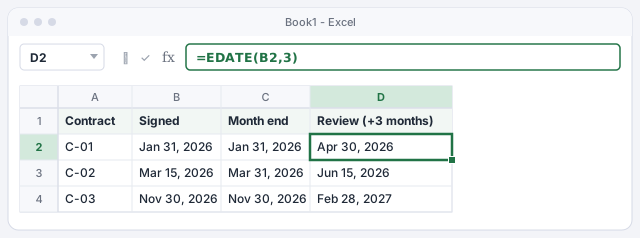
Many payments fall due at month end. =EOMONTH(B2,0) returns the last day of the date's month; with 1 instead of 0, the last day of the next month. To add exact months (renewals, quarterly reviews) use =EDATE(B2,3).
Note the detail: EDATE on Jan 31, 2026 plus 3 months gives Apr 30, 2026, because April has no 31st. Adding 90 days wouldn't give you the same thing.
Last day of the month of the date in B2.
The same date three months later.
Expert tips
- Write fixed dates with DATE. Inside a formula,
=DATE(2026,12,31)-TODAY()works the same under any regional setting; typing the text “12/31/2026” inside a formula can break on someone else's computer. - Keep holidays in a named table. If you turn the list into a table called Holidays, you can write
=NETWORKDAYS(B2,C2,Holidays[Date])and just add a row each year. - Highlight what's due soon. Pair the days-left column with conditional formatting with formulas to color amber anything due within 7 days and red anything overdue.
- Ask AI for the formula, then check it. ChatGPT usually gets DATEDIF right, but it sometimes mixes up separators or argument order. Always test with a date whose answer you know by heart, like your own age.
Common mistakes and how to fix them
Subtracting dates returns #VALUE!.
One of the dates is text (it's left-aligned). Retype it in your system's date format or use Data › Text to Columns to convert the whole column.
Days left shows up as a date from 1900.
The result inherited the date format. Select the cell and change the format to General or Number in Home › Number.
NETWORKDAYS doesn't skip the holidays.
Check that the holiday range holds real dates (not text) and that it's locked with $ or is a table column, so it doesn't shift when you drag.
In Excel for Mac the functions have the same names and work the same way, DATEDIF included. The Format Cells dialog opens with ⌘+1 instead of Ctrl+1.
Frequently asked questions
Why can't I find DATEDIF in the function list?
Because Microsoft keeps it only for compatibility with old workbooks and doesn't show it in the Insert Function dialog or AutoComplete. Type it in full, =DATEDIF(B2,TODAY(),"y"), and it works in all current versions.
What's the difference between NETWORKDAYS and WORKDAY?
NETWORKDAYS counts how many working days lie between two dates. WORKDAY starts from a date, adds a number of business days and returns the end date.
How do I count calendar days between two dates?
Subtract: =C2-B2. To include the first day as well, add 1: =C2-B2+1. There's also =DAYS(C2,B2), which gives the same result as the subtraction.
My formulas use semicolons and Excel rejects them. Why?
Your Excel uses the comma as the argument separator, as in the US and UK. Formulas copied from Spanish or European sources use ;: replace it with ,, as in =DATEDIF(B2,TODAY(),"y").
Official sources
Microsoft documentation consulted for this guide.
Saved only in this browser.