The IF function explained with examples (and nested IFs without getting lost)
The IF function checks a condition and returns one value if it's true and another if it's false: =IF(C2>B2,"Over","OK"). Type it in the cell or use Formulas › Function Library › Logical › IF. For more than two outcomes, put one IF inside another (a nested IF) and order the conditions from smallest to largest.
It happens every week: you have a list of expenses, customers or orders and you go row by row typing “Over”, “OK” or “Silver” by hand. With ten rows it's bearable. With five hundred, you'll make mistakes for sure, and next month you have to do it all again.
The IF function is how you tell Excel: “look at this cell; if this is true, write this; otherwise, write that”. It works like a doorman with a single question: depending on the answer, he sends you through one door or the other. If you need more than two doors, you put one doorman behind another: that's a nested IF.
In this guide you write your first IF, use it to calculate commissions and build a tiered customer ranking without getting lost in parentheses.
What you'll learn
- The three parts of the IF function and how to read them
- How to return text, numbers or calculations based on a condition
- How to nest several IFs to get more than two outcomes
- How to check that your formula gets the edge cases right
Step by step
Understand the three parts of IF
The function has three arguments (the pieces of information inside the parentheses), separated by commas: =IF(logical_test,value_if_true,value_if_false).
- Logical test: a question that can only be answered yes or no, for example
C2>B2(is spending above budget?). - Value if true: what Excel writes if the answer is yes.
- Value if false: what it writes if the answer is no.

Write your first IF
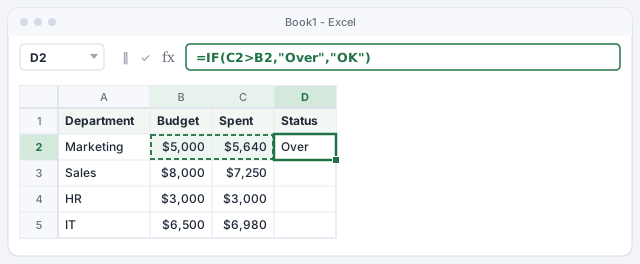
You have each department's spending next to its budget. Click D2 and type =IF(C2>B2,"Over","OK"). Press Enter. Marketing spent $5,640 against a $5,000 budget, so it shows Over.
Notice the quotes: text that the formula returns always goes inside double quotes. Numbers and cell references don't.
If the spending in C2 is above the budget in B2, write Over; otherwise, OK.
If you'd rather not type, use the function wizard
Go to Formulas › Function Library › Logical › IF. The Function Arguments window opens, with one box for each part. Fill them in and Excel adds the parentheses, the commas and, when needed, the quotes for you. At the bottom you see a preview of the result before you click OK.
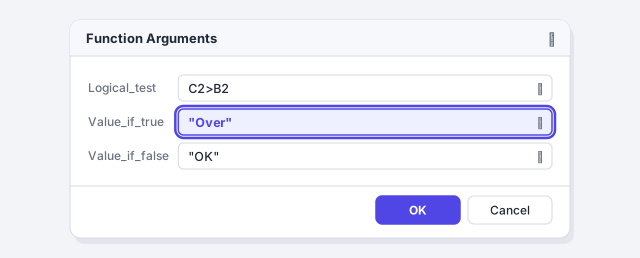
The wizard is great for learning: once you know the structure, typing the formula directly is faster.
Copy the formula down and pick the right operator
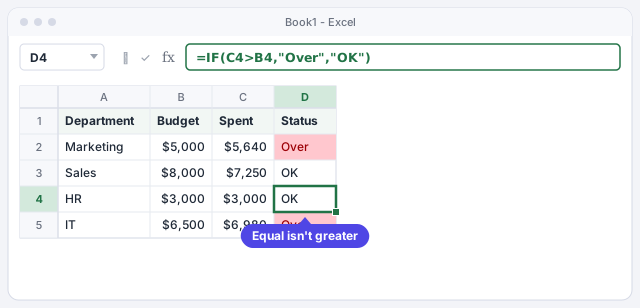
Select D2 and double-click the small square at its bottom-right corner (the fill handle). The formula is copied down to the last row and each copy looks at its own cells. Look at HR: it spent exactly $3,000, and since 3,000 is not greater than 3,000, it shows OK.
| Operator | Meaning |
|---|---|
= | equal to |
<> | not equal to |
> / < | greater than / less than |
>= / <= | greater than or equal / less than or equal |
Return a calculation instead of text
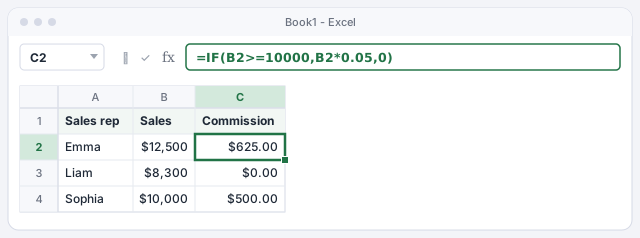
IF doesn't just write words: it can calculate too. To pay a 5% commission to anyone who sells $10,000 or more, type =IF(B2>=10000,B2*0.05,0) in C2. Emma sold $12,500, so she earns $625.00. Liam sold $8,300 and gets $0.00. Sophia sold exactly $10,000 and, because the operator is >=, she earns $500.00.
If sales reach 10,000, calculate 5%; otherwise, return 0.
Don't type 10,000 with the thousands comma inside the formula: Excel would read it as two separate arguments. Type 10000.
Nest several IFs to get more than two outcomes
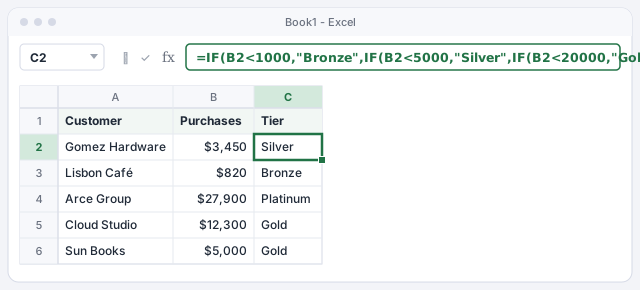
You want to rank customers by what they buy per year: under $1,000, Bronze; under $5,000, Silver; under $20,000, Gold; everyone else, Platinum. A single IF only has two exits, so in the “otherwise” slot you put another IF:
=IF(B2<1000,"Bronze",IF(B2<5000,"Silver",IF(B2<20000,"Gold","Platinum")))
Four outcomes need three IFs, and at the end you close three parentheses. Gomez Hardware bought $3,450: not under 1,000, but under 5,000, so it's Silver.
Three chained IFs give four tiers.
Order the conditions like a staircase
Excel reads a nested IF from left to right and stops at the first condition that is true. That's why order matters: if you start with B2<20000, an $820 customer already meets it and would come out as Gold. Climb the staircase one step at a time: smallest to largest with <, or largest to smallest with > or >=.

To make a long formula easier to read, click in the formula bar and press Alt+Enter before each IF: Excel accepts line breaks inside a formula and the result doesn't change.
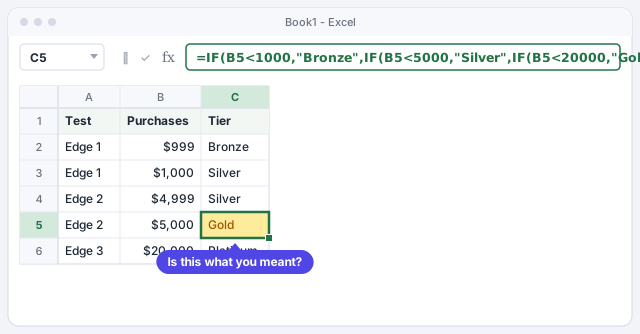
Test the boundary values
Before you trust the formula, try the numbers right at the edge of each tier: 999, 1000, 4999, 5000 and 20000. That's where < versus <= mistakes hide. If $5,000 should be Silver and it shows Gold, change < to <= on that step.
If you asked ChatGPT or another AI for the formula, always run this test: AI usually gets the structure right but often picks the wrong operator at the boundary.
Expert tips
- Move thresholds into cells. Instead of
=IF(B2>=10000,B2*0.05,0), type the target inF1and the rate inF2and use=IF(B2>=$F$1,B2*$F$2,0). If the commission policy changes, you edit one cell, not a hundred formulas. The$signs are explained in relative and absolute references. - Leave empty rows blank.
=IF(B2="","",IF(B2>=10000,B2*0.05,0))shows nothing until you enter the sales. Quotes with nothing inside mean “empty”. - More than three nested IFs is a warning sign. If your formula keeps growing, try
IFS, which avoids cascading parentheses: see several conditions at once. - Highlight as well as label. Combine your status column with conditional formatting so every “Over” jumps out in red.
Common mistakes and how to fix them
Rows with no data show up as “OK” or “Bronze”.
Excel treats an empty cell as 0, and 0 meets the condition. Add an outer IF that checks for blanks: =IF(B2="","",IF(B2<1000,"Bronze","Silver")).
The condition is never met even though the number is right.
You probably put the number in quotes, like B2>="5000". That makes Excel compare against text. Type numbers without quotes: B2>=5000.
#NAME? appears instead of the result.
A text value is missing its quotes (Over instead of "Over") or the function name is misspelled or in another language. In English Excel the function is IF; in Spanish Excel it's SI.
Excel says there's a problem with the formula when you press Enter.
Count the parentheses: each IF opens one and they all close at the end. With three nested IFs, the formula ends with three closing parentheses.
In Excel for Mac the function is the same and so is the path: Formulas › Logical › IF opens the arguments window. The argument separator (comma or semicolon) depends on your computer's regional settings, just like on Windows.
Frequently asked questions
How many IFs can I nest?
Excel allows up to 64 nested IF functions, but beyond three or four the formula becomes hard to check. For many tiers, IFS or a tier table with XLOOKUP is a better choice.
My formula from a colleague uses semicolons. Why?
Excel's argument separator depends on the regional settings. In the US and UK it's the comma; in much of Europe and Latin America it's the semicolon. If you get a formula like =IF(C2>B2;"Over";"OK"), replace each ; with ,.
Is IF case-sensitive?
No. =IF(A2="paid",1,0) returns 1 whether the cell says “Paid” or “PAID”. If you need to tell them apart, use the EXACT function inside the logical test.
Can I check two conditions in the same IF?
Yes, by combining IF with AND or OR, for example =IF(AND(B2>=10000,C2>=5),300,0). We explain it step by step in IFS, AND, OR.
Official sources
Microsoft documentation consulted for this guide.
Saved only in this browser.