Several conditions at once: IFS, AND, OR
Use AND when every condition must be met and OR when one is enough, usually inside an IF: =IF(AND(B2>=10000,C2>=5),300,0). For several tiers use IFS, which returns the result of the first true condition: =IFS(B2>=20000,"A",B2>=10000,"B",TRUE,"C"). You'll find them in Formulas › Function Library › Logical.
It happens when real-world rules reach your spreadsheet: “the bonus goes to anyone who sells $10,000 and lands five new customers”, “shipping is free if the order is over $100 or the customer is Premium”, “commission depends on the tier”. A single IF isn't enough, and nesting five in a row ends in a maze of parentheses.
Excel has three pieces for this. AND means “all at once”: like airport security, where you have to clear the scanner and the bag check. OR means “one is enough”: you get in with a ticket or with an invitation. And IFS is a list of rules that Excel checks in order until it finds the first one that's true.
In this guide you use them on four real office cases and learn the two details that trip almost everyone up: the order of the conditions and the final “everything else” condition.
What you'll learn
- When to use AND, when to use OR and when to use IFS
- How to put AND or OR inside an IF to decide on several conditions
- How to sort values into tiers with IFS without nesting parentheses
- Why IFS returns #N/A and how to prevent it with TRUE
Step by step
Use AND when every condition must be met
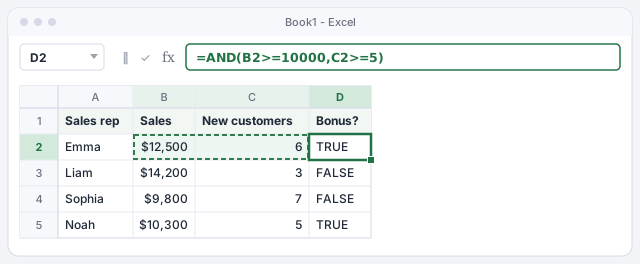
The AND function takes several conditions separated by commas and returns TRUE only if all of them are met. To see who meets both bonus requirements ($10,000 in sales and at least 5 new customers), type =AND(B2>=10000,C2>=5) in D2 and copy it down.
Liam sells a lot ($14,200) but only has 3 new customers: FALSE. Sophia has 7 customers but stops at $9,800: also FALSE.
TRUE only if both conditions are met.
Put AND inside IF to return a useful result
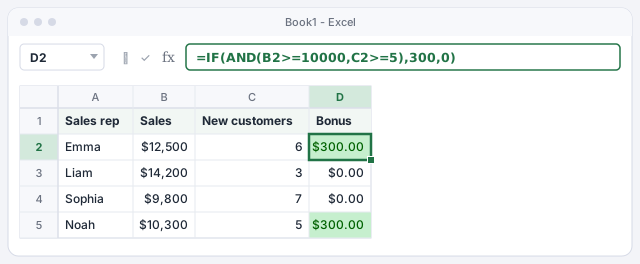
TRUE and FALSE are fine for checking, but usually you want an amount or a label. Use AND as the logical test of an IF: =IF(AND(B2>=10000,C2>=5),300,0). Emma and Noah get a $300.00 bonus; Liam and Sophia get $0.00.
Read it like this: “if both things are true, 300; otherwise, 0”. The function name comes first and the conditions go inside it, never “condition AND condition” the way you'd say it out loud.
A 300 bonus if both conditions are met; 0 otherwise.
Use OR when one condition is enough
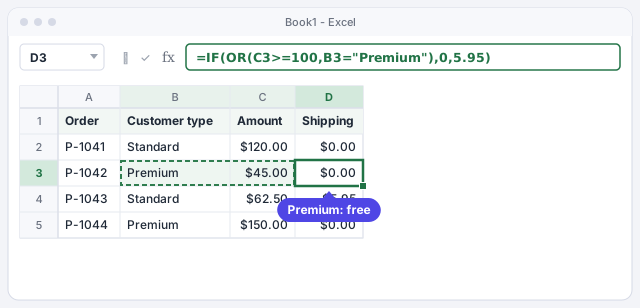
OR returns TRUE if at least one of the conditions is met. Your store offers free shipping if the order reaches $100 or the customer is Premium; otherwise it charges $5.95. In D2: =IF(OR(C2>=100,B2="Premium"),0,5.95).
Order P-1042 is only $45.00, but the customer is Premium: free shipping. P-1043 meets neither condition: it pays $5.95.
Free shipping if the amount reaches 100 or the customer is Premium.
Sort values into tiers with IFS
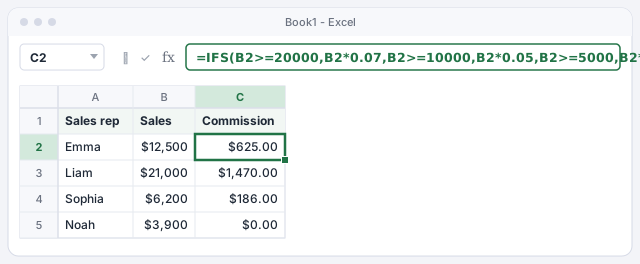
When there are several tiers, IFS saves you from nesting one IF inside another. You write it in pairs: condition, result, condition, result… and Excel returns the result of the first condition that is true. For a 7%, 5% or 3% commission depending on sales:
=IFS(B2>=20000,B2*0.07,B2>=10000,B2*0.05,B2>=5000,B2*0.03,TRUE,0)
Liam sold $21,000 and earns $1,470.00; Sophia, with $6,200, earns $186.00.
7%, 5% or 3% commission by tier; 0 below 5,000.
IFS is available in Excel 2019 and later and in Microsoft 365. In Excel 2016 or earlier it returns #NAME?: use nested IFs instead.
Always end with TRUE for “everything else”
If no condition is met, IFS has nothing to return and shows #N/A. That's what happens to Noah ($3,900) if you remove the last pair. That's why the formula in the previous step ends with TRUE,0: TRUE is a condition that is always met, so it works like the “otherwise” part of a regular IF.
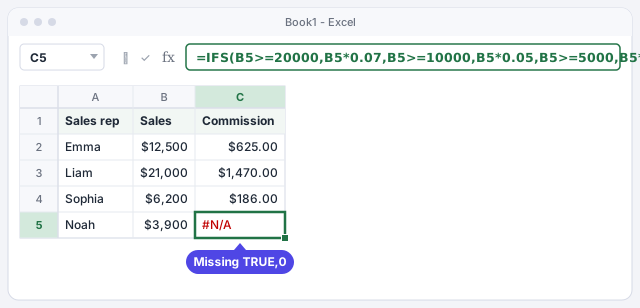
Order the conditions from strictest to loosest
Because Excel stops at the first true condition, the order decides the result. If you write B2>=5000 first, Liam ($21,000) already meets it and would get 3% ($630.00) instead of 7% ($1,470.00). With >=, start with the highest tier; with <, start with the lowest.

Test the formula with one value from each tier and with the exact boundaries (5000, 10000, 20000) before copying it down the whole column.
Combine IFS with AND for real-world rules
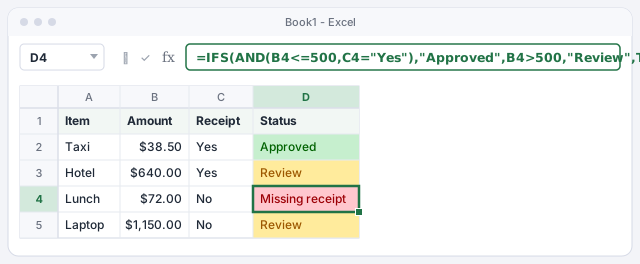
The pieces fit together. A typical expense policy: approve it if it costs $500 or less and has a receipt; if it's over $500, it needs review; in any other case, the receipt is missing. In D2:
=IFS(AND(B2<=500,C2="Yes"),"Approved",B2>500,"Review",TRUE,"Missing receipt")
The $72.00 lunch has no receipt: it fails the first condition and the second, so it lands on Missing receipt.
Three rules in order: approve, review or ask for the receipt.
Expert tips
- “Between” ranges always need AND. To check whether an amount is between 5,000 and 10,000, type
=AND(B2>=5000,B2<=10000). The math-style5000<=B2<=10000doesn't work in Excel. - NOT flips a condition.
=IF(NOT(C2="Paid"),"Chase","")flags everything that isn't paid. For a single comparison,<>is shorter:C2<>"Paid". - SWITCH for exact values. If you're comparing one cell against a list of codes,
=SWITCH(B2,"N","North","S","South","Other")reads better thanIFS. The last unpaired value is the default result. - For many tiers, use a table. If you have more than five tiers or they change often, put them in a table and look them up with XLOOKUP: changing a number won't mean touching the formula.
- Ask AI, but test it. Describe your rules to ChatGPT using your column names and check the result with one row for each case. Pay special attention to the order of the conditions.
Common mistakes and how to fix them
You write the condition the way you'd say it: B2>=10000 AND C2>=5.
In Excel the function goes first and the conditions go inside, separated by commas: =AND(B2>=10000,C2>=5).
IFS returns #N/A on some rows.
No condition is met on those rows. Add a final pair with TRUE and the default value, for example TRUE,0.
Everyone lands in the lowest tier even when they sell a lot.
The conditions are in the wrong order. With >= start with the strictest (20000), then 10000, then 5000.
A text comparison never works.
Check for extra spaces in the cells ("Premium " isn't equal to "Premium") and make sure the text is in quotes. Upper and lower case don't matter.
In Excel for Mac, AND, OR and IFS are written the same way and live under Formulas › Logical. IFS requires Excel 2019 for Mac or later, or Microsoft 365.
Frequently asked questions
IFS or nested IFs?
They do the same job. IFS is easier to read because it doesn't pile up parentheses, but it only exists from Excel 2019 onwards. If you share the file with someone on Excel 2016, use nested IFs (explained in the IF function with examples).
How many conditions do AND, OR and IFS accept?
AND and OR accept up to 255 conditions. IFS accepts up to 127 condition-and-result pairs, although beyond six or seven a lookup table is the better option.
Can I use AND and OR in the same formula?
Yes, one inside the other. For example, =IF(AND(B2>=100,OR(C2="North",C2="South")),"Yes","No") requires the amount to reach 100 and the region to be North or South.
A formula I found online uses semicolons. Why?
In much of Europe and Latin America, Excel uses the semicolon as the argument separator and the comma for decimals. Replace each ; with , (and decimal commas like 5,95 with 5.95) and it will work in English Excel.
Official sources
Microsoft documentation consulted for this guide.
Saved only in this browser.