Paste a ChatGPT table into Excel without everything ending up in one column
Select the table in the chat with your mouse, copy it with Ctrl+C and paste it into A1. If everything lands in column A with vertical bars, select that column and use Data › Data Tools › Text to Columns › Delimited › Other: | and then delete the row of dashes. To avoid it, ask the AI for tab-separated text or a CSV.
It happens every time: you ask ChatGPT, Gemini, Claude or Copilot for a price table, copy it, paste it into Excel… and each row ends up whole in column A, full of vertical bars and dashes. Or worse: it looks fine, but the amounts won't add up.
The reason is simple. The chat draws the table from text in a format called Markdown, where columns are separated with |. Depending on how you copy, the clipboard gets either a real table or that text with bars. Excel only splits the first into columns, or text separated by tabs. In this guide you learn to copy properly, fix it when it goes wrong, and ask the AI for a format Excel understands first time.
What you'll learn
- What changes between selecting the table and using the chat's copy button
- How to split a table that pasted into a single column
- How to fix decimals and numbers that arrive as text
- What to ask the AI so the table drops into Excel with no cleanup
- How to import large tables with Data › From Text/CSV
Step by step
Copy the table by selecting it with your mouse
In the chat's answer, click just before the first header, drag to the last cell of the table and press Ctrl+C. That way the browser copies the table as a table, with its rows and columns.
Chat copy buttons behave differently depending on the app. The one below the answer usually copies the whole answer, and in many apps it does so as Markdown, with the bars. Some apps also put a copy button on the table itself. Try yours once: if bars show up when you paste, select with the mouse instead.

Paste into A1 and check the result
Open an empty sheet, click A1 and press Ctrl+V. If it worked, every value sits in its own cell. Check two things:
- Web formatting. It may arrive with another font, shading or borders. Select the table and go to Home › Editing › Clear › Clear Formats.
- Numbers. Real numbers align to the right. If amounts sit on the left, Excel took them as text (you fix that in step 6).
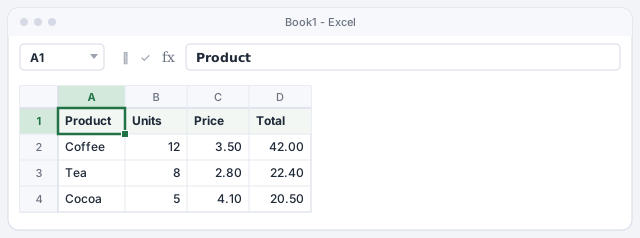
If it all landed in column A, spot the Markdown
If each row fills a single cell and you see something like | Coffee | 12 | 3.50 | 42.00 |, you pasted the Markdown text. The first row is the headers and the second is a line of dashes that, in the chat, only serves to draw the table.
No need to copy again: the bars are exactly what Excel needs to split it.
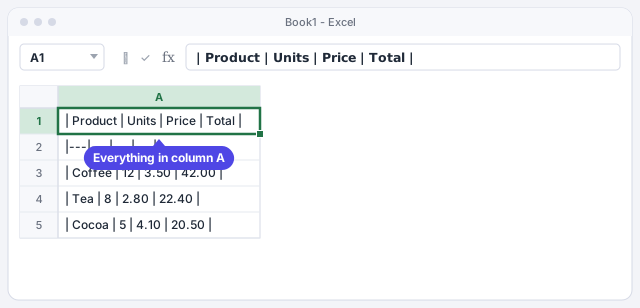
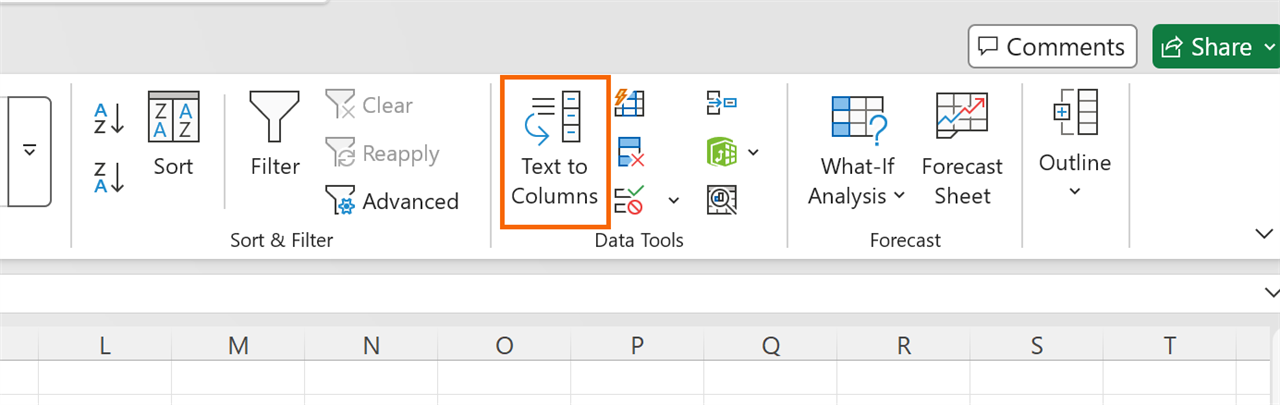
Open Data › Text to Columns
Select the cells with text in column A (here, A1:A5) and go to Data › Data Tools › Text to Columns. In the first step of the wizard choose Delimited and click Next.
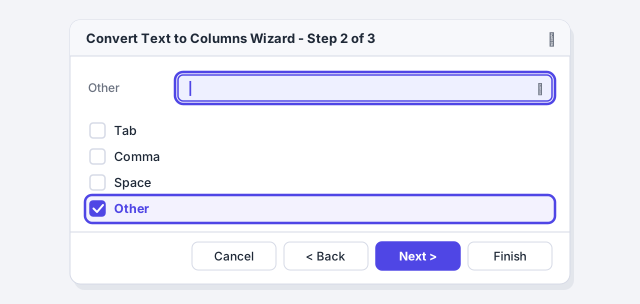
Use the vertical bar as the delimiter
Under Delimiters, untick Tab, tick Other and type | in the box (on a US keyboard, Shift+\). Click Next.
Because every line starts with a bar, the first column in the preview is empty: click it and choose Do not import column (skip). Click Finish. Finally, right-click the row 2 heading (the dashes) and choose Delete.
If any text is left with a space in front, clean it with TRIM. We explain how in the data-cleaning guide.
Fix numbers that arrive as text
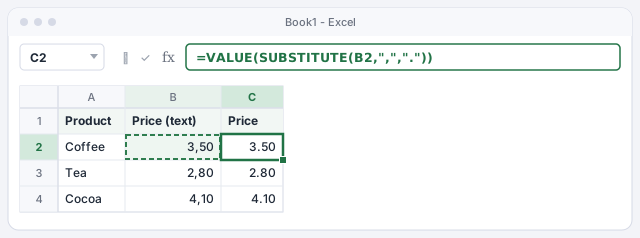
If you asked in another language, or the data comes from Europe, the AI may write decimals with a comma (3,50). In a US-format Excel that value stays as text and won't add up, and something like 1,500 may be read as one thousand five hundred. Two fixes:
- With a formula: in a helper column type
=VALUE(SUBSTITUTE(B2,",",".")), copy it down and paste the result as values. - In the wizard: in step 3 of Text to Columns, click Advanced… and set the Decimal separator to a comma.
Swaps the comma for a period and turns the text into a number.
Ask the AI for a format Excel understands
The easiest route is to avoid the problem in the request. Add at the end:
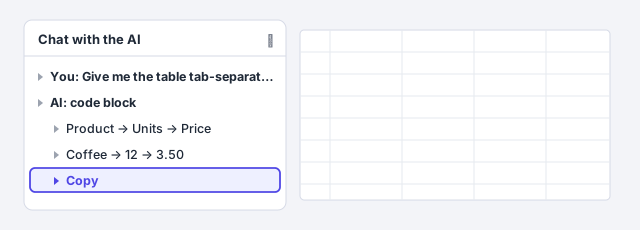
“Give me the table as tab-separated text, inside a code block, with no bars or formatting. Use a period for decimals and no thousands separator.”
Copy the block with its Copy button, click A1 and paste: Excel splits tab-separated text into columns with no extra steps. If a chat turns the tabs into spaces and everything lands in column A again, ask for CSV instead and split it with Text to Columns using Comma.
If your assistant can create files, you can also ask it for a downloadable .xlsx or .csv file directly.
For large tables, import with Data › From Text/CSV
With hundreds of rows, copying from the chat gets awkward. Ask for the table as CSV, paste the block into Notepad and save it as table.csv with UTF-8 encoding. In Excel go to Data › Get & Transform Data › From Text/CSV, pick the file and click Import.
In the preview, check File Origin (65001: Unicode (UTF-8), so accented characters come out right) and Delimiter. Click Load: Excel creates a new sheet with the data already turned into a table.
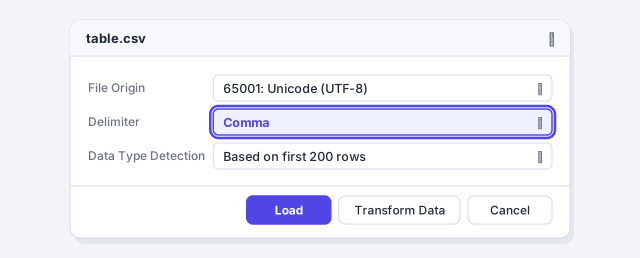
A comma-separated CSV opened with a double-click works in US Excel, but a colleague whose Excel uses European settings will see everything in column A. From Text/CSV works for everyone.
Expert tips
- Check totals with a formula. AI can get arithmetic wrong. Type
=SUM(D2:D4)under the Total column (here it should be 84.90) and compare it with what the chat said. Better still: ask for the data only and calculate totals yourself in Excel. - Turn the result into a table. Once the data is in columns, use Insert › Tables › Table (or Ctrl+T): you get filters and formulas that extend themselves. More in Excel tables.
- Ask for unambiguous dates. Add “dates in yyyy-mm-dd format” to your request: Excel recognizes that format without mixing up day and month.
- If you need formulas, ask for them separately. A pasted table is fixed values. To make it recalculate, ask the AI for the formula and check it: asking AI for formulas and checking them.
Common mistakes and how to fix them
You paste ordinary text and Excel splits it into columns on its own.
Excel remembers the delimiters you used in Text to Columns until you close it. Open the wizard, untick Other, click Finish, or close and reopen Excel.
Prices turn into dates or wrong numbers.
Undo with Ctrl+Z. Ask the AI for a period as the decimal sign, or import with Text to Columns › Advanced and choose the right decimal separator.
Accented characters look garbled (é instead of é).
The file is UTF-8 and Excel read it with a different encoding. Import it with Data › From Text/CSV and choose 65001: Unicode (UTF-8) under File Origin.
After splitting, there's an empty column and a row of dashes left over.
They're Markdown leftovers. In step 3 of the wizard set the first column to Do not import column (skip) and delete the dashes row.
In Excel for Mac, copy and paste with ⌘+C and ⌘+V. Text to Columns is on the same Data tab and the wizard is the same. To import a CSV you can also use File › Import.
Frequently asked questions
Does this work the same with Gemini, Claude, Copilot or another chat?
Yes. What matters isn't the chat but what reaches the clipboard: a table, Markdown text with bars, or tab-separated text. The fixes in this guide cover all three.
Why doesn't Excel split on the vertical bars when I paste?
When you paste text, Excel only splits it into columns where there's a tab. The | bar is just another character, so you have to tell Excel with Text to Columns.
Which separator should I ask for: comma, semicolon or tab?
For pasting directly, tab. For a CSV file you'll open in US or UK Excel, comma. If the file is for colleagues whose Excel uses a decimal comma (much of Europe and Latin America), semicolon.
Can I paste the table without the web formatting?
Yes. Paste normally and then use Home › Editing › Clear › Clear Formats. The values stay and the fonts, shading and borders from the chat page disappear.
Saved only in this browser.