Copilot in Excel: what it can do today and how to ask
Copilot in Excel is Microsoft's AI assistant inside Excel. You need a plan that includes it (Microsoft 365 Copilot at work, or a personal or family plan with Copilot). Open it with the Copilot icon, turn your data into a table and ask for formula columns, highlighting, sorting, PivotTables or insights. Always check formulas and totals.
You have a table of invoices and want to know how much you're owed, who's paying late and which customer owes the most. That used to mean formulas, filters and a PivotTable. With Copilot you can ask in one sentence… but you still need to know how to check what it did.
Think of Copilot as a fast assistant that works with Excel's normal tools: it writes formulas, applies conditional formatting and builds PivotTables you can then edit like any other. But it can misread your request or pick the wrong column. In this guide you'll see what you need, what to ask and how to verify the result.
What you'll learn
- What you need to get Copilot in Excel and how to prepare your data
- How to ask for formula columns, highlighting, sorting and filtering
- How to ask for summaries, PivotTables, charts and insights
- How to check what it did before you trust it
Step by step
Check that you have access to Copilot
Copilot doesn't come with every copy of Excel. At work, it depends on a Microsoft 365 Copilot license or on how IT has set things up. At home, some Microsoft 365 Personal and Family plans include it, usually with a limited number of AI credits. Sign in to Excel with the account that has that plan and keep Excel up to date.
Save the workbook to OneDrive or SharePoint with AutoSave turned on: it's the most reliable way for Copilot to work with it. Plans, credits and requirements change often, so check Microsoft's current information before you buy anything.

Turn your data into a table
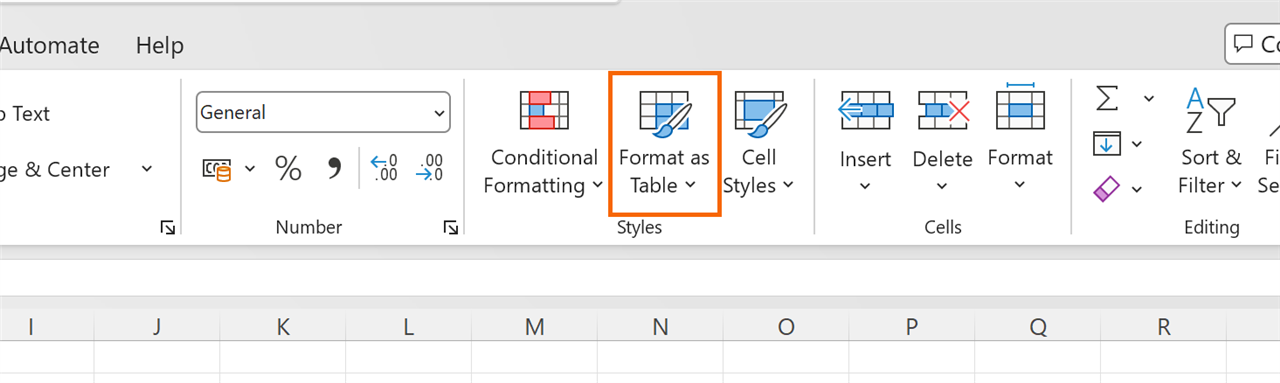
Copilot understands tidy data much better. Click inside your data and go to Home › Styles › Format as Table (or Insert › Tables › Table). Make sure the first row has clear, unique headers, with no blank rows or merged cells.
Then, on the Table Design tab, type a name in the Table Name box, for example Invoices. That way you can say “in the Invoices table” and Copilot knows what you mean.
Copilot can only edit the workbook when calculation is automatic: Formulas › Calculation › Calculation Options › Automatic.
Open the Copilot pane and choose a mode
Select a cell in the table and click the Copilot icon. Depending on your version, it's in the lower-right corner of the window or a button on the Home tab. The Copilot pane opens on the right.
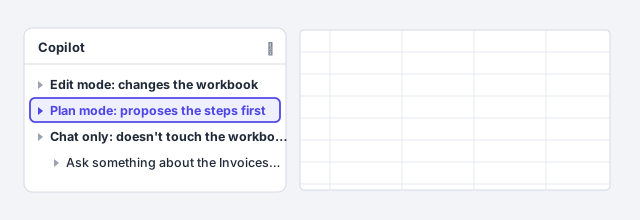
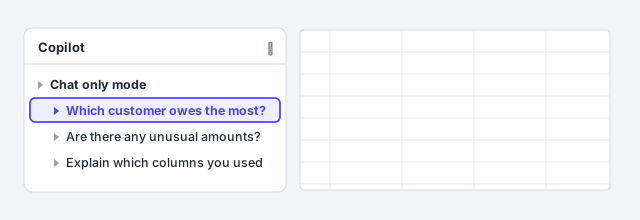
Copilot can work in edit mode (it changes the workbook directly), plan mode (it proposes the steps for you to approve) or chat only mode (it answers without touching anything). To start, try chat only or plan mode. Microsoft changes this interface often, so names may vary.
Ask for a formula column
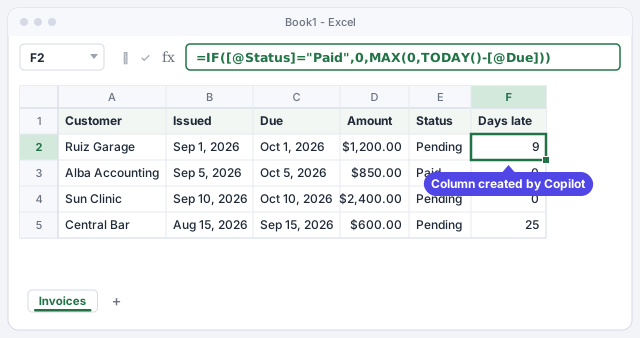
Describe what you want to calculate using your column names: “Add a Days late column: for pending invoices, the days since the Due date; for paid ones, 0”. Copilot creates the column with a formula similar to the one below.
Click a cell in the new column and read the formula in the formula bar. For example, as of Oct 10, 2026, the Central Bar invoice, due Sep 15, 2026, is 25 days late.
Days since the due date if the invoice isn't paid; 0 if it's paid or not yet due.
Highlight, sort and filter in one sentence
Copilot uses Excel's normal tools for you. Try prompts such as:
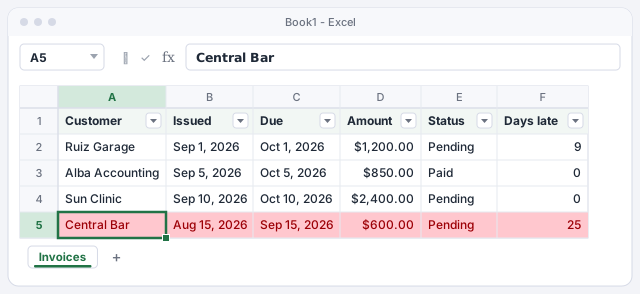
- “Highlight in red the invoices more than 15 days late”.
- “Sort the table by Amount, largest to smallest”.
- “Show only pending invoices”.
The result is real conditional formatting, a sort or a filter: you can review or change it in Home › Styles › Conditional Formatting or with the filter buttons in the headers.
If you don't like the change, undo it with Ctrl+Z or restore an earlier version from the file's version history.
Ask for summaries, PivotTables and charts
To summarize, ask for the specific result: “Create a PivotTable on a new sheet with the pending amount by customer” or “Make a column chart of the total pending by customer”. Copilot builds PivotTables and charts linked to your data, which you can edit like any other.
Open the PivotTable Fields pane and check which fields it used and how it filtered. If you want to learn to build them yourself, see PivotTables in 5 minutes.

Ask questions about your data
In chat only mode, ask the way you'd ask a colleague: “Which customer owes the most?”, “Are there any invoices with unusual amounts?” or “Summarize our collections situation in three points”. Copilot can answer with text, charts, PivotTables, trends or outliers.
Also ask it to explain how it reached each conclusion: which columns it used and which rows it included.
Microsoft warns that Copilot can make mistakes. Microsoft advises against relying on it for sensitive decisions, such as financial, legal or medical ones, without review.
Check the result before you trust it
Review Copilot's work the way you'd review a new colleague's:
- Formulas: work out three rows by hand, including one on the boundary (for example, an invoice due today).
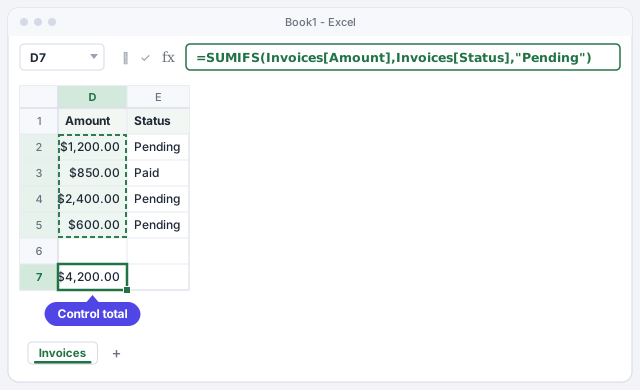
- Totals: write your own control formula and compare it with its answer. With the sample data, the pending total is
$4,200.00. - Filters: check whether a filter is still on, because it changes what you see and what gets added up.
- Source: use Formulas › Formula Auditing › Trace Precedents to see which cells each result comes from.
Adds up the amounts in the Invoices table whose status is Pending.
Expert tips
- Use your column names. “Sum Amount where Status is Pending” works better than “add up what I'm owed”.
- One request, one task. Ask for changes one at a time and review each one: if something goes wrong, you know exactly what to undo.
- Learn from its formulas. Ask “explain the formula step by step”. It helps you check it and teaches you along the way. More tips in ask AI for formulas and check them.
- Be careful with sensitive data. Before using Copilot with customer or HR data, check your company's AI policy.
Common mistakes and how to fix them
You can't find the Copilot icon.
Check which account you're signed in with (File › Account), that your plan includes Copilot and that Excel is up to date. At work, ask IT whether you have access.
Copilot doesn't understand your data or uses the wrong column.
Turn the data into a table, use clear and unique headers, remove blank rows and merged cells, and name the columns in your request.
Copilot changes something you didn't want changed.
Undo it with Ctrl+Z or restore an earlier version. Next time, use plan or chat only mode.
You accept a total without checking it.
Write a control formula, such as =SUMIFS(Invoices[Amount],Invoices[Status],"Pending"), and compare it with Copilot's answer.
According to Microsoft, Copilot is available in Excel for Mac and Excel for the web with the same edit, plan and chat modes as on Windows, and with the same plan and account requirements. On iPad and phones some modes are more limited.
Frequently asked questions
Is Copilot in Excel free?
Not entirely. It requires a Microsoft 365 plan that includes it, either a business plan or a personal or family one, often with limited AI credits. Terms change frequently, so check Microsoft's current information.
Does it work in other languages?
Yes, Copilot accepts prompts in many languages, including Spanish. Microsoft says it was trained mainly on English sources, so prompts in other languages may give weaker results. Formulas it inserts in the sheet appear in your Excel's language.
How is it different from asking ChatGPT for a formula?
Copilot sees your workbook and can apply changes directly. With ChatGPT you have to describe the sheet and paste the formula yourself. Either way, check the result: see ask ChatGPT for formulas and check them.
Does Microsoft use my data to train its AI?
For work accounts, Microsoft states that your organization's data isn't used to train its foundation models. For personal accounts, check Microsoft's privacy policy. Either way, follow your company's policy.
Official sources
Microsoft documentation consulted for this guide.
Saved only in this browser.