Comment on and review a PDF: notes, highlights, replies and comparing versions
In Acrobat Reader (free) or Acrobat Pro, choose Add a comment, click on the page, type and click Post. Select text to use Highlight text, Strikethrough text or Underline text, and reply from the comments panel with Reply › Post. To see what changed between two versions: All tools › Compare files (Acrobat Pro) or Compare PDF (PDF24). If you have both Word files, use Word's Compare.
Someone sends you a contract as a PDF “to have a quick look”. You print it, cover it in pen arrows, scan it and send it back crooked. Or you write an endless email: “on page 4, third paragraph, where it says…”. There's a much cleaner way: comment directly on the PDF.
Commenting on a PDF is like putting sticky notes and a highlighter on a photocopy. The original text doesn't change, but your notes travel with the file and the other person can answer them one by one. And you don't have to pay: Acrobat Reader, the free viewer, already does it.
In this guide you pick a tool, learn to add notes, highlight, strike through and reply, and compare two versions of a PDF to see exactly what changed.
What you'll learn
- Which tools comment for free and which ones compare versions
- How to add notes and highlight, strike through or underline text
- How to reply to and resolve comments during a review
- How to compare two versions of a PDF, or better, of their Word files
Step by step
Choose your review tool
Almost every tool can comment; very few can compare versions. Here's the summary:
| Tool | What you can do | Compare versions | Cost |
|---|---|---|---|
| Acrobat Pro | Notes, highlight, strikethrough, underline, replies and resolved comments | Yes, Compare files | Paid |
| Acrobat Reader | Notes, highlight, strikethrough, underline and replies | No | Free |
| Microsoft Edge | Highlight, draw and add text | No | Free |
| PDF24 (web and Creator) | Annotations with Annotate PDF | Yes, Compare PDF | Free |
| PdfCraft | Most comment types, with reply threads (alpha) | Not covered here | Free |
For a real back-and-forth review, the simplest setup is for everyone to use Acrobat Reader or Acrobat Pro: both read and reply to the same notes.

Add a note with Add a comment
Open the PDF in Acrobat Reader or Acrobat Pro. In the quick-action toolbar, choose Add a comment, click the spot on the page your remark refers to, type and click Post. A note icon stays there and the text appears in the comments panel.
Write each note as an instruction that makes sense on its own: “Change 30 days to 15 calendar days” beats “this?”. Whoever reads it may not have your context.
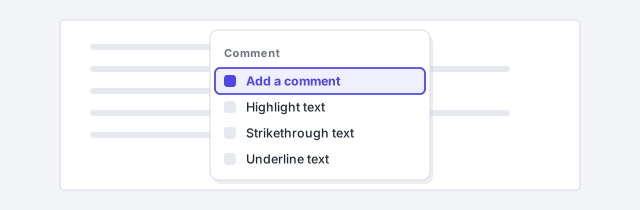
Every note carries your name as author. Check which name it shows before sending a commented PDF to a client.
Highlight, strike through or underline the exact text
Select the text with the cursor and choose Highlight text, Strikethrough text or Underline text. You can add a comment to the markup to explain what you propose.
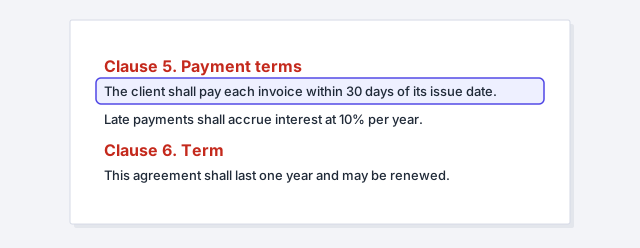
Agree on a code with your fellow reviewers. In a law firm this one works well: strikethrough means delete, highlight with a note means reword, and underline means confirm with the client. For example, in a payment-terms clause you strike “30 days” and add the note “15 calendar days”.
If the PDF is a scan with no recognized text, you won't be able to select words. Run OCR first or use notes instead.
Reply to and resolve review comments
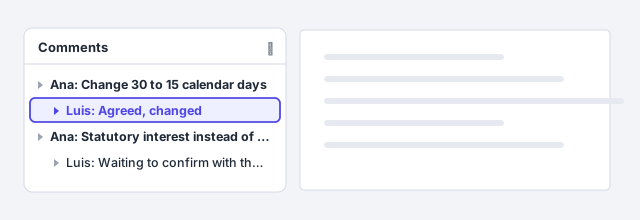
When the commented PDF comes back, open the comments panel. Pick a note, click Reply, type and click Post: the reply sits underneath, like a chat thread. Acrobat Reader can reply too, so nobody has to pay to take part.
Once a point is settled, mark it as resolved. It stays in the file, but it's no longer open. In a negotiation, the latest version shows at a glance what still needs agreeing.
Mark up a PDF quickly in Edge, with nothing to install
On Windows, PDFs usually open in Microsoft Edge. Its top toolbar has tools to highlight, draw and add text. That's enough to flag a paragraph or write “OK” next to a figure. When you're done, save the file so the markup stays in the PDF.
Edge is for marking up, not for an in-depth review. For notes with replies and a record of who said what, use Acrobat Reader, PDF24 or PdfCraft.

Comment for free with PDF24 or PdfCraft
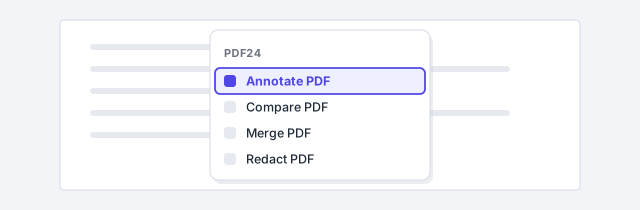
PDF24 has an Annotate PDF tool on its website and in PDF24 Creator, the free Windows program that works without uploading your file. Use it to annotate a document and download it with the annotations.
PdfCraft, free and open source for Windows, Mac and Linux, handles most comment types with reply threads, like Acrobat. Press Ctrl+K and type comment to find its tools. It's in alpha: in an important review, ask the other person to confirm they can see your notes.
The PDF24 website uploads your file to its server. For contracts or client data, use PDF24 Creator, PdfCraft or Acrobat Reader, which work on your computer.
Compare two versions of the PDF
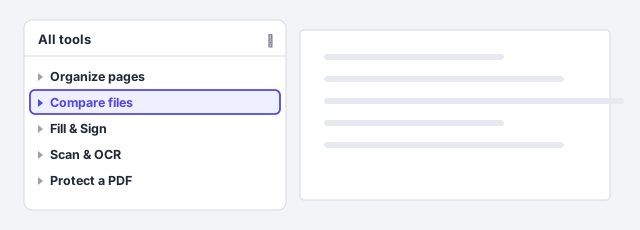
The other side sends back “the final version” and says only a comma changed. Check it. In Acrobat Pro, open both versions and go to All tools › Compare files: Acrobat marks the text and image differences between the old and the new version.
For free, PDF24 has Compare PDF: load both files and it shows the differences. Remember the website uploads both files; for confidential documents, use PDF24 Creator.
Always compare against the last version you sent: that way you see every change the other side made.
A scan with no recognized text doesn't compare well: the tool only sees images. Run OCR first.
If you have both Word files, compare them in Word
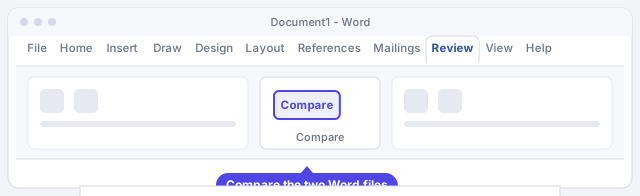
A PDF doesn't know what a paragraph or a formatting change is: a different line break can show up as a difference. If you have both original Word documents, you'll get a more precise result with Review › Compare › Compare. Word builds a third document showing every change as a tracked change you can accept or reject. See compare two documents in Word for the full steps.
And the other way round: if you review in Word and want your comments to arrive as PDF notes the other person can reply to, see convert Word to PDF.
Expert tips
- One comment, one idea. If you mix three changes in one note, the other person will answer one and forget two.
- Clean up before the final version. Comments travel inside the PDF. Delete internal ones or use Sanitize document in Acrobat Pro: redact and protect a PDF.
- AI summarizes, you decide. Copy the comments and ask ChatGPT for a list of open points; the call on each clause is still yours.
- Put version and date in the file name. “Contract-v3-client-comments-2026-11-02.pdf” keeps you from comparing or replying to the wrong version.
Common mistakes and how to fix them
I can't highlight: the cursor won't select the text.
The PDF is a scan with no text layer. Run OCR (Scan & OCR in Acrobat, PDF OCR in PDF24) or leave notes instead of markup.
The other person says they can't see my comments.
Check that you saved after commenting and sent that copy. Ask them to open it in Acrobat Reader and look at the comments panel: some basic viewers don't show every note.
Compare flags hundreds of differences that aren't real.
This usually happens when one version is scanned or the page breaks moved. Run OCR or, if you have the Word files, compare them in Word.
On a Mac, Preview highlights, underlines, strikes through and adds notes from Tools › Annotate or its markup toolbar, but it has no reply threads and doesn't compare versions. Acrobat Reader and Acrobat Pro for Mac have the same commenting tools and Compare files; menus start at File instead of Menu. PDF24 Creator is Windows-only; PdfCraft has a Mac version.
Frequently asked questions
Can I comment on a PDF for free?
Yes. The free Acrobat Reader adds notes, highlights, strikes through, underlines and replies. You can also use PDF24 (Annotate PDF) or PdfCraft, and Edge for quick markup.
Does the other person need paid Acrobat to see my comments?
No. With the free Acrobat Reader they can see your notes and reply to them. Only comparing versions with Compare files requires Acrobat Pro.
Does commenting change the text of the PDF?
No. Comments sit on top of the page, like sticky notes. To change the text itself, see edit the text of a PDF.
How do I remove all comments before sending?
Delete them one by one from the comments panel or, in Acrobat Pro, use Sanitize document and choose to remove everything, which also strips metadata and hidden data.
Saved only in this browser.