Text selection tricks: by column, everything with the same formatting, and more
Word has a fast way to select each thing: double-click selects a word, Ctrl+click a sentence, triple-click a paragraph and a single click in the left margin a whole line. Alt+drag selects a vertical block, F8 turns on Extend mode and Ctrl+A selects everything. To select all the text with the same formatting, use Home › Editing › Select › Select Text with Similar Formatting.
It happens every time: you copy text from a PDF, every line starts with a number you don't want, and you delete them one by one. Or you drag the mouse across three pages, your hand slips on the last line and you start over. Or you paste something from ChatGPT and twenty stray bold words appear. All of that is fixed by selecting smarter, not working harder.
Selecting is pointing: you tell Word “this, exactly this” before giving it an order. Word has a fast way to point at every size of thing, from a word to the whole document, and almost nobody knows them because none of them sits on a visible button. They are mouse and keyboard tricks for Word on Windows; they don't apply on a phone.
What you'll learn
- Select a word, sentence, line or paragraph with one, two or three clicks
- Select a vertical block (a column) with Alt + drag
- Extend a selection from the keyboard and with Extend mode (F8)
- Select, in one go, all the text with the same formatting or the same style
Step by step
Select a word, a sentence or a paragraph with clicks
Double-click a word to select the whole word. Triple-click anywhere in a paragraph to select the entire paragraph. And Ctrl+click inside a sentence to select the whole sentence, from the capital letter to the period.
That last one is the biggest time-saver: to move a sentence within a clause, Ctrl+click, cut and paste.

If double-clicking also selects the space after the word, that's by design: deleting the word leaves no double spaces.
Use the left margin: a line, a paragraph or everything
Move the mouse into the left margin, just to the left of the text: the pointer turns into an arrow leaning to the right. That invisible strip is the selection bar. There, one click selects the whole line, double-click the paragraph and triple-click the entire document. Drag downward along the margin to select several complete lines.
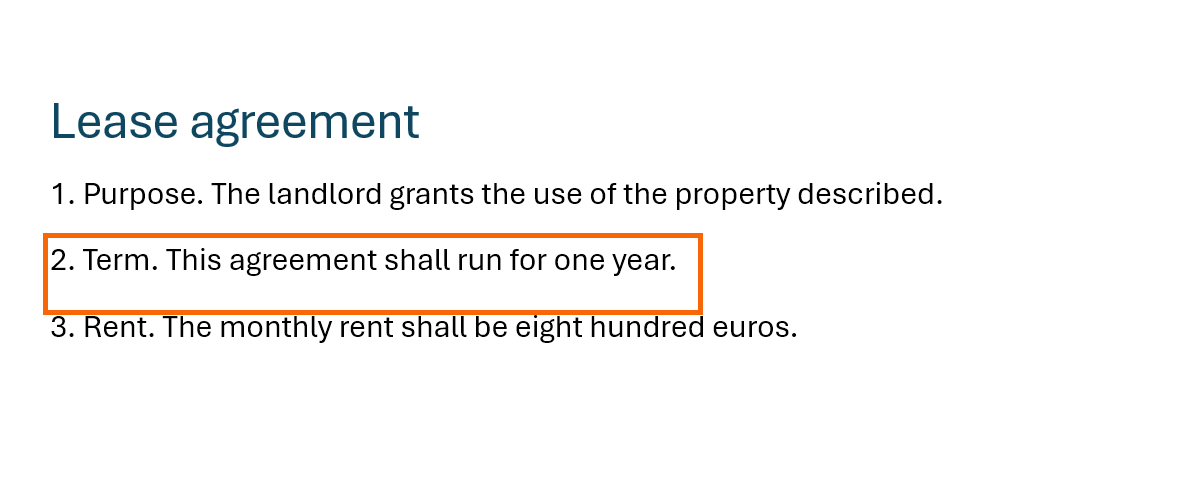
Ctrl + click in the margin also selects the whole document.
Select a long stretch with Shift + click
To select from here to three pages further down, don't drag. Click where the text begins, scroll to the end and Shift+click where it ends: Word selects everything between the two points.
Overshot or fell short? Hold Shift and press the arrow keys to adjust character by character or line by line; another Shift+click moves the end point too.

A normal click, without Shift, undoes the selection: you'll have to go back to the first click.
Jump by words, paragraphs and to the end with Ctrl + Shift
Hold Ctrl+Shift and press the arrow keys: with → or ← the selection grows one word at a time; with ↓ or ↑, one paragraph at a time. With End or Home it reaches the end or the beginning of the document.
| Shortcut | Selects |
|---|---|
| Shift+→ / ← | One character |
| Ctrl+Shift+→ / ← | One word |
| Shift+End / Home | To the end / start of the line |
| Ctrl+Shift+↓ / ↑ | One paragraph |
| Ctrl+Shift+End / Home | To the end / start of the document |
| Ctrl+A | The whole document (Ctrl+E in Spanish Word) |

On small laptops, Home and End often need the Fn key.
Select a vertical block (a column) with Alt + drag
Hold Alt, then click and drag diagonally. Instead of whole lines, Word selects a rectangle: only the characters inside the box, on every line you cross. Release the mouse first, then Alt.
It's perfect for text that came from a PDF: a column of numbers at the start of every line or an indent made of spaces. Select the column, press Delete and it vanishes from every line at once. Without the mouse: Ctrl+Shift+F8, grow the rectangle with the arrow keys and leave with Esc.

If the letters have different widths, the rectangle may cut words in half: it works best with tabs or fixed-width fonts.
Turn on Extend mode with F8 (and leave it with Esc)
Press F8 once and Word enters Extend mode: every arrow key or click extends the selection from the cursor, without holding Shift. Press F8 again to select the word; again, the sentence; again, the paragraph; again, the section or the whole document. Shift+F8 shrinks the selection one level.
When you're done, press Esc to leave the mode; the selection stays. If you forget, every click keeps extending the selection.

While the mode is on, the status bar shows “Extend Selection” (if not, right-click the status bar › Selection Mode).
Select everything, or everything with the same formatting
Ctrl+A selects the whole document (Ctrl+E in Spanish Word). The same command lives in Home › Editing › Select › Select All; in Word 2016 and 2019 the menu is identical.
That menu holds the gem of this guide: Select Text with Similar Formatting. Put the cursor in a fragment (one of those bold words that sneaked in when you pasted from ChatGPT), choose the option and Word selects every fragment in the document with that same formatting, all at once. Click Clear Formatting or apply a style and you fix in one go what you were about to correct twenty times. More in Format Painter and Clear Formatting.
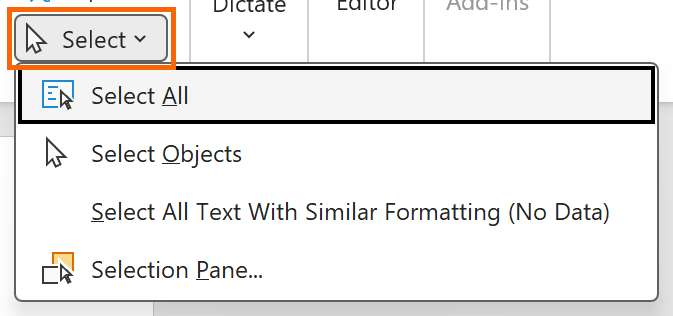
If the option is greyed out with “(No Data)”, turn on “Keep track of formatting” under File › Options › Advanced › Editing options and try again.
Select pictures and boxes: Select Objects and the Selection Pane
The same menu has two options for things that aren't text. Select Objects turns the pointer into an arrow you use to draw a box around several floating pictures, shapes or text boxes and select them all at once; Esc brings the normal cursor back.
Selection Pane… opens a list of every object on the page. Click a name to select it even when it's hidden behind another one, and use the eye icon to hide or show it. That's how you reach the picture you just can't click (pictures that stay put).

It's also under Layout › Arrange and under Picture Format › Arrange.
In the Styles pane, select every instance of a style
If the document uses styles (what they are and how to create your own), there's an even more precise selection. Open the Styles pane with the small arrow in the bottom-right corner of the Home › Styles group (or Ctrl+Alt+Shift+S), open a style's drop-down arrow (or right-click) and choose Select All: Word tells you how many instances there are and selects every paragraph that uses that style.
With everything selected you can swap the style for another or, in a contract, check that every clause in the Clause style has the same indent. The command also appears when you right-click a style in the gallery.

If you see “(No Data)”, turn on “Keep track of formatting” as in the previous step.
Expert tips
- If dragging “snaps” from word to word. Untick “When selecting, automatically select entire word” under File › Options › Advanced and you'll be able to stop mid-word.
- F8 and a letter. In Extend mode, press a character and Word extends the selection to its next occurrence: F8 and then “.” selects to the end of the sentence.
- Pasted from AI and bold is everywhere. Cursor in one of them, Select Text with Similar Formatting, then Clear Formatting. More remedies in paste ChatGPT text without breaking the formatting.
- For lawyers: move sentences, not words. Ctrl+click selects the sentence with its period, so cutting and pasting into another clause leaves the spacing right; Ctrl+Shift+↓ selects to the end of the paragraph to move a whole sub-clause.
Common mistakes and how to fix them
You press F8 by accident and now every click extends the selection.
You're in Extend mode: press Esc to leave it. The selection stays.
Alt + drag selects whole lines instead of a block.
Press Alt before you click and don't release it until you release the mouse. If another program grabs Alt+click, use Ctrl+Shift+F8 and the arrow keys.
You press Ctrl+A inside a header or a text box and only that part gets selected.
That's expected: Ctrl+A selects everything in the area where the cursor is. Click in the main body of the document first, then press Ctrl+A.
In Word for Mac the clicks work the same (double, triple, left margin, Shift+click). The modifiers change: ⌥+drag selects a vertical block, ⌘+click the sentence, ⌘+A everything, and ⌥+⇧+arrows extends word by word. F8 also turns on Extend mode (Fn+F8 on compact keyboards). The Selection Pane sits, with an object selected, under Shape Format or Picture Format › Arrange.
Frequently asked questions
Do these tricks work on a phone or tablet?
No: Alt + drag, Ctrl + click, F8 and the left margin need a mouse and keyboard. In Word for Android or iPhone, double-tap a word and drag the handles to widen the selection; press and hold the text to get Select All.
Can I select two fragments that aren't next to each other?
Yes: select the first one, hold Ctrl and drag over the second. Then apply bold, color or copy to both parts at once.
Why does the selection include the trailing space or the paragraph mark?
Word adds the space after a word so that deleting it doesn't leave two spaces. And at the end of the paragraph it includes the ¶ mark, which is where the paragraph formatting lives; turn marks on with Ctrl+Shift+8 (formatting marks).
And to select a whole table, or one column of a table?
Click the four-arrow icon that appears at the table's top-left corner. For a column, place the pointer just above it until it turns into a black downward arrow, then click. More in tables that don't break.
Official sources
Microsoft documentation consulted for this guide.
Saved only in this browser.