Format Painter and Clear Formatting: fix a document in seconds
Select the text whose look you want, click Home › Clipboard › Format Painter and paint the target text (double-click the button to apply it in several places; press Esc to stop). To strip formatting, select the text and use Home › Font › Clear All Formatting, which returns it to the Normal style. Home › Editing › Select › Select All Text with Similar Formatting lets you fix every matching passage at once.
Someone sends you a document (or you paste one in from ChatGPT) and it's chaos: three different fonts, headings made bold “by hand”, odd indents and spacing that changes every other line. You start fixing it piece by piece and half an hour later you're still on page 2.
Word has two tools built for exactly this. Format Painter is a brush: it picks up the look of one piece of text and “paints” it onto another. Clear All Formatting is an eraser: it leaves the text clean, as if freshly typed, so you can apply real styles. And there's a third, little-known ally, Select All Text with Similar Formatting, which finds every passage that looks the same in one go.
What you'll learn
- Exactly what Format Painter copies: character formatting, paragraph formatting or both
- When to single-click and when to double-click the brush
- How to remove all formatting, or only character or only paragraph formatting
- The routine for cleaning up an inherited document and applying styles
Step by step
Select the text that has the formatting you want to copy
What you select as the “model” decides what the brush copies:
- Character formatting (font, size, bold, italic, color): select a few words inside the paragraph, without reaching the end.
- Paragraph formatting (alignment, indent, spacing and the applied style): click inside the paragraph without selecting anything, or select the whole paragraph including its end mark (¶). A triple-click selects the entire paragraph, mark included.

With formatting marks turned on (Ctrl+Shift+8) you see the ¶ at the end of every paragraph and know whether it's inside your selection.
Click Format Painter (Home › Clipboard)
With the model selected, go to Home › Clipboard and single-click Format Painter, the button with the paintbrush. The pointer turns into a brush: Word is “loaded” with that formatting and is waiting for you to say where to apply it.
A single click paints once only: as soon as you release the mouse over the target, the brush goes away.

If you change your mind, press Esc before painting. If you've already painted, Ctrl+Z undoes it.
Paint the target text
With the brush active, drag across the words you want to change: they take on the model's character formatting. If the model included paragraph formatting, simply click inside the target paragraph and it picks up the alignment, spacing and style.
In the example: you select “3. Payment terms” (which already has the Heading 2 style), click Format Painter and click on “4. Delivery”. The second heading becomes Heading 2 too.

Double-click the brush to paint several places
Ten headings to fix? Select the model and double-click Format Painter: the button stays locked on and the brush doesn't disappear after painting. Keep clicking or dragging on each target, on any page, even in another open document.
To put the brush down, press Esc or click Format Painter again.

Clear all formatting (Home › Font)
The eraser. Select the text (or press Ctrl+A to select the whole document) and click Home › Font › Clear All Formatting, the button with an A and an eraser. Word removes all direct formatting (anything applied “by hand” with the bold, font, size, indent or spacing buttons) and returns the text to the Normal style.
You're left with plain text, ready for styles. Careful: the paragraph's heading style disappears too, and so does the bold you actually wanted; you'll have to put it back.

Clear All Formatting does not remove highlight color (the yellow “highlighter”). For that, use Home › Font › Text Highlight Color › No Color.
Remove only character formatting or only paragraph formatting
Sometimes you don't want to erase everything. Word keeps two layers of direct formatting, and you can clean each one separately:
| You want to remove… | Do this |
|---|---|
| Only what was applied by hand to the letters (bold, font, size, color) | Select the text and press Ctrl+Spacebar. The paragraph and its style stay as they are. |
| Only what was applied by hand to the paragraph (indent, spacing, alignment) | Click in the paragraph and press Ctrl+Q. Word restores the style's values; the character formatting stays. |
| Everything, back to Normal | Home › Font › Clear All Formatting. |
With Ctrl+Spacebar a heading is still Heading 1 and only loses its manual tweaks; with Clear All Formatting it stops being a heading.

No shortcut at hand? Re-applying the paragraph's style from the Home › Styles gallery (click Normal, Heading 1…) also removes hand-applied paragraph formatting.
Select all text with similar formatting in one go
Click inside a passage with the formatting you want to “hunt” (say, one of those fake headings in 14-point bold) and go to Home › Editing › Select › Select All Text with Similar Formatting. Word selects every passage in the document with that same formatting at once. Now one change applies to all of them: a click on Heading 1 in the Styles gallery, or Clear All Formatting.
In Microsoft 365 the Editing group is usually collapsed into a single Editing button; in Word 2016/2019 you see Find, Replace and Select directly.
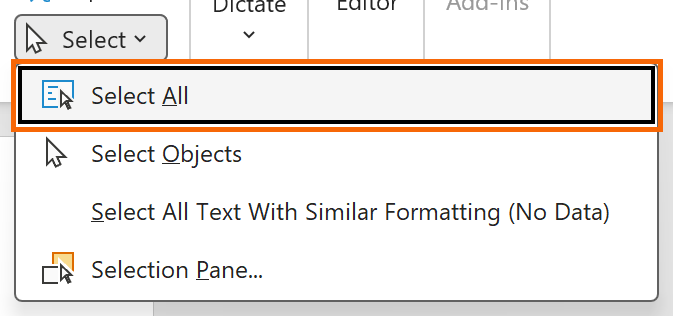
Right-click a style in the gallery › Select All selects every paragraph that uses the style, even if it was tweaked by hand afterwards.
Typical case: clean up an inherited document and apply styles
You're handed a contract (or you paste in an AI-generated report) full of direct formatting: nothing uses styles, but the headings “look like” headings. The expert routine:
- Headings first, while they still stand out. Click a clause heading › Select All Text with Similar Formatting › click Heading 1. Repeat for the subheadings with Heading 2.
- Then the body. Click a normal paragraph › Select All Text with Similar Formatting › Clear All Formatting. If there are several “flavors” of body text, repeat for each one.
- Put back what you did want: the occasional bold, italics and lists, with Format Painter if there are many.
If the document is short, the fast route is Ctrl+A › Clear All Formatting, then apply Heading 1 and Heading 2 with Ctrl+Alt+1 and Ctrl+Alt+2. From there the document runs on styles: Word styles: what they are and how to create your own.

Expert tips
- Copy formatting between documents. The brush works in any open Word window: pick up the formatting from the good template and paint it onto the old document. It also works on shapes and text boxes (it copies borders and fill).
- If you paint it more than three times, you need a style. Format Painter is for one-off fixes. When the same look repeats throughout the document, create or modify a style: if you change your mind, you change the style and never paint anything again.
- Turn on formatting marks before cleaning. With Ctrl+Shift+8 you see the ¶ of every paragraph, the tabs and the breaks: you'll know what you're copying and what's left to clean. Guide: formatting marks.
Common mistakes and how to fix them
You click Format Painter, paint one spot and the brush vanishes before you reach the second.
That's how a single click behaves. Double-click Format Painter to lock the brush on, and press Esc when you're done.
You only wanted to copy the bold from one word and the whole paragraph changed.
The model included the paragraph mark (¶), or you clicked in the paragraph without selecting anything, so you copied the paragraph formatting too. Undo with Ctrl+Z, select just a few words of the model and try again.
You use Clear All Formatting and the yellow highlighting is still there.
Highlight color doesn't count as text formatting. Select the text and go to Home › Font › Text Highlight Color › No Color.
In Word for Mac, Format Painter and Clear All Formatting are on the Home tab too; Clear Formatting also appears in the Edit › Clear menu. According to Microsoft's current reference, ⌘+⌥+C copies the formatting and ⌘+⌥+V pastes it. To select all text with the same formatting, use the Styles Pane: hover over the style, open its arrow and choose Select All.
Frequently asked questions
Does Format Painter copy the paragraph style as well?
Yes, if the model includes paragraph formatting (click inside the paragraph with nothing selected, or a selection that includes the ¶ mark). If the source is Heading 2, the target becomes Heading 2. If you select only a few words, you copy just font, size, bold and color.
Is there a keyboard shortcut for Format Painter?
Yes, but it has changed between versions. In Microsoft's current reference for Microsoft 365, Ctrl+Alt+C copies the formatting and Ctrl+Alt+V pastes it; older versions used Ctrl+Shift+C and Ctrl+Shift+V, and today Ctrl+Shift+V pastes text only. To be safe, use the button with a double-click.
Why does text pasted from ChatGPT or a web page bring so much formatting?
Because copying also copies the look of the source page: font, colors, spacing, even invisible tables. The real fix is to paste without formatting from the start. If you've already pasted it, Clear All Formatting sorts it out.
Official sources
Microsoft documentation consulted for this guide.
Saved only in this browser.