Typography in Word: smart quotes, em dashes, small caps and proper capitals
Word turns straight quotes into smart quotes and two hyphens into an em dash through File › Options › Proofing › AutoCorrect Options › AutoFormat As You Type. Type an em dash with Ctrl+Alt+Num minus and an en dash with Ctrl+Num minus. Small caps: Ctrl+Shift+K, or Home › Font dialog launcher › Small caps.
Your text reads well, but something gives away that it was rushed: straight "typewriter" quotes, a hyphen where a dash belongs, a page range written as 10-15, or “Section 5” split across two lines. A careful reader—a judge, a professor, a client—notices it as sloppiness.
Typography here means the conventions for punctuation and lettering: which quotes, which dash, when to use small caps, how to capitalize headings. Word can do much of this for you once it’s set up. Think of it as a proofreader who works fast, but needs your style guide.
In this guide you’ll set Word up and learn the shortcuts for clean, professional typography in English.
What you'll learn
- What AutoFormat As You Type does and which options to keep on
- How to get smart quotes and apostrophes right
- When to use an em dash and when an en dash
- How to apply small caps and nonbreaking spaces
- How to switch between title case and sentence case
Step by step
Check AutoFormat As You Type
Go to File › Options › Proofing › AutoCorrect Options and open the AutoFormat As You Type tab. This is where Word decides what to change on its own: straight quotes to smart quotes, two hyphens to a dash, ordinals to superscript.
Keep smart quotes and dashes on. Turn off Ordinals (1st) with superscript if your style guide prefers plain 1st, 2nd, 3rd, as many legal and business styles do.

Get smart quotes and apostrophes right
With the option on, Word curls quotes as you type: “double” and ‘single’. The apostrophe is the same character as a closing single quote (’). That causes one classic error: in ’90s or rock ’n’ roll, Word guesses an opening quote (‘) because the mark follows a space.
When Word converts something you wanted straight (inches, feet, code), press Ctrl+Z right away: only the automatic change is undone. For a stray backward apostrophe, copy a correct ’ from elsewhere in the text, or insert it from Insert › Symbol.

Lawyers: run a final Find for straight quotes (") before filing. Pasted clauses from email or PDFs often bring them in.
Use em dashes for breaks and en dashes for ranges
The em dash (—) marks a break in thought; in US style it takes no spaces: The contract—signed in 2020—is still in force. Type it with Ctrl+Alt+- using the minus key on the numeric keypad, or type two hyphens between words and let Word convert them.
The en dash (–) means “to” in ranges: pages 10–15, 2019–2024. Type it with Ctrl+- on the numeric keypad.

If you type space-hyphen-space between words, Word turns it into a spaced en dash. That’s British style; in US documents, replace it with a closed-up em dash.
Find every special character in one place
In Insert › Symbol › More Symbols…, open the Special Characters tab. It lists the em dash, en dash, nonbreaking space, nonbreaking hyphen, section sign and more, each with its shortcut. Select one and click Insert.
The Shortcut Key… button in the same window lets you assign your own combination if the built-in one is awkward on a laptop without a numeric keypad.

Keep together what shouldn’t split with nonbreaking spaces
A nonbreaking space looks like a normal space but stops Word from breaking the line there. Use it in Section 5, § 12, 10 a.m., Mr. Smith or $2.5 million. Type it with Ctrl+Shift+Space.
With formatting marks visible (Ctrl+Shift+8), it shows as a small circle instead of the dot of a normal space.
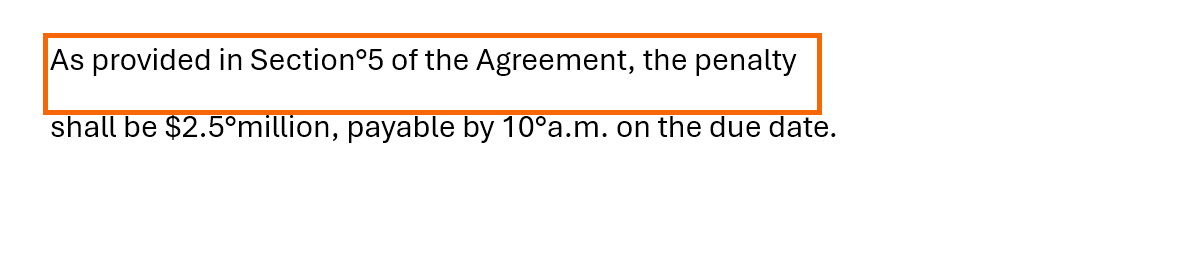
In briefs and contracts, check references to sections and amounts first: “Section” at the end of one line and “5” at the start of the next is the most common bad break.
Apply small caps to acronyms and legal headings
Small caps are capital letters the height of lowercase ones. They make strings of capitals less shouty: a.m., p.m., BCE, or defined terms and headings in contracts. Select the text and press Ctrl+Shift+K, or open the Font dialog from the launcher in the corner of Home › Font and check Small caps under Effects.
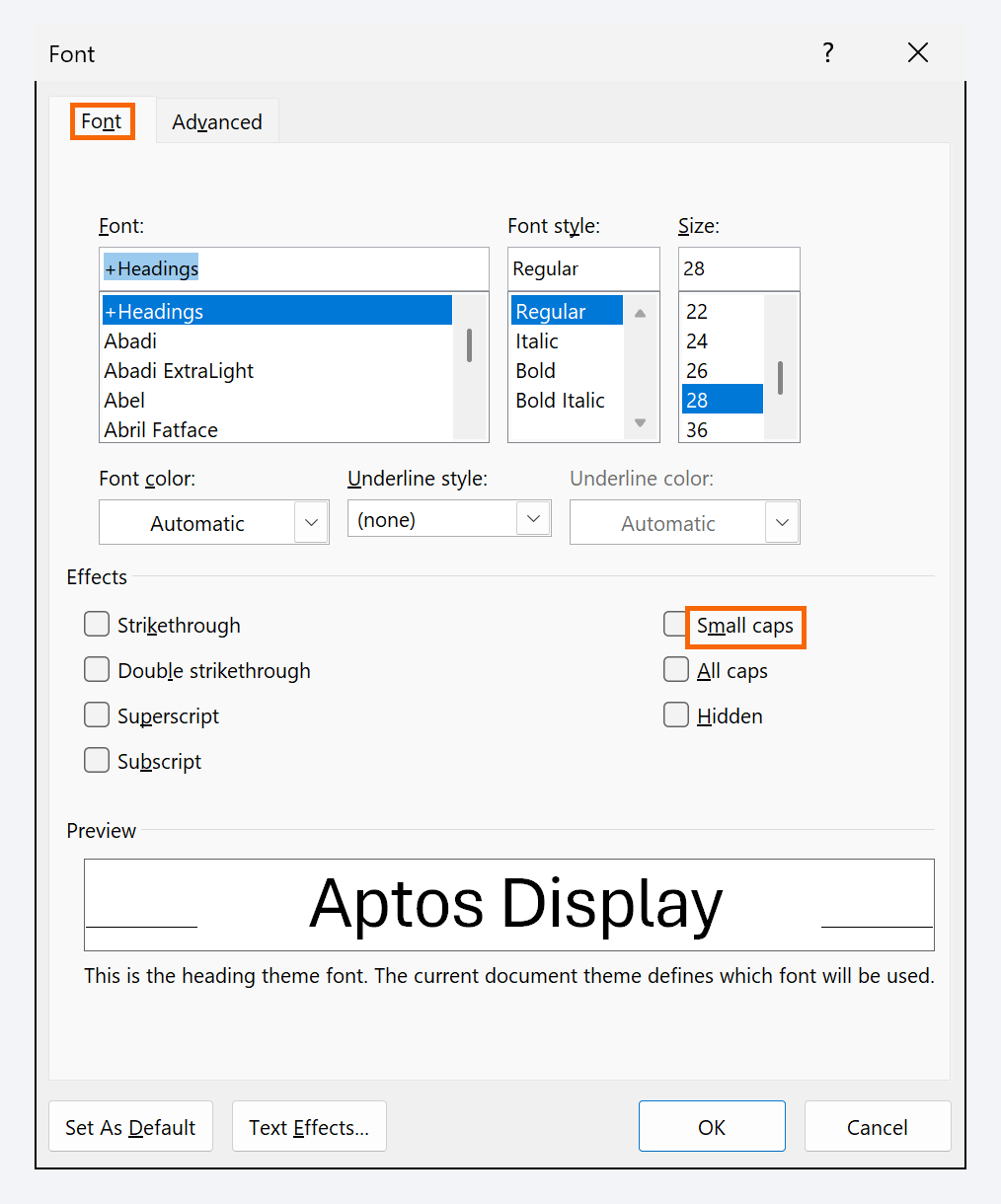
Small caps only shrink lowercase letters. If you typed NATO in capitals, retype or change it to lowercase first, then apply small caps.
Switch between title case and sentence case
Headings follow one of two conventions: title case (Notice of Termination for Cause) or sentence case (Notice of termination for cause). Pick one and stick to it. Select the text and use Home › Font › Change Case (the Aa button). Shift+F3 cycles through the options.
Capitalize Each Word is not true title case: it also capitalizes of, for and the. Lowercase those small words by hand afterward.

Expert tips
- Clean up AI output. ChatGPT and other assistants often return straight quotes or spaced hyphens. Use Replace (Ctrl+H) to fix them in one pass: advanced find and replace.
- Store small caps in a style. Create a character style called Defined Term with Small caps on and give it a shortcut: keyboard shortcuts for styles.
- Retype quotes to fix them all. With smart quotes on, Find
"and Replace with": Word re-curls every straight double quote in the document. Do the same with the single quote. - Use the section sign properly. Insert § from Special Characters and follow it with a nonbreaking space so “§ 12” never splits.
Common mistakes and how to fix them
Your decade abbreviation shows as ‘90s with a backward apostrophe.
Word guessed an opening quote. Delete it and paste a correct closing apostrophe (’), or insert it from Insert › Symbol.
Ctrl+Alt+minus doesn’t produce an em dash.
It must be the minus key on the numeric keypad, not the one in the top row. On laptops without a keypad, type two hyphens between words or use Insert › Symbol › Special Characters.
Small caps applied to “FBI” changes nothing.
Small caps only affect lowercase letters. Change the text to lowercase (Shift+F3) and apply Small caps again.
In Word for Mac, type an em dash with ⌥+⇧+hyphen and an en dash with ⌥+hyphen. AutoFormat As You Type is under Word › Preferences › AutoCorrect, and small caps under Format › Font (or ⌘+⇧+K).
Frequently asked questions
Should I put spaces around an em dash?
US style guides such as Chicago use no spaces (word—word). AP style uses spaces. British style often uses a spaced en dash instead. Choose one and be consistent.
What’s the difference between a hyphen, an en dash and an em dash?
The hyphen (-) joins words (well-known); the en dash (–) shows ranges (1990–1995); the em dash (—) marks a break or aside.
Why does Word capitalize the word after “Sec.” or “No.”?
It thinks the period ends a sentence. Add the abbreviation to Exceptions… in AutoCorrect Options so Word leaves the next word alone.
Which capitalization should headings in a contract use?
Either works if it’s consistent. Many firms use title case for article headings and sentence case for subheadings. Set it once in your heading styles and you won’t have to think about it.
Saved only in this browser.