Keyboard shortcuts for your styles: apply any style without touching the mouse
In Word you can give any style a shortcut: in Home › Styles, right-click the style › Modify › Format button › Shortcut key. In the Customize Keyboard window, press the combination, check under “Currently assigned to” that it’s free, choose where to save it and click Assign. Heading 1, 2 and 3 already use Ctrl+Alt+1, 2 and 3.
You’re drafting a long contract and every few seconds you let go of the keyboard: mouse to the Styles gallery, click Clause, back to the text. Again for Definition. Again for Normal. It’s only seconds, but they add up over a day, and they pull you out of your train of thought.
A keyboard shortcut is a key combination that runs a command instantly. Word includes a few for styles and lets you create your own for any other. Think of it like speed dial on a phone: you store the number once and then call with a single press.
In this guide you’ll learn to assign shortcuts to your styles, pick combinations that don’t break anything and save them so they work in all your documents.
What you'll learn
- Which style shortcuts Word includes out of the box
- How to assign a key combination to any style
- How to tell whether a combination is already taken
- Where to save the shortcut: Normal.dotm, a template or just the document
Step by step
Start with the shortcuts Word already has
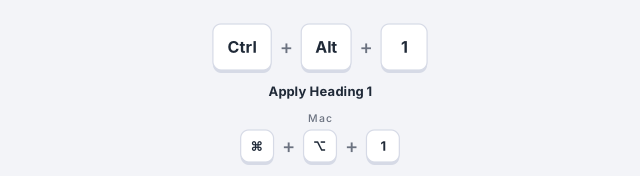
Before creating anything, try the built-in ones: Ctrl+Alt+1, 2 and 3 apply Heading 1, Heading 2 and Heading 3, and Ctrl+Shift+N applies Normal. Put the cursor anywhere in the paragraph (no need to select it) and press the combination.
For other styles (Quote, your own custom styles) the most reliable approach is to assign the shortcut yourself and check in the dialog what each one already has, as the next steps show.
Open “Modify” on the style you want to speed up
Go to Home › Styles, right-click the style (for example Quote or your Clause style) and choose Modify…. The Modify Style window opens.
If the style isn’t in the gallery, open the Styles pane with the small launcher in the bottom-right corner of the group and click the arrow that appears next to the style name.

Click “Format” and choose “Shortcut key”
At the bottom left of Modify Style is the Format button. Open it: besides Font and Paragraph, you’ll see Shortcut key…. Choosing it opens the Customize Keyboard window, already set up for that style.

Press the combination and check whether it’s taken
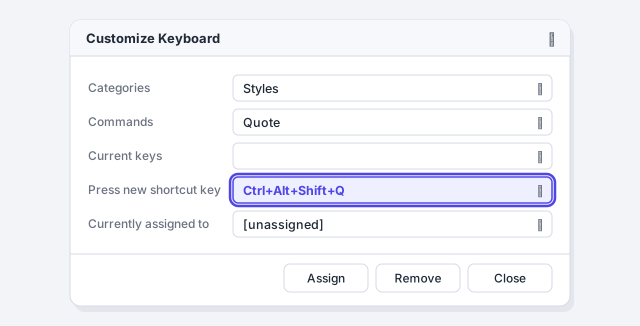
Click in the Press new shortcut key box and press the actual combination on your keyboard (don’t type it letter by letter). Below it, Currently assigned to: appears. If it says [unassigned], it’s free. If it shows a command, that shortcut already does something else and you’d lose it.
Many Ctrl+Alt+Shift plus a letter combinations are free, though not all (Ctrl+Alt+Shift+S opens the Styles pane, for example). Avoid Alt+Shift plus a letter: several already insert dates, page numbers or index entries. Always trust what “Currently assigned to” says.
On many international keyboards Ctrl+Alt acts as AltGr. If you type characters such as @, € or accented letters with AltGr, avoid Ctrl+Alt with those keys or you may no longer be able to type them in Word.
Choose where to save the shortcut and click “Assign”
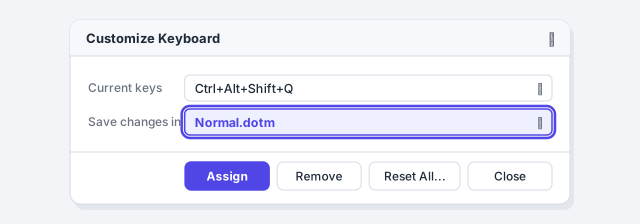
In Save changes in, decide the scope:
- Normal.dotm: the shortcut works in every document based on your Normal template.
- A company template (if the document has one attached): every document based on that template inherits it.
- The current document: it travels with the file, but only works there.
Click Assign: the combination moves to Current keys. Then click Close, and OK in Modify Style.
For a law firm, save shortcuts in the firm’s template, not your own Normal.dotm, so the whole team uses the same keys for Clause, Recital or Definition.
Test the shortcut on a paragraph
Put the cursor in any paragraph and press your combination. The style is applied instantly and shows as selected in the gallery. If you write with AI, this is the fast workflow: paste the ChatGPT draft as plain text and go through the document applying styles from the keyboard.

Manage every shortcut from Word Options
To review or remove several shortcuts at once, go to File › Options › Customize Ribbon and, at the bottom, next to Keyboard shortcuts, click Customize…. It’s the same Customize Keyboard window: in Categories, scroll down to Styles and you’ll see them all, each with its Current keys.

Expert tips
- Use an easy-to-remember pattern. One key family with the style’s initial: Ctrl+Alt+Shift+Q for Quote, +D for Definition, +L for List.
- A style can have several shortcuts. Assign a second combination if the first one doesn’t stick; both appear under Current keys.
- Remove a shortcut without fear. In Customize Keyboard, select it under Current keys and click Remove. If you remove a built-in one, Word stops using it until you assign it again.
- Pair it with the following style. If your headings switch to Normal automatically when you press Enter, you’ll rarely need a shortcut for Normal: how to set the style for the following paragraph.
Common mistakes and how to fix them
The shortcut works today, but not tomorrow in a new document.
You saved it in the document. Go back to Customize Keyboard, change “Save changes in” to Normal.dotm (or your template) and assign it again.
After creating a shortcut you can no longer type @ or € on an international keyboard.
You used Ctrl+Alt with a key your keyboard uses with AltGr. Find the style in Customize Keyboard, remove that combination from Current keys and choose one with Shift instead.
A built-in shortcut (for example Save or Find) stopped working.
You overwrote it because “Currently assigned to” showed a command and you clicked Assign. Remove your shortcut from that style; if needed, click Reset All to restore the factory shortcuts (this also deletes your custom shortcuts in that template).
In Word for Mac the path is similar: right-click (or Control+click) the style › Modify Style › Format › Shortcut key, or Tools › Customize Keyboard. Use ⌘, ⌥ and ⇧ instead of Ctrl, Alt and Shift; headings are applied with ⌘+⌥+1, 2 and 3.
Frequently asked questions
Can I assign a shortcut to a character style, like one for statute names?
Yes. It works the same for paragraph, character and linked styles. With a character style, select the words first and then press the shortcut.
Do shortcuts travel with the document if I send it to someone?
Only if you saved them in the document itself. If they’re in your Normal.dotm, they stay on your computer. To share them with a team, save them in a shared template: how to create a company template.
What happens to my shortcuts if I reset Normal.dotm?
The ones saved in Normal.dotm are lost, because they live inside that file. Before renaming it, write down your combinations so you can recreate them.
Is there a list of all Word shortcuts?
Yes, and we cover the most useful ones in the Word keyboard shortcuts that actually save time.
Saved only in this browser.