Make Word switch to Normal text automatically after a heading
Every Word style has an option called “Style for following paragraph”. If you set it to Normal in the Heading 1 style, pressing Enter after typing a heading starts the next paragraph in Normal text. You change it in Home › Styles › right-click the style › Modify › Style for following paragraph.
It happens every time: you type a heading, press Enter to start the paragraph… and Word keeps writing big and blue. You select the text, change the size, remove the bold and, with luck, it ends up looking like the rest. It's not your fault: it's a Word option almost nobody knows about.
Every style stores a property called Style for following paragraph. It is, literally, the answer to the question “when someone presses Enter here, which style do I use for the new paragraph?”. Word's built-in headings are set to switch to Normal… unless someone changed it in your template or you use your own styles. In this guide you set it up in two minutes and never fight it again.
What you'll learn
- What the “style for following paragraph” is and why it saves you work every day
- How to set it for Heading 1, Heading 2 and your own styles
- How to save it in the template so it works in every new document
- A trick to chain styles: heading → subheading → body text
Step by step
Open the Styles gallery
Go to the Home tab. On the right of the ribbon you'll see the Styles group, with boxes such as Normal, Heading 1 or Heading 2. If your window is narrow, the group may be collapsed into a single button called Styles.

Hover over a style in the gallery without clicking: Word previews it on the paragraph where your cursor is.
Right-click “Heading 1” and choose “Modify”
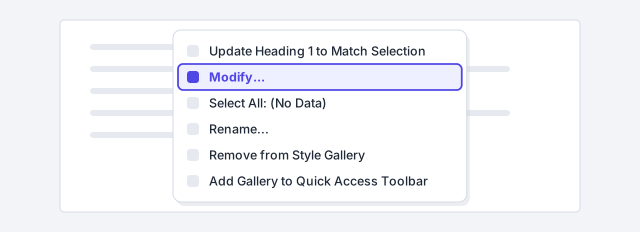
Don't left-click (that would apply the style to the paragraph your cursor is in). Right-click the Heading 1 box and, in the menu that appears, choose Modify…. The Modify Style window opens: the control center for that style.
Change “Style for following paragraph” to “Normal”
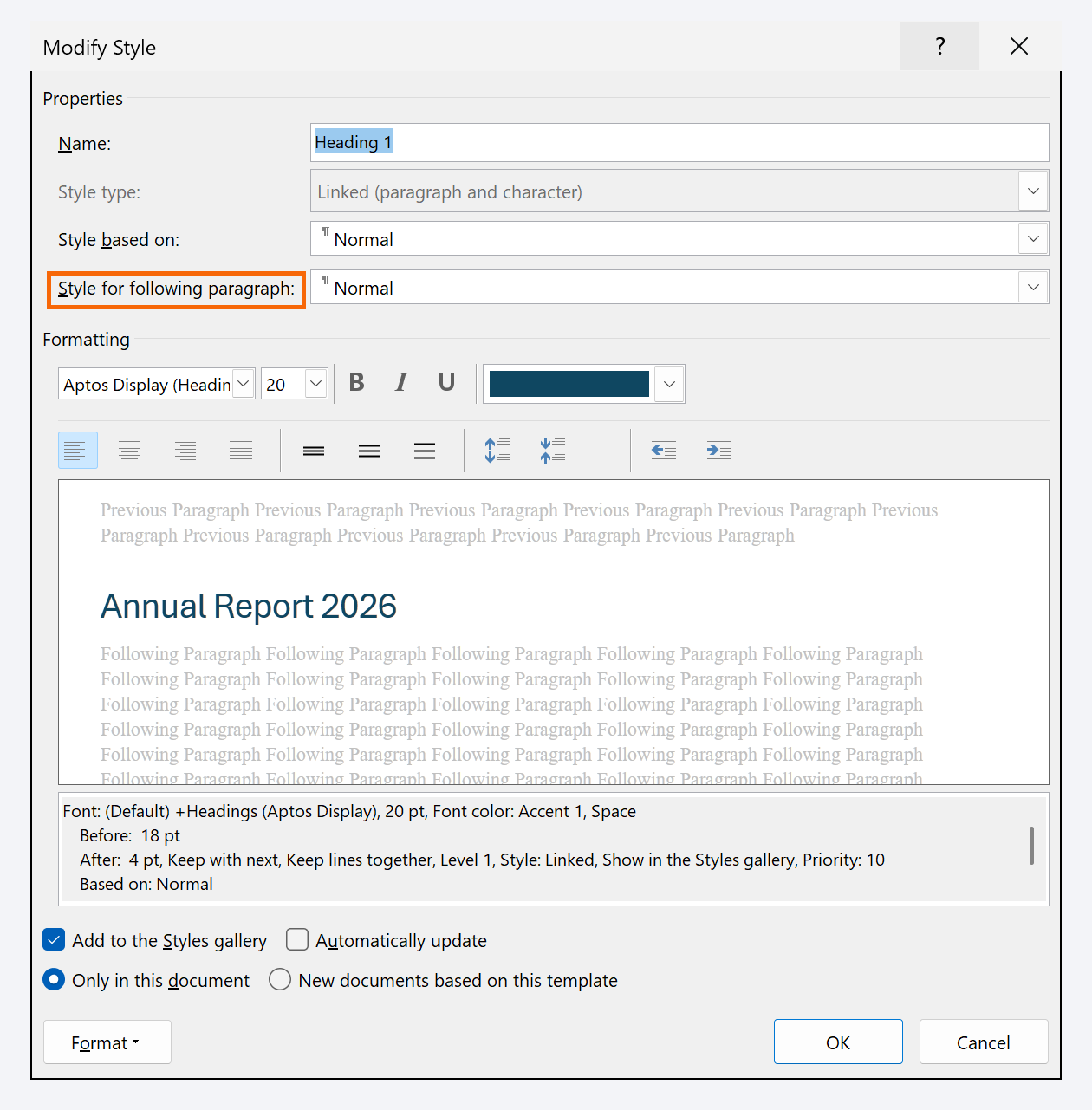
At the top of the window there are four fields: Name, Style type, Style based on and Style for following paragraph. Open the last one and choose Normal (or whichever style you use for body text, for example Body Text or one of your own).
That field is what decides what happens when you press Enter. Nothing else.
Decide whether the change applies to this document or to all
At the very bottom you'll see two options: Only in this document and New documents based on this template. If you pick the second one, the change is saved in your template (usually Normal.dotm) and every document you create from now on comes pre-configured. Click OK.
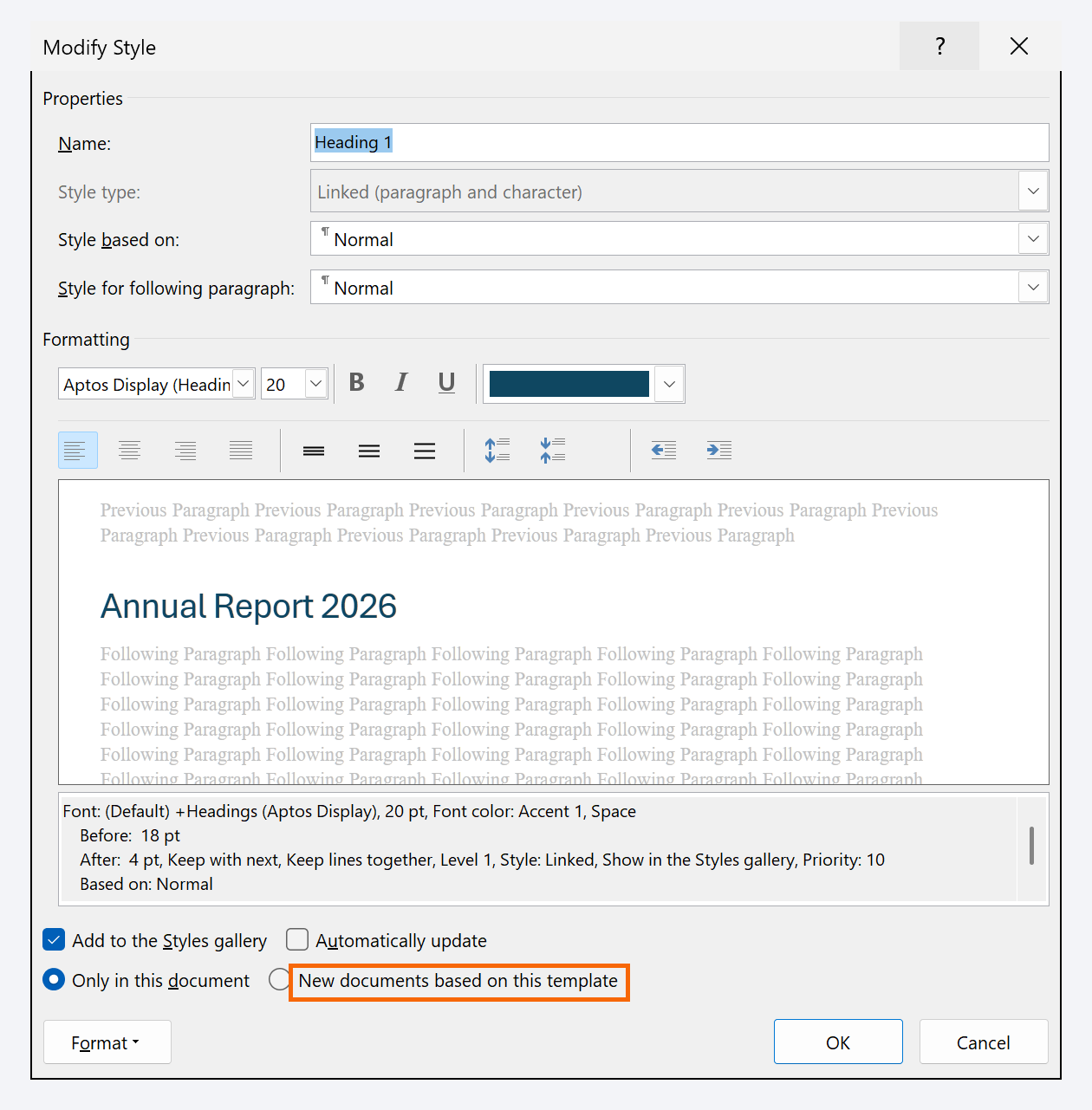
If you work with a corporate template, make this change inside the template and save it again: the whole team inherits it.
Try it
Put the cursor on an empty line, apply Heading 1 (click the gallery box or press Ctrl+Alt+1), type a heading and press Enter. The new paragraph already appears in Normal: normal size, normal color, no bold.

Repeat for Heading 2, Heading 3 and your own styles
Do the same with the other heading styles you use. And take the chance to review your custom styles: when you create a new one, Word sets its following paragraph to itself. That's right for body text, but not for headings, section labels or captions.

Expert tips
- Chain styles. If every Heading 1 is always followed by a Heading 2, set that as the following paragraph. And in Heading 2, set Normal. Word will “step down” on its own.
- It works for any style, not only headings: in a Question style set Answer as the next one; in Caption set Normal.
- Heading style shortcuts: Ctrl+Alt+1, 2 and 3 apply Heading 1, 2 and 3 on Windows. On Mac: ⌘+⌥+1, 2 and 3.
- Already wrote the document with “manual” headings? Apply real heading styles and, as a bonus, you can build an automatic table of contents: how to create a table of contents that updates itself.
Common mistakes and how to fix them
You press Enter and the next paragraph is still a heading.
Check that you modified the right style: the one applied to that paragraph (it shows as selected in the gallery when the cursor is in it). If you use a custom style, open it with right-click › Modify and check the field.
It works in this document but not in new documents.
When modifying the style, select “New documents based on this template”. If you use a corporate template, make the change inside the template.
You modify the style and things change across the whole document.
That's expected: a style affects every paragraph that uses it. If you only want to change one paragraph, don't modify the style (or create a new one). Use Ctrl+Z to undo.
In Word for Mac the path is the same: Home › Styles Pane › right-click (or Control+click) the style › Modify Style… The field has the same name: “Style for following paragraph”. You can also go through the Format menu › Style… › Modify.
Frequently asked questions
What exactly is a style in Word?
A style is a named set of formatting (font, size, color, spacing…) that you apply in one go. If you later change the style, every paragraph that uses it changes too. We explain it in depth in Word styles: what they are and how to create your own.
If Word comes set up like this, why didn't my headings switch to Normal?
Usually for one of three reasons: someone modified the style in your template, you use styles you created yourself (which follow themselves by default), or the document came from someone else or from another program with its own styles.
Does this change anything in the text I've already written?
No. It only decides which style the new paragraph gets when you press Enter from now on.
Can I make a style switch to something other than Normal?
Yes, to any paragraph style in the document. That's the basis of the chaining trick: Heading 1 → Heading 2 → Normal, or Question → Answer.
Official sources
Microsoft documentation consulted for this guide.
Saved only in this browser.