AutoCorrect as a shortcut: type 3 letters and Word writes the whole phrase
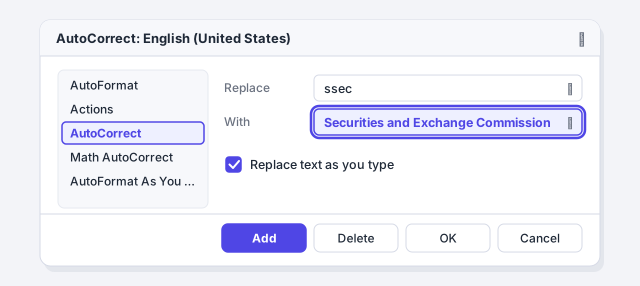
Go to File › Options › Proofing › AutoCorrect Options. On the AutoCorrect tab, with “Replace text as you type” ticked, type the abbreviation in Replace (for example “ssec”) and the full phrase in With (“Securities and Exchange Commission”), click Add, then OK. From then on, typing ssec followed by a space makes Word write the whole phrase.
You type “Securities and Exchange Commission” fifteen times in the same brief. Or “Limited Liability Company”, or your client's full name. You type it out, mistype a letter, fix it… and on the next page you do it again. Meanwhile, Word swaps a quotation mark and capitalizes the word after the period in “cl.”. Both things are the same tool: AutoCorrect.
AutoCorrect is a list of pairs: “if you type this, put that”. Word uses it to fix “teh” → “the”, but the list is yours: add “ssec” → “Securities and Exchange Commission” and Word makes the swap the moment you hit the space bar. It's like dictating to an assistant who knows your abbreviations. In this guide you create your text shortcuts (plain and formatted), add exceptions, switch off what gets in your way and learn when AutoText is the better choice.
What you'll learn
- Create text shortcuts: you type “ssec” and Word writes “Securities and Exchange Commission”
- Save formatted entries (bold, italic, even a signature block)
- Add exceptions so Word stops correcting what it shouldn't
- Turn off smart quotes, em dashes and automatic hyperlinks
- When to use AutoCorrect and when to use AutoText
Step by step
Open the AutoCorrect options
Go to File › Options. In the Word Options window, pick Proofing in the list on the left and click the AutoCorrect Options… button, the first thing on that page. A tabbed dialog opens whose title includes the language, for example AutoCorrect: English (United States).
That language matters: there is a separate AutoCorrect list for every proofing language, and Word uses the one for the language of the text where your cursor is. If you write in English, open the dialog with the cursor in an English paragraph.

The path has been the same since Word 2010, so it also applies to Word 2016 and 2019.
Create your first entry: “ssec” → “Securities and Exchange Commission”
On the AutoCorrect tab, make sure Replace text as you type is ticked. Below it there are two boxes: in Replace type the abbreviation (ssec) and in With the full phrase (Securities and Exchange Commission). Click Add and the pair appears in the list. Repeat for as many as you like (ffrcp → “Federal Rules of Civil Procedure”, ddpa → “Data Protection Act 2018”) and finish with OK.
Pick abbreviations that are neither real words nor abbreviations you write as they are. If you create cl → “clause”, you can no longer write “cl. 5”: Word turns it into “clause. 5”, because the period also triggers the replacement.
Try it: type the abbreviation and a space
Back in the document, type ssec followed by a space, a comma, a period or Enter. The moment you press any of them, Word swaps the four letters for the full phrase: the replacement fires with the key that closes the word. And only on whole words: if ssec sits inside another word, it is left alone.

Wanted the abbreviation as typed? Press Ctrl+Z right after the replacement and Word undoes it without deleting anything else.
Save a formatted entry (signature, clause, name in bold)
Ordinary entries are plain text and take up to 255 characters. To save something with formatting, the order changes: first select the already formatted text in the document (the company name in bold, or the whole signature block) and then open File › Options › Proofing › AutoCorrect Options….
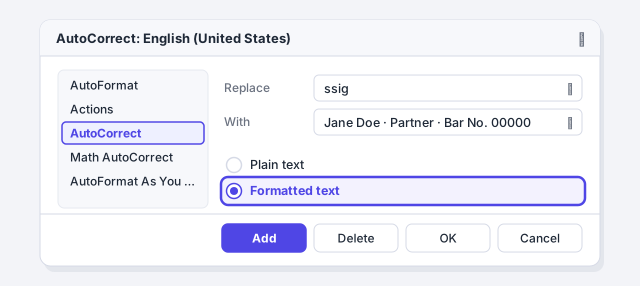
Word copies the selection into the With box and shows two new options: Plain text and Formatted text. Select Formatted text, type the abbreviation in Replace (ssig) and click Add. The entry can hold several paragraphs, a table or a picture, with no 255-character limit.
Formatted entries are stored in the Normal.dotm template and only work in Word. Plain-text entries are stored separately and also work in Outlook, Excel and PowerPoint.
Add exceptions for what Word must not correct
On the AutoCorrect tab, click Exceptions…. The First Letter tab holds the abbreviations after which Word must not capitalize: it already contains common ones and you can add your own. Type cl. in Don't capitalize after and click Add; do the same for para. or sch..
The INitial CAps tab is for words that legitimately start with two capitals (IDs, PCs), and Other Corrections for words Word corrects when it shouldn't, such as a surname.

If you leave “Automatically add words to list” ticked, whenever you manually fix one of those automatic capitals Word adds the abbreviation to the exceptions on its own.
Turn off the corrections that annoy you
Two tabs account for almost every complaint. On AutoCorrect: Capitalize first letter of sentences (the cause of “cl. Five”), Correct TWo INitial CApitals and Correct accidental usage of cAPS LOCK key. On AutoFormat As You Type, under Replace as you type: "Straight quotes" with "smart quotes", Hyphens (--) with dash (—) and Internet and network paths with hyperlinks, which turns every web address or email you type into a blue link.
Untick only what genuinely gets in your way: smart quotes are the typographically correct ones; automatic hyperlinks in a contract that will be printed, on the other hand, are just clutter. Click OK.

Hate it when typing “1.” and a space starts a numbered list? It's on the same tab: “Automatic numbered lists”, under “Apply as you type”.
Edit or delete an entry, and undo a single replacement
To delete an entry, type its first letters in Replace (the list jumps to it), select it and click Delete. To change its text, select it, edit the With box and click Replace: the Add button changes its name when the abbreviation already exists.
If you only want to skip the replacement once, press Ctrl+Z right after it happens. Or hover over the corrected word and use the AutoCorrect Options button (a lightning bolt) to undo that one correction or stop making it for good.

Choose between AutoCorrect and AutoText
AutoCorrect acts on its own the moment you type the abbreviation: ideal for agencies, statutes, acronyms and the contract's defined terms. AutoText (Insert › Quick Parts › AutoText) is only inserted when you ask for it: ideal for whole clauses, signature blocks or tables that must not appear by accident.
| AutoCorrect | AutoText | |
|---|---|---|
| Fires | On its own, as you type the abbreviation | When you pick it from the gallery (or type its name and press F3) |
| Size | 255 characters as plain text; no limit when formatted | No limit: paragraphs, tables, pictures |
| Where it works | Plain text: across Office | In Word (Outlook has its own gallery) |
| Risk | Accidental replacements | None |
For reusable clauses, continue with Quick Parts and AutoText.

Expert tips
- Double the first letter, always. If every abbreviation starts with a doubled letter (
ssec,ffrcp,ddpa,lllc), none of them will ever collide with a real word and you'll remember them without thinking. - The contract's defined terms. Create
lldr→ “the Landlord” andttnt→ “the Tenant” while you draft. If a term changes during negotiation, fix the document with Find and Replace and update the entry. - It works across Office. Plain-text entries are shared with Outlook, Excel and PowerPoint: the
ssecyou created in Word also works in an email. - AI doesn't go through here. AutoCorrect only acts while you type: text pasted from ChatGPT is neither corrected nor expanded. Use it for what you write yourself and, to fix what you paste, see how to paste AI text without breaking the formatting.
Common mistakes and how to fix them
You type the abbreviation and nothing happens.
Check three things: that you pressed space, punctuation or Enter afterwards; that “Replace text as you type” is ticked; and that the text's language is the same one you created the entry in (look at the AutoCorrect dialog title).
Word swaps ordinary words for your long phrases.
You chose an abbreviation that is a real word, or one you write as it is. Delete the entry and create another with a doubled letter: “ssec” instead of “sec”.
You created a formatted entry and it doesn't work in Outlook or on another computer.
Formatted entries live in Normal.dotm and only Word uses them. If you need the phrase everywhere, create it as plain text and apply the formatting afterwards, or use AutoText inside Word.
In Word for Mac everything lives under the Word menu › Preferences › AutoCorrect: the AutoCorrect tab has the same “Replace text as you type” list, with the Replace and With boxes and the Exceptions button, and smart quotes, dashes and automatic hyperlinks are switched off on the AutoFormat as You Type tab.
Frequently asked questions
Is there a limit on the number or length of entries?
On the number, not in practice. On length, yes: a plain-text entry holds up to 255 characters. If you need more (a whole clause), save it as formatted text or use AutoText.
Why is my list empty or different in another document?
Because there is one list per language. Word shows and uses the list for the language of the text where the cursor is. If a document is marked as Spanish, your English entries won't fire. Check the language under Review › Language › Set Proofing Language….
Can I use it to insert symbols?
Yes. Word already ships with entries such as (c) → ©. You can create your own: paste the symbol into the With box and type the abbreviation in Replace, for example ssect → §.
Official sources
Microsoft documentation consulted for this guide.
Saved only in this browser.