Print a booklet: letter or A4 sheets folded in half, with pages in the right order
Go to Layout › Margins › Custom Margins and, under Multiple pages, choose Book fold. Keep the paper at Letter: each page of the document becomes half-letter size. Adjust Sheets per booklet and Gutter. When printing, choose Print on Both Sides flipping on the short edge (or Manually Print on Both Sides). Word orders the pages for you; keep the page count a multiple of 4.
You want an event program, a welcome handbook or a study booklet, and you end up cutting and pasting pages so they come out in order once folded. Page 8 next to page 1, page 2 next to page 7… It's a puzzle Word solves for you if you ask the right way.
The option is called Book fold. Picture a landscape Letter sheet folded in half: four half-letter faces (5.5 × 8.5 in), two on the front and two on the back. Word places each page on the right face so that when you stack and fold the sheets, the booklet reads from start to finish. Outside the US it works the same way with A4 sheets and A5 pages. In this guide you set it up, print it two-sided without upside-down pages and staple it.
What you'll learn
- How to turn on Book fold to make Letter sheets into a half-letter booklet
- Why the page count should be a multiple of 4
- What sheets per booklet and the gutter are for
- How to print two-sided flipping on the short edge, with or without a duplex printer
Step by step
Count your pages: always in multiples of 4
Each folded Letter sheet gives you 4 half-letter pages. That's why a booklet has 4, 8, 12, 16… pages. If your document has 10, Word fills it up to 12 with blank pages at the end. Better to decide yourself what goes there: a back cover, a notes page or contact details.

Set up the booklet before you lay out the content. If you turn it on at the end, the text reflows and pictures and tables may move.
Open “Custom Margins”
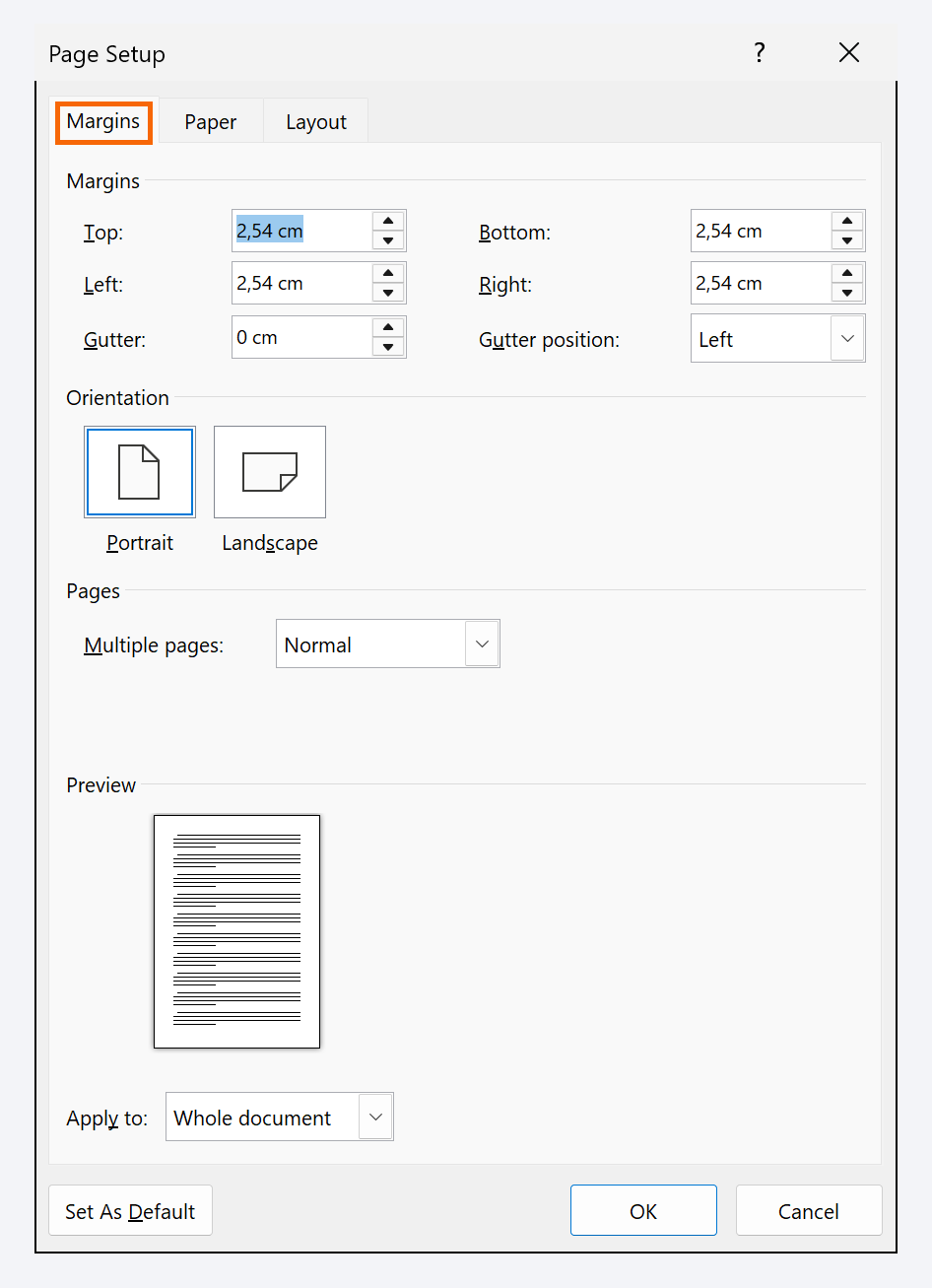
Go to Layout › Page Setup › Margins (in Word 2013: Page Layout) and, at the bottom of the list, choose Custom Margins…. The Page Setup window opens, with the Margins, Paper and Layout tabs.

Under “Multiple pages”, choose “Book fold”
On the Margins tab, near the bottom, open Multiple pages and choose Book fold. The orientation switches to Landscape on its own: that's the physical sheet. On screen you'll see portrait pages at half size, which are the faces of the booklet.
Notice that the left and right margins are now called Inside and Outside: the inside is the fold.

Set “Sheets per booklet” and the gutter
With Sheets per booklet set to All, Word makes a single booklet: perfect for up to about 10 stapled sheets. For long documents, choose 4 or 8: Word creates several booklets that you stack and bind together, so the spine doesn't spring open.
Increase the Gutter a little (for example, 0.2") to reserve room at the fold. Check that Apply to says Whole document.
If you apply Book fold to one section only, the rest of the document stays full size and the printout comes out mixed.
Keep the paper at Letter on the “Paper” tab
On the Paper tab, Paper size is the sheet you'll load into the printer: Letter. Don't pick a half-letter size: the finished booklet is half the sheet, so Letter already gives you 5.5 × 8.5 in pages. Click OK.

Check the layout and number the pages
Scroll through the document: headings that used to fit on one line may wrap, and large pictures may jump to the next page. Shrink whatever needs it. Then add numbers with Insert › Header & Footer › Page Number. You write and number in reading order (1, 2, 3…); Word handles the reordering when it prints.

If you want numbers on the outer edge, turn on Different Odd & Even Pages in the footer and align even pages left and odd pages right.
Print two-sided, flipping on the short edge
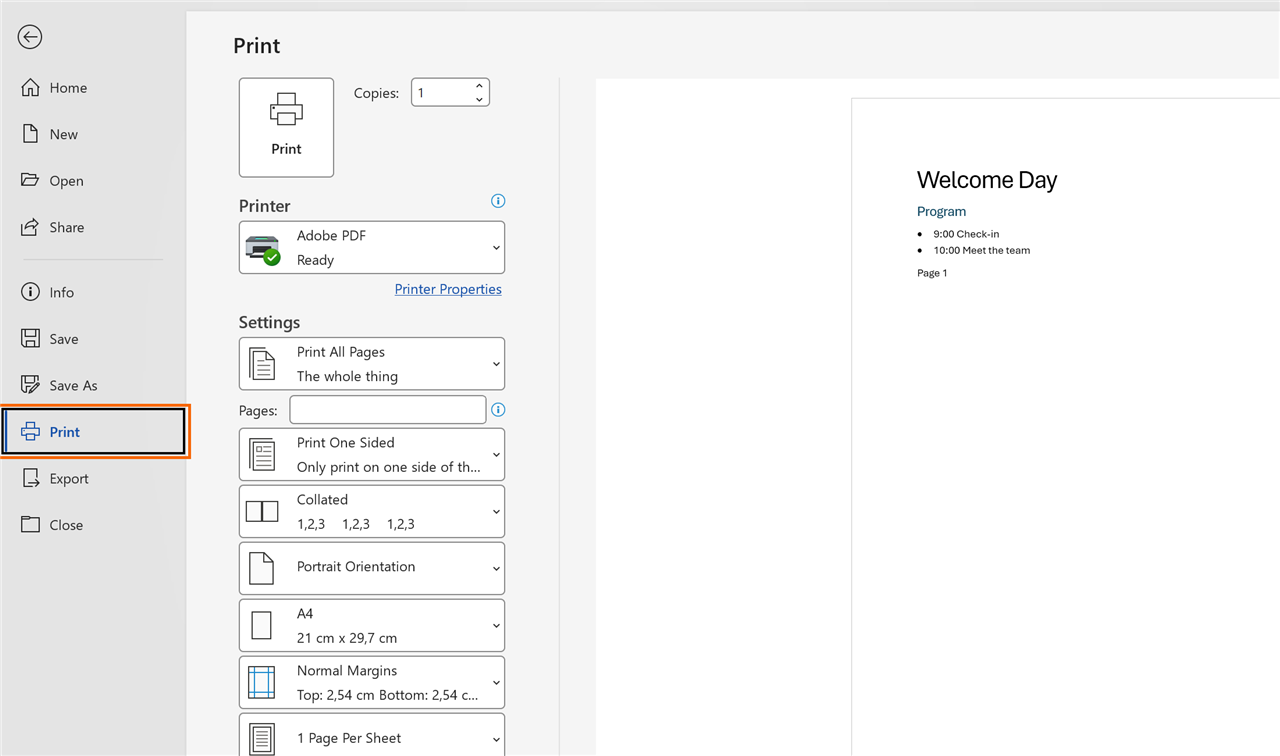
Go to File › Print. In the list that says Print One Sided by default, choose Print on Both Sides with Flip pages on short edge. Because the sheet is landscape, flipping on the long edge prints the back upside down.
Printer can't do two-sided on its own? Choose Manually Print on Both Sides: Word prints one side and prompts you to reload the sheets.
Before printing 50 copies, print a single test sheet and check that pages 1 and 2 land on the right faces.
Stack, fold and staple
Gather the sheets in the order they come out, without shuffling them. Fold them together in half, with the first page on the outside, and staple along the fold (a long-reach stapler helps). If you made several booklets, fold each one separately and stack them before binding.

Expert tips
- Keep a PDF copy. Export the booklet to PDF to send it to a print shop or print it on another computer without anything shifting: how to save a professional PDF.
- The cover counts as page 1. If you don't want a number on it, check Different First Page in the footer. The back cover is the last page of the document.
- Let AI write the text; the layout is yours. If the content comes from ChatGPT, paste it as plain text and apply your styles before turning on Book fold.
- Heavier paper, fewer sheets per booklet. With thick paper the fold gets bulky: use 4-sheet booklets so the finished piece closes flat.
Common mistakes and how to fix them
The back side prints upside down.
You printed flipping on the long edge. Print again choosing both sides with flip on short edge or, in manual mode, turn the sheets as your printer's diagram shows.
You picked a half-letter paper size and the booklet comes out tiny.
The Paper tab must show the real paper in the printer (Letter). Word already splits each sheet into two half-letter pages.
Blank pages you didn't expect appear at the end.
The total wasn't a multiple of 4 and Word padded it. Fit the content to 8, 12 or 16 pages, or use those pages for notes or a back cover.
Pictures moved around when you turned on Book fold.
That's expected: the page is half as wide. Shrink the pictures and check their text wrapping; next time, set up the booklet before laying out.
In Word for Mac the path is Layout › Margins › Custom Margins › Multiple pages › Book fold. Check the paper in File › Page Setup and, when printing, look for the two-sided or Booklet option in the macOS print dialog, which depends on your printer.
Frequently asked questions
Do I have to arrange the pages in that odd order (8-1, 2-7…)?
No. You write in normal order and Word does the imposition when it prints. That's exactly the work Book fold saves you.
Can I make a letter-size booklet by folding tabloid sheets?
Yes, if your printer takes 11 × 17 in paper: set Tabloid on the Paper tab and each document page becomes letter size.
What should I put in “Sheets per booklet”?
All for short booklets with a single staple. For long documents, a small number (4 or 8) creates several booklets that bind better and don't spring open at the spine.
What about a trifold brochure?
That's a different job: a trifold is a landscape sheet split into three columns. Sections and columns help with that, not Book fold.
Official sources
Microsoft documentation consulted for this guide.
Saved only in this browser.