Page numbers: start on page 3 and use Roman numerals for the front matter
To start numbering on page 3 in Word: insert a section break (Layout › Breaks › Next Page) right before the body, double-click the footer of the new section, turn off Link to Previous, then go to Page Number › Format Page Numbers › Start at 1. In the previous section delete the number or switch it to Roman numerals (i, ii, iii).
The thesis or report is almost done. All that's left: no number on the cover, Roman numerals on the contents pages and chapter 1 starting on page 1. You insert the number, delete it from the cover… and it vanishes from the whole document.
The key is one idea: page numbers live in the footer, and the footer belongs to a section. A single-section document allows only one numbering scheme. For “no number on the cover, Roman numerals up front and the body starting at 1” you need two sections, and you need to tell Word not to copy the footer from one to the other. It's four clicks, but in the right order.
What you'll learn
- Insert the page number and choose its position and design
- Change the format (1, 2, 3 or i, ii, iii) and the starting number
- Keep the cover page clean with Different First Page
- Start numbering on page 3 with a section break and Link to Previous
- Show “Page X of Y” with fields that update themselves
Step by step
Insert the page number from Insert › Page Number
Go to Insert › Header & Footer › Page Number. The menu offers four positions: Top of Page, Bottom of Page, Page Margins and Current Position. Pick Bottom of Page and, in the gallery, a design from the Simple group: Plain Number 2 centers the number; 1 and 3 put it on the left and right.
Word opens the footer with the number inside and shows the contextual Header & Footer tab (in Word 2016/2019: Header & Footer Tools › Design). It's a field, not typed text: it renumbers itself.

To get back to the text press Esc or click Close Header and Footer. To get back in, double-click the bottom margin of any page.
Change the format: 1, 2, 3 or i, ii, iii, and the starting number
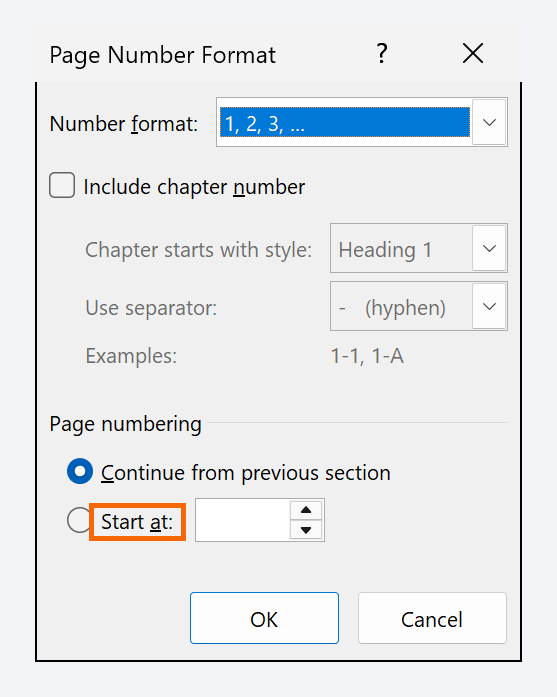
In the same Page Number menu (it's on the Insert tab and on the Header & Footer tab) choose Format Page Numbers…. The dialog holds two decisions:
- Number format: 1, 2, 3, - 1 -, - 2 -, - 3 -, a, b, c, i, ii, iii or I, II, III.
- Page numbering: Continue from previous section or Start at whatever number you type.
The dialog acts only on the section your cursor is in; in step 6 you'll use it to give each section its own format.

Remove the number from the cover with Different First Page
Double-click the footer on the cover page. On the Header & Footer tab, Options group, check Different First Page. The tag changes to First Page Footer and the footer is now empty: the cover shows no number, but it still counts (page 2 will show a 2).
If all you have is a cover and you want the second page to be page 1, open Format Page Numbers and set Start at to 0. Done, no sections needed. If there's also a table of contents, carry on with step 4.

Different First Page only affects the first page of each section. It can't skip two or three pages: that takes sections.
Insert a Next Page section break right before the body
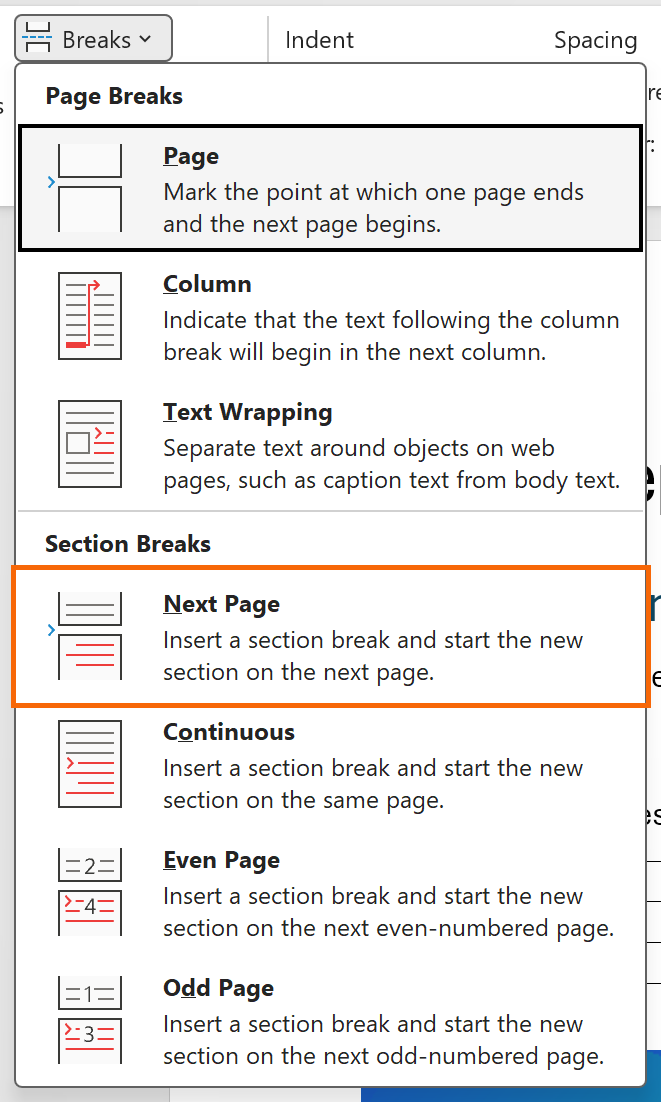
Put the cursor before the first letter of chapter 1. Go to Layout › Page Setup › Breaks › Next Page (in Word 2016/2019 the tab is called Page Layout). The document now has two sections: section 1 with the cover and contents, section 2 with the body.
Turn on formatting marks with Ctrl+Shift+8 to see the Section Break (Next Page) line. If there was already a plain page break at that spot, delete it or you'll get a blank page. More in section and page breaks.
Unlink the section 2 footer with Link to Previous
Double-click the footer on the first page of the body. You'll see two tags: Footer -Section 2- on the left and Same as Previous on the right. That second tag causes almost every problem: while it's there, whatever you do in this footer is copied to section 1.
In the Navigation group, click Link to Previous to turn it off. The tag disappears. The header unlinks separately, if you need that too.

Always do this before touching the number. If you delete or change the number while the link is on, the change applies to both sections.
Number the body from 1 and use Roman numerals (or nothing) up front
With the cursor in the section 2 footer, go to Page Number › Format Page Numbers…, select Start at, type 1 and click OK. The first page of the body now shows 1. If there's no number in that footer yet, insert it with Page Number › Bottom of Page.
Move up to the section 1 footer (the Previous button in the Navigation group). If you want no numbers there, select the number and press Delete. If you want Roman numerals for the contents, open Format Page Numbers, choose i, ii, iii and Start at 1.
Add “Page X of Y” with the PAGE and NUMPAGES fields
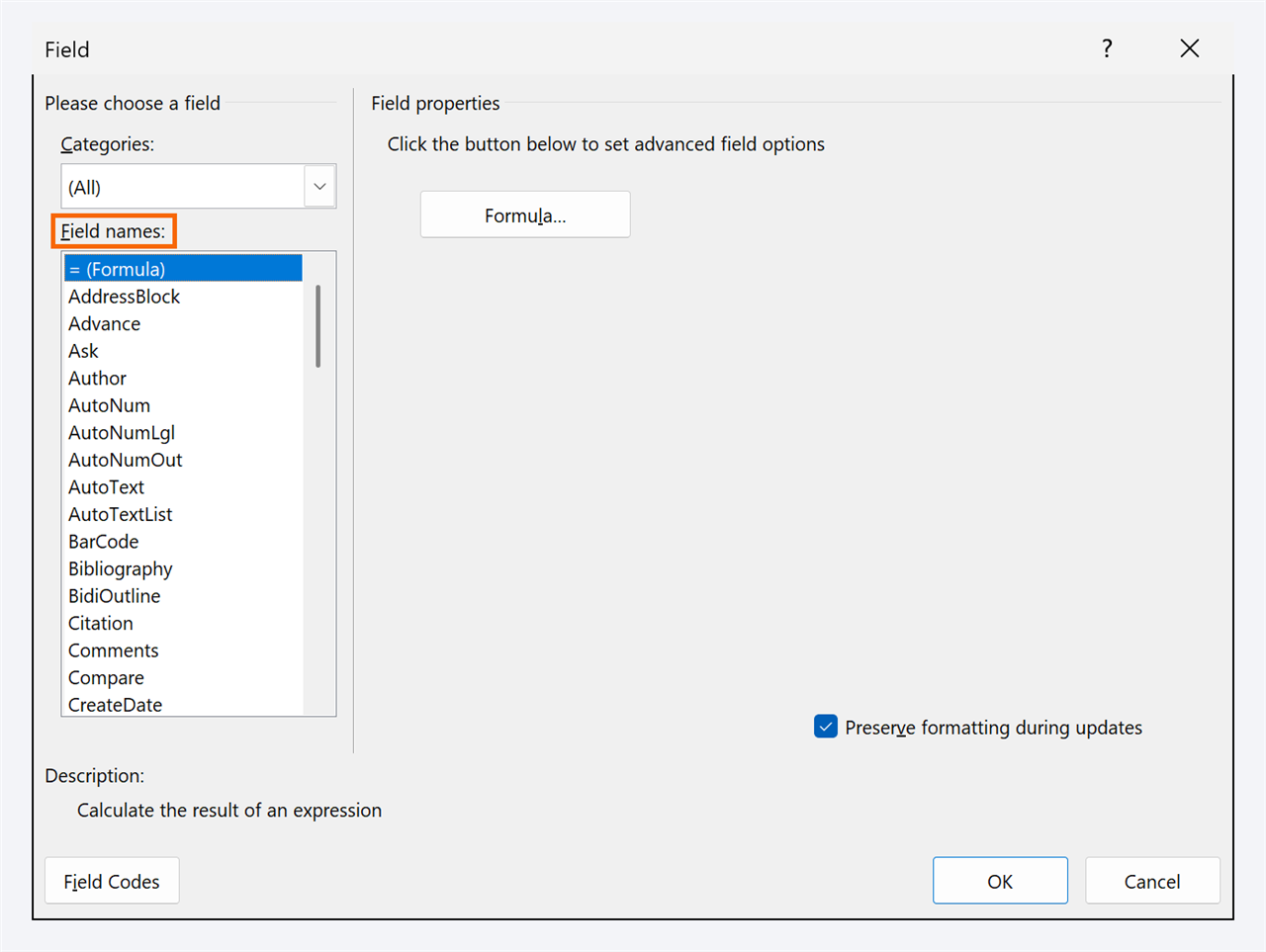
The quick way: Page Number › Bottom of Page, Page X of Y group, Bold Numbers 1. The way you control: type “Page ” in the footer, go to Insert › Quick Parts › Field…, category Numbering, field Page; type “ of ” and insert another field, NumPages. Keyboard fans: Alt+Shift+P inserts a PAGE field.
Watch the total: NumPages counts every page in the file, cover and contents included, so a 24-page body would read “Page 1 of 27”. Use the SectionPages field: it counts only the current section. Alt+F9 shows the field codes; F9 updates them.
Check the result and update the table of contents
Close the footer with Esc and look at the whole document with View › Zoom › Multiple Pages: cover with no number, front matter with i, ii, iii and the body with 1, 2, 3. If something's off, go back to that section's footer and check the Same as Previous tag (step 5) and Format Page Numbers (step 6).
Finally, click the table of contents and choose Update Table › Update entire table: the table copies the number exactly as it appears on each page, Roman numerals included (how to create an automatic table of contents).

Expert tips
- Appendices that start at 1. Each appendix of a contract can be its own section: a Next Page break before each one, unlink its footer and Start at 1. If you'd rather have “A-1, A-2”, check Include chapter number; it only works when your headings use automatic numbering tied to Heading 1 (automatic heading numbering).
- A number next to text. Type “Lease agreement · p. ” in the footer and choose Page Number › Current Position › Plain Number: the number goes in right where the cursor is.
- Was the document generated by AI? The .docx files that ChatGPT, Copilot or Claude produce usually have a number on the cover or none at all. Don't patch it by hand: apply steps 3 to 6.
Common mistakes and how to fix them
The numbering restarts on its own halfway through the document.
There's a section break there with “Start at” turned on (sometimes pasted in from another file). Double-click that section's footer, open Format Page Numbers and select “Continue from previous section”. If the break isn't needed, delete it with the ¶ marks turned on.
You change the number in one section and it changes in all of them.
The sections are still linked. Undo with Ctrl+Z, go into the footer of the section you want to be different, turn off Link to Previous and make the change again.
The number still shows on the cover page.
Go into the cover's footer and check Different First Page in the Options group. If the cover is a section of its own, unlink its footer from the next one before you delete the number.
In Word for Mac you have the same Insert › Page Number button on the ribbon, plus the Insert menu › Page Numbers…, which opens a dialog with Position, Alignment, a Show number on first page checkbox and a Format… button. Link to Previous and Different First Page sit on the same Header & Footer tab; fields are inserted from the Insert menu › Field….
Frequently asked questions
Can I start on page 3 without section breaks?
No. Different First Page only hides the number on one page per section. To skip two or more pages you need a section break before the body and “Start at 1” in the new section, as in steps 4 to 6.
Why does “Page X of Y” show the wrong total?
NumPages counts the whole file. Replace it with SectionPages to count only the section. If the total doesn't change when you add pages, select the footer and press F9.
How do I remove all page numbers?
Insert › Page Number › Remove Page Numbers. In a document with unlinked sections you have to repeat it in each section; if they're linked, once is enough.
Official sources
Microsoft documentation consulted for this guide.
Saved only in this browser.