Write numbers and amounts in words automatically with fields
Press Ctrl+F9 to create a field and type = 1500 \* CardText inside; press F9 and Word shows the number in words. Add \* Upper for capitals, use \* OrdText for ordinals (first) with SEQ, and store the amount in a bookmark so you type it once. It only works up to 999,999, and the words follow the language applied to the text.
In a contract you write “the sum of $1,500 (ONE THOUSAND FIVE HUNDRED DOLLARS)”. Then the client negotiates, the price becomes 1,750 and you change the figure… but not the words. Now the contract says two different things, and many agreements state that the amount in words controls.
Word has a little-known fix: fields, placeholders that Word calculates and fills in. You can add a switch to a numeric field (a formatting instruction that starts with \*) so it writes the number in words. Think of a calculator that also drafts. In this guide you store the amount once and Word writes it in figures and in words, always matching.
What you'll learn
- What the CardText, OrdText, DollarText, Upper and FirstCap switches do
- How to create a field with Ctrl+F9 and update it with F9
- How to store the amount in a bookmark and repeat it in figures and words
- How to number paragraphs in words (FIRST, SECOND…) with SEQ
- The limits: text language and a 999,999 maximum
Step by step
Get to know the switches that spell out numbers
You add these switches at the end of a numeric field:
| Switch | What it does |
|---|---|
\* CardText | Cardinal number in words: one thousand five hundred |
\* OrdText | Ordinal in words: first, second |
\* DollarText | Amount in words with cents as a fraction over 100 |
\* Upper | All capitals |
\* FirstCap | Capital on the first word only |

Create a field with Ctrl+F9 (don't type the braces)
Put the cursor where you want the number and press Ctrl+F9. A pair of gray braces { } appears: these are real field braces. If you type them on the keyboard, Word treats them as plain text and calculates nothing.
Inside, type = 1500 \* CardText, then select the field and press F9. You'll see “one thousand five hundred”.

Alt+F9 toggles between showing the codes of all fields and their results. Shift+F9 does the same for the selected field only.
Check the language: the words follow the text language
CardText writes the words in the language applied to the text of the field, not the language of the menus. If a document set to Spanish gives you words in Spanish and you need English, select the field, go to Review › Language › Language › Set Proofing Language…, choose English (United States) and press F9.
Run a quick test the first time on your computer, especially with bilingual contracts. If the words don't come out in the language you need, type them by hand and use the field only as a check.

In other languages, check grammatical agreement: Word writes a generic form of the number, which may need fixing before feminine nouns in Spanish or French.
Store the amount once in a bookmark
Type the figure without thousands separators or currency symbol (for example, 1500) and select it. Go to Insert › Links › Bookmark, type the name Amount (no spaces) and click Add. A bookmark is an invisible label that gives that piece of text a name.

Write the clause with figures and words linked
Where the amount in words goes, create a field with Ctrl+F9 and type = Amount \* CardText \* Upper. To repeat the figure elsewhere, use REF Amount \# "#,##0". Sample clause:
The price is ${ REF Amount \# "#,##0" } ({ = Amount \* CardText \* Upper } DOLLARS).
When the price changes, edit only the bookmarked figure, select everything with Ctrl+A and press F9.

If you delete the bookmark by accident while changing the figure, the field shows an error. Select the new figure and recreate the bookmark with the same name.
Add the cents with DollarText
\* DollarText writes the whole part in words and the two decimals as a fraction: = 1500.50 \* DollarText \* Upper gives “ONE THOUSAND FIVE HUNDRED AND 50/100”, the classic check and promissory-note format. If you prefer “and fifty cents”, store dollars and cents in two bookmarks (Dollars and Cents) and use two CardText fields.

Number paragraphs in words with SEQ and OrdText
The SEQ field counts: each time it appears, it adds one. Combined with OrdText it gives you the “FIRST:”, “SECOND:” paragraphs used in certificates of incorporation and board resolutions. Type a field SEQ Article \* OrdText \* Upper followed by a colon. If you move or insert a paragraph, select all and press F9: they renumber themselves.
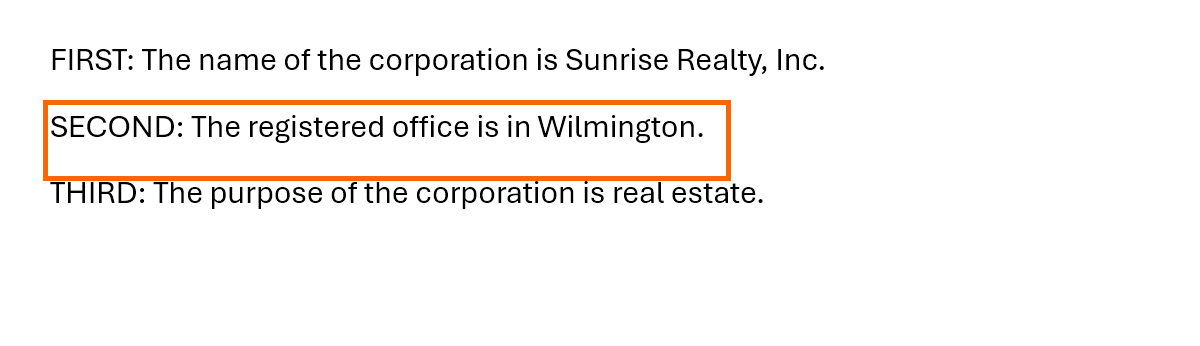
For “ARTICLE ONE, ARTICLE TWO”, use CardText instead of OrdText in the same SEQ field.
Expert tips
- The limit is 999,999. CardText and OrdText can't write larger amounts: the field returns an error. For millions, store millions and thousands in separate bookmarks or type that part by hand.
- Freeze the signed contract. Select all and press Ctrl+Shift+F9: fields become fixed text and can't change by accident.
- Use it with AI, not instead of it. If ChatGPT drafts the contract, replace the amounts with fields: AI can slip when spelling out long figures; the field won't.
- Type the client's name once too. The same idea works for names and dates: how to repeat the client's name throughout the contract.
Common mistakes and how to fix them
You type the { } braces on the keyboard and Word calculates nothing.
The braces must be created with Ctrl+F9. Delete the typed ones, press Ctrl+F9 and type the code inside.
The field shows a syntax or bookmark error.
The bookmark contains a thousands separator, the $ sign or text. Keep only the figure (1500) inside the bookmark and put “dollars” outside.
You change the figure and the words still show the old amount.
Fields don't recalculate on their own. Select everything with Ctrl+A and press F9 before saving or printing.
The words come out in the wrong language.
The field text has another language applied. Select it, change the language in Review › Language and press F9 again.
In Word for Mac the switches are identical. Create the field with ⌘+F9, update it with F9 (fn+F9 on some keyboards) and toggle codes and results with Option+F9 (fn+Option+F9). Bookmarks are under Insert › Bookmark.
Frequently asked questions
Does CardText work in other languages?
It uses the language applied to the field text. Test it once on your computer with the language you need; if the words don't come out right, type them by hand.
Can it add “dollars” after the number?
No: the field only converts the number. You type “dollars” (or “euros”) outside the field, in capitals if the rest is in capitals.
Does it work with the result of a table formula?
Yes. A table formula is also an = field: show its code with Alt+F9 and add \* CardText at the end.
Is there a maximum amount?
Yes: CardText and OrdText work up to 999,999. Above that, Word shows an error instead of the words.
Official sources
Microsoft documentation consulted for this guide.
Saved only in this browser.