Type the client's name once and have it repeat throughout the contract
Create the property in File › Info › Properties › Advanced Properties › Custom (Name: Client, Type: Text, Value). Insert it with Insert › Quick Parts › Field › DocProperty › Client wherever needed. When the value changes, select all (Ctrl+A) and press F9. A no-F9 alternative: Quick Parts › Document Property.
You open last month's contract, swap “Sunrise Realty, Inc.” for the new client with Find and Replace… and on page 14 the old name is still there, because it was typed in capitals or split across a line. It's the most embarrassing mistake in any law office.
The fix is to type the information once in a central place and have the text read it from there. That place is the document properties, internal file details (title, author…) to which you can add your own. The DOCPROPERTY field is the little window that shows that value in the text. Think of an Excel cell that many formulas point to: change the cell and everything changes.
What you'll learn
- How to create a custom “Client” property in the file
- How to insert it with a DOCPROPERTY field, even in capitals
- How to update the whole contract with F9, headers included
- An alternative that updates without F9: Document Property
- How to turn it into a reusable template
Step by step
Decide which details repeat
Before touching anything, list the details that appear several times: client name, tax ID, address, matter number. Each one becomes a property. In this guide we use Client; the others are created the same way.

Open the file's Advanced Properties
Go to File › Info. On the right, click Properties (above the list of file details) and choose Advanced Properties. A window opens with several tabs: General, Summary, Statistics, Contents and Custom.

Create the “Client” property on the Custom tab
On the Custom tab, type Client in Name, leave Type as Text, type the real name in Value and click Add. The property appears in the list below. Click OK.
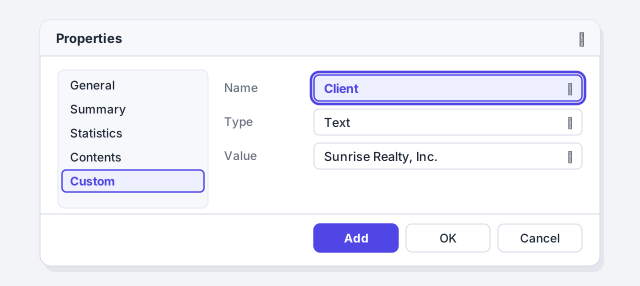
Use short names without spaces (Client, TaxID, Address): they're easier to read when you view field codes.
Open the Field dialog from Quick Parts
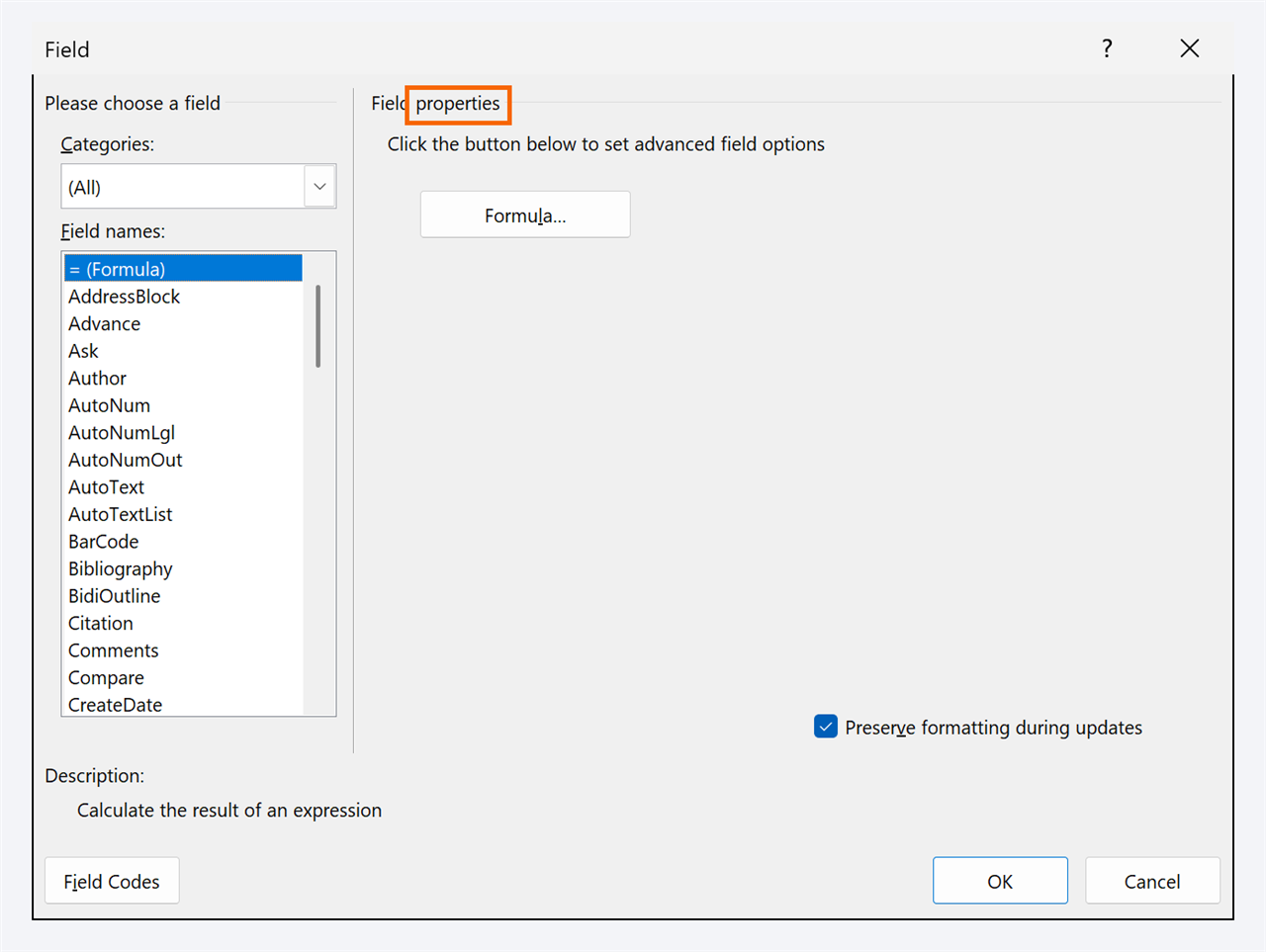
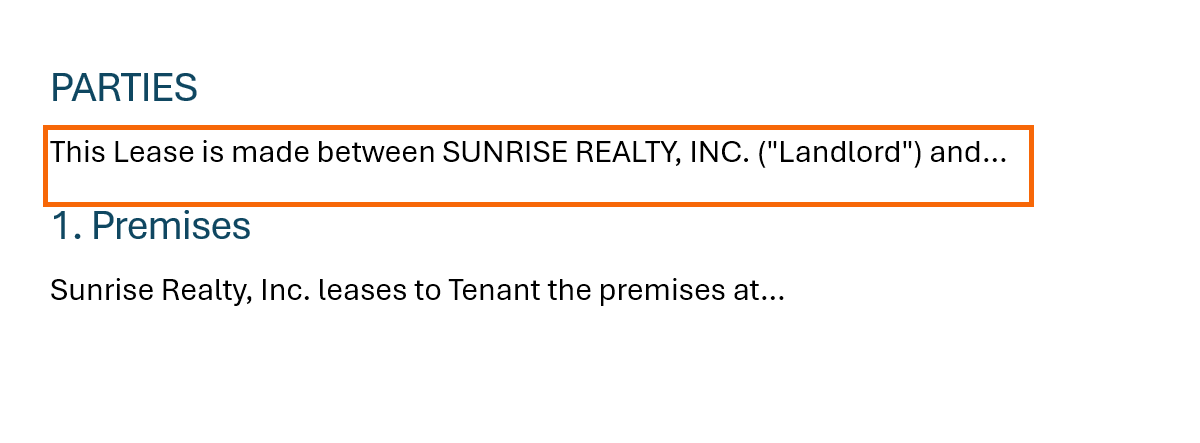
Put the cursor where the name goes, for example in the parties paragraph. Go to Insert › Text › Quick Parts › Field…. The Field dialog opens: the catalog of every field in Word.

Choose DocProperty and the “Client” property
Under Categories choose Document Information and under Field names, DocProperty. The Property list appears in the middle column, with your Client at the end. Select it and click OK.
Need it in capitals? Right-click the field, choose Edit Field… › Field Codes and make the code read DOCPROPERTY Client \* Upper.
Repeat it throughout the contract
Copy the field and paste it wherever the client appears again. If the draft already uses a text placeholder such as [CLIENT], there's a better trick: copy the field, open Home › Editing › Replace, find [CLIENT] and, in Replace with, type ^c (it means “Clipboard contents”). Click Replace All: every placeholder becomes a field.
Ask AI for the draft with [CLIENT], [TAX ID] and [ADDRESS] as placeholders: you then swap them for fields in seconds with this trick.
Change the value and update with F9
For a new client, change the Value in Advanced Properties › Custom (select the property, type the new value and click Modify). Then select everything with Ctrl+A and press F9.
Watch out: Ctrl+A doesn't reach headers and footers. Double-click the header and press F9 there, or turn on File › Options › Display › Update fields before printing.

If you send the document without updating, the client may see the previous client's name. Always update before saving to PDF or printing.
No-F9 alternative: insert a “Document Property”
Under Insert › Quick Parts › Document Property you'll see the built-in properties (Author, Company, Title…). They insert a content control, a box linked both ways: type the client in one and all the others change instantly, no F9 needed.
The catch: it only offers built-in properties, not your custom ones. Many firms use Company for the client. Check its value first, because it sometimes comes pre-filled with your organization's name.

Save it as a template for every new client
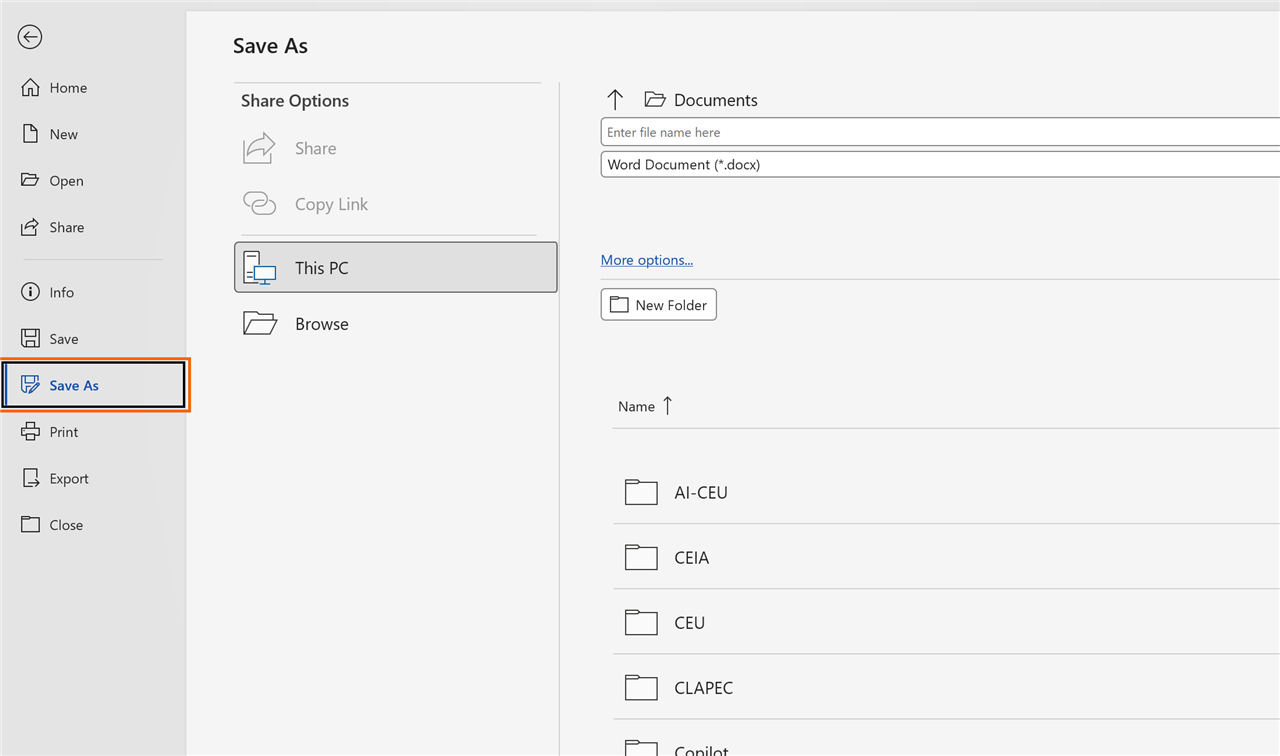
Set the property to a reminder value, such as [CLIENT NAME], update the fields and go to File › Save As, type Word Template (*.dotx). Every document created from the template brings the property and the fields: you only change the value and press F9.
Expert tips
- Alt+F9 to audit. It shows every field code at once: you'll see at a glance where there's a DOCPROPERTY and where a name was left typed by hand.
- Repeat a whole passage: bookmark and REF. Select the text, create a bookmark with Insert › Links › Bookmark and repeat it with Insert › Links › Cross-reference (type Bookmark, Bookmark text). See bookmarks and hyperlinks.
- Freeze the signed version. Before filing the signed contract, select all and press Ctrl+Shift+F9 to turn the fields into fixed text.
- Pair it with amounts in words. Store the price in a bookmark and spell it out with a field: automatic numbers and amounts in words.
Common mistakes and how to fix them
You change the property value and the text doesn't change.
DOCPROPERTY fields don't update on their own. Select everything with Ctrl+A and press F9; update headers and footers separately.
The field shows an unknown property error.
The name in the code doesn't match the property (for example, Clients instead of Client). Check the code with Alt+F9 or insert the field again from the list.
Updating wipes out the bold or capitals you applied.
Check Preserve formatting during updates when inserting the field, and use the \* Upper switch for capitals instead of changing them by hand.
The client's name shows up in the metadata when you send the file.
Properties travel with the document. If they shouldn't be visible, convert the fields to text and remove the properties with the Document Inspector before sending.
In Word for Mac, create the property from the File menu › Properties › Custom and insert the field with Insert › Field… (or ⌘+F9 and type the code). Update with F9 or fn+F9 and select all with ⌘+A. If you can't find Document Property, use DOCPROPERTY fields.
Frequently asked questions
How is this different from Find and Replace?
Replace changes the text once and relies on it being typed identically everywhere. With DOCPROPERTY the value lives in one place and every field reads it from there, even in capitals or in the header.
Which should I use: DOCPROPERTY, Document Property or bookmarks?
DOCPROPERTY for templates with many custom details (client, tax ID, matter). Document Property if you want instant updates and the built-in properties are enough. A bookmark with REF to repeat a passage that's already written in the text.
Can it fill in many contracts at once, like a mail merge?
For one contract at a time, yes. If you need 200 contracts from an Excel sheet, use mail merge.
Can someone who opens the file see the property?
Yes, in File › Info › Properties. It's file information, so treat it as part of the document.
Official sources
Microsoft documentation consulted for this guide.
Saved only in this browser.