Delete that blank page that refuses to go away
Turn on formatting marks with Home › Paragraph › Show/Hide ¶ (Ctrl+Shift+8) to see what's on the page. Delete empty ¶ marks and page or section breaks. If it's the required paragraph after a table at the end, select it and set the font size to 1 and the line spacing to Exactly 1 pt in the Paragraph dialog.
You finish your work, go to export it to PDF and there it is: a blank page at the end, or in the middle. You press Backspace, you press Delete, and the page is still there, as if it were laughing at you.
A “blank” page is never empty for Word. There's always something invisible on it: empty paragraphs, a page break, a section break or the final paragraph Word always adds after a table. It's like a glass piece of furniture in a room: you can't see it, but it blocks the way.
In this guide you make that “furniture” visible and remove it, depending on what it is. Three minutes and done.
What you'll learn
- How to see what's taking up a seemingly empty page
- How to remove empty paragraphs and page or section breaks
- The 1-point paragraph trick for the blank page after a table
- Which paragraph options push text onto a new page
Step by step
Show formatting marks
Go to Home › Paragraph and click Show/Hide ¶, or press Ctrl+Shift+8. You'll now see a ¶ at the end of every paragraph, and breaks labeled by name.
Go to the blank page and look at what's on it. What you find tells you which step to follow. To understand every mark, see the guide formatting marks in Word.

Delete the empty paragraphs
The most common cause: a column of ¶ marks left by someone who pressed Enter over and over to “move down” to the next page. Select them all by dragging the mouse over them and press Delete.
If the blank page is at the end, click at the very end of the document and press Backspace until it disappears.
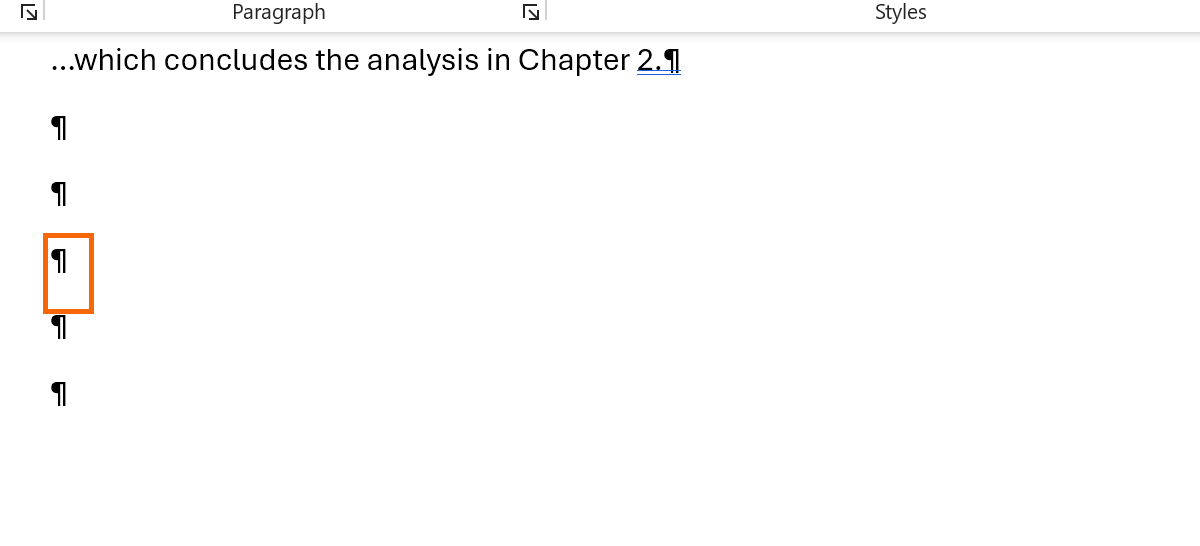
To start something on a new page, don't press Enter several times: use a page break or the Page break before option (step 6).
Remove manual page breaks
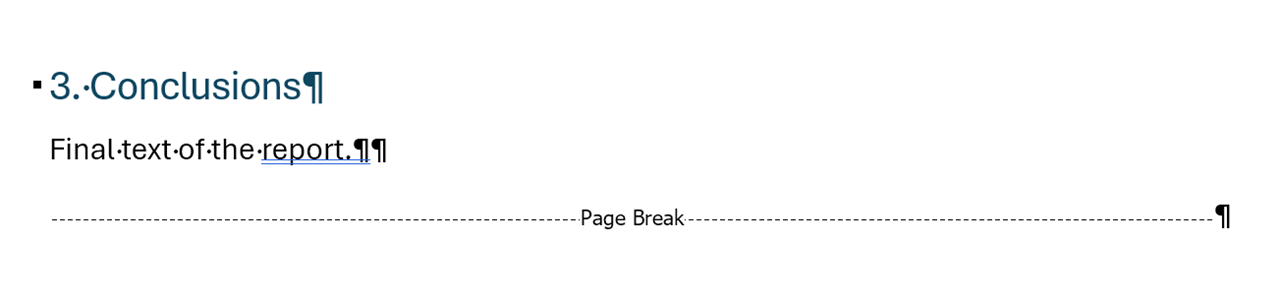
If you see a dotted line labeled Page Break, it's a manual break (inserted with Ctrl+Enter or Insert › Pages › Page Break). Click just before it and press Delete, or double-click it to select it and delete it.
Shrink the paragraph after a table to 1 point
If the document ends with a table, Word always adds a paragraph after it, and that ¶ can't be deleted. If the table fills the page, that paragraph spills onto a new one.
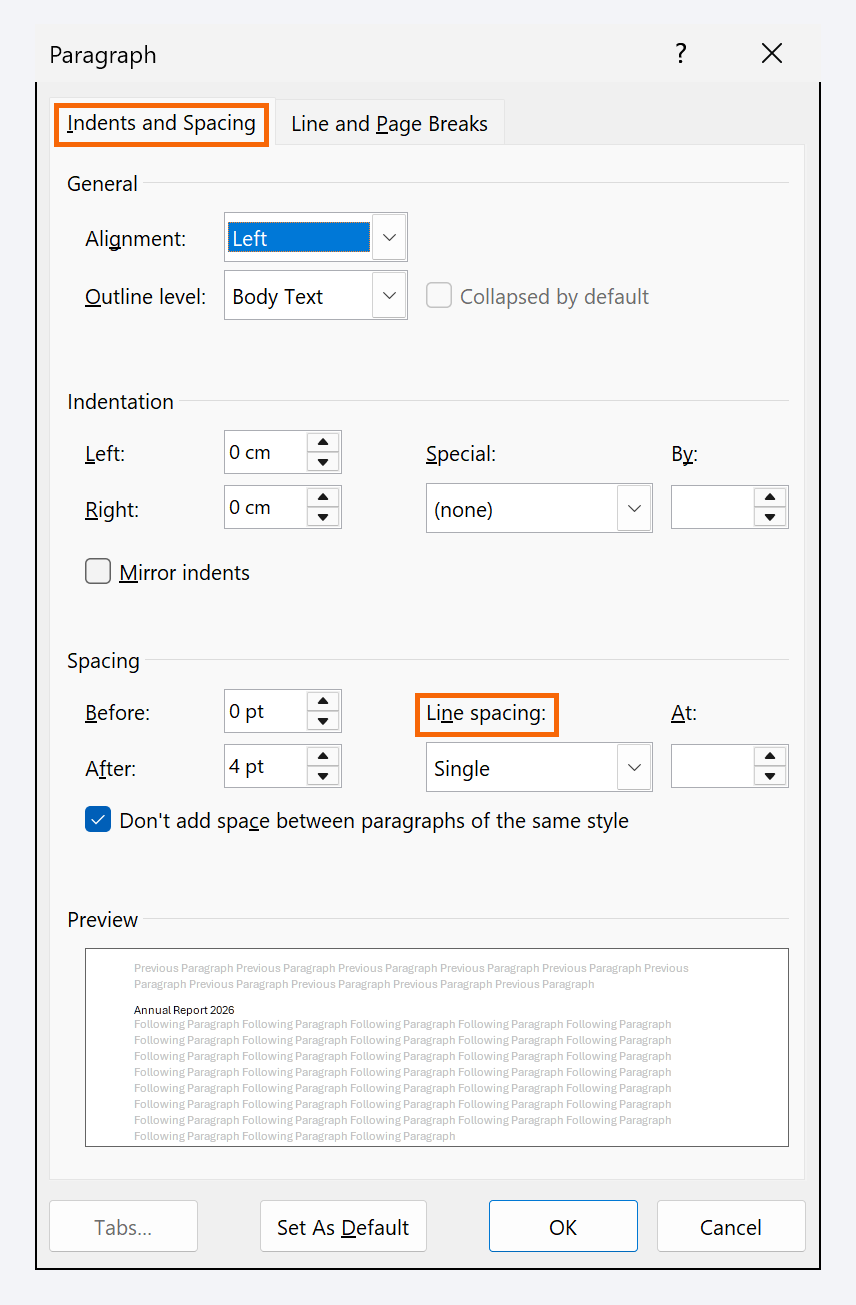
Select that ¶. In Home › Font, type 1 in the font size box and press Enter. Then open the Paragraph dialog (launcher icon in the corner of the Paragraph group) and, on the Indents and Spacing tab, set Before and After to 0 pt and Line spacing to Exactly, 1 pt.
If it still doesn't fit, reduce the bottom margin slightly or the height of the table's last row.
Check your section breaks
A Section Break (Next Page) starts a new page. An (Odd Page) or (Even Page) break can add a blank page to keep the page parity, and often you'll only see it in print preview or in the PDF.
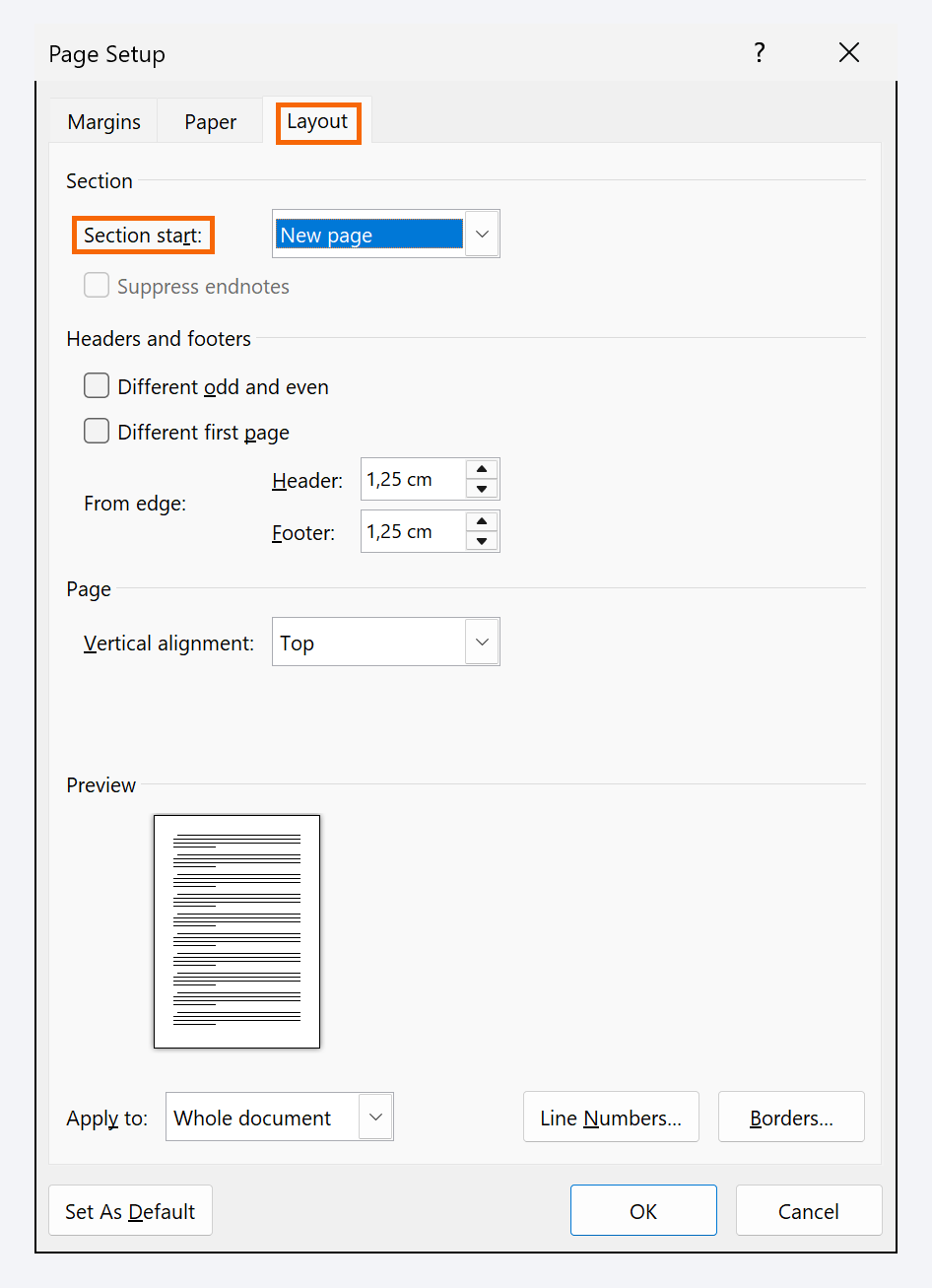
Rather than deleting it, change it: put the cursor in the section that starts after the break, open Layout › Page Setup (launcher icon in the corner of the group), go to the Layout tab and change Section start to Continuous or New page.
If you delete a section break, the text before it takes on the formatting of the following section (margins, orientation, headers). Check the result.
Turn off “Page break before” if it's pushing text
If the page is empty but you see no breaks or extra ¶ marks, the next paragraph may have an option that sends it to a new page. With marks visible, a small black square appears to its left.
Click that paragraph, open the Paragraph dialog, go to Line and Page Breaks and clear Page break before. Also check Keep with next: if many consecutive paragraphs have it, Word moves them all together.

If the option comes from a style (for example, Heading 1 in a template), change it in the style so you don't have to fix paragraph by paragraph.
Check the result before you hand it in
Turn formatting marks off and review the document in File › Print: the preview shows pages exactly as they'll come out, including the ones added by odd or even page breaks. You can also use View › Navigation Pane › Pages to see every thumbnail at a glance.
Expert tips
- Look before you delete. With formatting marks visible you fix in seconds what can take half an hour blind.
- AI text needs a close look. Pasting answers from ChatGPT easily drags in extra blank lines and breaks. Paste as plain text and review with marks visible: how to paste ChatGPT text into Word.
- Use breaks, not Enter. A page break keeps each chapter in place even when you edit earlier text. A row of Enters shifts around and creates blank pages.
- Watch out for double-sided printing. Odd page section breaks exist so every chapter starts on a right-hand page. If that's what you want, that blank page is correct.
Common mistakes and how to fix them
You press Backspace at the end and the table or the last paragraph loses its formatting.
Undo with Ctrl+Z. The ¶ after a table can't be deleted: shrink it to 1 point as in step 4.
You delete a section break and earlier pages change margins or orientation.
Undo with Ctrl+Z and, instead of deleting it, change Section start to Continuous in Page Setup › Layout.
There's no blank page on screen, but it shows up in the PDF or when printing.
Look for an odd or even page section break and change it to New page or Continuous.
In Word for Mac, Show/Hide is the ¶ button on the Home tab (shortcut ⌘+8). The Paragraph dialog is under Format › Paragraph, and you change the section start in Format › Document › Layout tab.
Frequently asked questions
Why can't I delete the last ¶ in the document?
Because Word always needs a final paragraph, and that paragraph stores formatting information for the document. If it follows a table, the fix is to make it tiny (1 point), not to delete it.
Does hiding the empty paragraph work?
Sometimes: select the ¶ and check Hidden in the Font dialog. But hidden text reappears when formatting marks are turned on, so check the result with marks turned off.
What if the blank page is in the middle of the document?
Same method: show the marks and look at the end of the previous page. There's almost always a page break right before a section break, or a row of empty paragraphs.
Saved only in this browser.