Teamwork in Excel: co-authoring, comments, notes and version history
To let several people edit an Excel workbook at the same time, save it to OneDrive or SharePoint, keep AutoSave on and share it with the Share button. Talk in Review › New Comment and mention someone by typing @ and their name. To go back to an earlier version, open File › Info › Version History.
“Budget_v3_final_reviewed_JOHN.xlsx”. If your team emails the workbook around, you know the drill: five copies, edits that overwrite each other and nobody sure which one is right. And the feedback arrives in the email body (“row 47 has the wrong amount”), far from the cell.
Excel solves this with co-authoring: one file in the cloud that everyone edits at the same time, like a shared document. Questions go in comments attached to the cell, with @mentions that email the person. And if someone breaks something, version history gives you back the file as it was yesterday.
In this guide you prepare the file, invite your team, learn when to use comments and when to use notes, and restore an earlier version.
What you'll learn
- What a workbook needs so several people can edit it at once
- How to leave comments, mention someone and resolve threads
- The difference between comments and notes, and when to use each
- How to view and restore an earlier version of the file
Step by step
Save the workbook to OneDrive or SharePoint
Co-authoring only works when the file lives in Microsoft's cloud: OneDrive (personal or work) or a SharePoint or Teams site. Go to File › Save As and choose your OneDrive or your team's site.
Use a modern format: .xlsx, .xlsm or .xlsb. An old .xls file doesn't support co-authoring.

Check that AutoSave is on, then share
At the top left, in the title bar, you'll see the AutoSave switch. With the file on OneDrive or SharePoint it turns on by itself; leave it that way. Every change is saved within seconds and the others see it almost immediately.
Then click Share at the top right. Type your colleagues' email addresses (or copy a link), make sure they're allowed to edit and send the invitation.

If AutoSave is grayed out, the file is saved on your computer or in an old format. Save it to OneDrive as .xlsx.
Edit together and watch who is where
When someone else opens the workbook, their picture or initials appear at the top right, and the cell they're working in is outlined in color. That helps you avoid editing the same area at the same moment.
Everyone can work at their own pace, but the most practical approach is to split the work: “I'll fill in January, you do February”.

If two people change the same cell almost at once, the last change wins. For sensitive data, agree on who edits which column.
Leave a comment on the cell: Review › New Comment
Select the cell you want to ask about and go to Review › Comments › New Comment (or right-click › New Comment). Type your message and click the send button (the arrow).
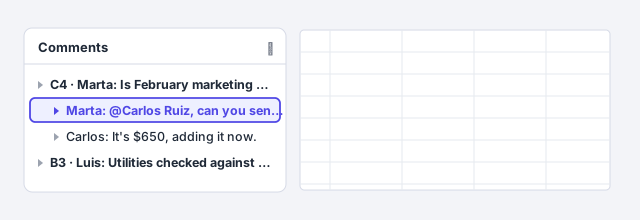
Excel comments are conversations: other people can reply underneath, and every reply is signed with a name and date. The cell shows a small colored marker in the corner.

Mention someone with @ and resolve the thread
Inside the comment, type @ followed by a colleague's name and pick them from the list. They get an email with your message and a link that takes them straight to the cell. If they don't have access to the file, Excel offers to share it.
Once the question is settled, open the thread's … menu and choose Resolve thread. It's archived (you can reopen it), and the Comments button at the top right shows every thread in a pane.
Use a note for standing explanations
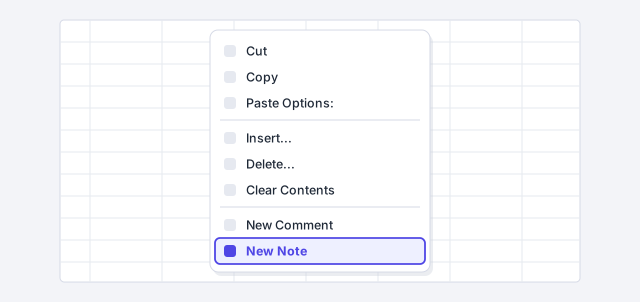
Notes are the classic sticky notes: a yellow box with text, with no replies or mentions. The cell shows a red triangle in the corner. Create one with right-click › New Note or from Review › Notes.
Rule of thumb: a comment to ask someone something; a note to explain something that doesn't change (“Amounts exclude tax”, “Source: accounting”). If you inherit a workbook full of old notes, Review › Notes has an option to convert them to comments.
Open the version history
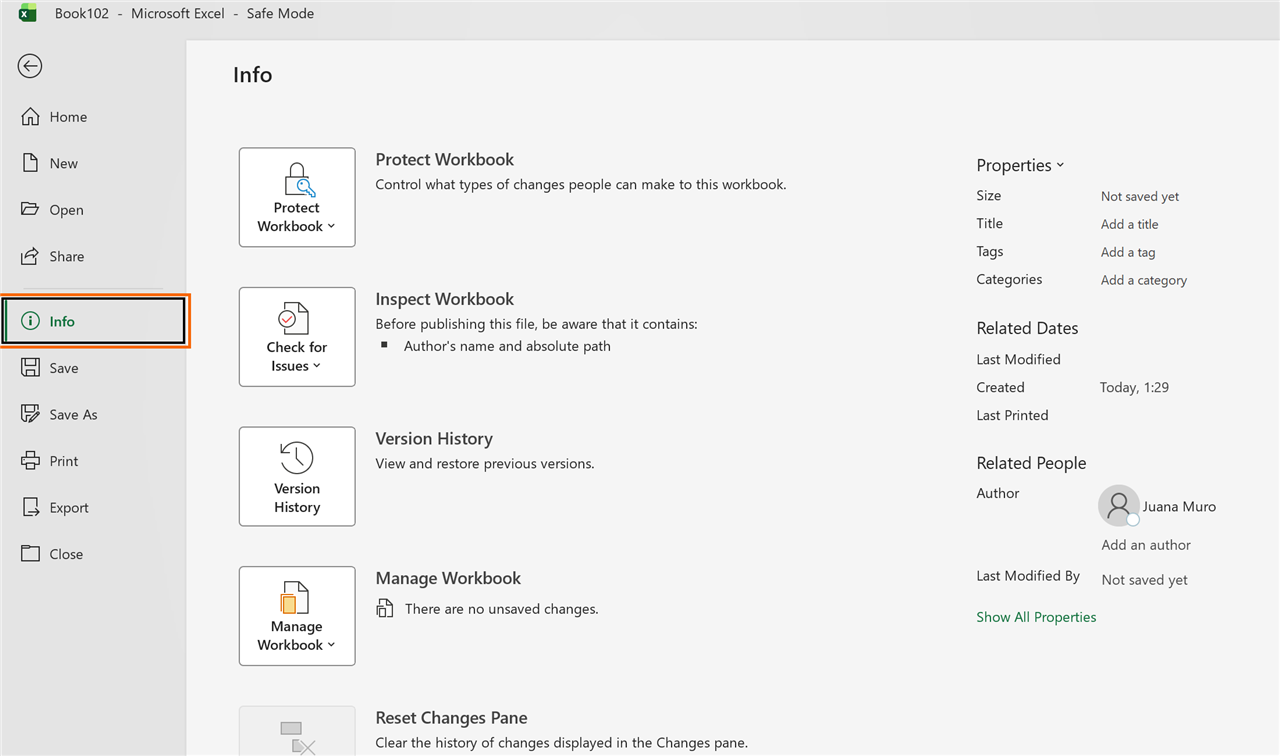
If someone deletes data or breaks a formula, there's no need to redo anything. Go to File › Info › Version History, or click the file name in the title bar and choose Version History.
A pane opens with the saved versions, each with its date, time and the person who changed it.
Open an earlier version, then restore it or copy what you need
In the Version History pane, click Open version under the date you want. It opens in a separate, read-only window. If it's the right one, click Restore in the bar at the top: that version becomes the current one (the version it replaces isn't lost; it stays in the history too).
If you only need a few rows back, copy them from the old version and paste them into the current file: that way you don't undo the work your colleagues did afterwards.

Expert tips
- One source of truth. Always send the link, never the attachment. If someone downloads a copy and edits it, their changes no longer reach the shared file.
- Protect what shouldn't change. In a shared workbook, lock the formulas and leave only the input cells open. We explain how in protect sheets and cells.
- Use Excel tables in shared workbooks. Filters, formulas and formatting extend automatically to new rows that any colleague adds: Excel tables.
- Lawyers and firms: in a shared billing or timesheet workbook, mention the partner responsible for each matter in a comment instead of sending a separate email; the conversation stays next to the figure.
Common mistakes and how to fix them
Colleagues open the file but don't see your changes.
Most likely each person is working on a downloaded or attached copy. Make sure everyone opens the same file from the OneDrive or SharePoint link and that AutoSave is on.
The option to @mention someone doesn't appear.
Mentions work in comments, not notes, and the file must be on OneDrive or SharePoint. If you're in a note, create a new comment instead.
You restore an old version and lose other people's recent changes.
Open the history again: the version you replaced is there too. Next time, copy only the cells you need instead of restoring the whole file.
In Excel for Mac with Microsoft 365, co-authoring, AutoSave, comments with @mentions and notes work the same way. Version history is in the File menu of the Mac menu bar.
Frequently asked questions
Does everyone need Microsoft 365 to edit at the same time?
It works with Excel for Microsoft 365 or Excel for the web (free with a Microsoft account). Older one-time-purchase versions, such as Excel 2016, don't support real-time co-authoring.
What's the difference between a comment and a note?
A comment is a conversation: it allows replies and @mentions and can be resolved. A note is fixed text with no replies, meant for explanations. In older versions of Excel, what are now notes were called “comments”.
What about the old “Share Workbook” option?
It's a legacy feature that Microsoft replaced with co-authoring. It has many limitations and blocks features such as tables. If a workbook has it turned on, turn it off and use OneDrive or SharePoint instead.
How long are versions kept?
It depends on your organization's OneDrive or SharePoint library settings. If you need to keep a specific version (for example, the one delivered to a client), also save a copy with the date in the file name.
Saved only in this browser.