Goal Seek and What-If Analysis: how much do I need to sell to hit the target?
Goal Seek runs a formula backward: you say which result you want and Excel finds the input value that produces it. Go to Data › Forecast › What-If Analysis › Goal Seek..., enter the formula cell in “Set cell”, the number you want in “To value” and the input Excel may change in “By changing cell”. Click OK.
You have a sheet that calculates profit from units sold. Your boss's question, however, runs the other way: “how many units do we need to sell to make $2,000?”. The usual approach is trial and error: 400, 450, 520… until you land on it. It works, but it's slow and you never know if you overshot.
Excel has a tool for exactly this: Goal Seek. Think of it as an assistant that tries numbers for you at full speed. You tell it which cell should reach which value and which input it may change, and a second later you have the answer. It belongs to What-If Analysis, the set of tools for asking “what if…?”, along with the Scenario Manager.
In this guide you calculate a sales target, the largest loan you can take for the monthly payment you can afford, and compare three scenarios without copying the sheet.
What you'll learn
- How to set up the sheet so Goal Seek works the first time
- How to find how much to sell to reach a specific profit
- How to find how much you can borrow for the payment you can afford
- How to save and compare scenarios with the Scenario Manager
Step by step
Build the model: inputs and a result formula
Goal Seek needs two things: an input cell holding a typed number (here, units sold in B2) and a result cell with a formula that depends on it (profit in B6).
With 300 units, a $25 price and a $15 cost per unit, and $3,000 in fixed costs, profit is exactly $0: your break-even point, where you neither make nor lose money.
Units times unit margin, minus fixed costs.

Type the formula and check the result with a calculator before moving on: Goal Seek is only as reliable as your model.
Open Data › Forecast › What-If Analysis
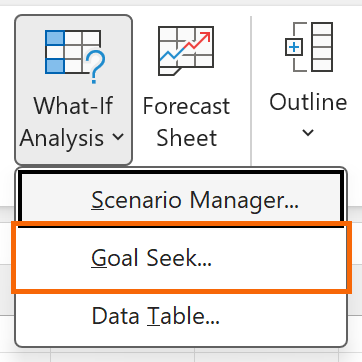
Go to the Data tab. In the Forecast group, click What-If Analysis. A menu with three tools drops down.

Choose “Goal Seek...”
From the menu, choose Goal Seek.... The other two options also answer “what if…?” questions: the Scenario Manager stores sets of values so you can compare them (you'll use it in step 7) and the Data Table calculates a result for many input values at once.
Fill in the three boxes: which cell, which value, what to change
The Goal Seek window opens. Fill it in like this:
- Set cell:
B6, the cell with the profit formula. - To value:
2000, the profit you want. Type it as a plain number, without the $ sign. - By changing cell:
B2, units sold.
Click OK.

“To value” only accepts a typed number, not a reference to another cell. And “By changing cell” must contain a number, not a formula.
Check the solution and decide whether to keep it
Excel tries values and shows the Goal Seek Status window with the target value and the current value. The answer is already on the sheet: 500 units. Check it: 500 × (25 − 15) − 3,000 = $2,000.
Click OK and 500 stays in B2. Click Cancel and the original value (300) comes back. If you think you may want to go back, note the original value first.
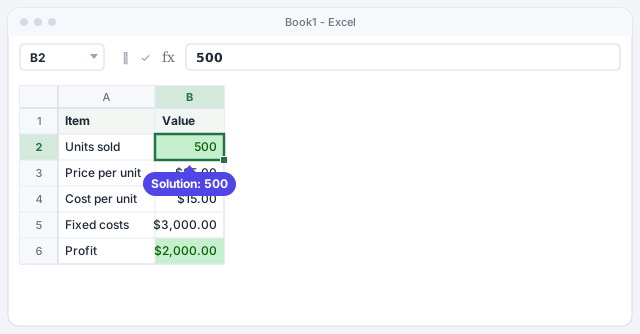
If the result has long decimals (for example 499.9999), that's normal: Excel stops when it's close enough. Round it when you present it.
Use it on a loan: how much can I borrow if I pay $300 a month?
The same technique works for personal or business finance. Put the loan amount in B1 ($10,000), the annual interest rate in B2 (5%) and the number of months in B3 (60). In B4, calculate the payment with PMT: the rate is divided by 12 because you pay monthly, and the amount is negative so the payment comes out positive. The result is $188.71.
Now open Goal Seek with Set cell B4, To value 300 and By changing cell B1. Excel's answer: you can borrow about $15,897.21.
Monthly payment on a loan of B1 dollars at the annual rate in B2 over B3 months.

Compare scenarios with the Scenario Manager
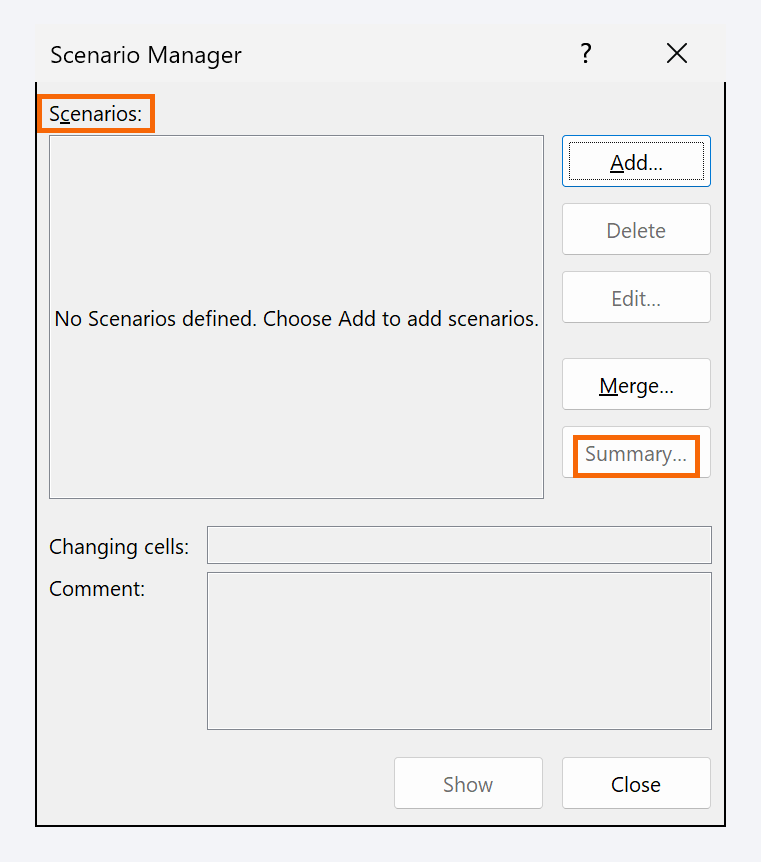
Goal Seek gives you one answer. To compare several assumptions, use Data › Forecast › What-If Analysis › Scenario Manager.... Click Add..., name it (Pessimistic), enter the changing cells (B2) and type its value (250). Repeat with Realistic (400) and Optimistic (600).
Select a scenario and click Show to see the sheet with those values: profit of −$500, $1,000 and $3,000. With Summary..., Excel creates a new sheet with every scenario side by side, ready to present in a meeting.
Expert tips
- Keep inputs and formulas apart. Put the values people may change in one block with a yellow fill and the results in another. That way you always know which cell goes in “By changing cell”.
- Name the key cells. If you name
B6Profit andB2Units, you can type those names in the Goal Seek window and never pick the wrong cell. We explain it in Defined names and LET. - For several unknowns, use Solver. Goal Seek changes only one cell. If you need to change several at once or add limits (“800 units at most”), turn on the Solver add-in in File › Options › Add-ins; it then appears on the Data tab.
- Let AI draft the model, you seek the goal. ChatGPT can suggest the profit or payment formula, but check it against a case you can work out by hand before running Goal Seek. More ideas in asking AI for formulas and checking them.
Common mistakes and how to fix them
Excel says it can't find a solution, or returns an absurd number.
Check that the “Set cell” contains a formula that depends, directly or indirectly, on the cell you're changing. Also try a starting value closer to the answer and run it again.
The window won't accept the cell you want to change.
“By changing cell” must contain a typed value, not a formula. If it holds a formula, change the input cell it depends on instead.
You accept the result and lose the original value.
Goal Seek overwrites the input cell. Before you run it, copy the original value next to it or save the current situation as a scenario in the Scenario Manager.
In Excel for Mac the path is the same: Data tab › What-If Analysis › Goal Seek... The window has the same three boxes.
Frequently asked questions
What's the difference between Goal Seek and a normal formula?
A formula goes from inputs to result. Goal Seek goes the other way: it starts from the result you want and finds the input. It doesn't create a new formula; it only changes the value in one cell.
Does it update automatically if I change the price?
No. Goal Seek calculates once. If you change the price or costs, run it again. If you want a result that recalculates on its own, solve for the unknown with a formula: for example, =(2000+B5)/(B3-B4) returns the units needed to make $2,000.
Can I use it on a real budget?
Yes, as long as the result is a formula that depends on the cell you change. It's very handy for setting a spending cap in a monthly budget.
Is Goal Seek available in every version of Excel?
Yes. Goal Seek and the Scenario Manager have been part of desktop Excel for Windows and Mac for many versions, so these steps work well beyond Microsoft 365.
Saved only in this browser.