Word is acting strangely: reset the Normal template, add-ins and repair Office
If Word acts strangely, start it in Safe Mode (hold Ctrl while opening it, or run winword /safe). If it works there, disable add-ins in File › Options › Add-ins › Manage: COM Add-ins › Go. If it still fails, close Word and rename Normal.dotm in %appdata%\Microsoft\Templates. As a last step, run Quick Repair or Online Repair from Windows Settings.
Word takes a minute to open, crashes when you paste, every new document starts with an odd font, or the ribbon shows buttons you don’t recognize. Reinstalling everything feels like the only way out, but it’s almost never necessary.
Most of these problems come from three places: an add-in (a small third-party program that loads inside Word, like a document management or e-signature tool), the Normal.dotm template (the file every blank document is born from) or the Office installation itself. It’s like a power problem at home: first you check the appliances plugged in, then the breaker box and, only at the end, you call the electrician.
In this guide you follow that order, from the gentlest fix to the deepest, without losing your documents.
What you'll learn
- How to tell whether the problem is the document or Word
- How to start Word in Safe Mode and what the result tells you
- How to disable add-ins without uninstalling anything
- How to reset Normal.dotm without losing your styles
- When to use Office Quick Repair or Online Repair
Step by step
Find out whether one document or all of Word is failing
Create a blank document and repeat whatever goes wrong. If the new document behaves, the problem is in that specific file, not in Word: copy its content into a new document (everything except the last paragraph mark, which stores some formatting) and keep working there.
If the blank document fails too, the problem is Word. Continue with the next steps, in order.

Start Word in Safe Mode
Close Word. Hold down Ctrl while you double-click the Word icon and answer Yes when it asks whether to start in Safe Mode. Or press Windows+R, type winword /safe and press Enter.
In Safe Mode, Word starts without add-ins and without your customizations. The title bar says so. If the problem disappears there, the culprit is almost certainly an add-in or Normal.dotm.

Safe Mode is for diagnosis only: it doesn’t save changes to your template and some features are unavailable. Close it and reopen Word normally when you’re done testing.
Disable COM add-ins
Open Word normally and go to File › Options › Add-ins. At the bottom, under Manage, choose COM Add-ins and click Go…. Clear every check box and click OK. Nothing is uninstalled: they just stop loading.
Restart Word. If it works, turn them back on one at a time, restarting each time, until you find the faulty one. Then update it or contact whoever installed it.
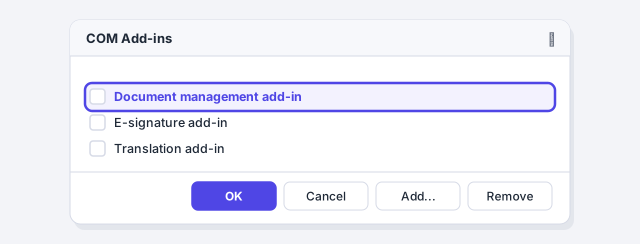
On company computers, some add-ins (document management, e-signature, company templates) are required. If you disable them to test, tell your IT department before leaving them off.
Check Disabled Items
When Word crashes, it sometimes disables a problematic add-in or file on its own. In File › Options › Add-ins › Manage, choose Disabled Items and click Go….
If something you need is listed, select it and click Enable. If the problem comes back, you know what’s causing it.

Close Word and rename Normal.dotm
Close every Word window (and Outlook, which uses Word as its editor). Press Windows+R, type %appdata%\Microsoft\Templates and press Enter. Your templates folder opens.
Rename Normal.dotm to Normal-old.dotm. Don’t delete it. When you open Word, it creates a fresh, clean Normal.dotm with factory settings.

Normal.dotm stores your custom styles, macros, custom keyboard shortcuts and AutoText entries. If you reset it, they disappear from the new Word, but they’re still inside the renamed file.
Bring back your styles or macros if you need them
If the clean Word works, you can bring over only what you need from the old file. Open the Styles pane (launcher in Home › Styles), click Manage Styles and, at the bottom, Import/Export…. The Organizer opens.
On the right side, close the current file and open Normal-old.dotm. Select the styles you want to keep and copy them to Normal.dotm. If the problem returns after copying one, that was the damaged style.

If a fresh Normal.dotm didn’t fix the problem, the template wasn’t the culprit: with Word closed, delete the new one and rename Normal-old.dotm back to Normal.dotm.
Repair Office from Windows Settings
If nothing above works, repair the installation. Close all Office apps and open Settings › Apps › Installed apps. Find Microsoft 365 (or Office), click the three dots ⋯ and choose Modify.
- Quick Repair: takes a few minutes and works offline. Try it first.
- Online Repair: fully reinstalls Office, takes longer and needs an internet connection. Use it if Quick Repair isn’t enough.
Your documents aren’t touched.

Expert tips
- Back up Normal.dotm today. While everything works, copy the file to another folder. If it ever breaks, swap it in with Word closed and you have everything back.
- Don’t keep everything in Normal.dotm. A firm’s or company’s styles are better off in their own template: how to create a company template.
- Broken recent list. If File › Open shows files that no longer exist, right-click one in the list and choose Remove from list or Clear unpinned items.
- Ask AI the right way. If you ask an assistant for help, tell it your Word version, exactly what fails and what you’ve already tried (Safe Mode, add-ins, template). The answers will be far more useful.
Common mistakes and how to fix them
You rename Normal.dotm, open Word and nothing changes.
Word (or Outlook) was still running and wrote the file again. Close everything, check Task Manager for any remaining Word process and try again.
You can’t find the Templates folder.
It’s inside AppData, which is a hidden folder. Type the exact path in Windows+R instead of browsing for it.
You deleted Normal.dotm and lost your styles and macros.
That’s why renaming is safer. If you already deleted it, check the Recycle Bin, or OneDrive version history if the folder is synced.
On a Mac there’s no Ctrl Safe Mode and no repair from Settings. Normal.dotm is in ~/Library/Group Containers/UBF8T346G9.Office/User Content/Templates: rename it with Word closed. If you need a repair, reinstall Office from Microsoft’s installer or the App Store.
Frequently asked questions
Will I lose my documents if I repair Office?
No. Repair only touches program files. Your documents, on your computer or in OneDrive, stay where they are.
What do I lose when I reset Normal.dotm?
Whatever you saved in that template: modified styles, macros, custom shortcuts and AutoText. Ribbon and Quick Access Toolbar customizations are stored in a different file, so they’re usually kept. More in the Normal.dotm template and style sets.
Word only fails with one specific document. What should I do?
Copy the content into a new document, without the last paragraph mark, and save it under a new name. If you lost work, see how to recover an unsaved document.
How often should I do this?
Only when there’s a problem. Resetting or repairing for no reason doesn’t speed up Word or prevent crashes.
Saved only in this browser.